 Dipper Field
The camera reads two kinds of label for you: a code that goes into a form, such as a meter number, and the tag on an asset you've come to inspect.
Before you start
- To scan into a form: a record type with a field whose Answer format is Scanned code. See answer types.
- To find an asset: a record type kept as an asset. See set up inspections and intervals.
- Camera allowed for Dipper Field. See allow location, camera and Bluetooth.
Scan a code into a form
In the form, tap the scan button beside the field.
A Scanned code field is a text box with a scan button on its right.
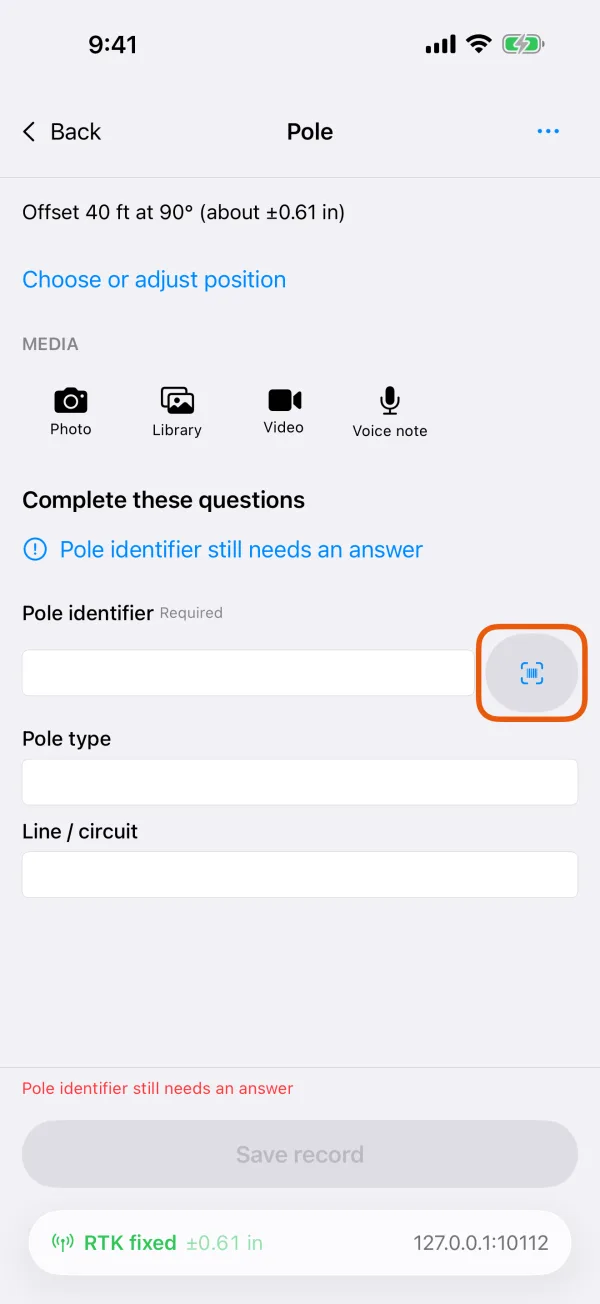
A Scanned code field with its scan button. 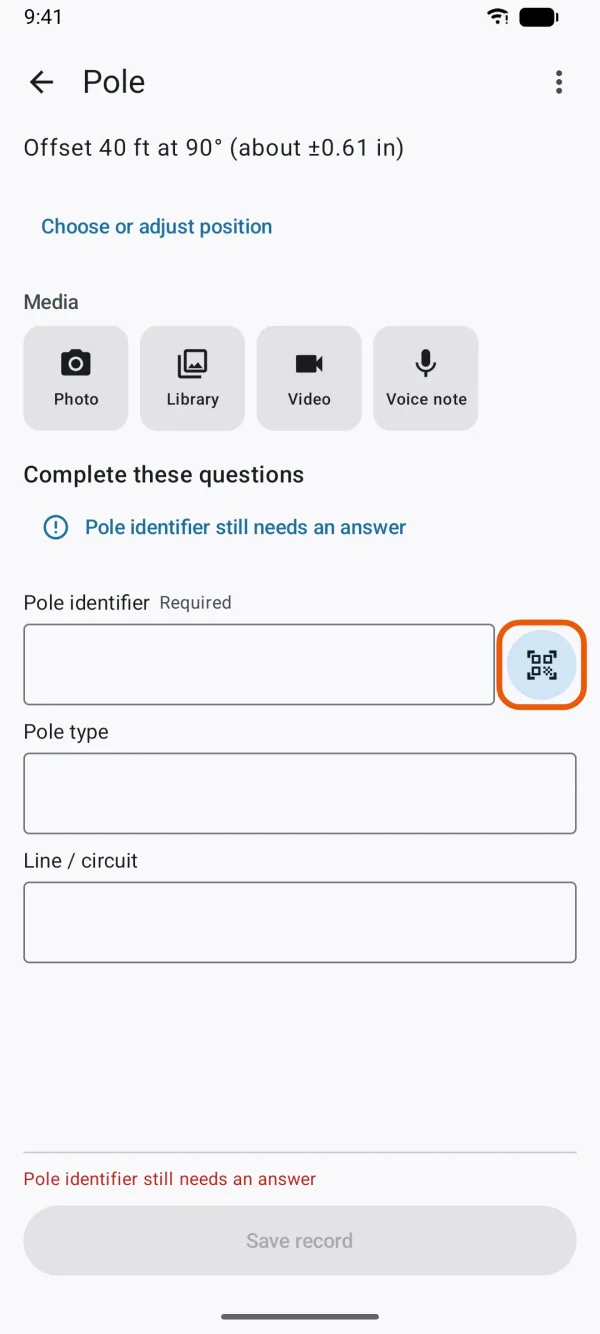
A Scanned code field with its scan button. Hold the code inside the camera view.
On iPhone, the scanner says Place a QR code or barcode inside the camera view. The first code it reads goes into the field, and the scanner closes.
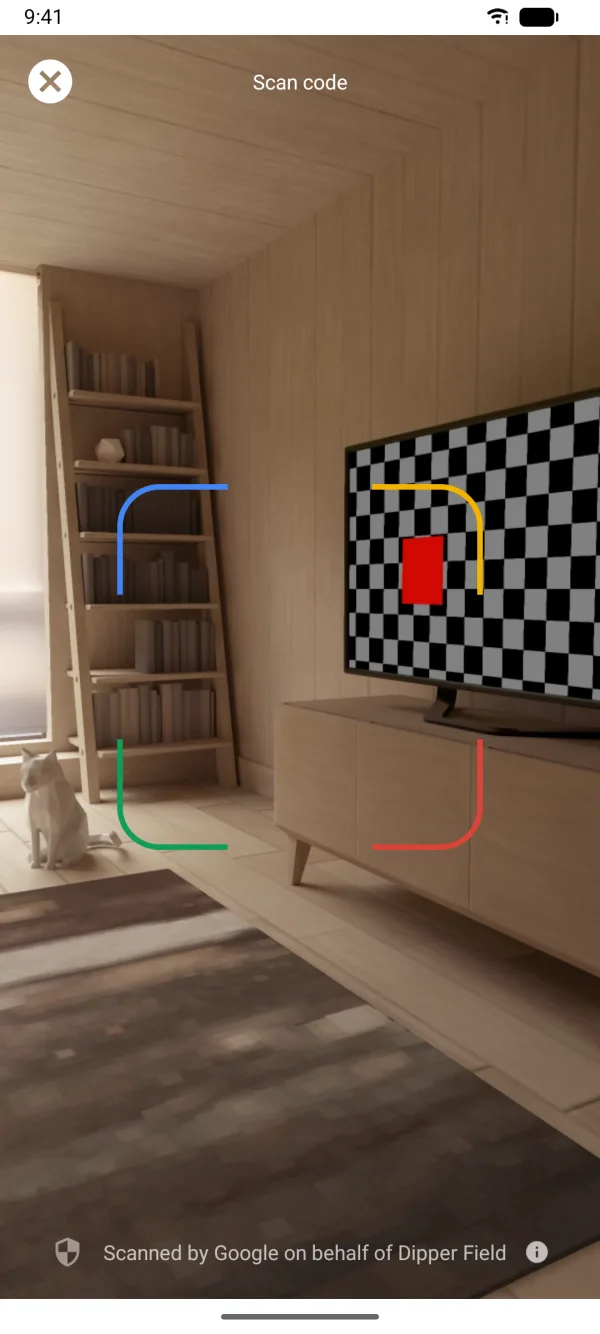
The scanner, waiting for a code. Check the code in the field.
You can still edit it, or type a code without scanning.
On Android, the scanning screen comes from Google Play services, so it looks a little different from the rest of the app.
What it reads
- QR codes and common barcodes. On iPhone: QR, Data Matrix, PDF417, Aztec, EAN-8, EAN-13, UPC-E, Code 39, Code 93, Code 128, Interleaved 2 of 5 and ITF-14.
- The code is kept as plain text, exactly as it reads, without spaces at the start or end. A web address in a QR code is only stored, never opened.
If it doesn't scan
- On iPhone without camera access, the scanner says Camera access is needed to scan a code. You can still enter it manually. Tap Open camera settings to allow it.
- On Android, if nothing is read, the form says The code could not be read. Try again or enter it manually.
Find an asset by its label
Open the Work tab, tap Inspections, then Find an asset.
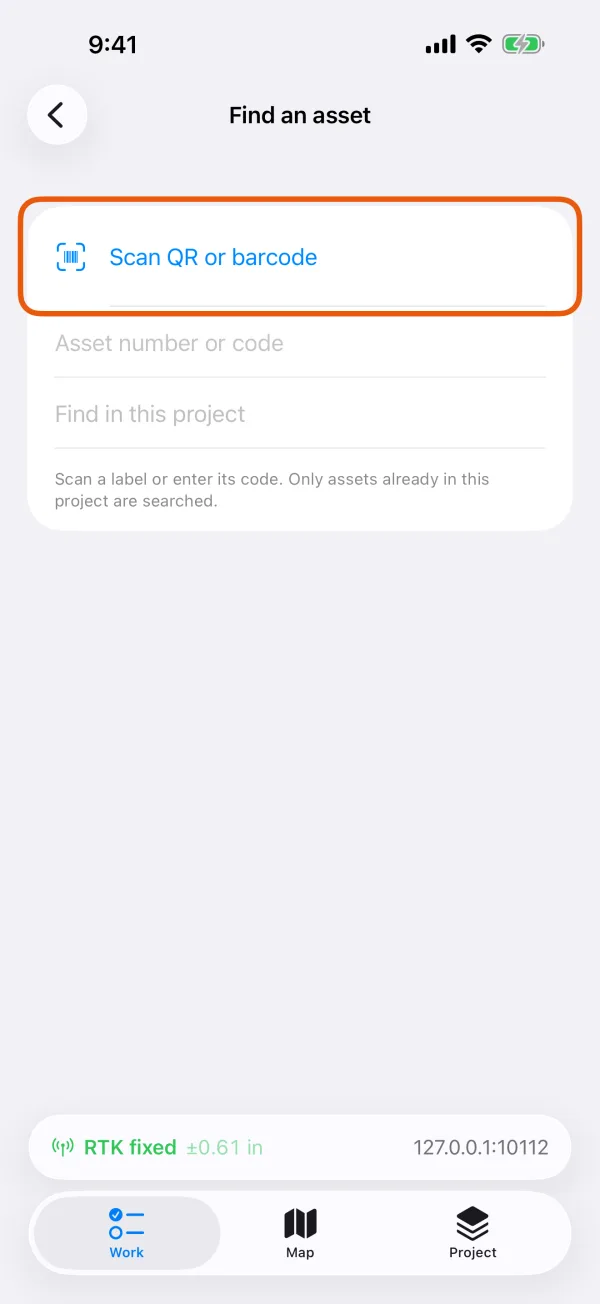
Find an asset, with Scan QR or barcode and the code field. 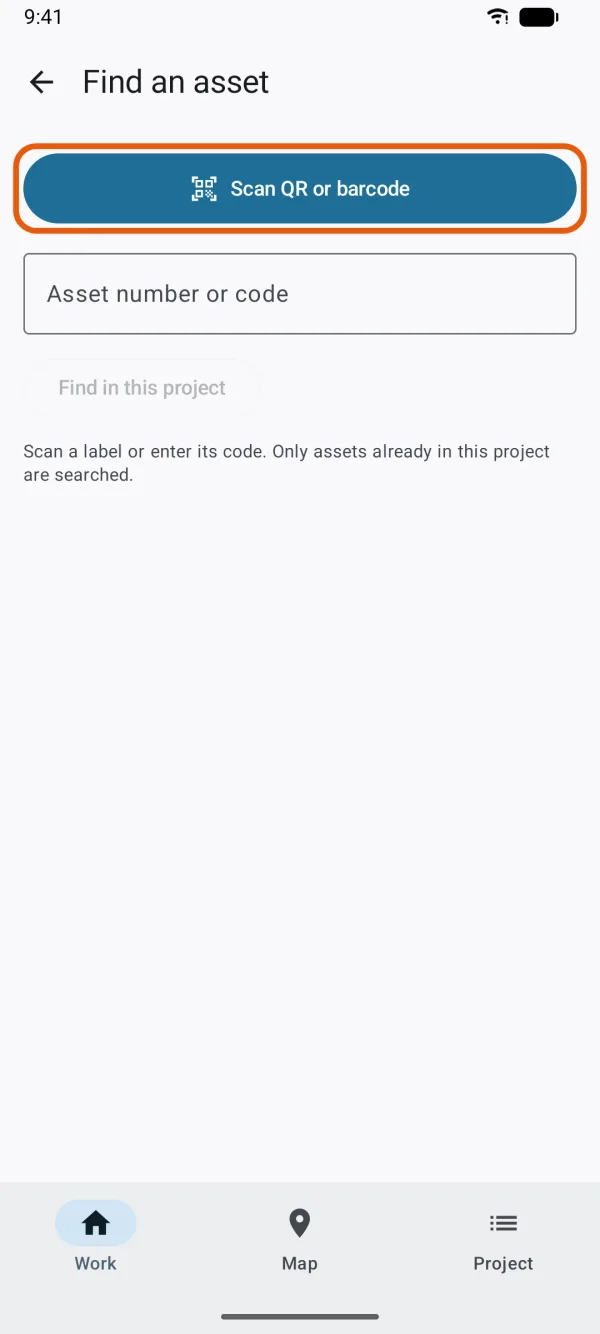
Find an asset, with Scan QR or barcode and the code field. Tap Scan QR or barcode, or type the code.
A scanned code is searched straight away. A typed one goes in Asset number or code; then tap Find in this project.
Open the asset.
A single match opens the asset's page, where you can inspect it. If several assets share the code, the page says Several assets share this code. Choose the one you are inspecting. and lists them.
What Find an asset searches:
- Only assets already in this project: Scan a label or enter its code. Only assets already in this project are searched.
- In each asset: the field that is the record type's ID, every Scanned code field, and the record's own record ID.
- The whole code must match. Leading zeros count: 007 doesn't find 7.
With no match, it says No matching asset. Check the label and that you opened the right project. With more matches than it lists, it says There are more matches. Check the asset details carefully before choosing.