 Dipper Field
A field's rules are checked on the phone or tablet while the form is filled in, so they work offline too. A new record can't be saved until its answers follow them.
Open a field's settings
Open the record type's fields.
While you create a project: on Record types, tap the record type. In a project you already have: open the Project tab, tap Project contents, then tap Edit fields under the record type.
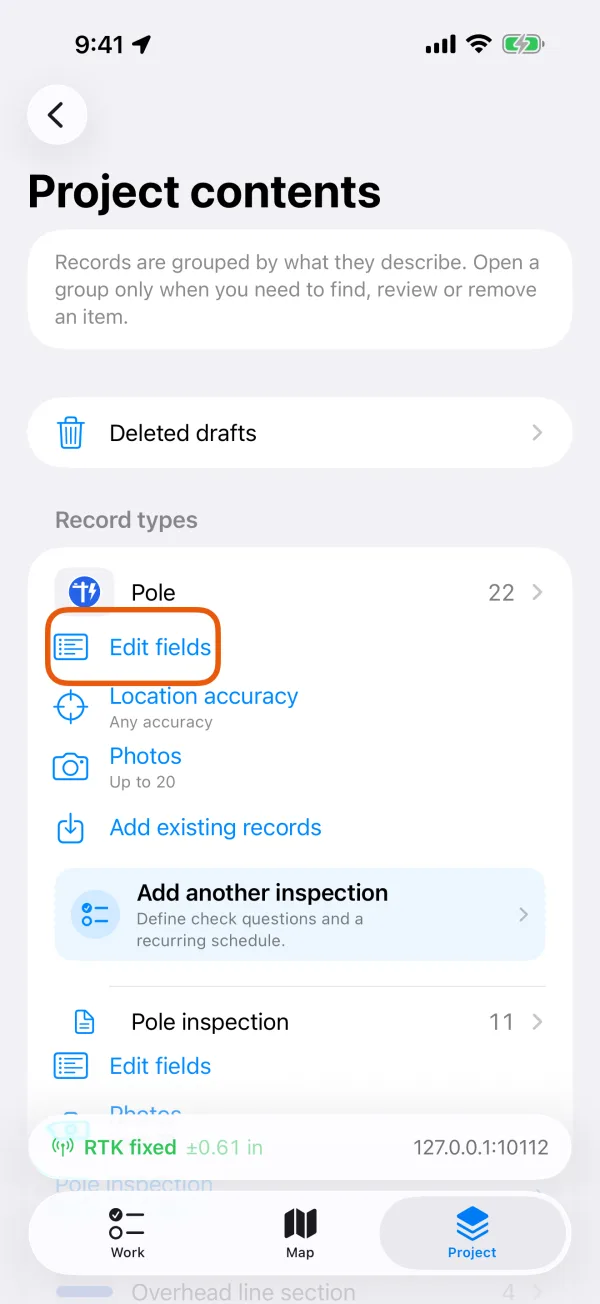
Edit fields under a record type. 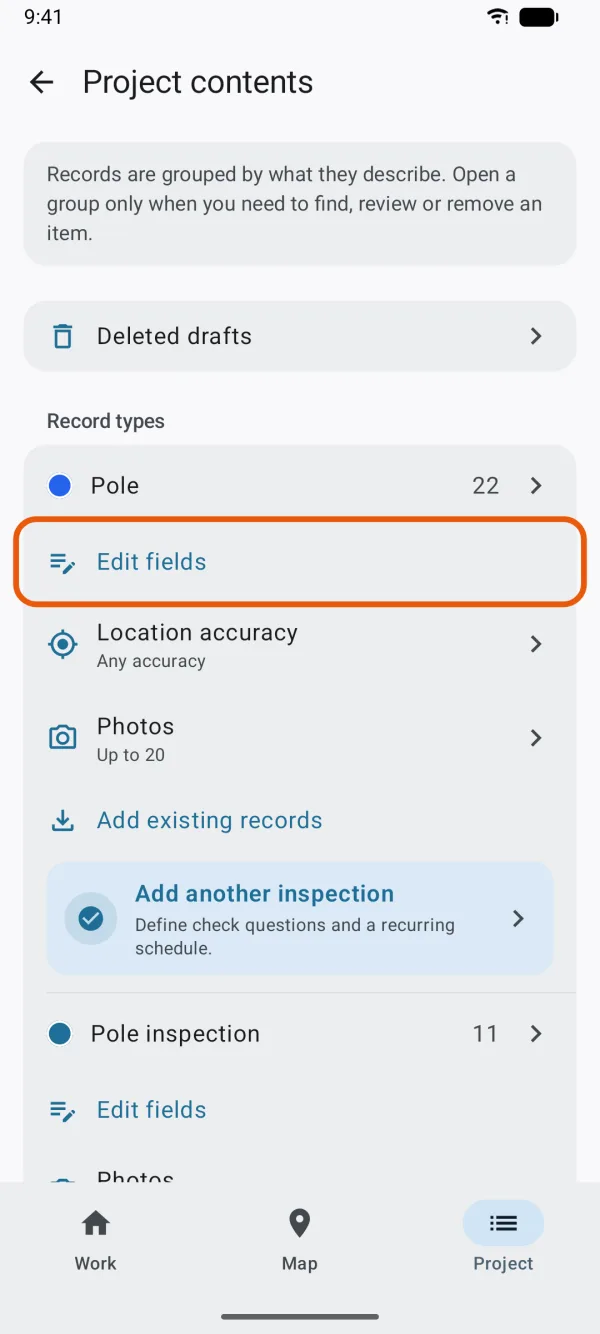
Edit fields under a record type. Tap the field.
The rules are on the same page as its Answer format. When you've set them, tap Done.
In Edit fields, a change applies to records you add or edit from then on. Answers already collected are kept.
Make a field required
Turn on Must be answered, just below Answer format.
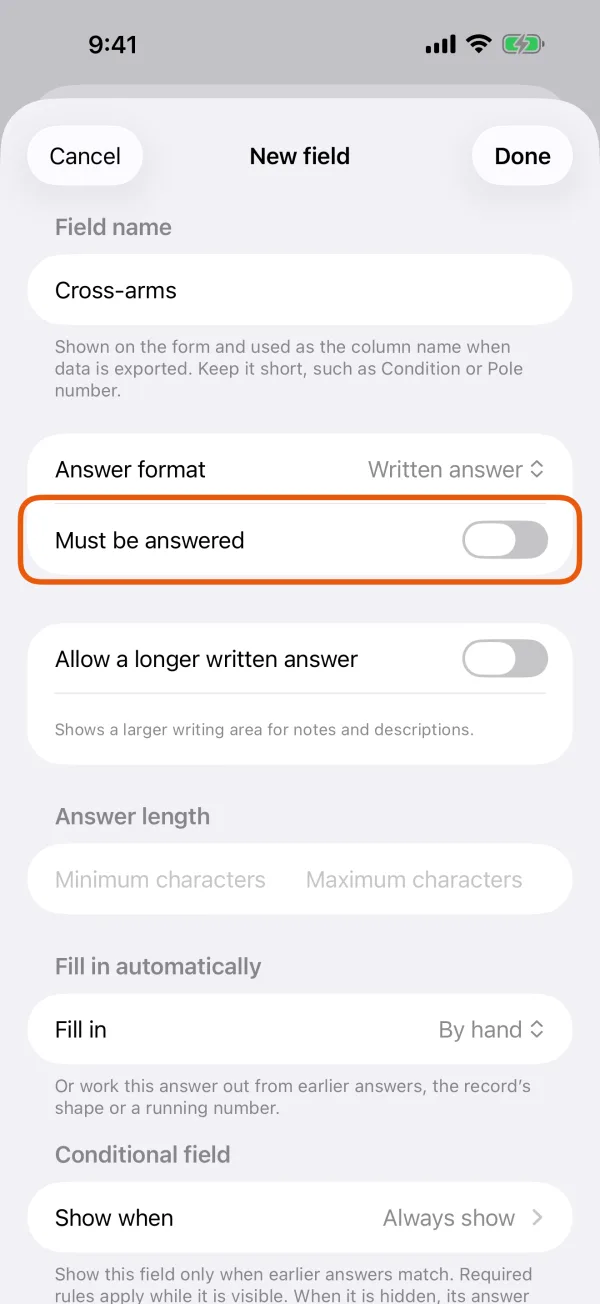
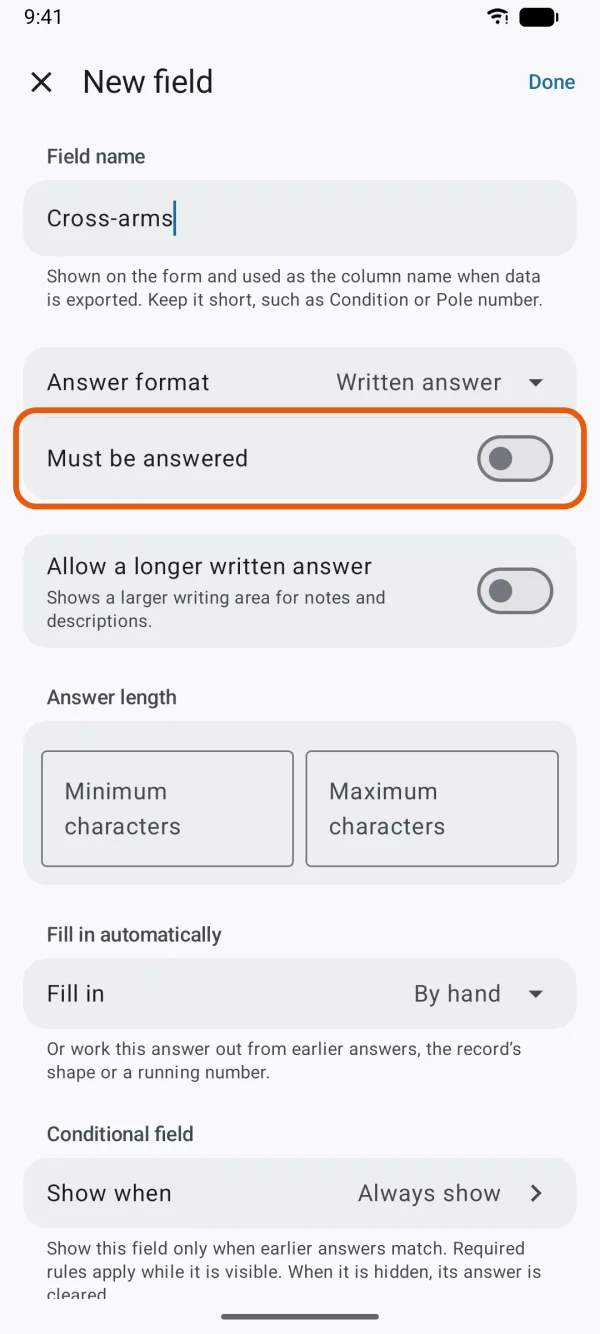
On the form, the field is marked Required. Until every required field has an answer, the top of the form lists what's missing under Complete these questions, and Save record stays grayed out. Tap a line in the list to jump to that field.
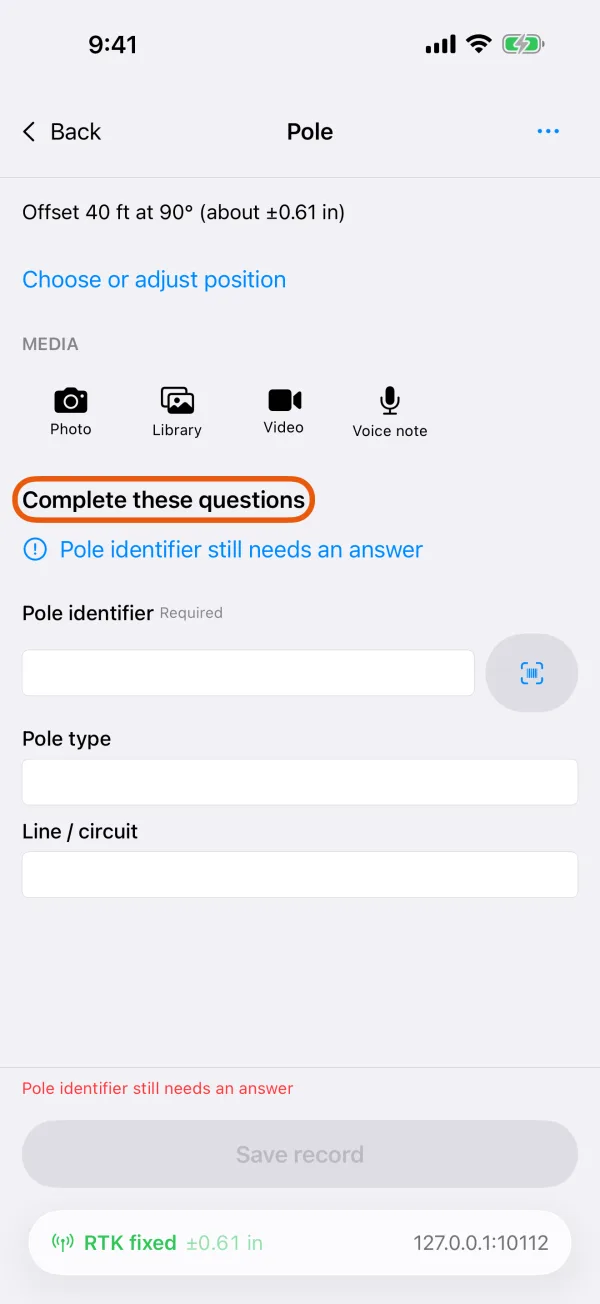
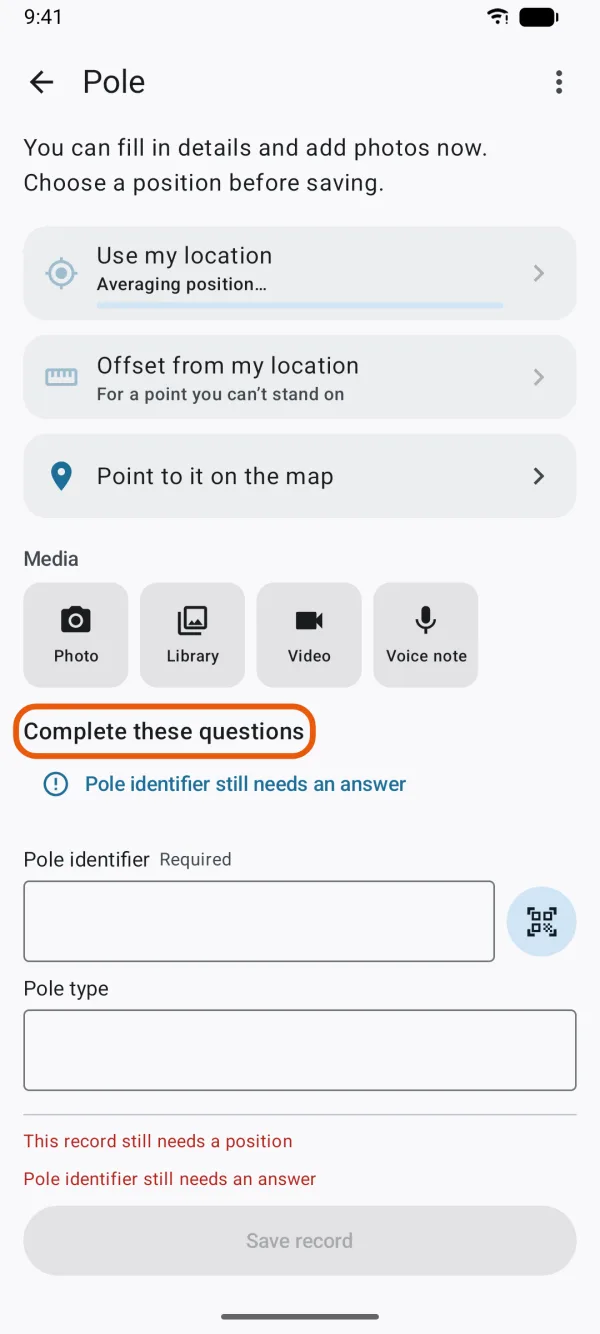
A field that's hidden because of its condition isn't required while it's hidden. See Show questions only when they apply.
Keep a number within a range
For a Number field, fill in At least, At most or both under Number range. Leave a side empty when there's no limit.
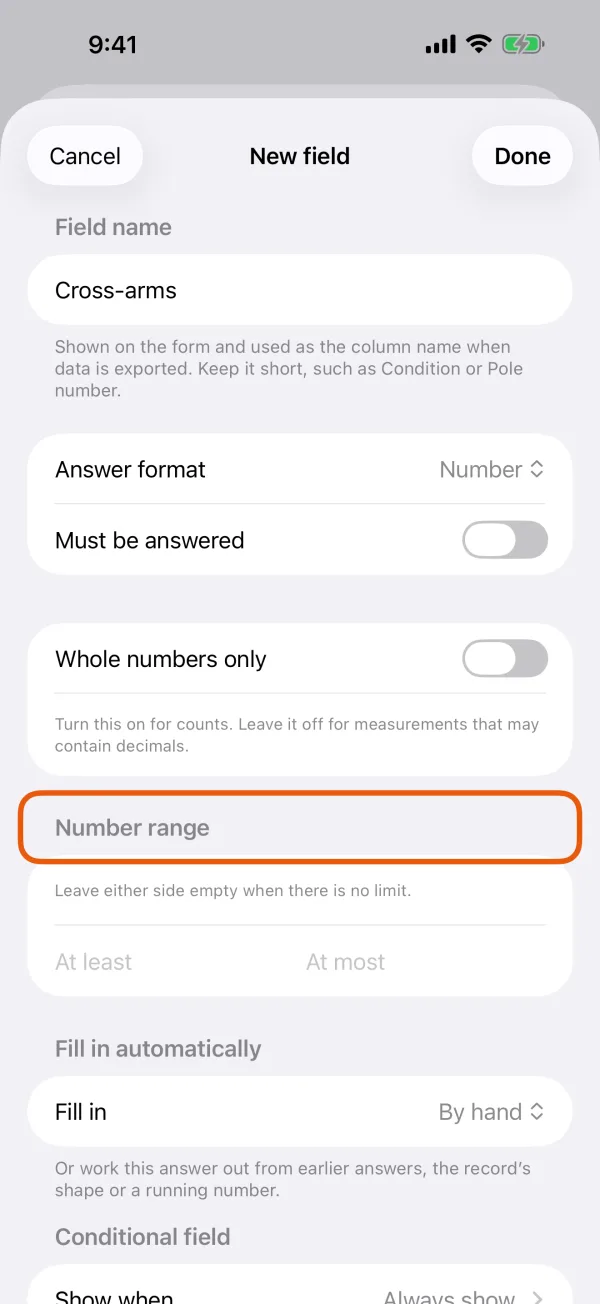
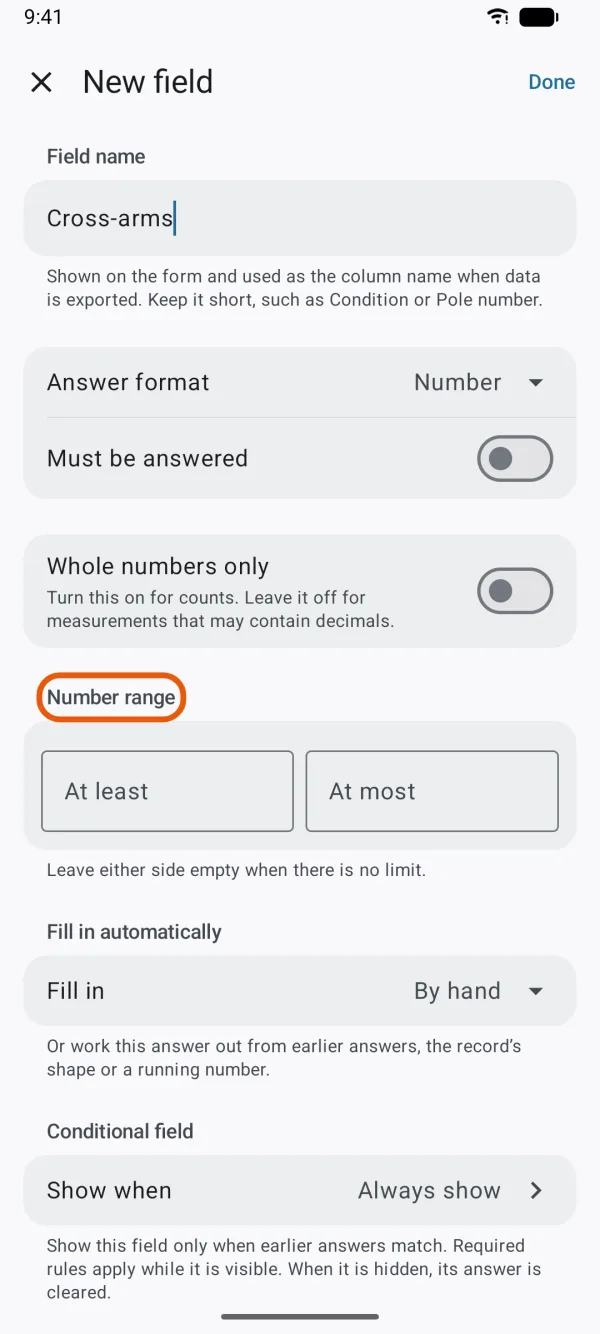
A number outside the range is listed with the reason, such as Depth must be at least 0. With Whole numbers only on, a number with decimals is listed as … needs a number.
Limit the length of a written answer
For a Written answer or Scanned code field, fill in Minimum characters, Maximum characters or both under Answer length. An answer that's too short or too long is listed, such as Notes needs at least 10 characters.
An empty answer is never too short. To make sure there's an answer at all, also turn on Must be answered.
Don't allow the same answer twice
Turn on Each answer must be different: a completed answer can't be used twice within one record type. Empty answers don't count.
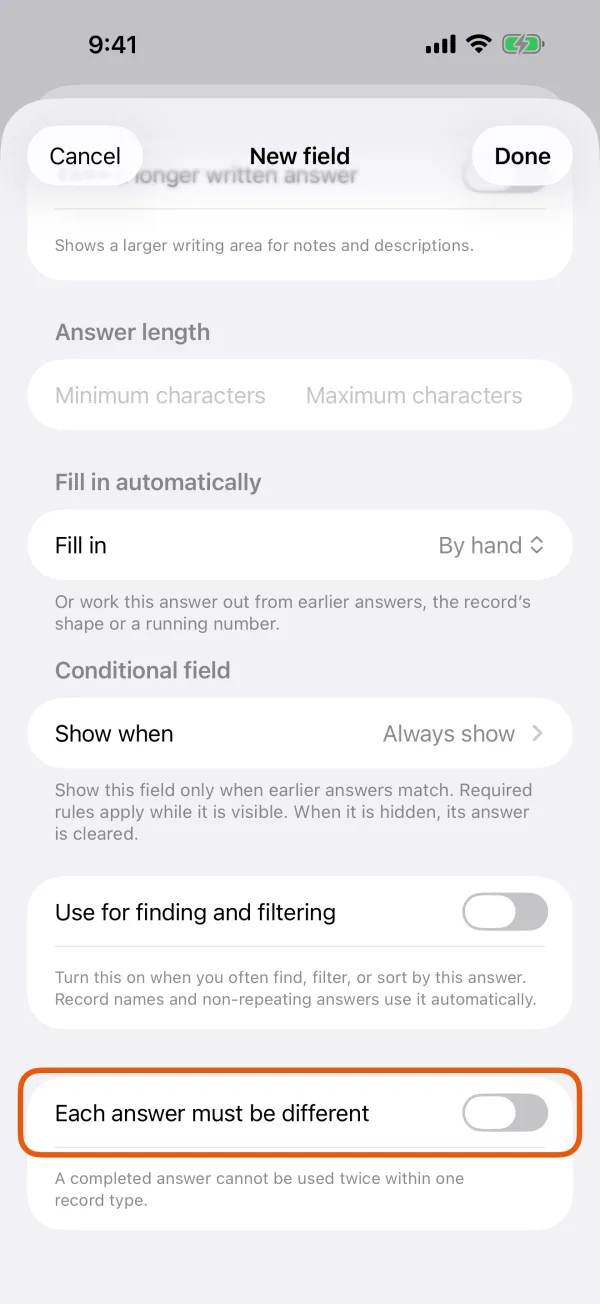
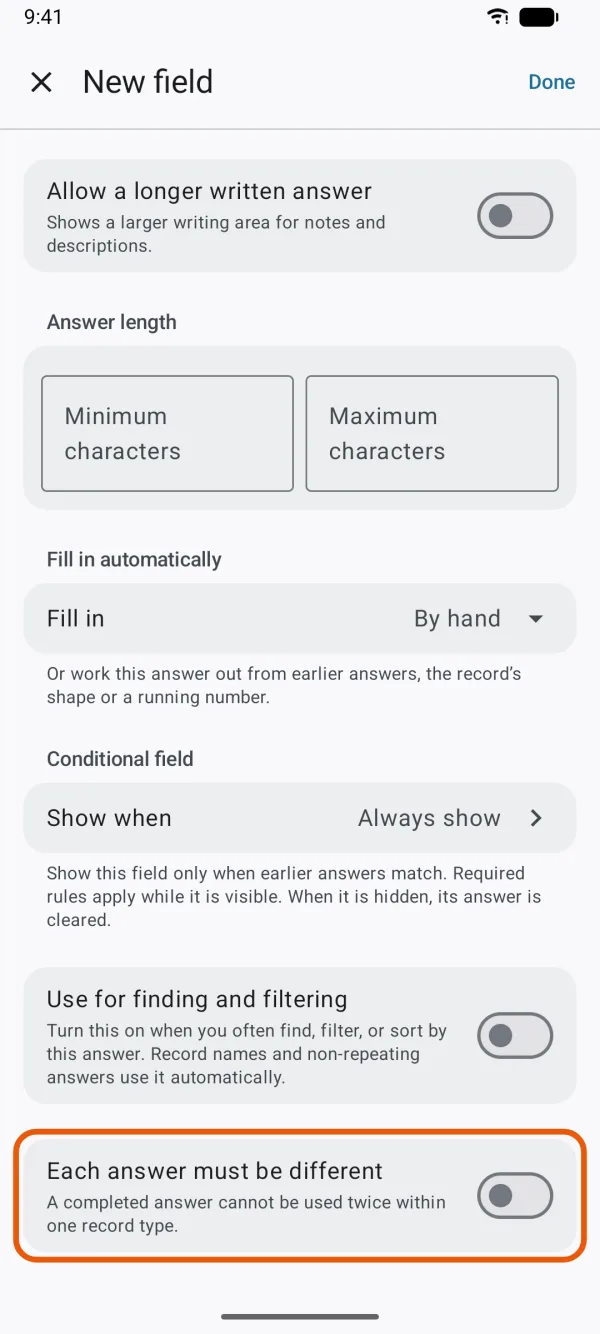
- It's offered for Written answer, Number, Date, Scanned code and Pick from a list with one choice allowed.
- It turns on Use for finding and filtering too, which you'd also turn on for any answer you often find, filter or sort by.
- If another record of the same type already has the answer, the new record isn't saved. Change the answer and tap Save record again.
- Turning it on in Edit fields when some records already share an answer shows Some records already have the same answer for "…". Change those answers first, then try again.
- These answers are never carried over to a new record, by Keep answers for next record… or Duplicate as new record.
The ID of a record type
While you create a project, a Written answer or Scanned code field can be the record type's ID with Use as the ID: the thing's own number, such as a hydrant number. A scanned or typed code is matched against it, and it names the record in lists and search.
- Turning it on also turns on Must be answered and Each answer must be different, which then stays on: An ID is never repeated, so this stays on.
- A record type has one ID. Turning it on for another field moves the ID there.
- Use as the ID isn't offered in Edit fields, and the ID field of an existing project can't be removed.
Rules for the whole record
Under a record type in Project contents you'll also find rules for the record as a whole:
- Location accuracy warns about, or doesn't allow saving, a position worse than a limit. See Record only with RTK fixed, averaging and antenna height.
- Photos sets how many photos a new record needs and how many it allows.