 Dipper Field
Every field of a record type has an Answer format. It decides what the person collecting types or picks on the form, and what kind of value the field holds in your exported data.
Set a field's answer format
Open the record type's fields.
While you create a project: on Record types, tap the record type. In a project you already have: open the Project tab, tap Project contents, then tap Edit fields under the record type.
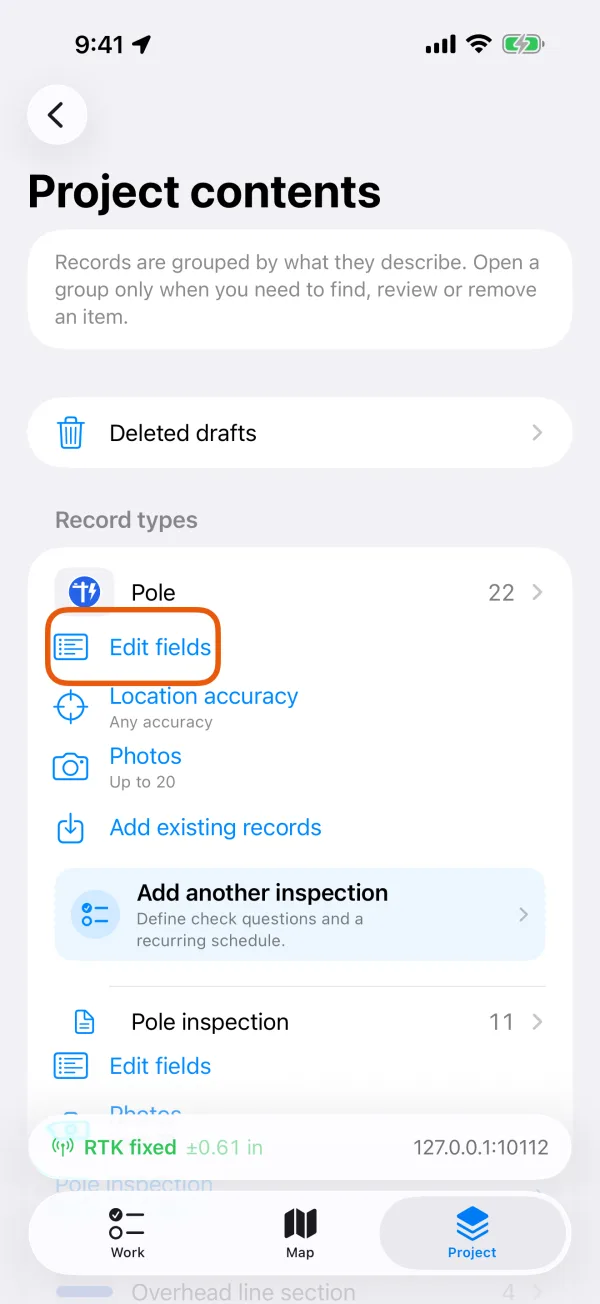
Edit fields under a record type. 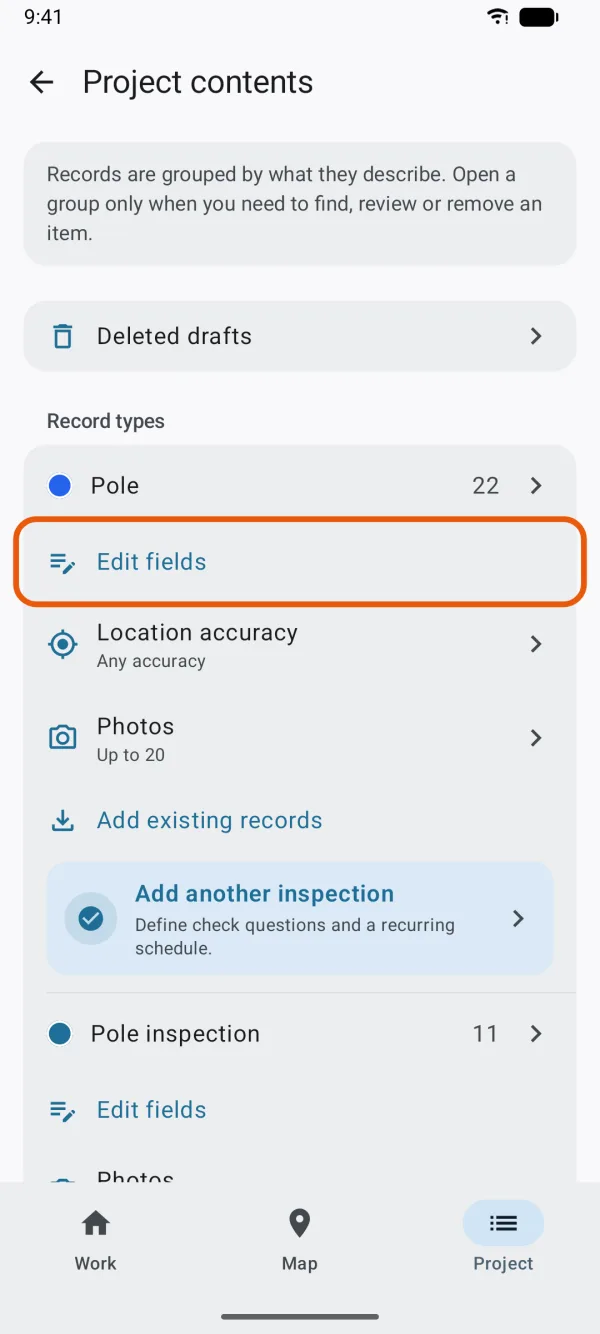
Edit fields under a record type. Tap a field, or tap Add a field.
Enter the Field name.
It's the label on the form and the column name when data is exported, so keep it short, such as Condition or Pole number.
Choose the Answer format.
The settings below it change to suit the format.
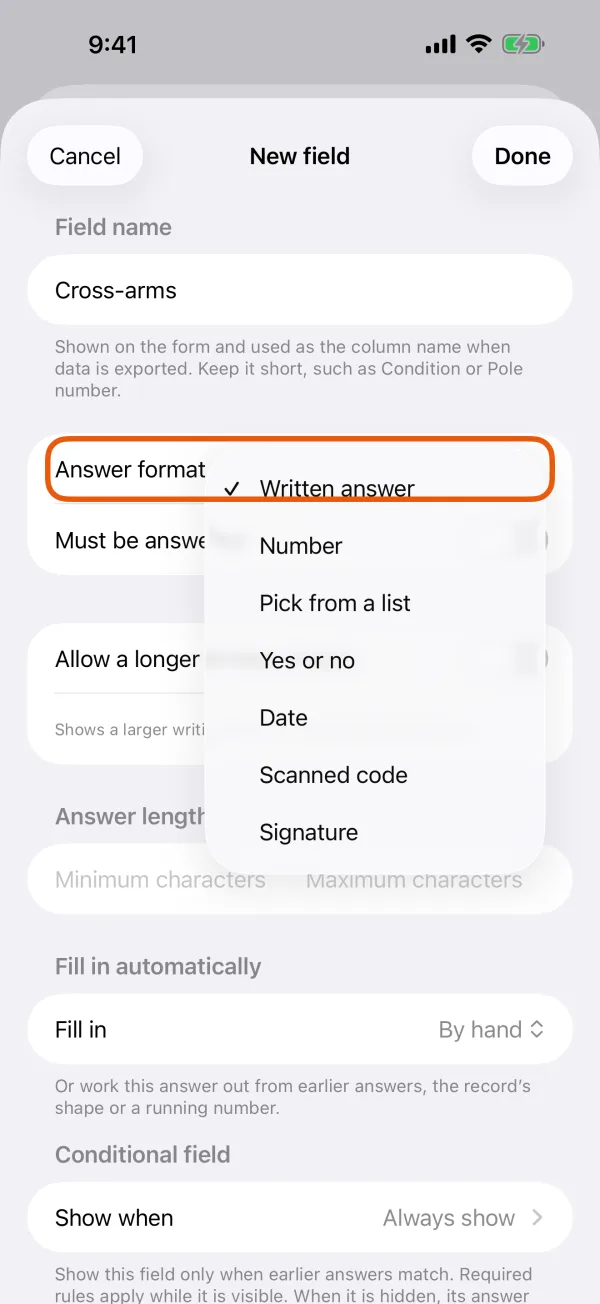
The answer formats to choose from. 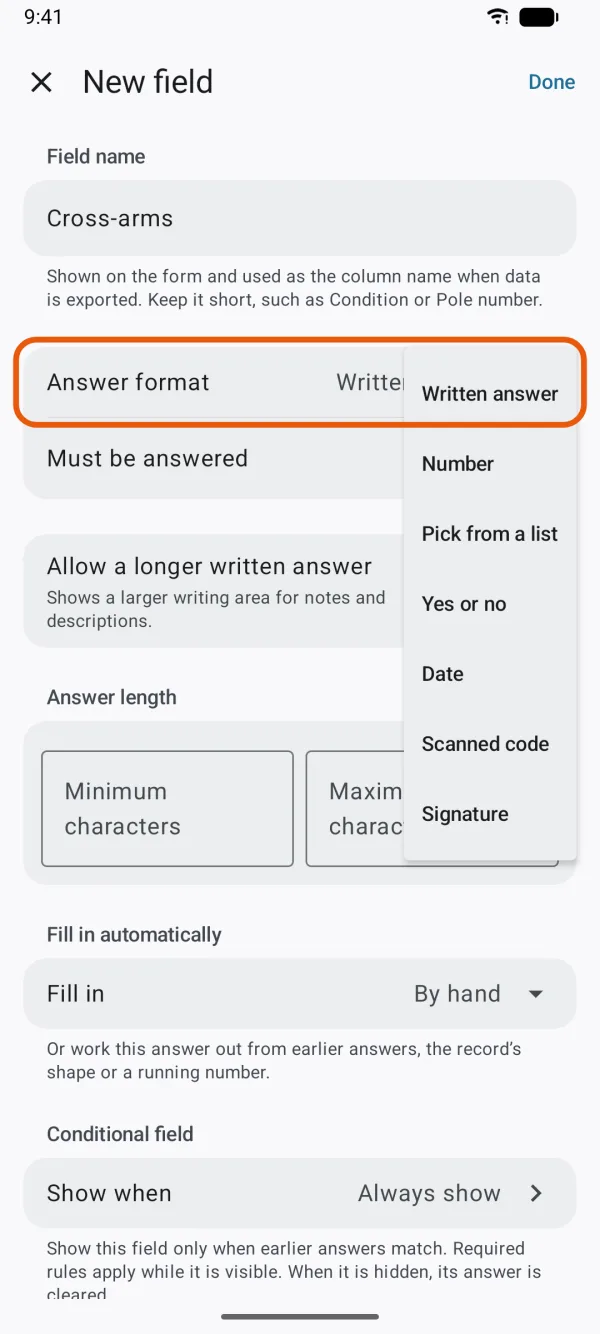
The answer formats to choose from. Tap Done.
The answer formats
| Answer format | On the form |
|---|---|
| Written answer | A text box. |
| Number | A box with a number keypad. |
| Pick from a list | One large button for each choice. |
| Yes or no | Three buttons: Not answered, Yes and No. |
| Date | Choose a date opens a calendar. |
| Scanned code | A text box with a scan button beside it. |
| Signature | A Sign button. |
Written answer
- One line by default. Turn on Allow a longer written answer for notes and descriptions: the form shows a larger writing area.
- Answer length sets the fewest and most characters allowed. See Required answers, ranges and unique values.
- While you type in one, a map pin button appears beside it to fill in the record's address or coordinates. See Fill in answers automatically.
Number
- Turn on Whole numbers only for counts. Leave it off for measurements that may have decimals.
- Number range sets the smallest and largest number allowed.
- A comma typed as the decimal mark is saved as a point, so 12,5 becomes 12.5.
- For a negative number, iPhone shows a ± key above the keypad, and Android a ± button at the end of the box while you type. It's there when the field allows numbers below zero.
- A number with a unit shows the unit after the field's name, such as Pipe diameter (in). A field from a built-in template in inches or millimeters has a Measurement units choice, Imperial · in or Metric · mm, while you set up the project.
Pick from a list
- Type the choices under Answer choices, one per line. A list needs at least two.
- A comma also starts a new choice, so a choice can't contain a comma.
- Turn on Allow more than one choice for a list of check boxes. With it off, only one choice can be picked; tap the chosen one again to clear it.
- If you take a choice out of a field later, records that already have that answer keep it.
Yes or no
- The answer starts as Not answered unless the field gives it a starting answer. Some built-in templates start these at No.
- When the field is required, Yes or No must be picked.
Date
- Tap Choose a date and pick the day. Clear answer empties it.
- A field you add with Date holds a date. Some built-in templates have a date-and-time field instead, such as Observed / sampled at, which starts at the current date and time. On Android you pick its date, then its time.
Scanned code
- Type the code, or tap the scan button to read a QR code or barcode with the camera. See Scan QR codes and barcodes.
- What you type isn't corrected or capitalized, so the code stays exactly as written.
- It's the usual choice for the ID of a record type, such as a hydrant number or pole tag.
Signature
- Tap Sign, sign above the line with your finger, and tap Done. Sign again replaces the signature, and Clear removes it.
- The signature is saved as an image with the record. It doesn't count toward the photos a record type asks for.