 Dipper Field
A template is a project's setup without its data. Only record types, fields and collection rules are saved. Records and media are never included, so a template is small and safe to send.
Dipper Field comes with 42 templates on 8 industry shelves. Templates you save or import go into My templates.
Save a project's setup as a template
Open the project's Project tab.
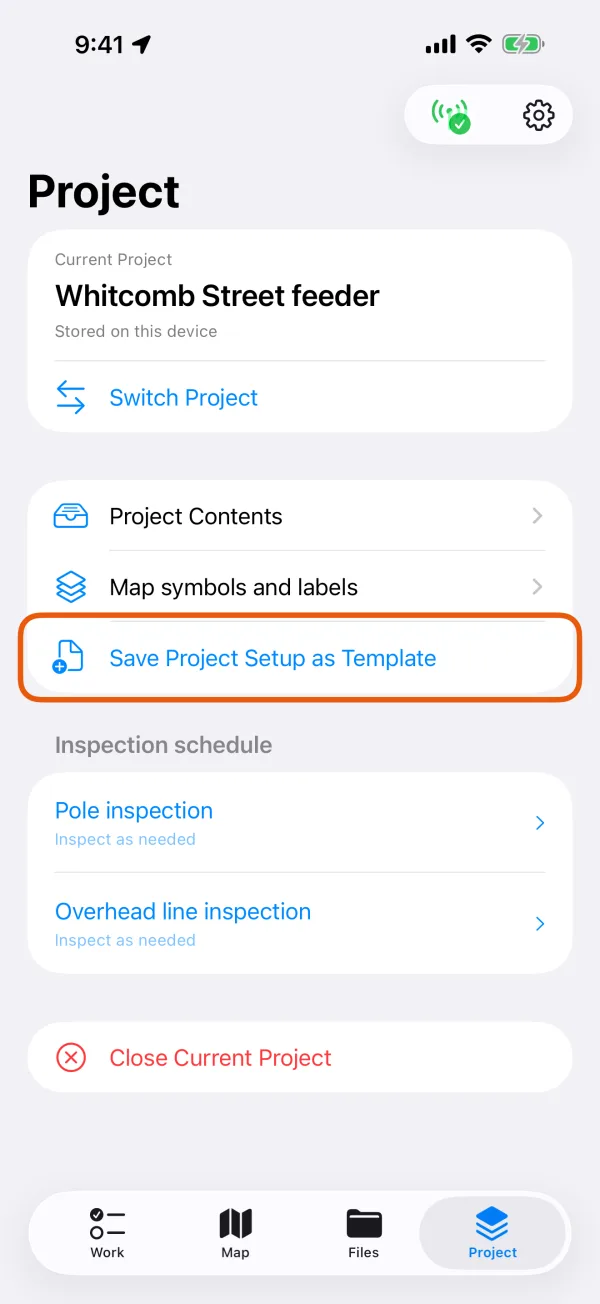
The Project tab, with Save Project Setup as Template marked. Tap Save Project Setup as Template.
Enter a Template name and tap Save.
The Project tab says Template saved. Records and media were not included.
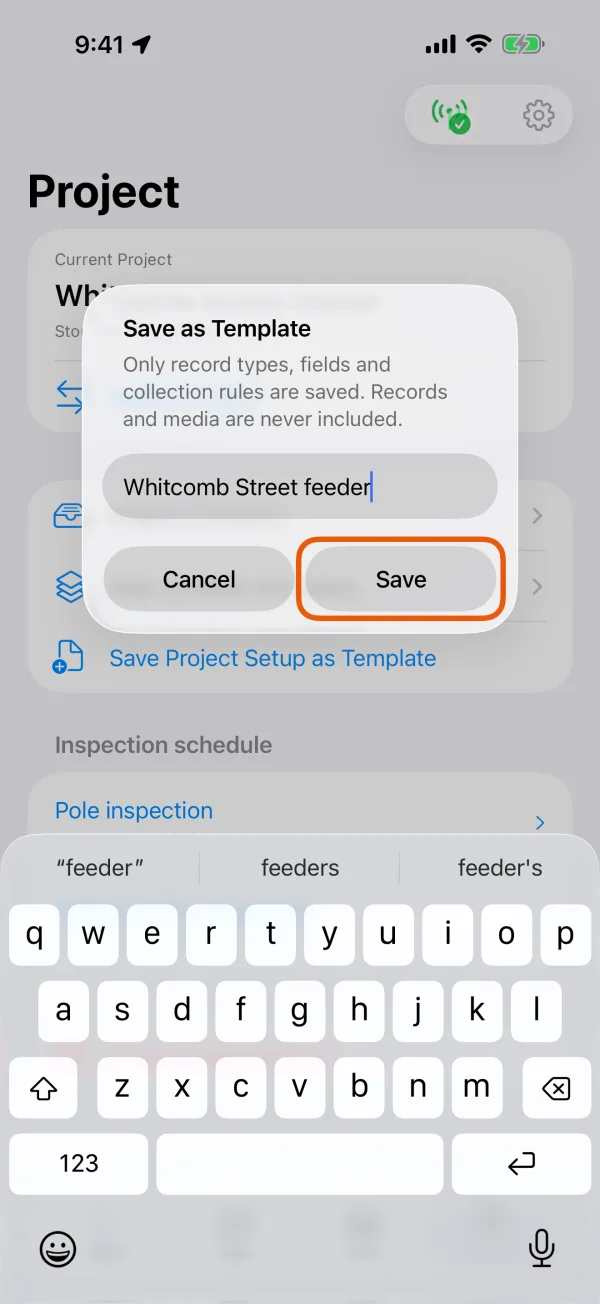
Naming the template.
Open the project's Project tab.
Save project setup as templateThe Project tab, with Save project setup as template marked. Tap Save project setup as template.
Enter a Template name and tap Save.
The Project tab says Template saved. Records and media were not included.
SaveNaming the template.
You can also save a template while you create a project: on Record types, tap Save setup to My Templates (Android: Save setup to My templates).
Start a project from your template
Tap Create project, enter a Project name, and tap Choose an industry template.
With projects already listed, start with + and New Project.
Tap My templates, then your template.
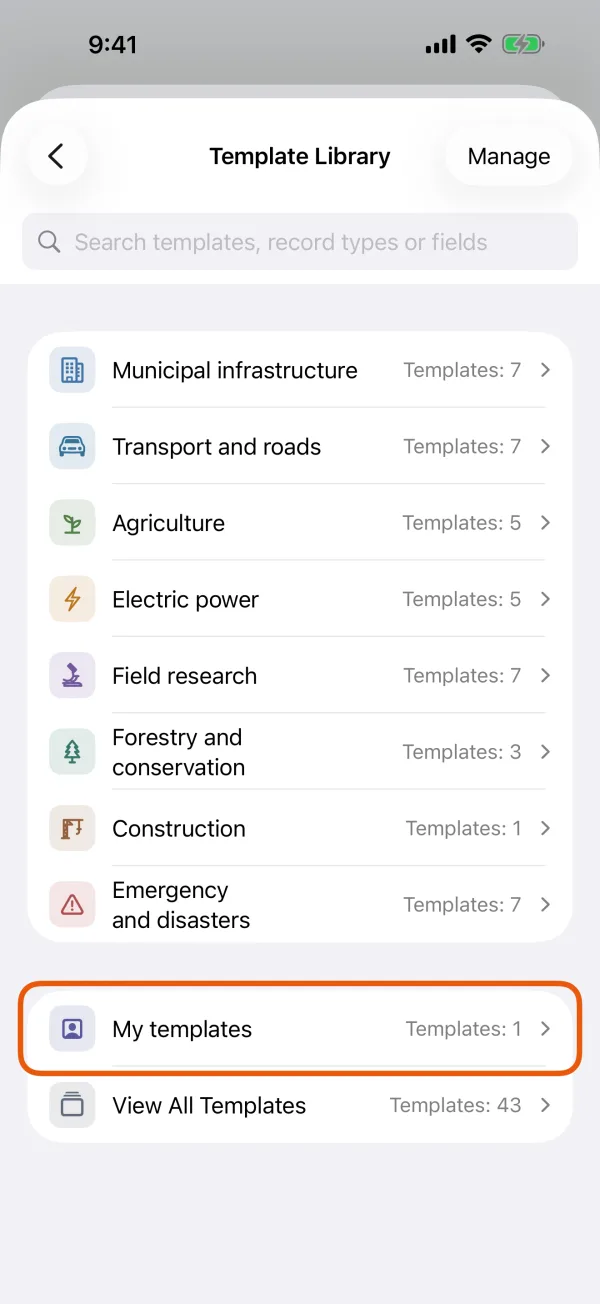
My templates, under the industry shelves. Tap Use Template, check the record types, and tap Create.
You're adjusting a copy. Changes you make here don't change the template.
Manage your templates
In Template Library, tap Manage at the top right. Manage Templates lists every template, with filters for All, ★ Favorites, Recent, Created by Me (Android: Created by me) and Imported. Tap the star on a card to add it to favorites.
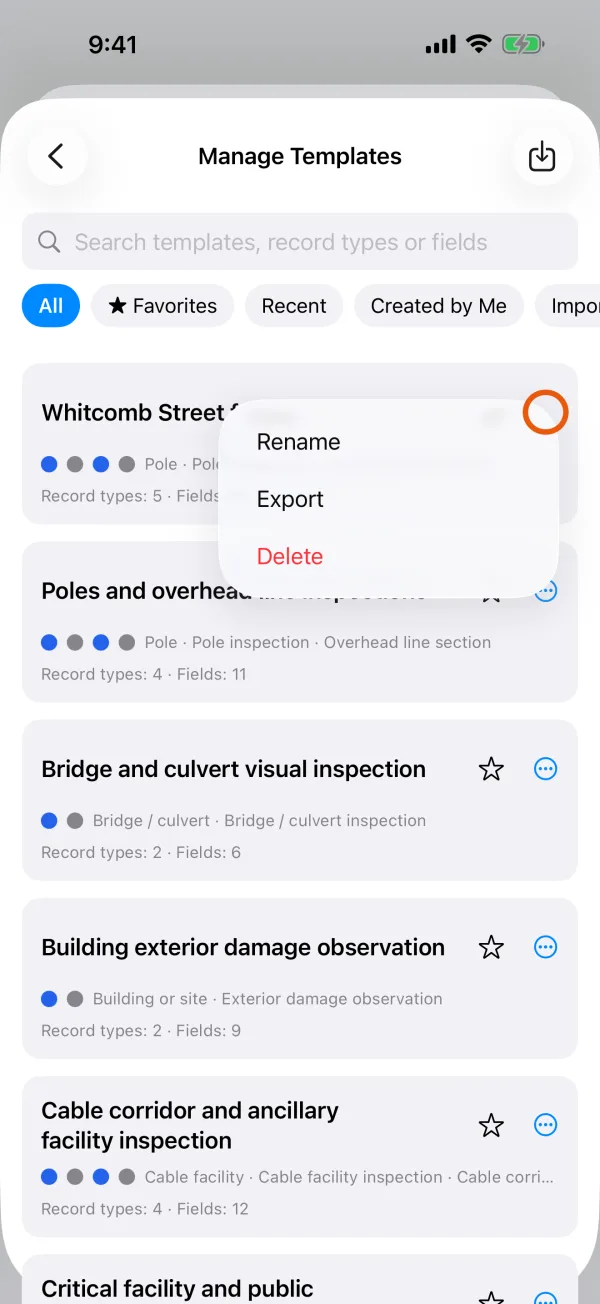
Each card has a menu: the ⋯ button on iPhone, ⋮ on Android. It offers:
- Rename and Delete, for templates you saved or imported
- Export, for every template, including the built-in ones
Share a template
In Manage Templates, open the template's menu and tap Export.
Choose where to save it.
It's saved as a
.fwtfile named after the template.Send the file to your colleague.
Use Mail, Messages, AirDrop or a shared drive.
In Manage Templates, open the template's menu and tap Export.
Choose where to save it.
It's saved as a
.fwtfile named after the template.Send the file to your colleague.
Use email, a chat app or a shared drive.
Add a template someone sent you
The quickest way: open the .fwt file on the phone or tablet with Dipper Field installed. On iPhone, open it from Mail, Messages, AirDrop or the Files app. On Android, open it from your files or email, or share it to Dipper Field. The app adds it to My templates and says Template imported.
Or import it from inside the app:
In Template Library, tap Manage.
Tap Import Template.
On iPhone it's the import icon at the top right.
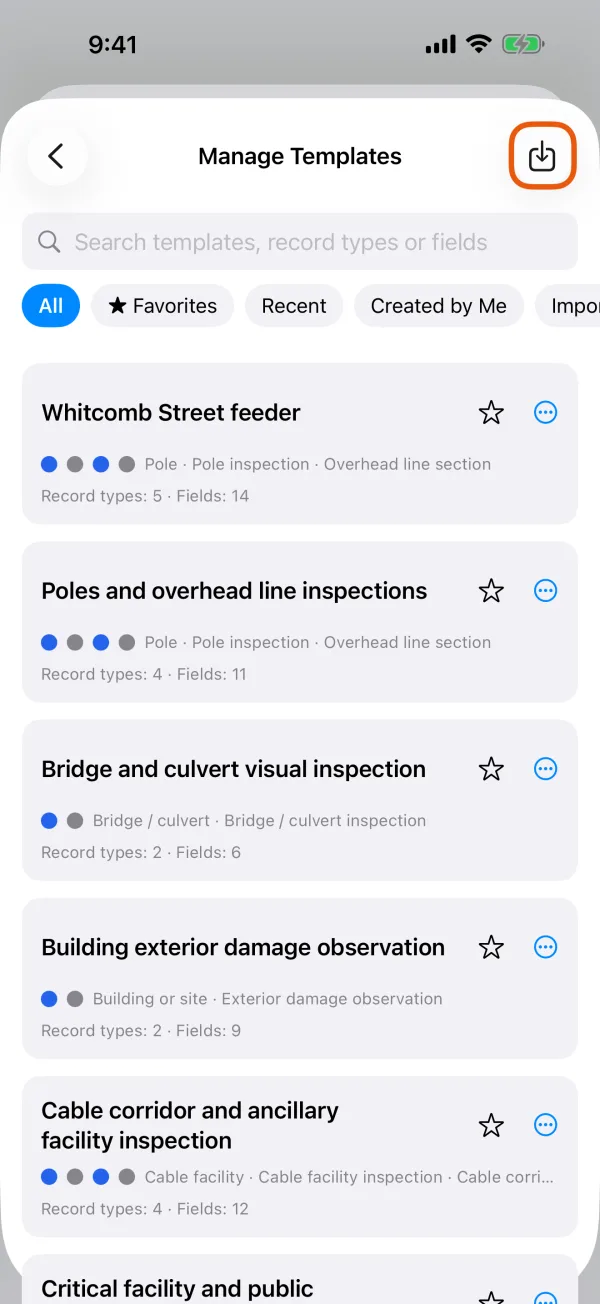
The Import Template button at the top of Manage Templates. Choose the .fwt file.
In Template Library, tap Manage.
Tap Import template.
Import templateThe Import template button at the top of Manage Templates. Choose the .fwt file.