 Dipper Field
Your project lives on the device and isn't copied anywhere by itself. A project backup is one file, ending in .fwp, that holds the whole project. Make one regularly, and before you change phones.
Make a backup
Open the project and tap Files.
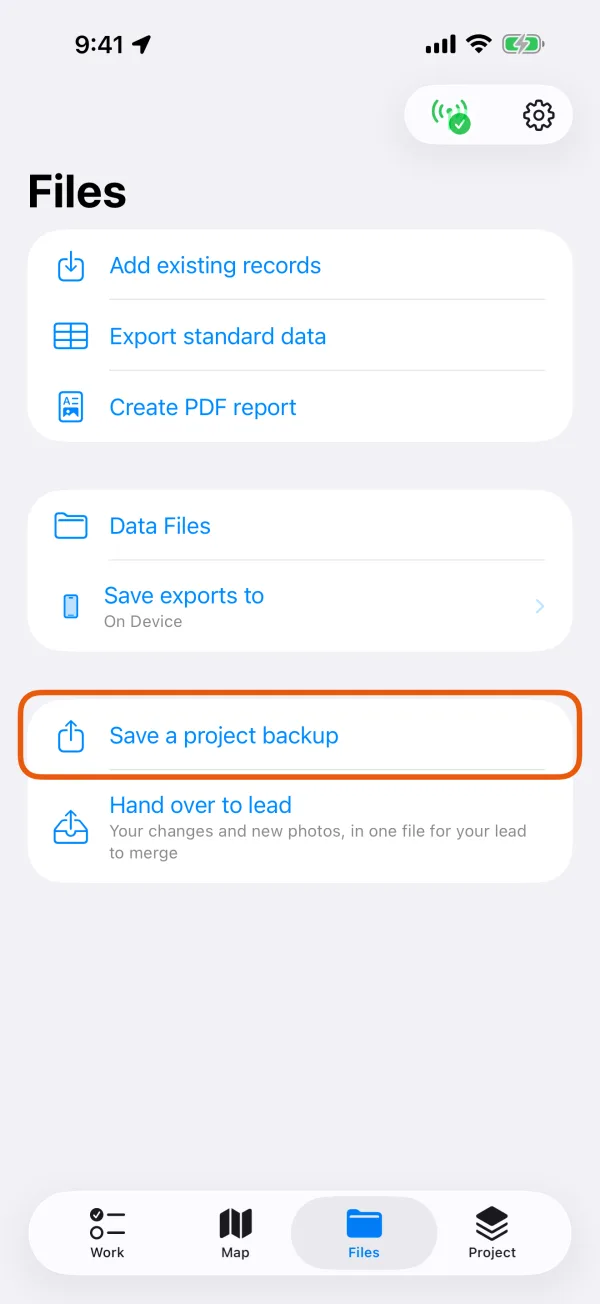
The Files tab, with Save a project backup marked. Check where it goes, under Save exports to.
On Device keeps the file in Data Files on this device. You can choose a location you connected in Data Files instead, such as Google Drive, OneDrive, Dropbox, S3-compatible storage or a network folder. Uploads then continue in Transfers.
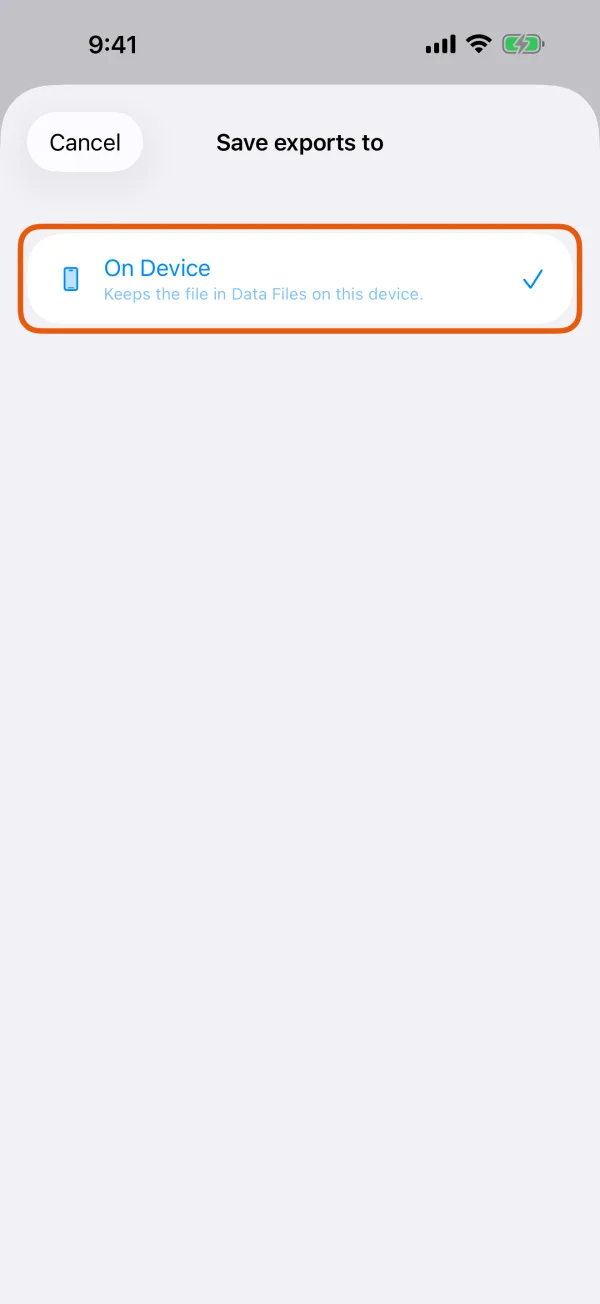
The destinations: On Device and connected locations. Tap Save a project backup.
It says Saved to Data Files on this device, or Export created. Upload added to Transfers. The file is named after the project.
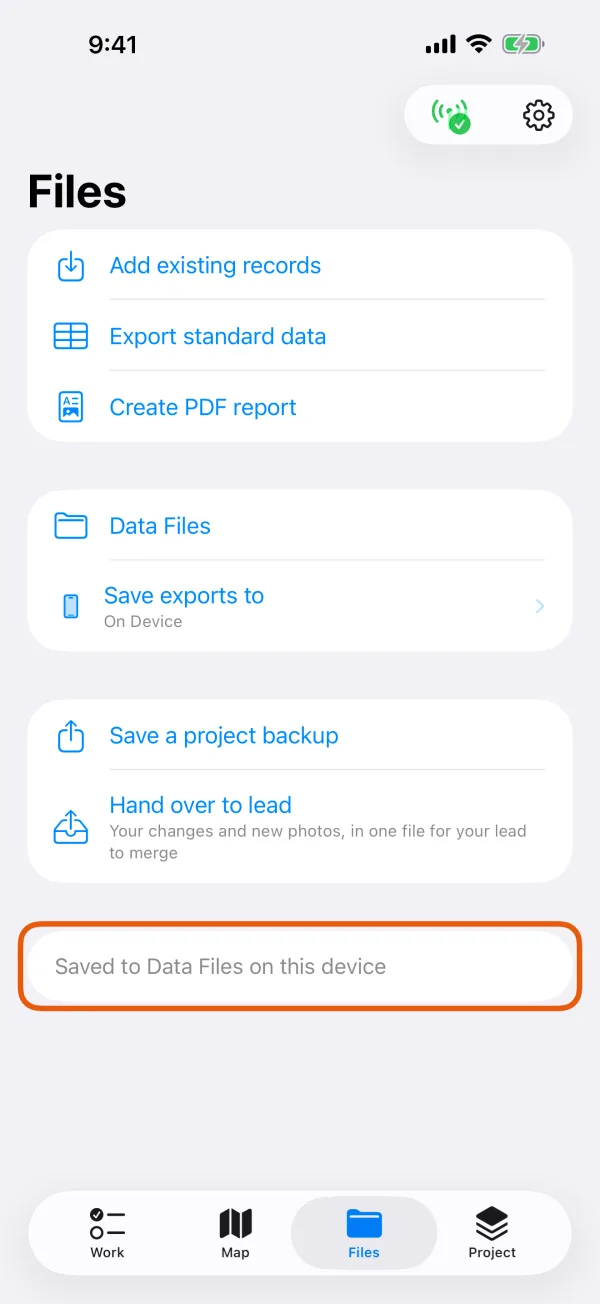
The message after the backup is saved.
A backup kept only on the same phone is lost with the phone. To keep a copy elsewhere, open Data Files (the folder button on the Projects screen, or Data Files on the Files tab), tap the backup, and tap Share to send it by email or another app, or Upload to put it in a connected location.
What a backup holds
| In the backup | Not in the backup |
|---|---|
| The project's set-up: record types, questions and how records look on the map | Maps you added, and the keys stored for them |
| Every record, with what Dipper Field needs to compare two copies later | Areas saved for offline use and imported map files |
| Photos and other media attached to records | Your app settings, such as the receiver you connect |
| The project's reference layers |
Maps and offline areas belong to each device. After you restore, add the maps again on the new device, see add your own map service.
Open a backup on another device
Get the .fwp file to the device.
Share it to Dipper Field from Files, Mail or another app, and Dipper Field imports it straight away. Or keep it in a location you connected in Data Files.
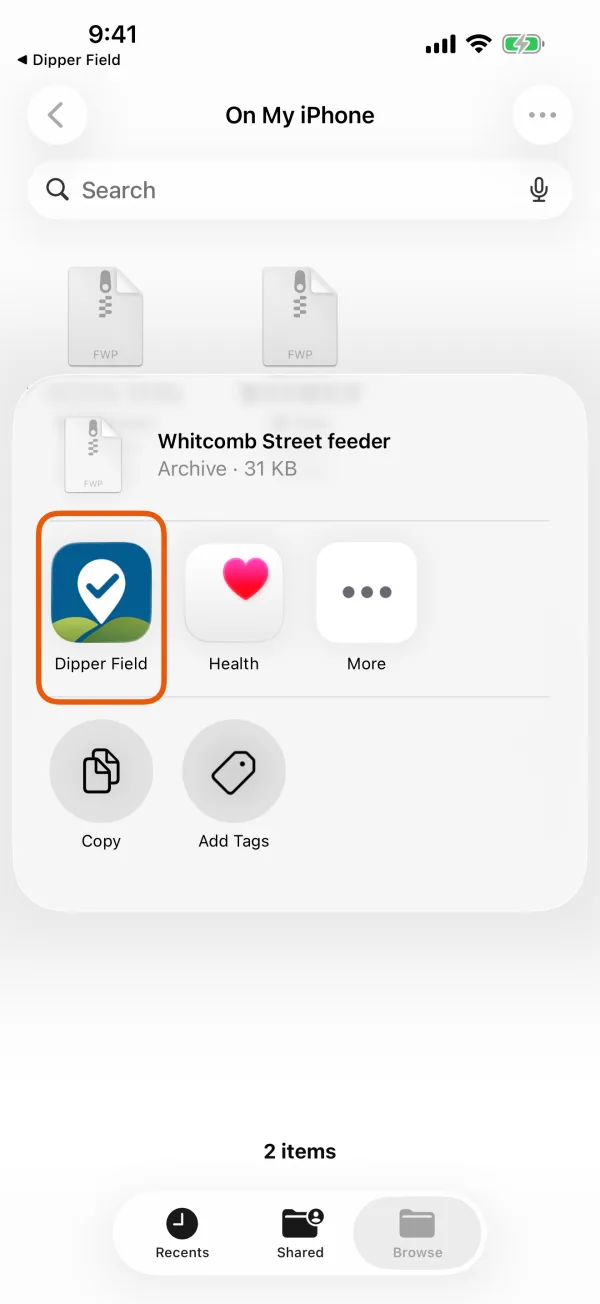
Sharing a .fwp file to Dipper Field. On the Projects screen, tap + and then Import a Dipper Field project.
With no projects yet, tap Import a project instead. Data Files opens for you to choose a project file.
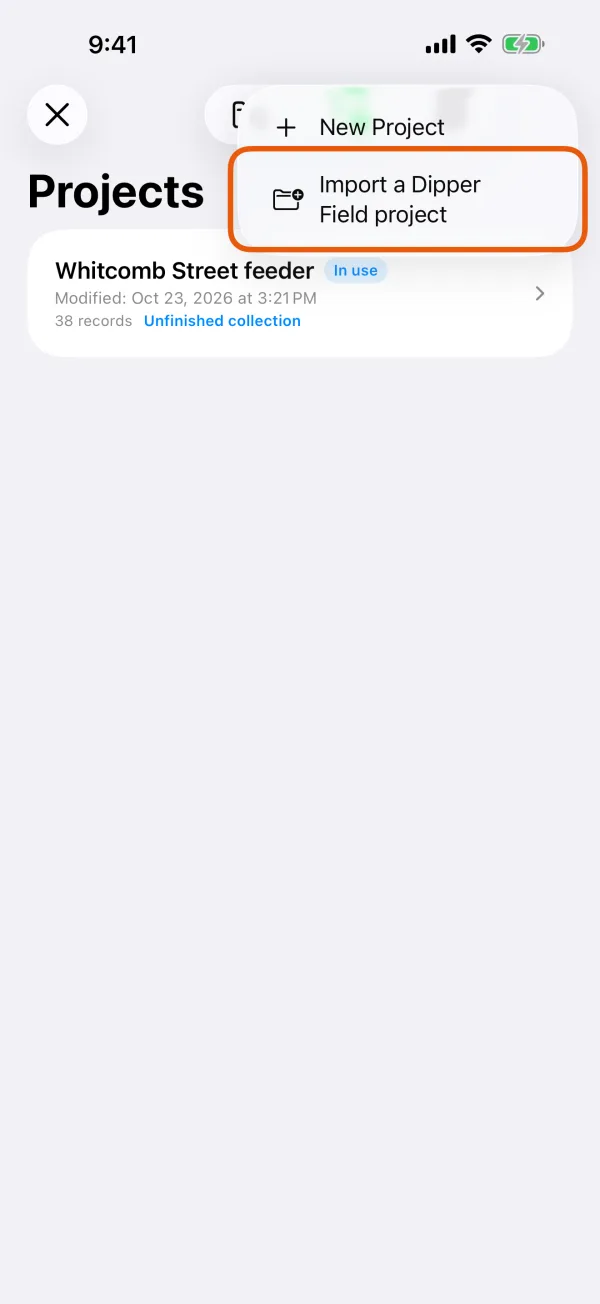
The + menu on the Projects screen. Choose the backup.
Pick it under On Device or a connected location, or tap Add File (Add file on Android) to pick it from elsewhere on the device. The project is copied in and opens.
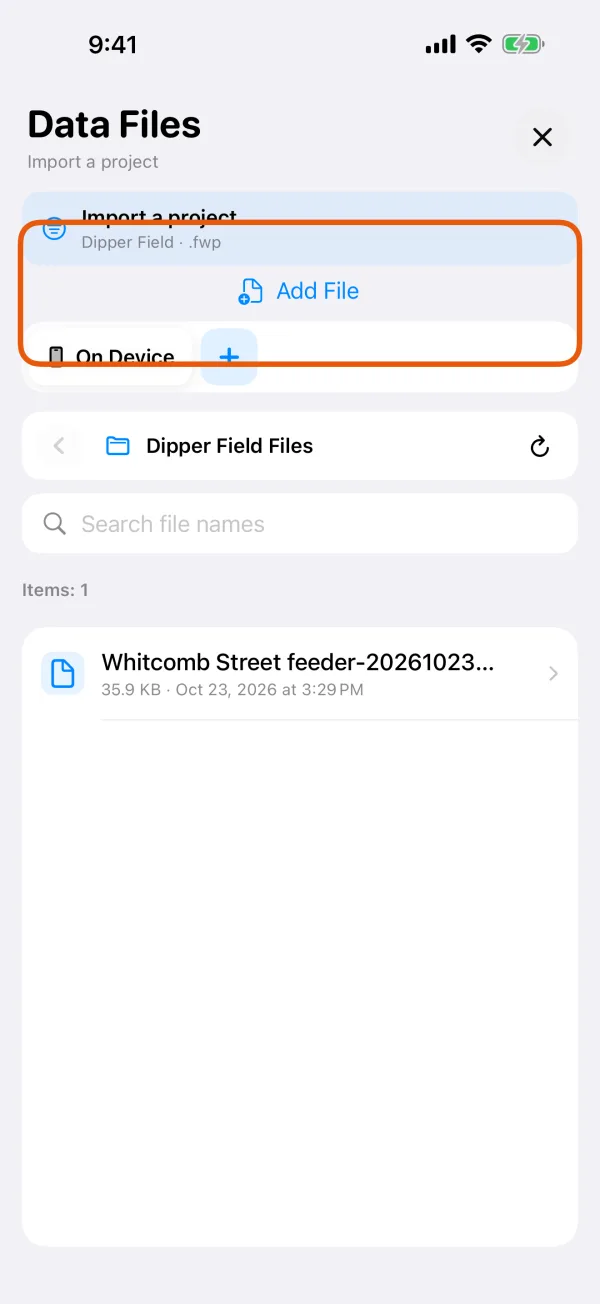
Data Files, ready to choose a .fwp file.
A backup made with a newer version of Dipper Field says This project was made with a newer version of Dipper Field. Update the app to open it.
If the project is already on this device
When the file is a project that's already here, Dipper Field compares the two copies and only offers a plain replacement when nothing would be lost.
| It says | What it means | Your choices |
|---|---|---|
| Already on this device | The file and the device's copy are the same. | OK |
| Replace this project? | The file has everything the device's copy has, and more. | Replace from backup or Save as a copy |
| This file is older | The device's copy has everything in the file, and changes made since. | Save as a copy or Replace anyway |
| Both copies have changes | Each was changed after they were last the same. | Merge or Save as a copy |
- Save as a copy keeps both, as two separate projects.
- Replace from backup and Replace anyway keep the device's copy first. It appears under Replaced copies on the Projects screen; tap Open as a copy there to get back what it held.
- Merge puts the file's changes into the device's copy, which is kept under Replaced copies first. Copies merged then says what changed. Where both copies changed the same thing, Check the merge on the Project tab lets you choose what to keep.
Good to know
- Hand over to lead, below the backup on the Files tab, isn't a backup. It sends only your changes and new photos, for your lead to merge into the project. A hand-over file can only be merged, into a device that already has the project.
- Keep backups in a location your organization approves. Uninstalling the app or losing the device can remove the only copy.