 Dipper Field
Before you start
- A project with records in it.
- For the map in the report: a map background that can load. Online maps need a connection. Without one, use a map you saved for offline use, or turn off Map overview.
Open the Files tab and tap Create PDF report.
Build a report opens.
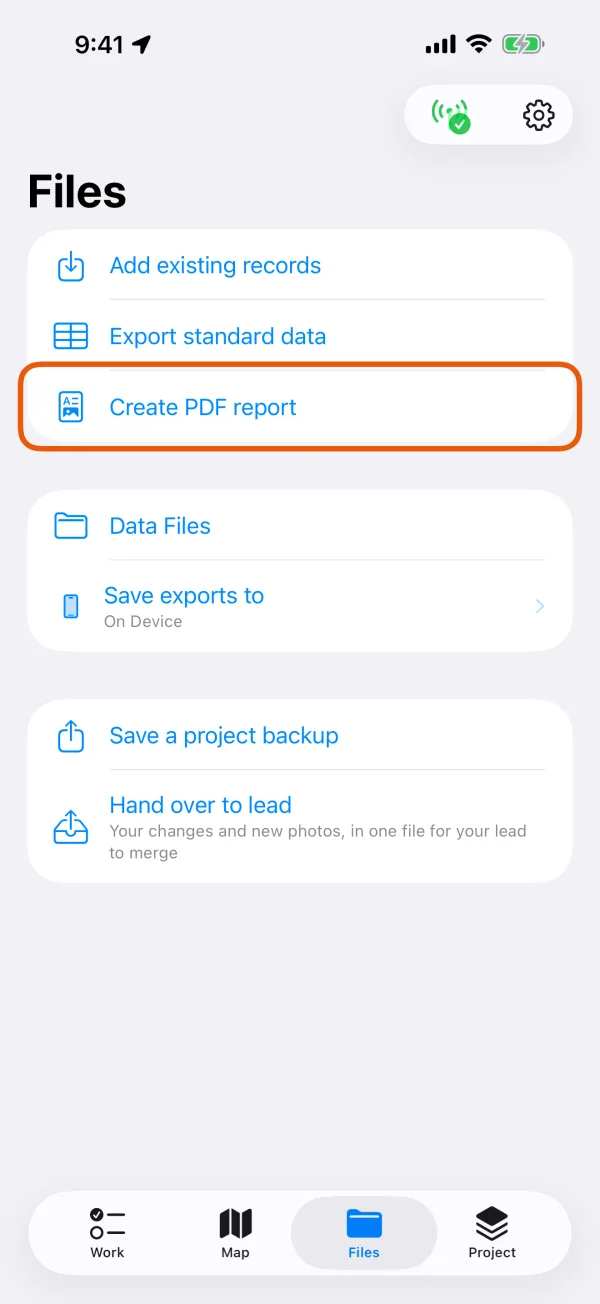
The Files tab, with Create PDF report marked. Choose how the report will be used.
Under How will this report be used?, pick Field brief, Formal report, Audit archive or Compliance summary. The line below the choice says what each one adds.
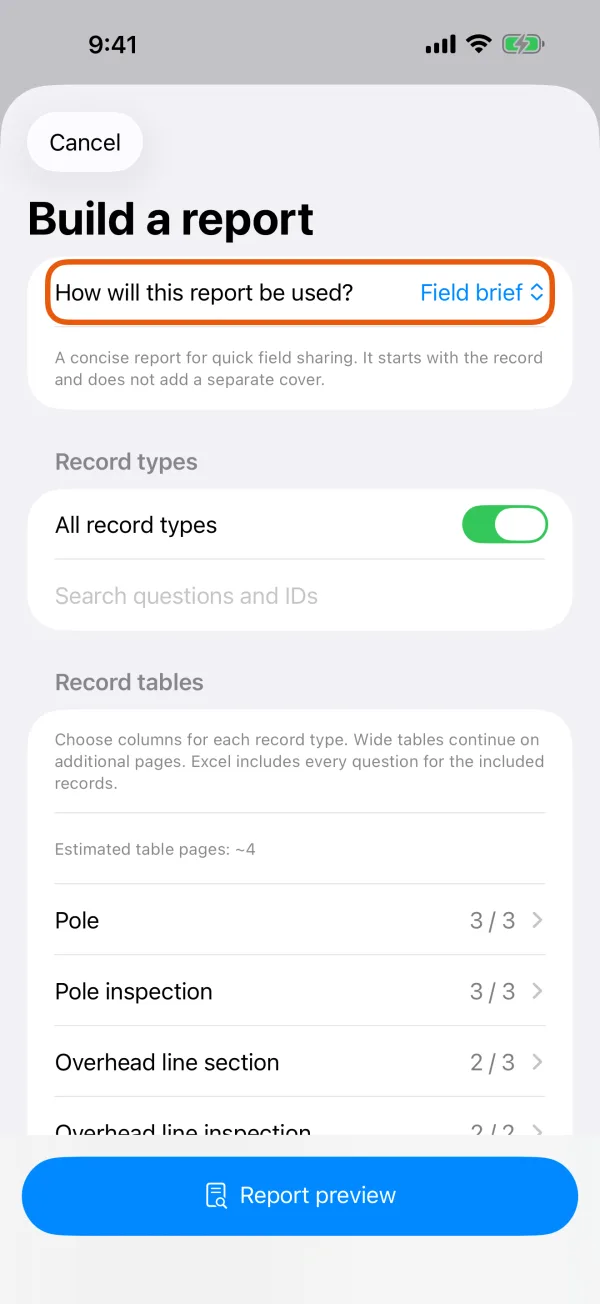
The four report purposes. Choose what goes in.
Leave All record types on, or turn it off and pick the types you want. Under Date, choose All dates, Today or Date range. Add any Work notes you want printed in the report.
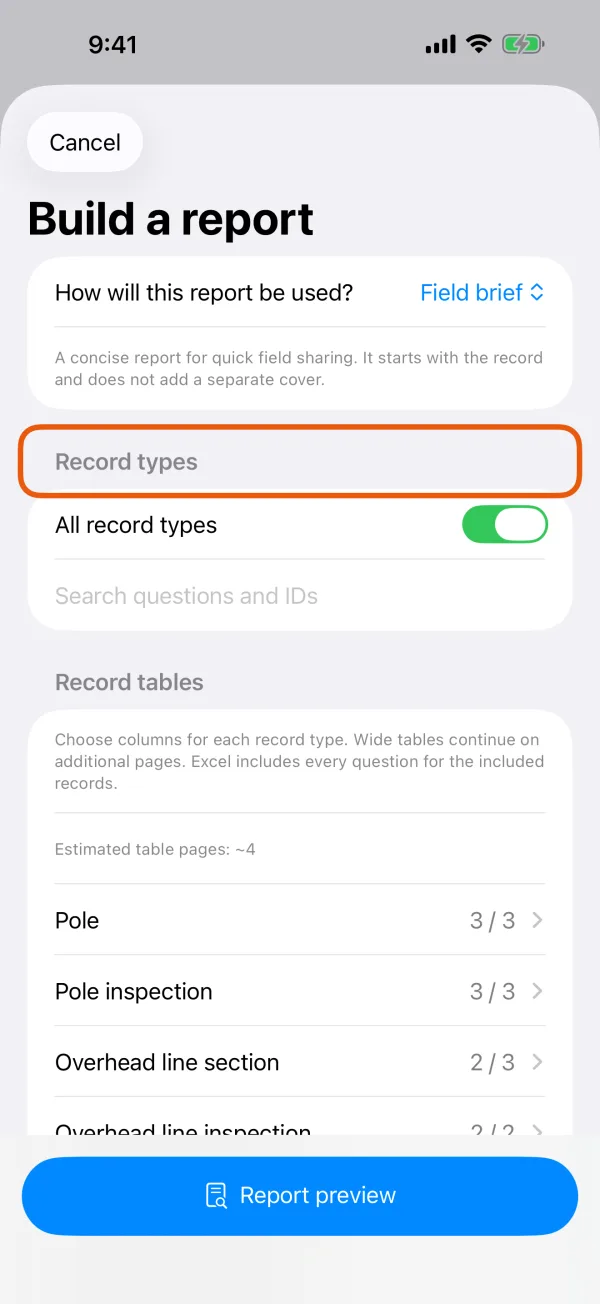
Record types, the date range and work notes. Optional: choose the table columns.
Under Record tables, tap a record type to open Table columns. Turn columns on or off, or tap Recommended columns to start again. Additional record details adds full pages for the records you pick.
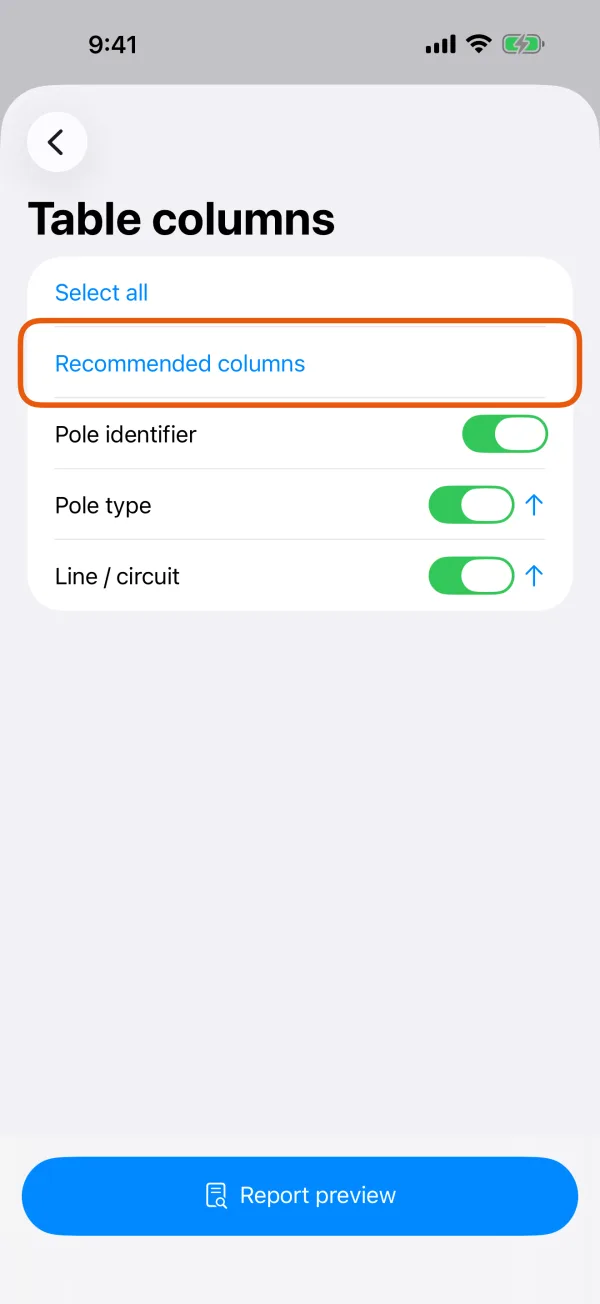
The columns printed for one record type. Optional: open More settings.
Set the paper size, limits, what to include and how the report looks. See the settings below.
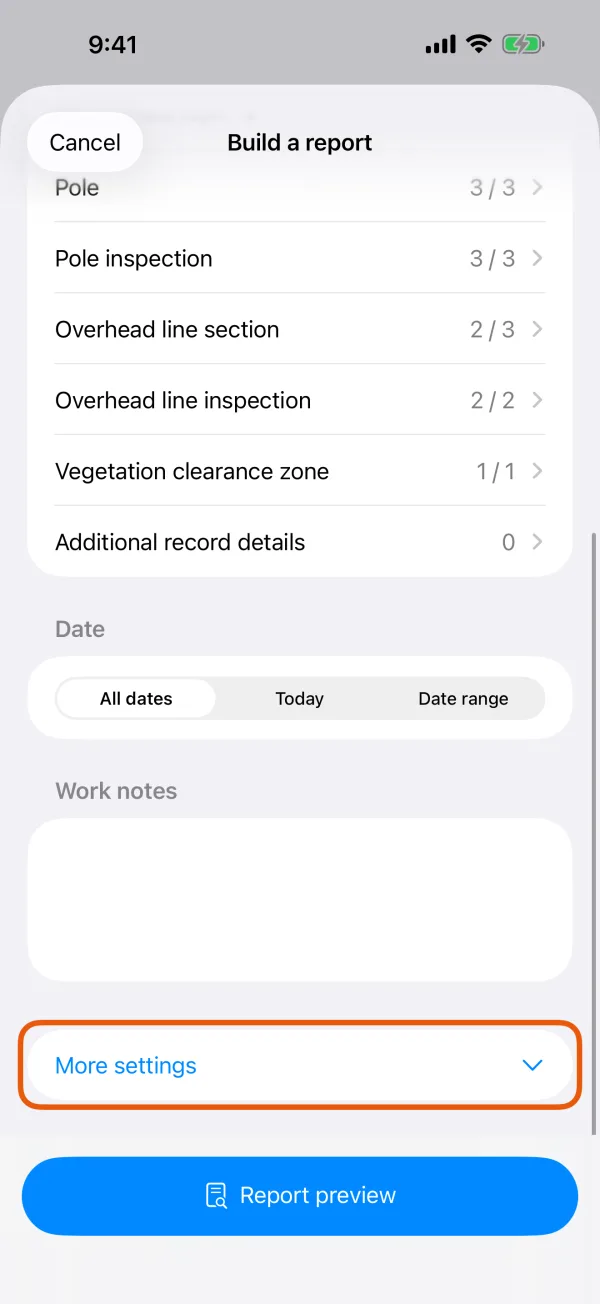
Paper size, limits, Include and Report appearance. Tap Report preview.
The report is made on the phone. It says Preparing report…, then Preparing map… and Preparing delivery….
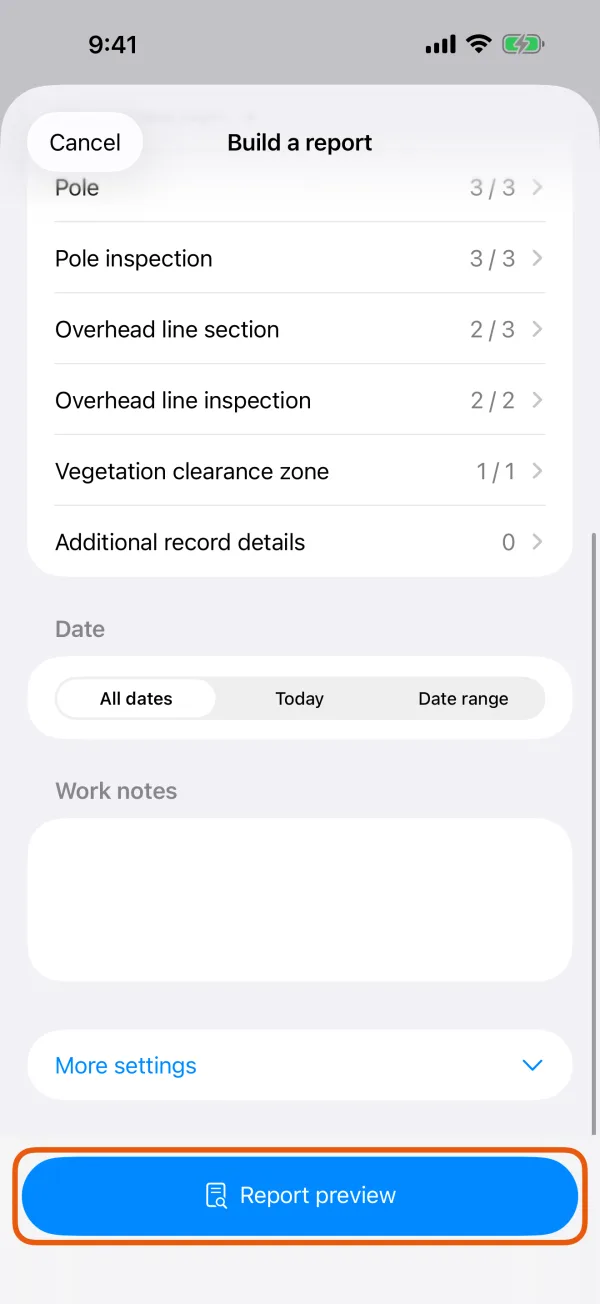
Report preview, held at the bottom of the page. Check the pages, then save or share.
Save report… saves the PDF where you choose. Save a copy in Data Files keeps it on this device. Share sends the PDF. Excel and PDF + CSV + ZIP send the files described below.
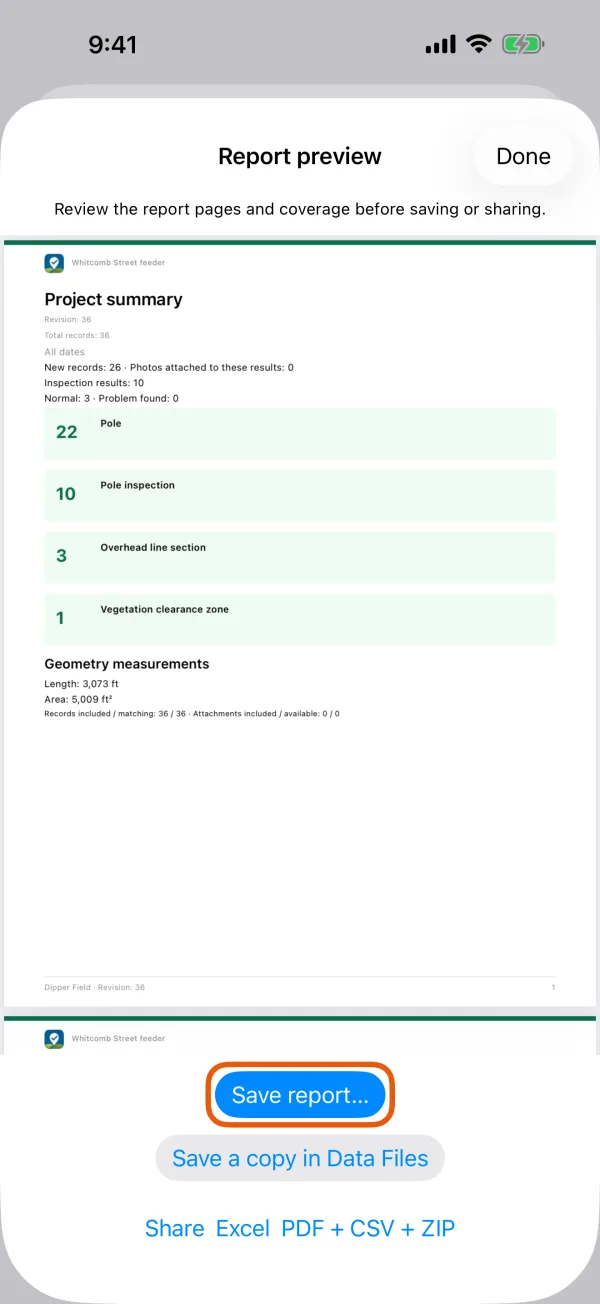
The finished report with its save and share buttons.
Other places to start a report
- One record type: in a record type's list, tap the report button at the top. Build a report opens with only that type chosen.
- One record: on a record's page, tap Create PDF report. You get a field brief for that record straight away, with its map and up to 50 photos.
The cover page names the report's type: Project summary when you start from the Files tab, Record details when you start from a record type or a single record.
The four purposes
| Purpose | What you get |
|---|---|
| Field brief | A short report for quick sharing. It starts with the records, with no cover page. |
| Formal report | A report for clients, with a branded cover page and the evidence. |
| Audit archive | A formal report plus record IDs, original coordinates and a technical appendix for traceability. |
| Compliance summary | Counts against your inspection schedule for the period: how many were due, inspected and overdue, and which problems are still open. Inspections need an inspection period set. See set up inspections and intervals. |
Choosing a purpose sets Cover page and Technical appendix for you. You can still change them under More settings.
Settings under More settings
- Paper size: A4 or Letter. It starts at Letter in the US and a few other countries, A4 elsewhere.
- Record limit: up to 1,000 records per report.
- Media limit: up to 200 photos and other attachments.
- Include: Map overview, Geometry measurements, Media evidence, Inspection summary, Cover page, Show unanswered items and Technical appendix.
- Report appearance: Brand mark (Automatic, Organisation logo, Project icon, Work symbol or None), Organisation name and Report subtitle. Choose logo takes a PNG or JPEG image and keeps it with the project. Remove logo takes it out again.
The report is written in the app's language. To make one in another language, change Language in Settings first.
What the map shows
Map overview draws your records on the map background the project's map last used on this device, satellite imagery unless you chose another. The map's attribution is printed under it.
If the background can't load, the report stops with This map is unavailable. Connect to the internet, switch the project's map to one you saved for offline use, or turn off Map overview and try again.
What you get
Each report is a snapshot of the project at the moment you tapped Report preview. If the project changes while the report is being made, it stops with Could not create the PDF report. Make it again.
| Button | What it sends |
|---|---|
| Share or Save report… | The PDF. |
| Excel | records.xlsx: the same records as the PDF, with every question, not just the printed columns. |
| PDF + CSV + ZIP | A ZIP with the PDF, records.csv, records.xlsx, the photos, signatures and other attachments of those records, and a manifest.json that lists them. |
The preview's files aren't kept in the project. Save or share what you need before you close the preview.
For data a GIS or CAD user can open, see export to GIS formats.