 Dipper Field
Before you start
- A project with records in it. Each export holds every record of one record type.
- If the file should go straight to a cloud drive: the drive connected in Data Files, and chosen under Save exports to.
Open the Files tab and tap Export standard data.
The button is grayed out while the place under Save exports to isn't available. Choose another there first.
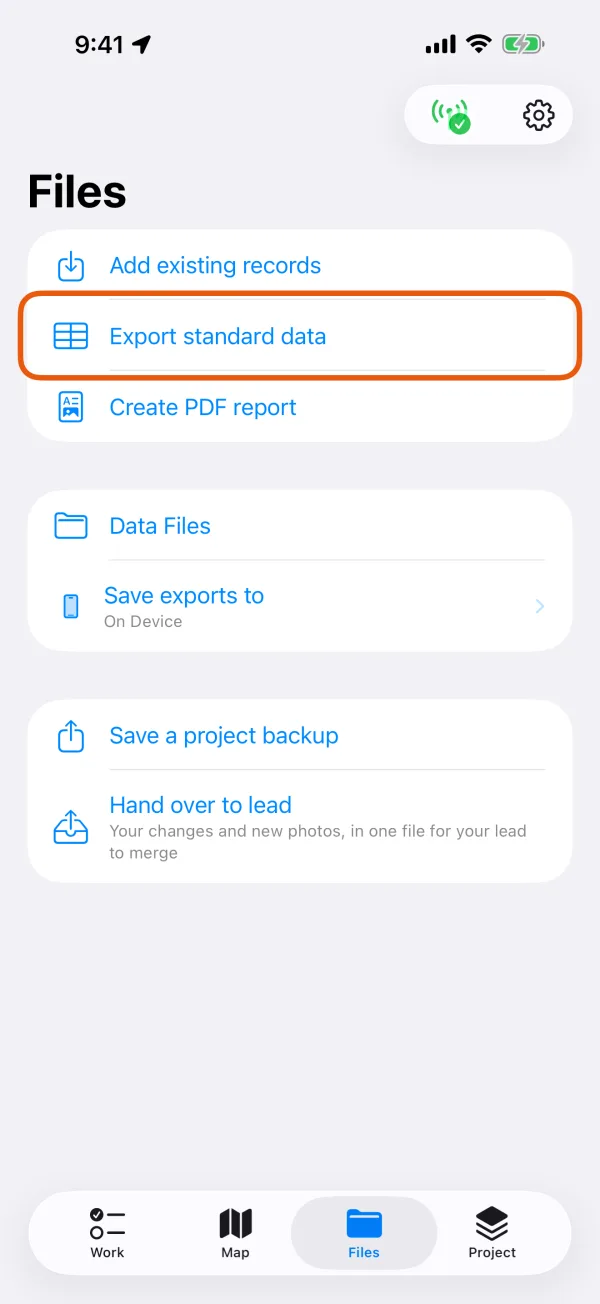
The Files tab, with Export standard data marked. Choose the Record type and the Format.
The line under the format says what it keeps and what it loses. A format that can't hold this record type's shape is listed but can't be chosen.
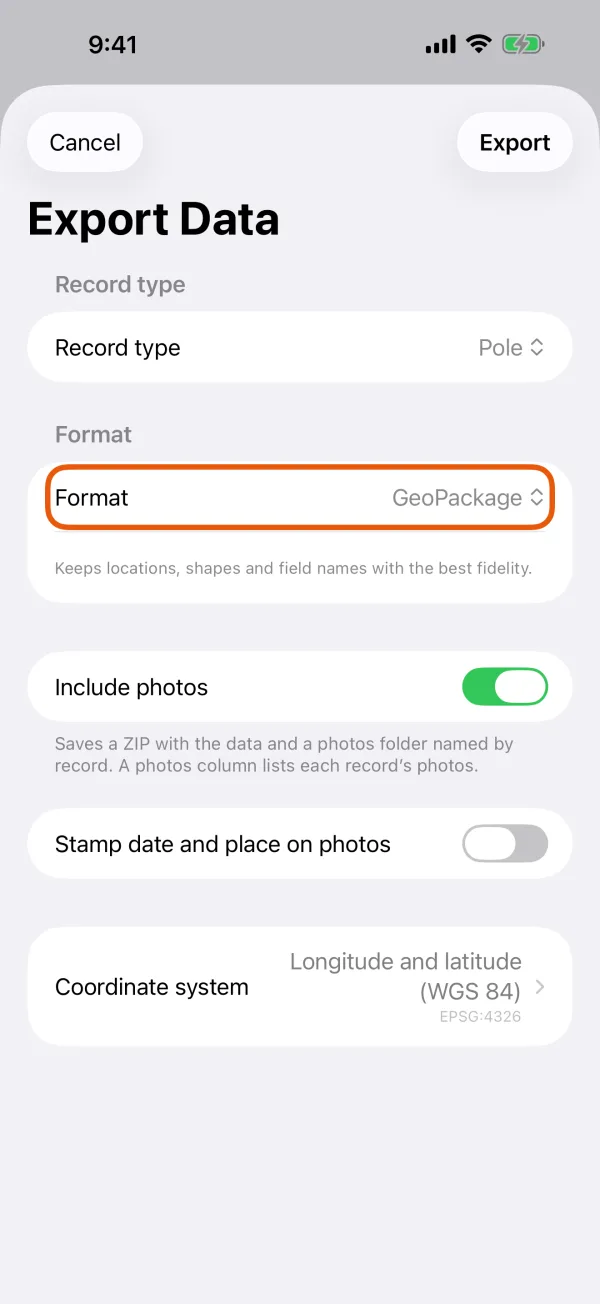
The record type, the format and what the format keeps. Choose whether photos go along.
With Include photos on, you get a ZIP with the data and a
photosfolder named by record, or a KMZ for KML. Turn on Stamp date and place on photos to print when and where each photo was taken in its corner. The photos in the project stay as they are.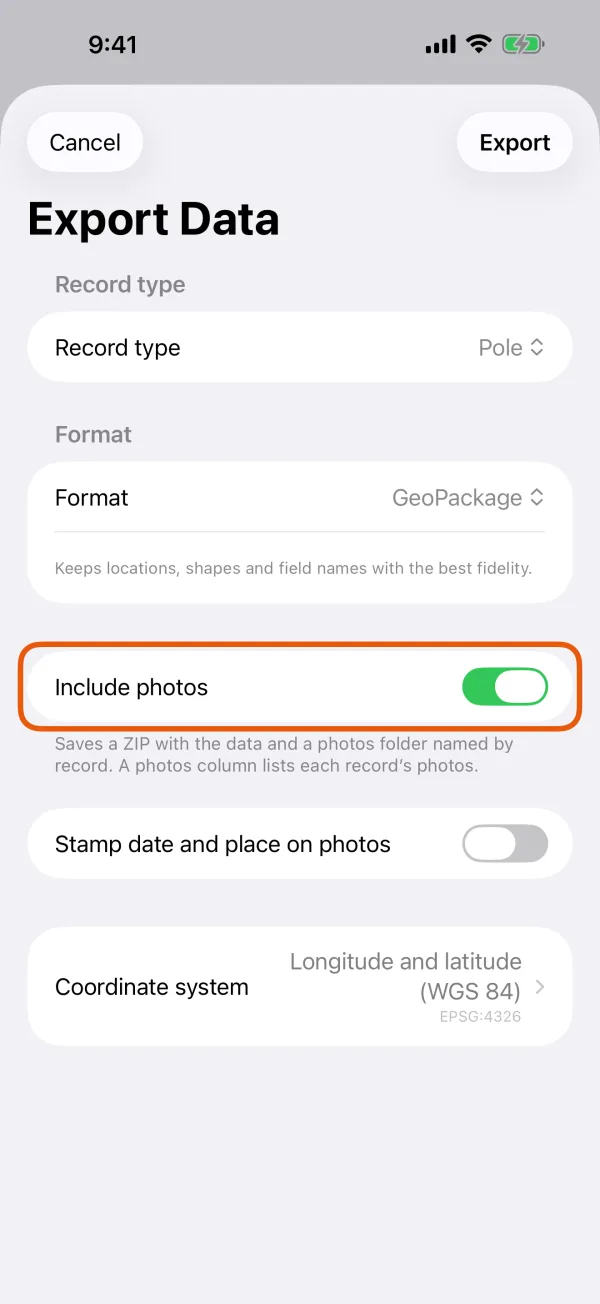
Include photos and Stamp date and place on photos. Check the Coordinate system.
It starts at the coordinate system you work in, set in Settings. GeoJSON, KML and GPX always use longitude and latitude, and say This format is always longitude and latitude.
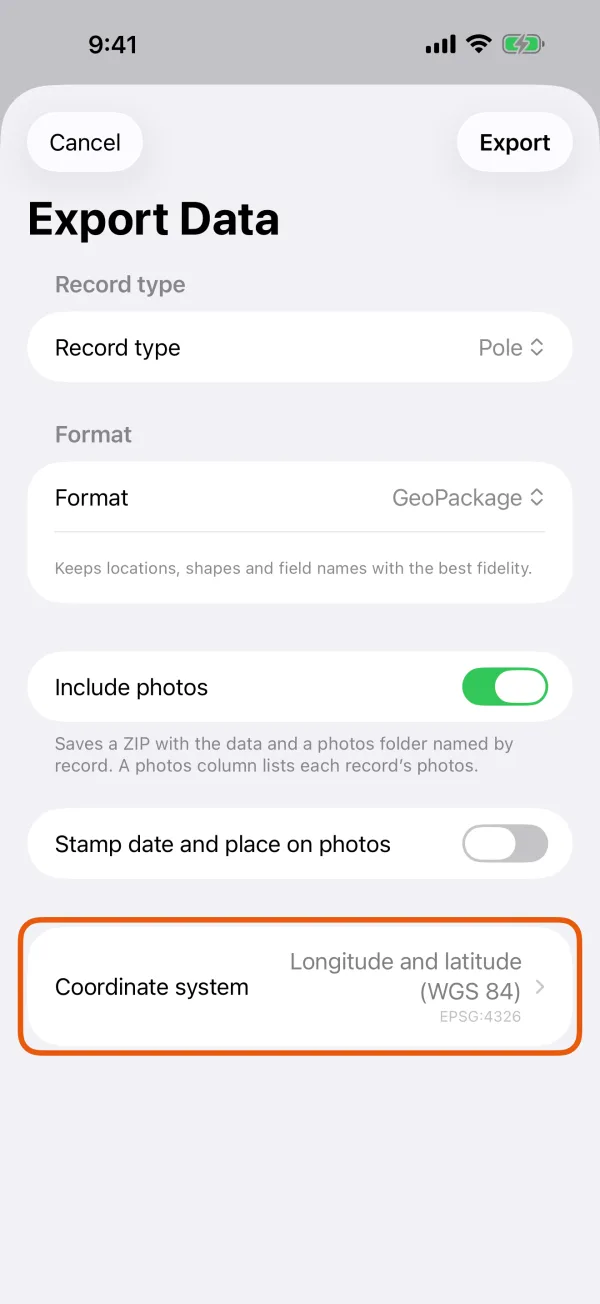
The coordinate system the file will be written in. Tap Export.
The app says Saved to Data Files on this device, or Export created. Upload added to Transfers. when it goes to a cloud drive or storage location.
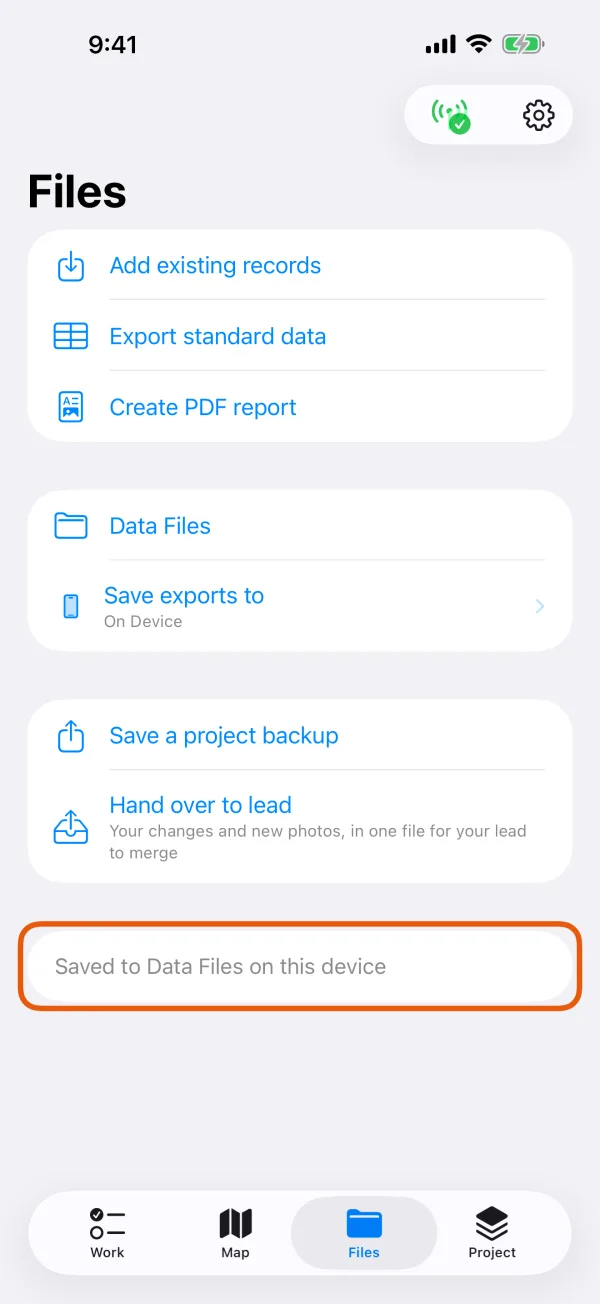
The message after an export.
To send the file on, open Data Files, tap the file and tap Share.
Which format to choose
| Format in the app | You get | Good to know |
|---|---|---|
| GeoPackage | .gpkg | Keeps locations, shapes and field names best. Any coordinate system. |
| Shapefile (ZIP) | .zip | For older systems. Field names may be shortened and some value types simplified. |
| GeoJSON | .geojson | Longitude and latitude only. |
| Spreadsheet (CSV) | .csv | One row per record, with each shape written as WKT in a location column. Any coordinate system. |
| KML | .kml, or .kmz with photos | For globe apps. Field structure and styling may be simplified. Longitude and latitude only. |
| GPX | .gpx | Points and lines only, not areas. Keeps common waypoint and track details. |
| Survey points (PNEZD) | .csv | Points only. One line per point for survey and CAD software. Needs a projected coordinate system. |
| CAD delivery (DXF) | .zip | A drawing plus attributes, media and an offline viewer. See below. |
With Include photos on, GeoPackage, Shapefile, GeoJSON and CSV come as a ZIP with a photos folder, and a photos column lists each record's photos. GPX and survey point files can't carry photos.
Survey point files
Choose Survey points (PNEZD), then:
- Column order: PNEZD (number, northing, easting, elevation, description) or PENZD.
- First point number: the number the first point gets.
- Coordinate system: a projected one, such as UTM or a State Plane zone. With longitude and latitude chosen, the app says Choose a projected coordinate system, such as UTM or a national grid. and won't export.
Elevations are written in the coordinate system's unit, such as US survey feet. For choosing a system, see coordinate systems for import and export.
CAD delivery package
For someone who works in CAD, choose CAD delivery (DXF) and tap Next.
Choose the record type.
Pick All record types or one type. Assets bring their inspection history along, and inspections bring the assets they refer to.
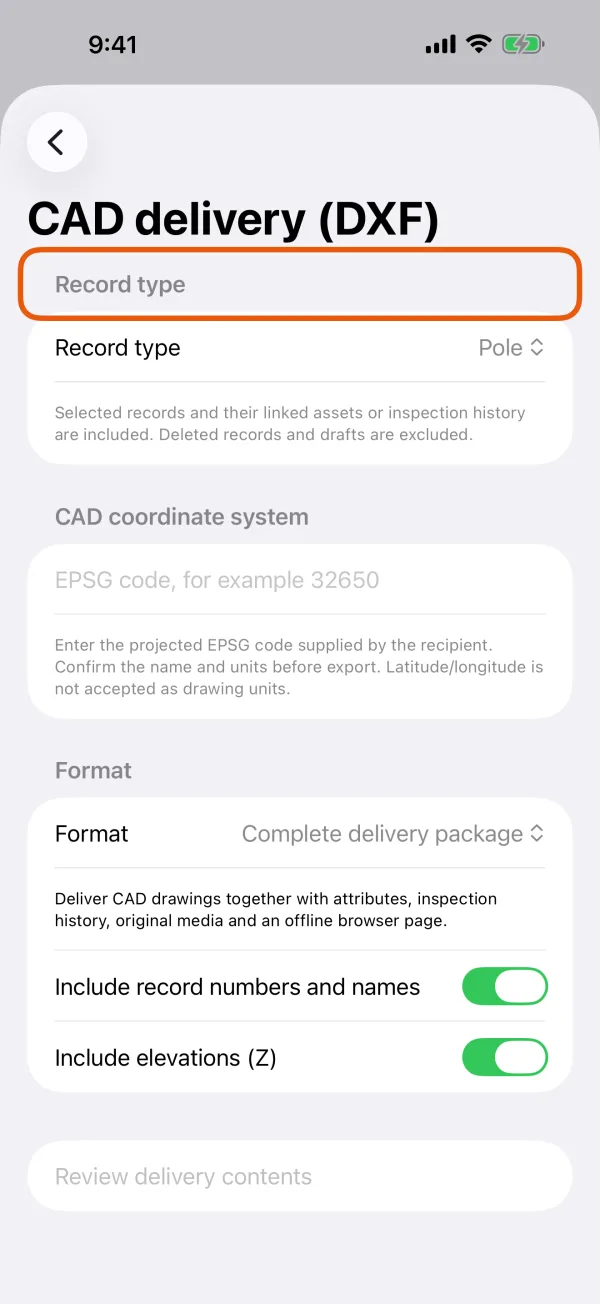
The record types to deliver. Enter the EPSG code the recipient gave you.
Under CAD coordinate system, enter a projected code, such as 2263 for New York Long Island State Plane in US survey feet. Longitude and latitude can't be drawing units. Units must be meters, millimeters or feet.
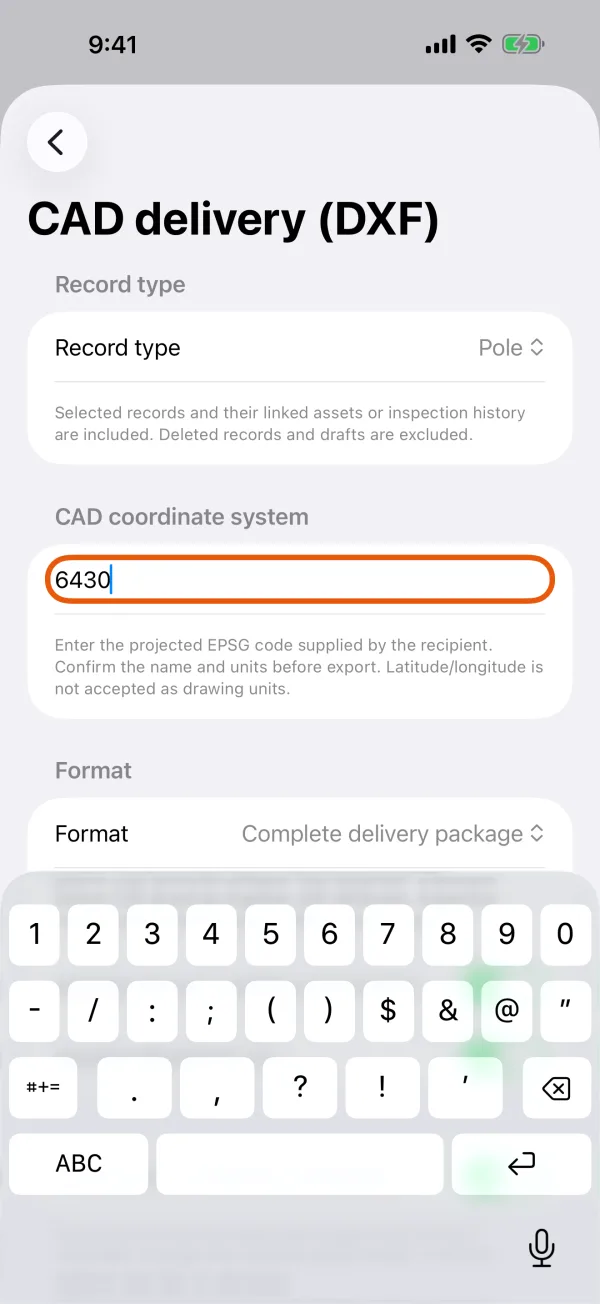
The EPSG code field. Choose what to deliver.
Complete delivery package or DXF drawing only. The drawing alone has no full attributes, inspection history or media. Include record numbers and names adds labels. Include elevations (Z) draws heights as Z where records have them.
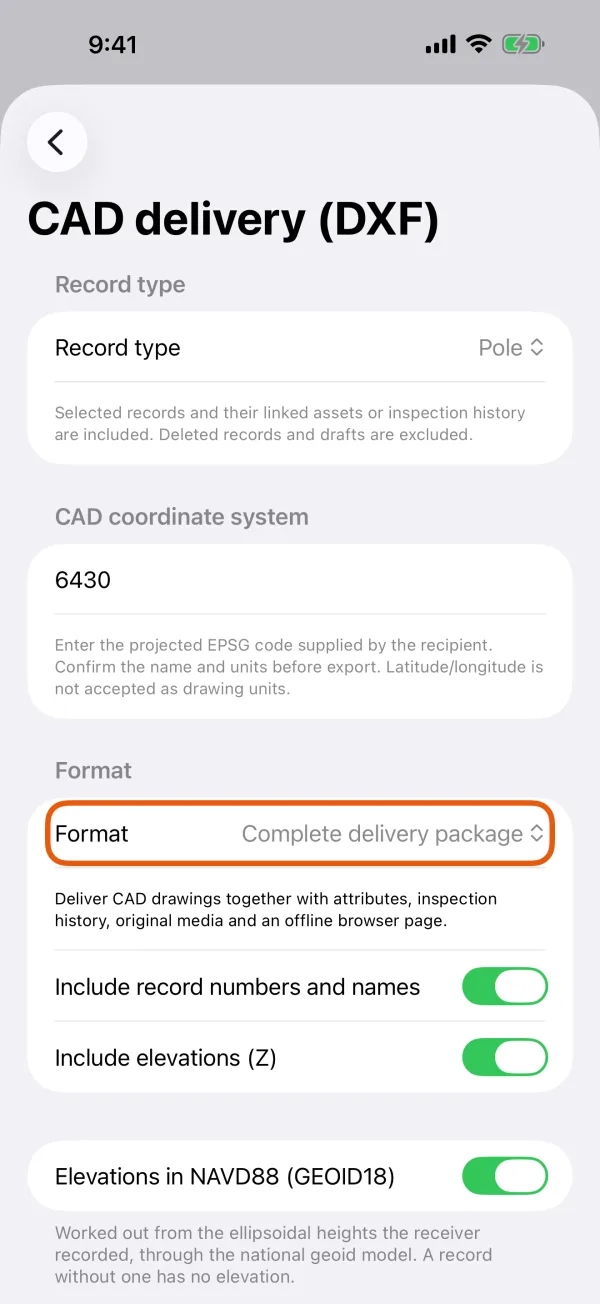
The package choice, labels and elevations. Tap Review delivery contents.
Check the counts of records, inspection records and media files, the records without a CAD location, the estimated package size, and the coordinate system's name and unit.
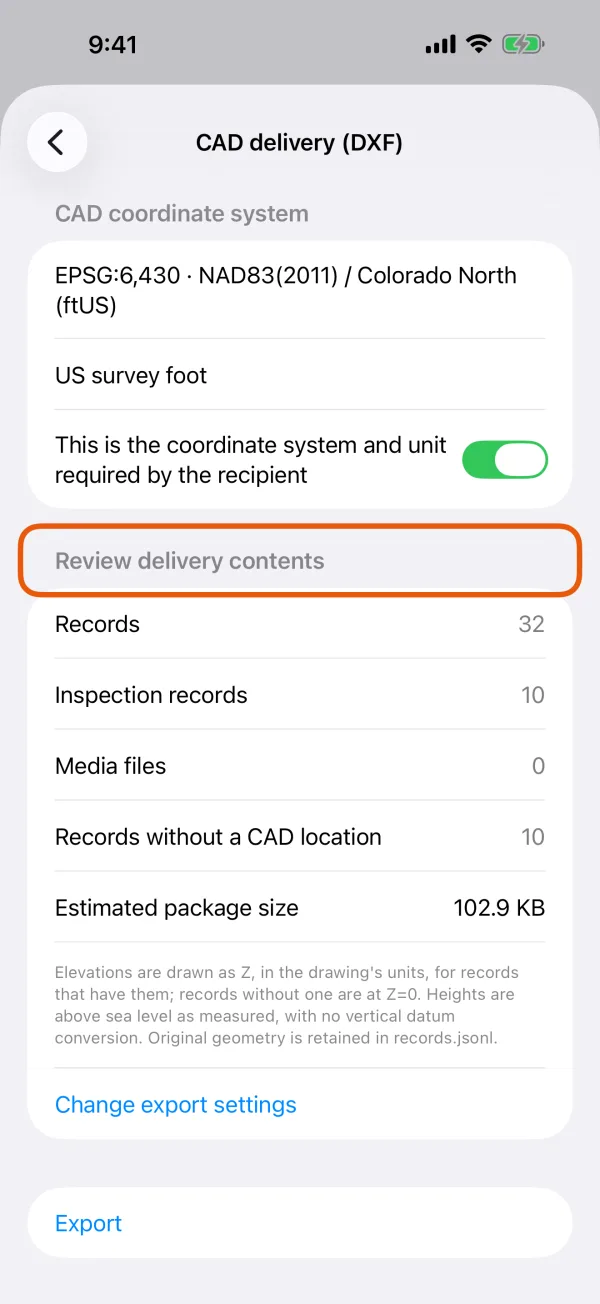
The counts and the estimated size. Confirm the coordinate system and tap Export.
Turn on This is the coordinate system and unit required by the recipient. Export stays off until you do.
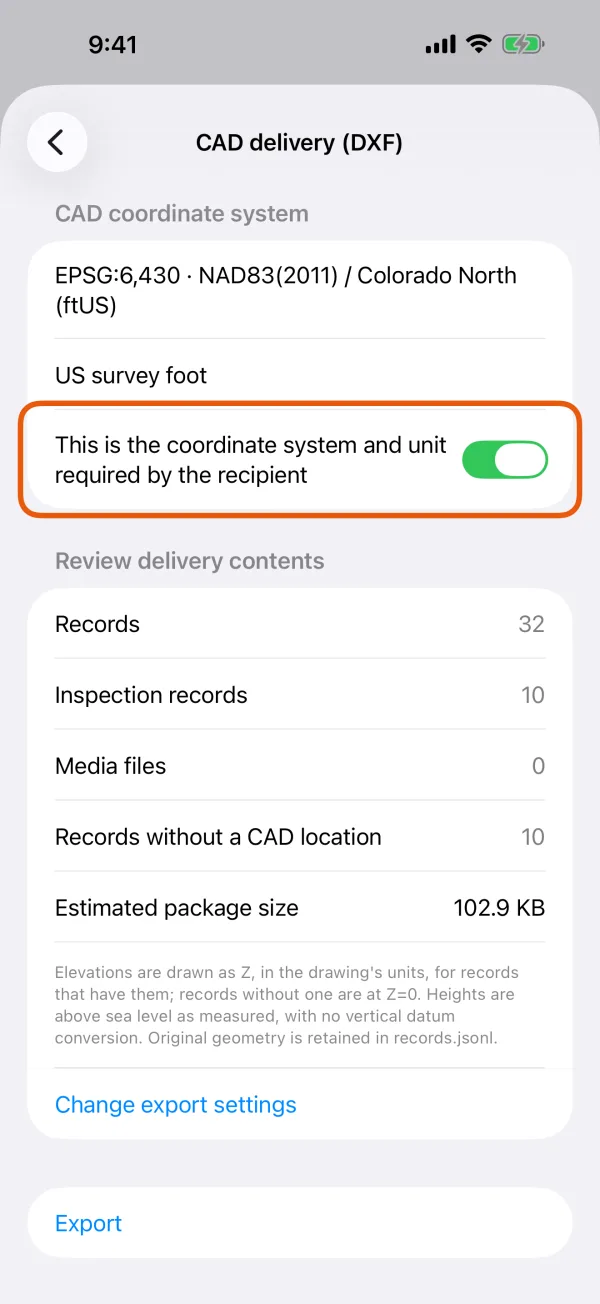
The confirmation switch above Export.
The complete package is a ZIP with drawing.dxf, records.csv, inspections.csv, records.jsonl, fields.json, cad_entities.csv, media.csv with a media folder of the original files, README.txt, manifest.json, and index.html. The recipient extracts the whole ZIP and opens index.html to browse records and media offline, with no account or server.