 Dipper Field
Dipper Field keeps every record in longitude and latitude. A coordinate system comes in when data goes in or out, and for the coordinates you read and type on site.
Where you choose a coordinate system
| Where | What it's for |
|---|---|
| Add existing records, for a spreadsheet that has no shape column | The system its coordinate columns are in, set under Where is each row? |
| Export Data, for GeoPackage, Shapefile (ZIP), Spreadsheet (CSV) and Survey points (PNEZD) | The system the export is converted into. GeoJSON, KML and GPX are always longitude and latitude. |
| CAD delivery (DXF) | Type the projected EPSG code the recipient gave you under CAD coordinate system, then confirm its name and units. |
| Coordinate system in Settings, under Display | The system you work in. My location shows your Easting and Northing in it, the map search accepts coordinates typed in it, and Export Data starts with it. |
A file that names its own coordinate system, such as a GeoPackage or a shapefile with its .prj file, is converted as it's added: the import says Coordinates will be converted as they are added. A file that names none is read as longitude and latitude, and the import warns you if its numbers look like a projected system. For a spreadsheet in a projected system, choose the easting column as Longitude column and the northing column as Latitude column. See import records from files.
Choose a coordinate system
Tap Coordinate system.
The row shows the current system's name with its EPSG code below.
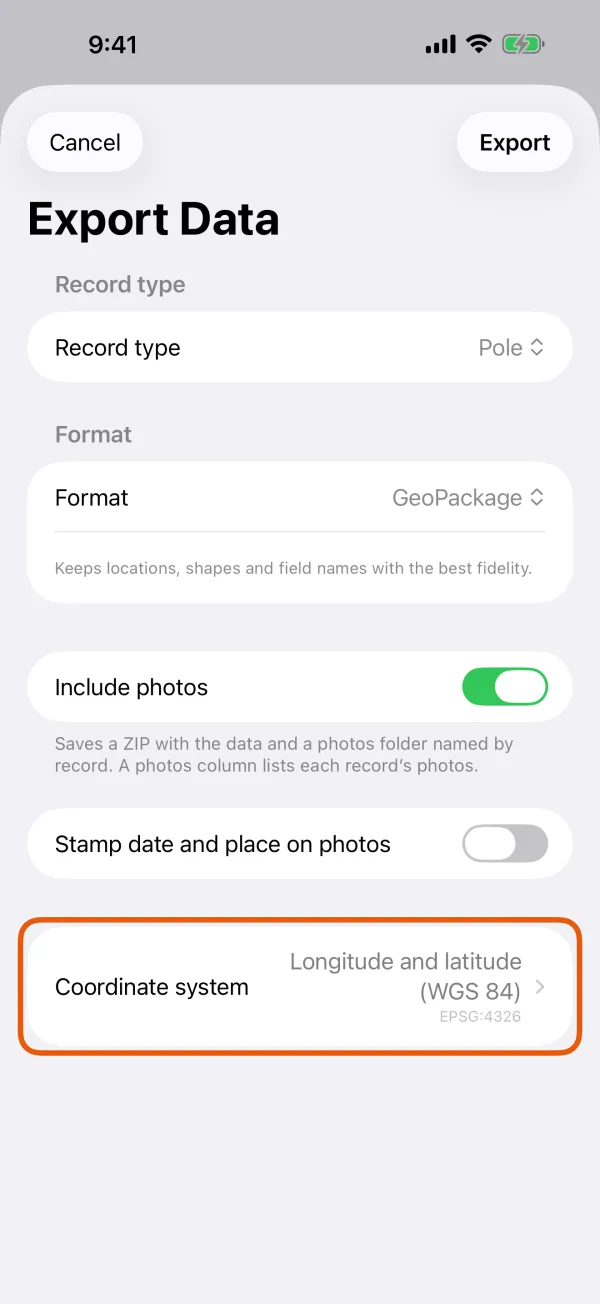
The Coordinate system row, with the name and EPSG code. Search by name or EPSG code.
Type part of the name, such as california 3, or the code, such as 6420. Longitude and latitude (WGS 84) is always at the top.
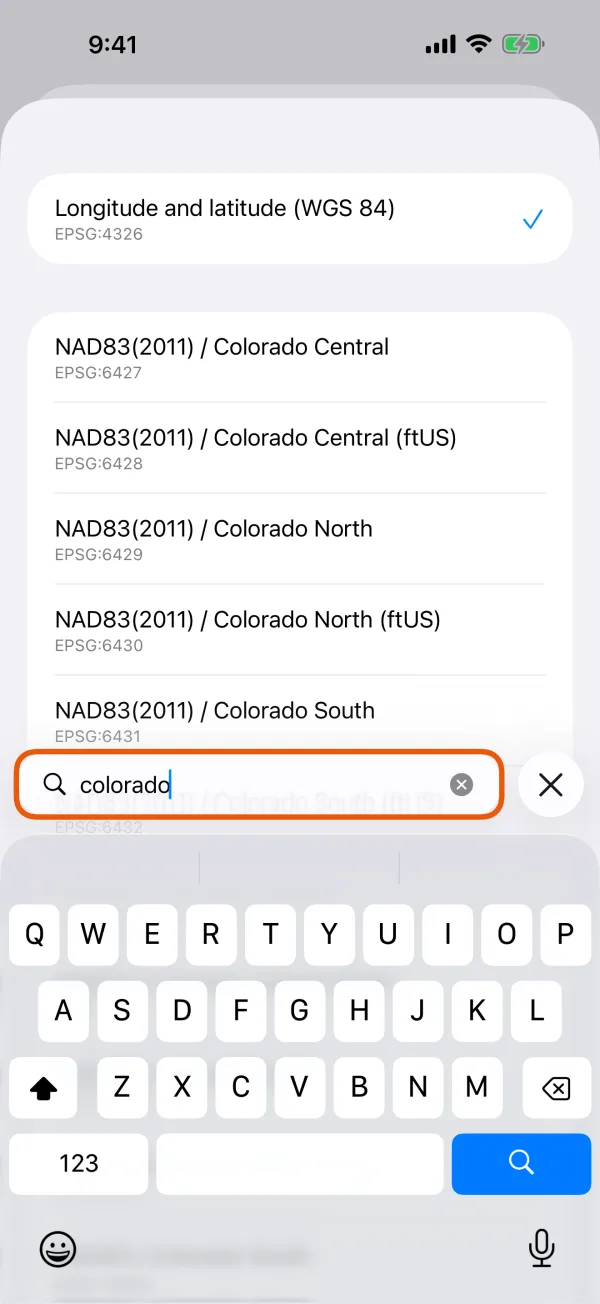
Systems matching the search, each with its EPSG code. Tap the system.
Not in the list? Type its code under EPSG code at the bottom and tap Done.
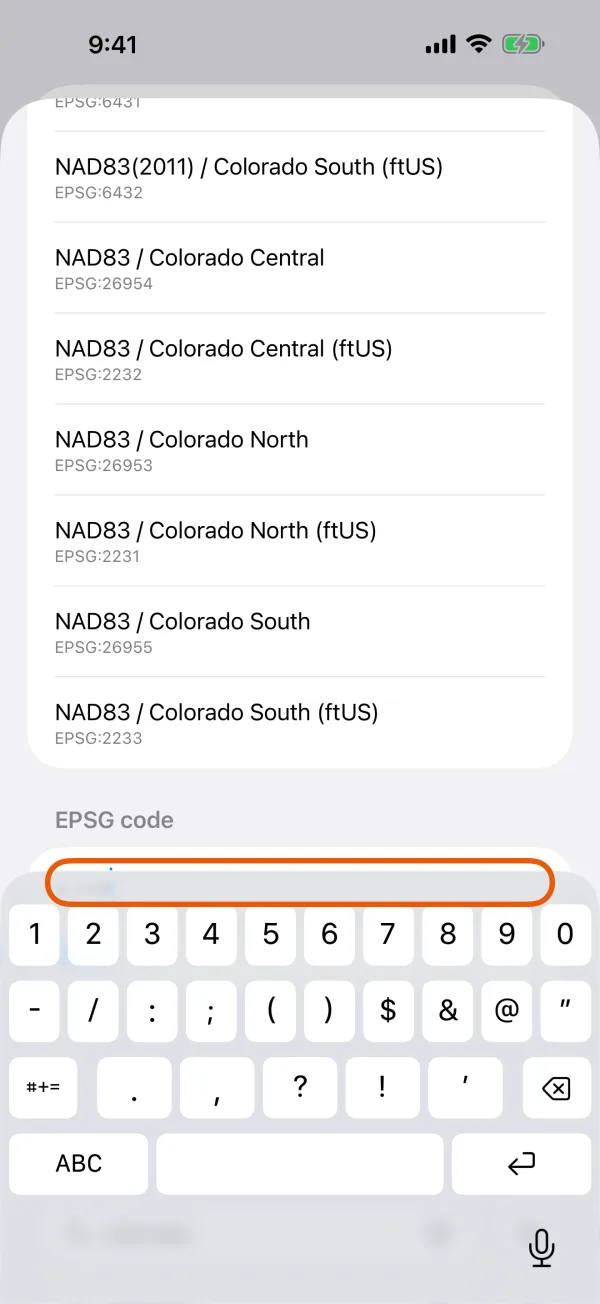
Entering a code that isn't in the list.
Tap Coordinate system.
The row shows the current system's name with its EPSG code below.
Coordinate systemThe Coordinate system row, with the name and EPSG code. Search by name or EPSG code.
Type part of the name, such as california 3, or the code, such as 6420. Longitude and latitude (WGS 84) is always at the top.
Search by name or EPSG codeSystems matching the search, each with its EPSG code. Tap the system.
Not in the list? Type its code in the search box, and tap the choice marked EPSG code.
EPSG codeA typed code offered as a choice.
The list has the WGS 84 UTM zones, every State Plane zone on NAD83(2011) and on NAD83, the UTM zones of NAD83(2011), NAD83, NAD83(CSRS) and ETRS89, and common national grids. Any other system can be used by its EPSG code.
State Plane in feet or meters
The end of a State Plane name says its unit. Choose exactly the one your recipient's drawing or specification names.
| Name ends with | Unit | Example |
|---|---|---|
| (ftUS) | US survey feet | NAD83(2011) / California zone 3 (ftUS), EPSG:6420 |
| (ft) | International feet | NAD83(2011) / Arizona Central (ft), EPSG:6405 |
| Nothing | Meters | NAD83(2011) / California zone 3, EPSG:6419 |
US survey feet and international feet differ by 2 parts per million. With State Plane coordinates in the millions of feet, mixing them up moves everything by several feet.
Prefer NAD83(2011) zones for current work. Zones named just NAD83 / are on the original NAD83 realization. For an exact conversion into those, the app needs NOAA's conversion files, and offers to download them under the row. Without the files, the conversion can be off by up to about 3 ft (1 m).
Elevations in a national height system
Survey points (PNEZD), and CAD delivery (DXF) with Include elevations (Z) on, can give elevations in the country's own height system. When the coordinate system you chose has one, a switch appears, such as Elevations in NAVD88 (GEOID18). It's on by default.
- The elevations are worked out from the ellipsoidal heights the receiver recorded, through the national geoid model. A record without an ellipsoidal height gets no elevation.
- The switch works once that country's files are on the phone. Until then, a Download button appears in place.
- Where a coordinate system has more than one height system, for example a UTM zone several countries share, choose under Height system.
- With the switch off, elevations are the heights recorded above the receiver's own geoid model. Other export formats don't offer national heights.
In the United States: NAVD88 (GEOID18) for zones in the conterminous states, NAVD88 (GEOID12B) for Alaska, and PRVD02 (GEOID18) for Puerto Rico. Hawaii and the Pacific territories have none. Canada and many European countries have theirs too, such as CGVD2013, ODN, NAP and DHHN2016.
Coordinate and height data
The conversion and geoid files don't come with the app. To see and manage them, open Settings and tap Coordinate and height data under Display.
- Download automatically is on unless you turn it off. Files then come by themselves when a coordinate or height system you choose needs them, and for the country you're in. Downloads over 20 MB wait for Wi-Fi.
- Tap a country to download its files now, on any connection. Tap again to stop. Tap Remove to delete them.
- Files come from the PROJ project and are kept on this device.
| United States set | Size | Used for |
|---|---|---|
| NAVD88 · PRVD02 | About 17 MB | NAVD88 (GEOID18) and PRVD02 elevations. Downloaded automatically in the United States, Puerto Rico and the US Virgin Islands. |
| NAVD88 (Alaska) | About 11 MB | NAVD88 (GEOID12B) elevations in Alaska. |
| NAD83 · NAD83(HARN) · NAD83(NSRS2007) · NAD27 | About 100 MB | Exact conversions into older NAD83 realizations and NAD27. |
NAD83(2011) systems need no conversion files.
Positions from a WGS 84 / ITRF correction service
A correction service whose Referenced to is set to WGS 84 / ITRF gives positions where the ground was on the day you measured. NAD83(2011), NAD83(CSRS), ETRS89 and GDA2020 hold the ground still on its continental plate, and plates move a little every year. By 2026 the difference is about 5 ft (1.5 m) in California and about 3 ft (1 m) in Europe.
So when you export into a system on one of these datums, such as a NAD83(2011) State Plane zone or a European national grid, each position from a WGS 84 / ITRF service is first moved to where that region's networks would have measured it that day. Easting and Northing on My location are worked out the same way. Positions from a service set to NAD83(2011), ETRS89 or another regional datum, from one left at Not stated, and from the phone's own GPS go out as they are.
To set the datum, see get RTK corrections with NTRIP.
Coordinate format
Coordinate format, under Display in Settings, sets how longitude and latitude are shown in the app, such as on My location: Decimal degrees or Degrees, minutes, seconds. It doesn't change your data or your exports. The receiver screen's Location details always show degrees, minutes and seconds.