 Dipper Field
There are two ways to bring in a file:
- As records: each feature becomes a record of one of the project's record types, with its answers filled in from the file's columns. You can edit them, inspect them and export them like any other record.
- As a reference layer: the file is shown under your records to work against, such as parcels or pipes. It can't be changed and isn't counted as records.
To build a new project around a file, start a new project from it instead. See create your first project.
Files you can use
| Format | File | Good to know |
|---|---|---|
| GeoPackage | .gpkg | With several layers, you choose one. |
| Shapefile | .zip | The ZIP must hold one Shapefile: its .shp, .shx and .dbf, and its .prj for the coordinate system. |
| GeoJSON | .geojson, .json | |
| KML, KMZ | .kml, .kmz | A KMZ must hold one KML file. |
| CSV | .csv | You choose the location columns and their coordinate system. |
| Excel | .xlsx | You choose a sheet, then its location columns, as for CSV. |
Add records to a project
Before you start
- A record type that matches the file's shapes: points, lines or areas.
- The file on the device, in a connected location, or somewhere the device's file picker can reach.
Open the project, tap Files, then Add existing records.
Data Files opens for you to choose a data file.
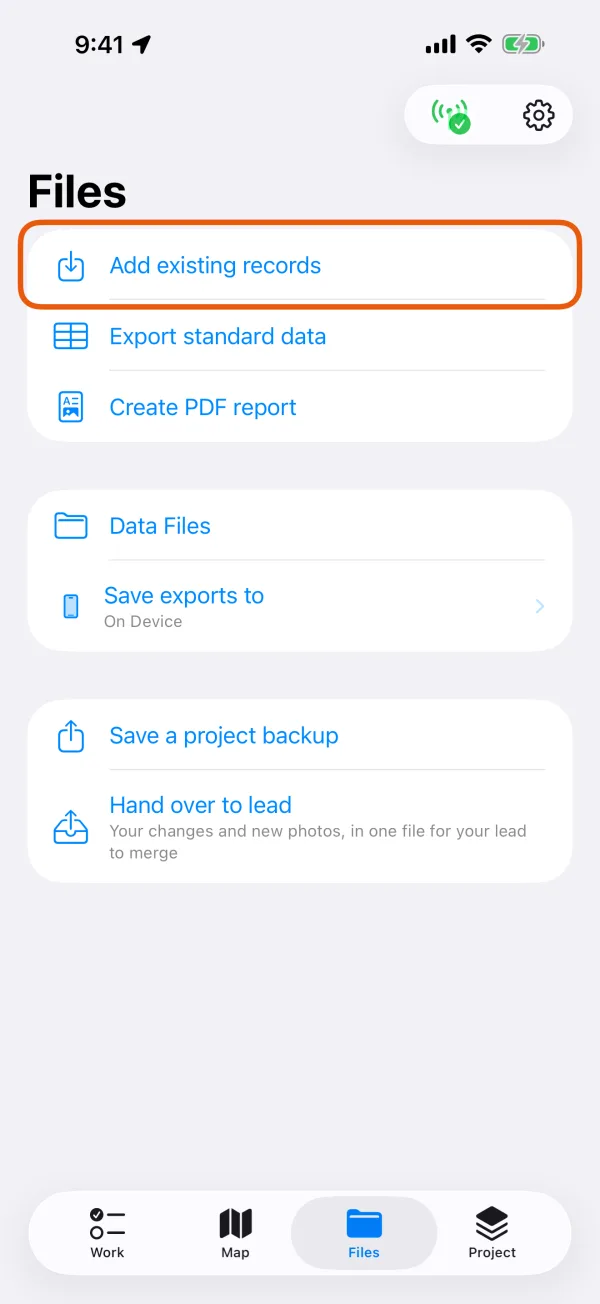
The Files tab, with Add existing records marked. Choose the file.
Pick it under On Device or a connected location, or tap Add File (Add file on Android) to pick it from elsewhere. Dipper Field checks the data first.
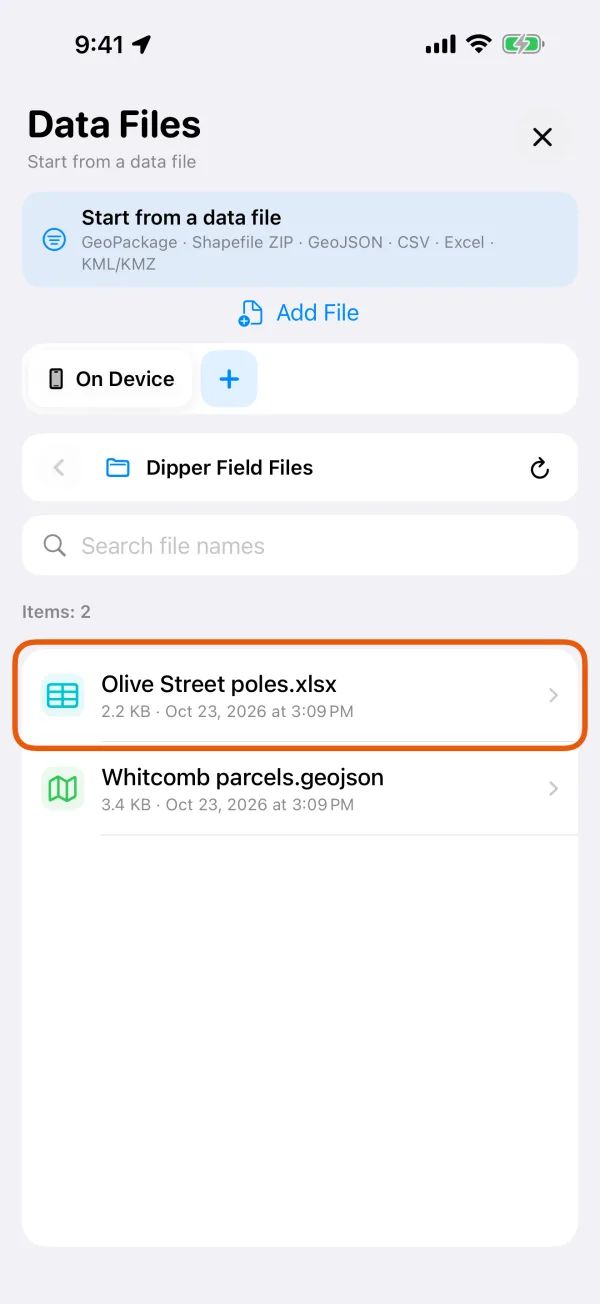
Data Files, ready to choose a data file. Choose the layer or sheet, if asked.
A file with several layers shows Choose a layer in this file; an Excel workbook shows Choose a sheet in this workbook.
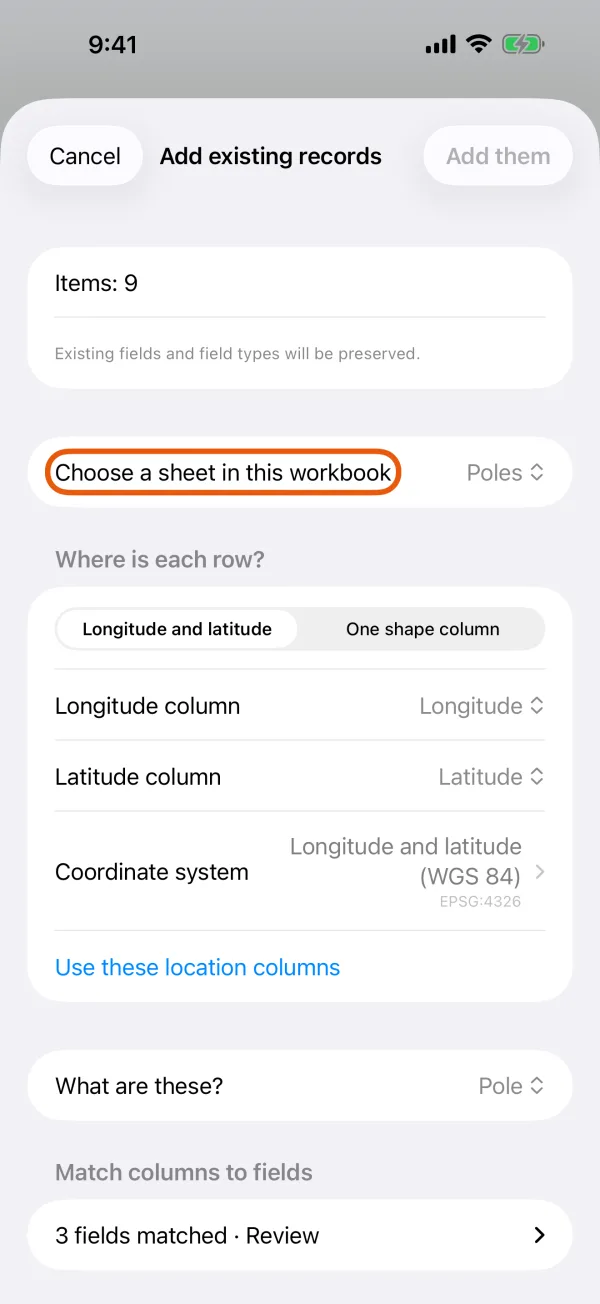
The sheet picker and the item count. For a CSV or Excel sheet, say where each row is.
Under Where is each row?, choose a Longitude column and a Latitude column, or One shape column that holds a shape as WKT text. Columns named like longitude, lon, lng or x and latitude, lat or y are filled in for you. Set the Coordinate system the numbers are in, then tap Use these location columns.
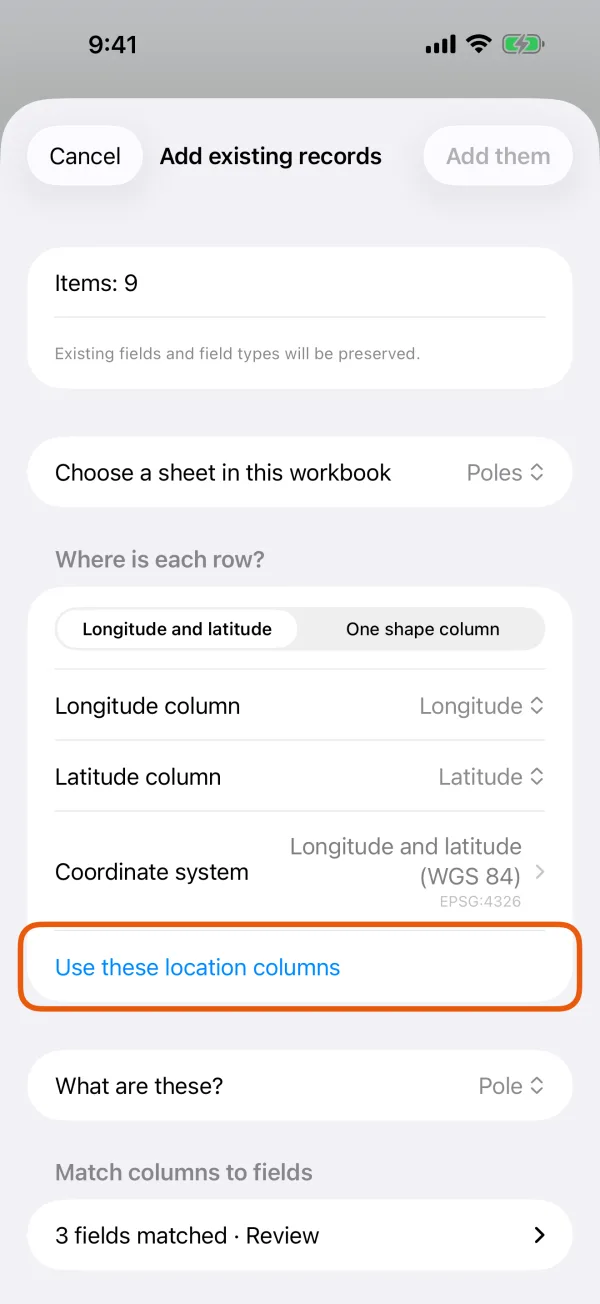
The location columns and the coordinate system. Choose what they are.
Under What are these?, pick the record type. Only types with the same kind of shape are offered.
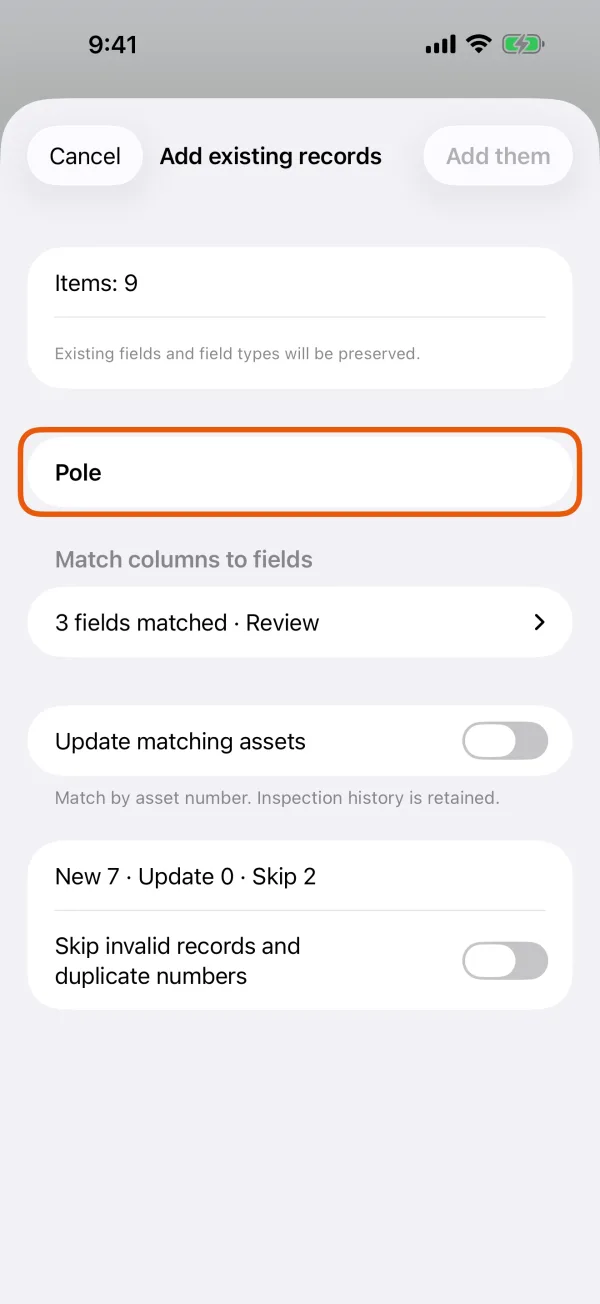
The record types that match the file. Check how columns match fields.
Under Match columns to fields, fields with a matching column are filled in; tap fields matched · Review to see them all. For each field, pick a column or No source field, and set Use when blank where you want a value for empty cells. For a choice question, pick which option each value in the file means.
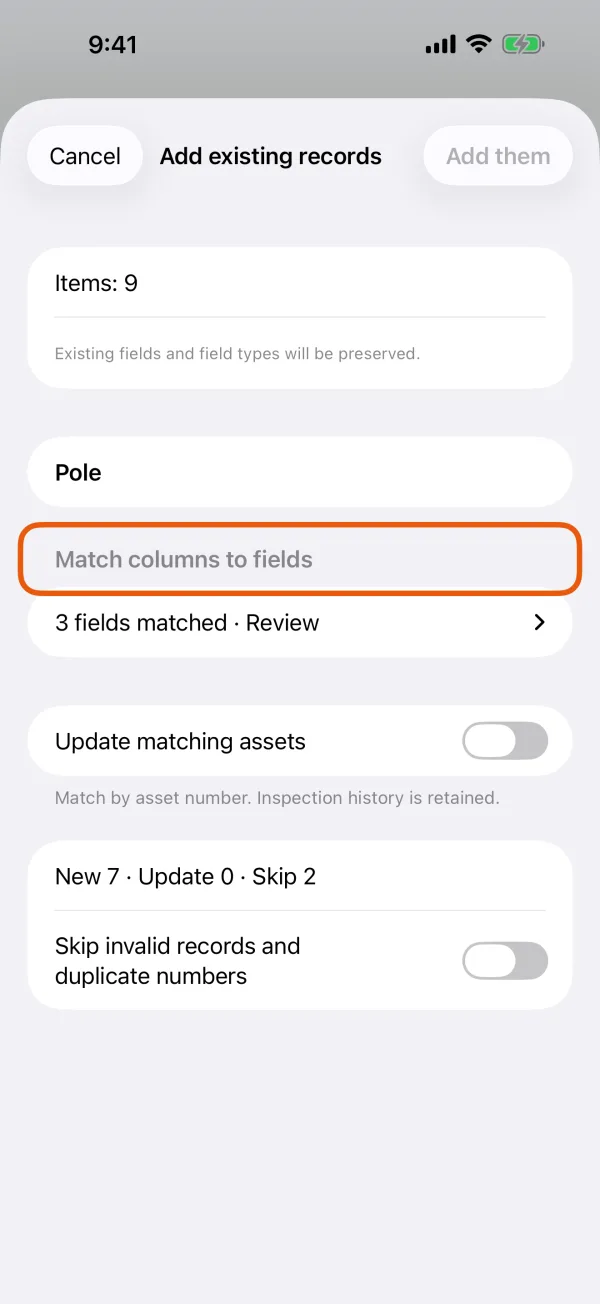
Fields, the column each one takes, and sample values. Check the summary and tap Add them.
It shows what will happen, such as New 120 · Update 0 · Skip 3. If some rows will be skipped, turn on Skip invalid records and duplicate numbers to go ahead.
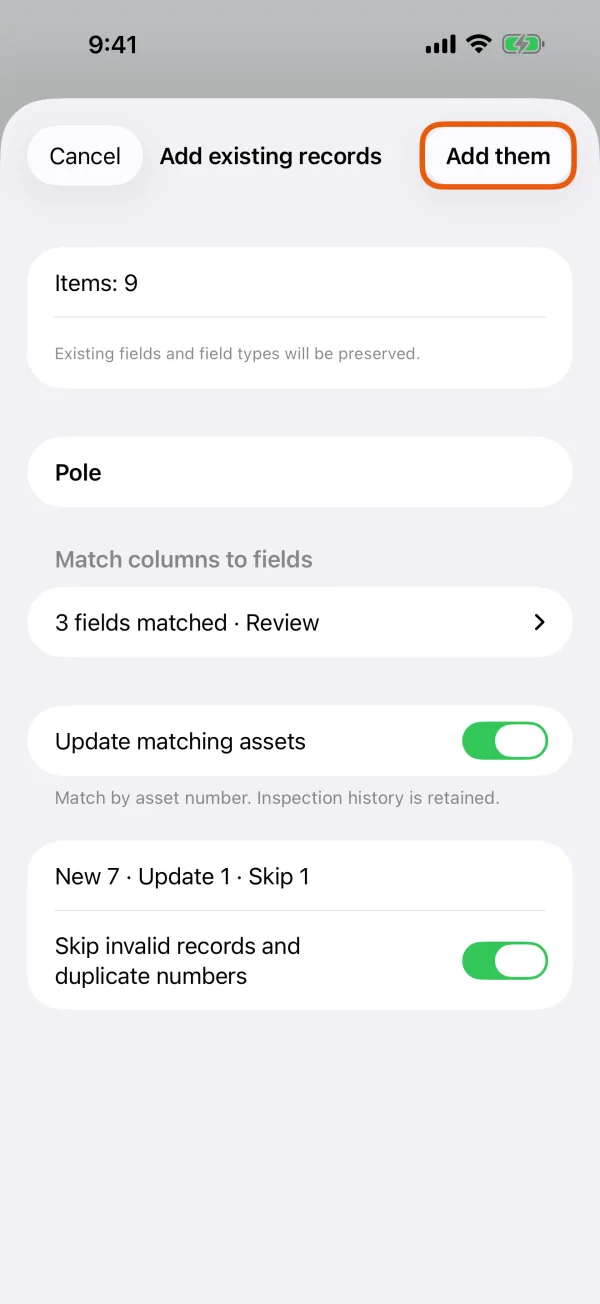
The summary with New, Update and Skip.
When it's done, it says, for example, Added 120, skipped 3. Where records came from then appears on the Files tab and lists each file you imported.
Dipper Field remembers how you matched columns, so the next file with the same columns into the same record type is matched the same way.
Coordinates
- A file that names its coordinate system, such as a Shapefile with its
.prj, is converted as it comes in: Coordinates will be converted as they are added. - A file that names none, and whose numbers all look like longitude and latitude, is read as longitude and latitude.
- A file that names none, and whose numbers look like a projected system in meters or feet, can't be imported. Save it again from the software it came from with its coordinate system included.
- For CSV and Excel, you set the system yourself under Coordinate system. Search by name or EPSG code, for example for a State Plane zone.
See coordinate systems for import and export.
Add a file as a reference layer
On the map, tap Map layers.
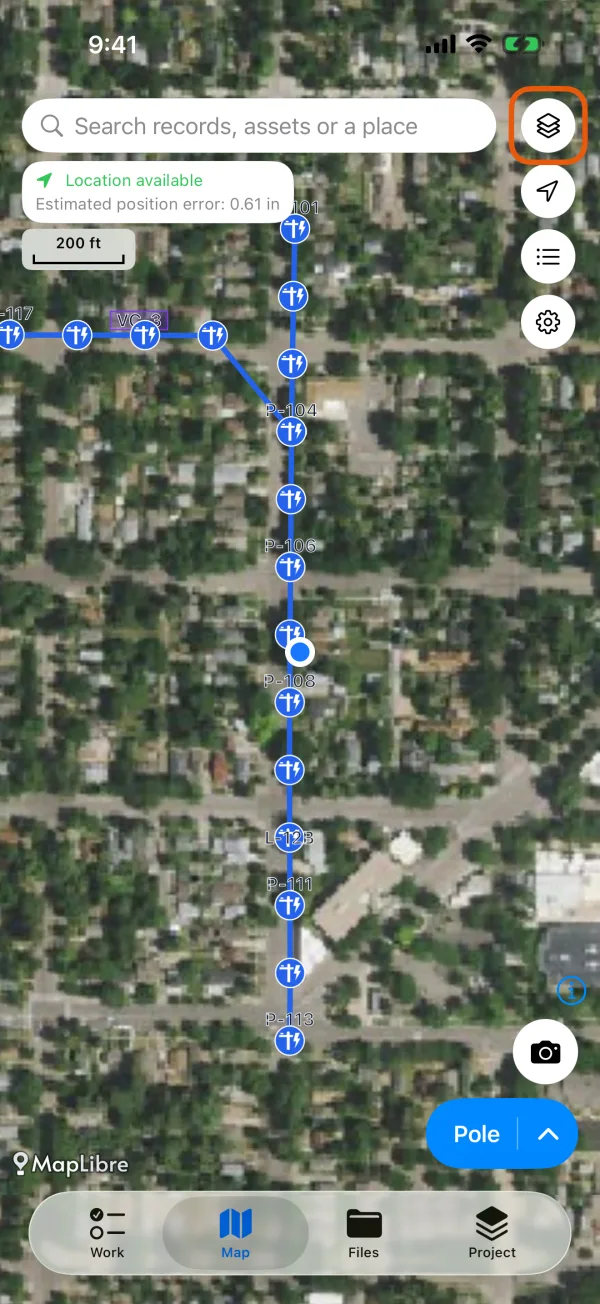
The map, with the Map layers button marked. Under Reference layers, tap Add reference layer.
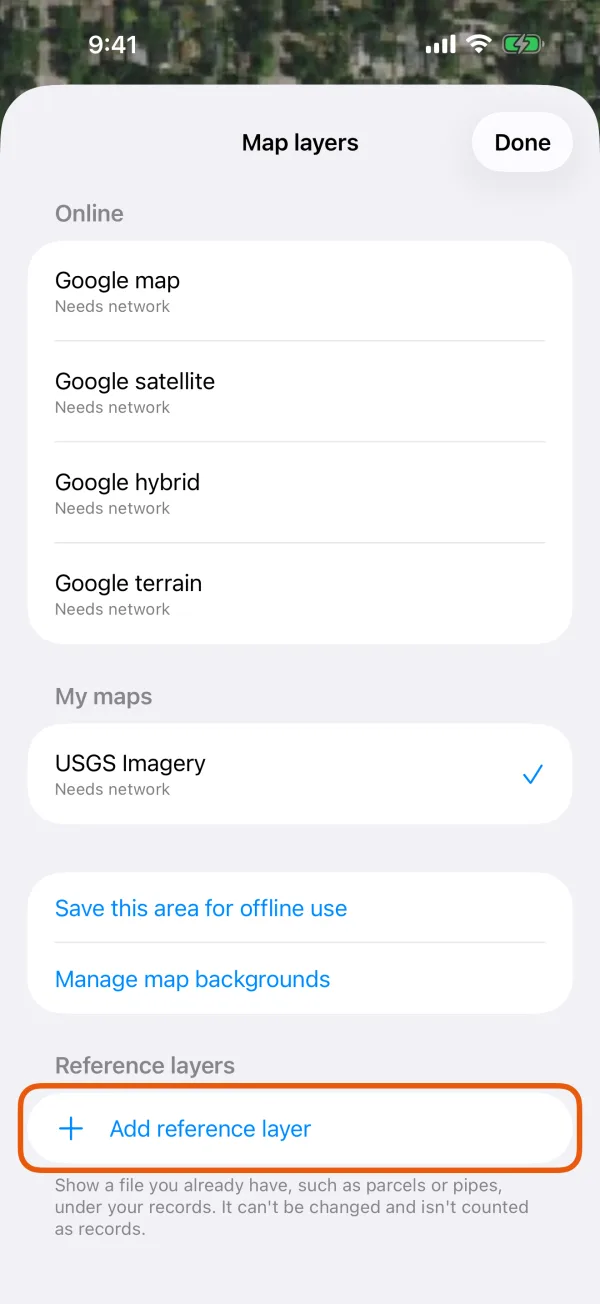
Map layers, with Add reference layer marked. Choose the file.
Use a file that carries its own shapes, such as a GeoPackage, Shapefile ZIP, GeoJSON or KML. If it holds several layers, choose one under Which layer?. The map then moves to show the layer.
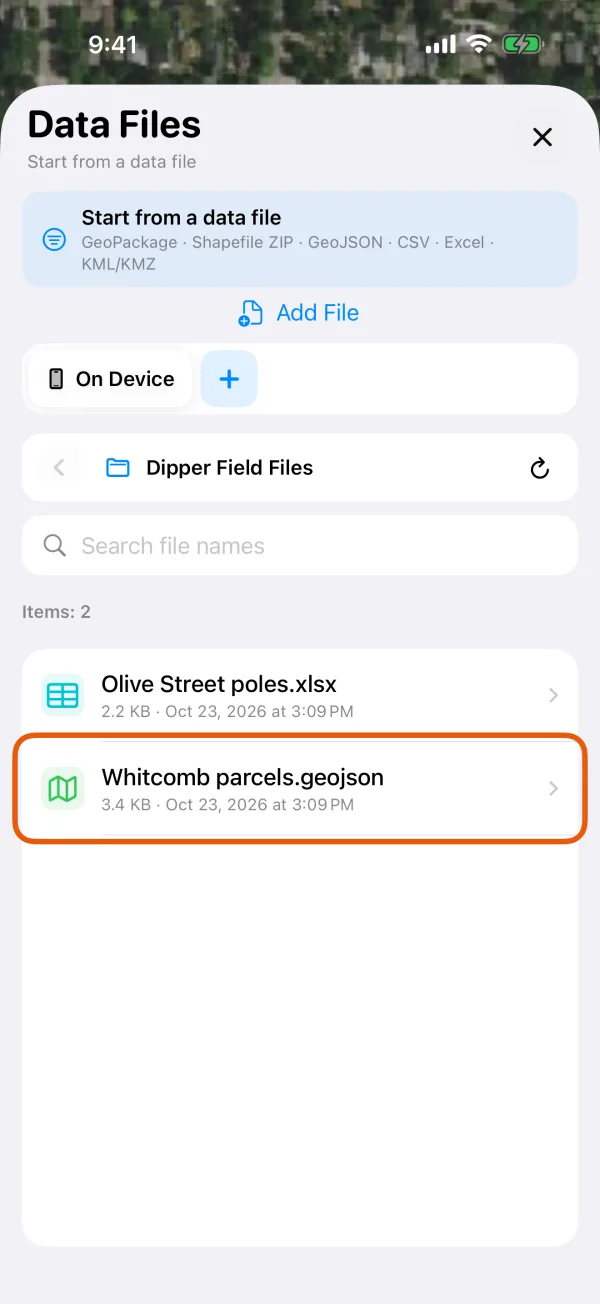
Choosing the file for the reference layer.
Tap the layer in Map layers to turn Show on map or Snap to this layer on or off, change its color, Zoom to layer or Remove layer. A reference layer is included in project backups, so anyone who opens the backup sees it too. Data exports leave it out.
Limits
- One file can be up to 2 GB, and the device needs free space of about three times its size. Otherwise you'll see This file is too large to import on this device or There is not enough room on this device.
- A project can show up to 8 reference layers, each with up to 500,000 shapes.
- Excel files must be
.xlsx. Older.xlsworkbooks need saving as.xlsxfirst. - GPX files can't be imported. Dipper Field writes GPX only when you export.
- If This project has no compatible record type for this data appears, the project has no record type with the file's kind of shape. Add one, or import the file as a reference layer.