 Dipper Field
A project holds the work for one job: the kinds of things you record, called record types (such as fire hydrants or road damage), the fields filled in for each, and the records themselves.
On Projects, tap Create project.
Already have projects? Tap + at the top of the screen and choose New Project.
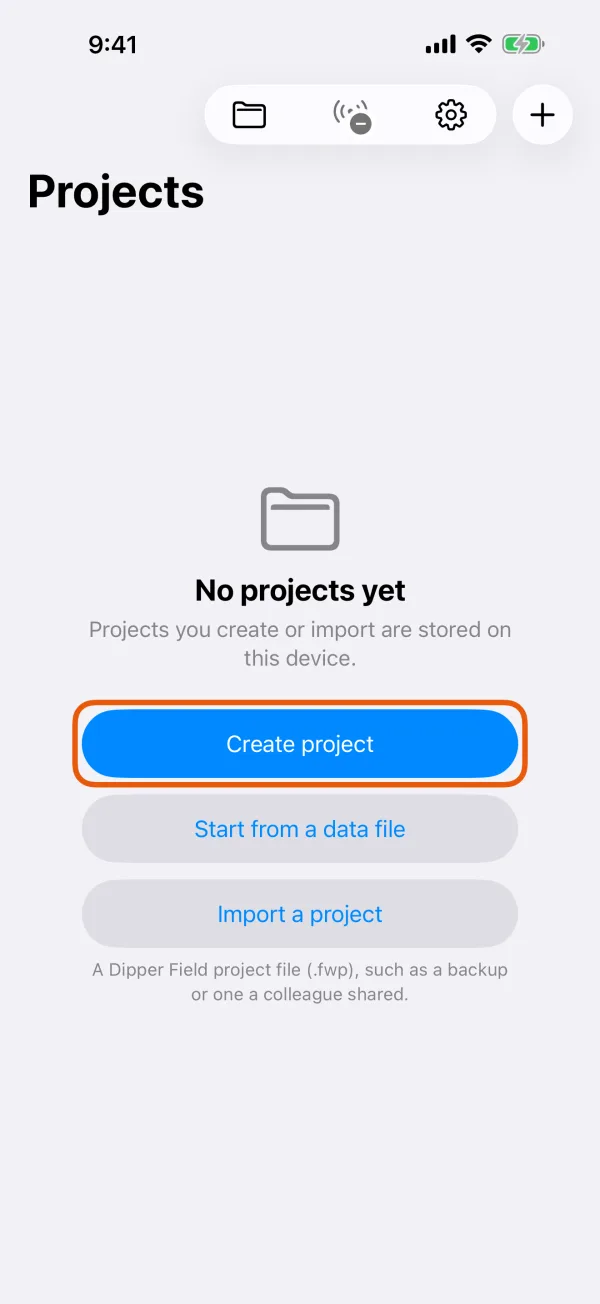
The Projects screen before your first project. Enter a Project name.
The name comes first. The app asks for it before you choose how to start.
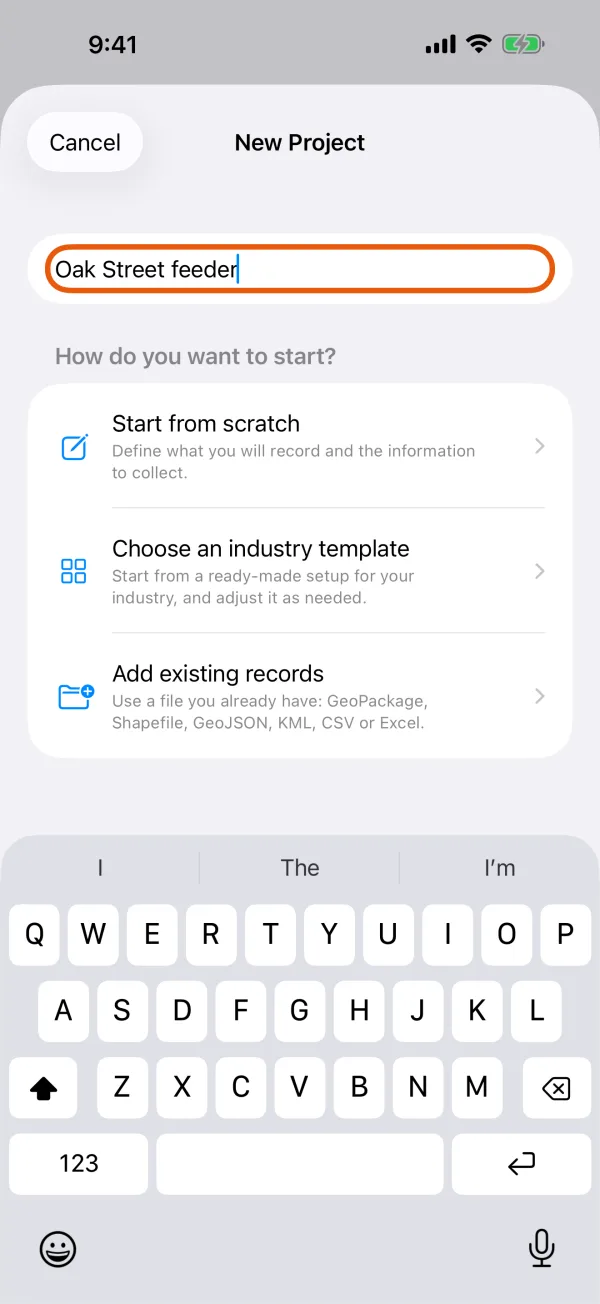
New Project, with the project name filled in. Under How do you want to start?, tap Choose an industry template.
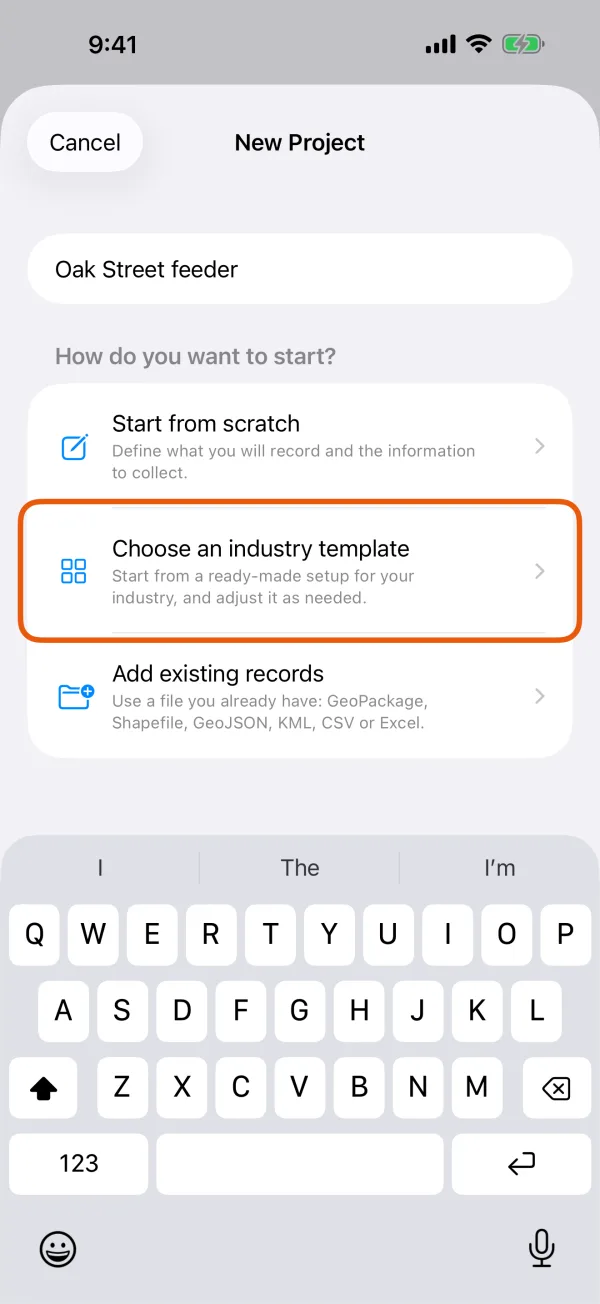
The three ways to start a project. Choose an industry, then a template.
Template Library has 42 templates on 8 industry shelves, such as Municipal infrastructure, Transport and roads and Field research. Each card lists the template's record types and how many fields they have. To search every template at once by name, record type or field, use the search box.
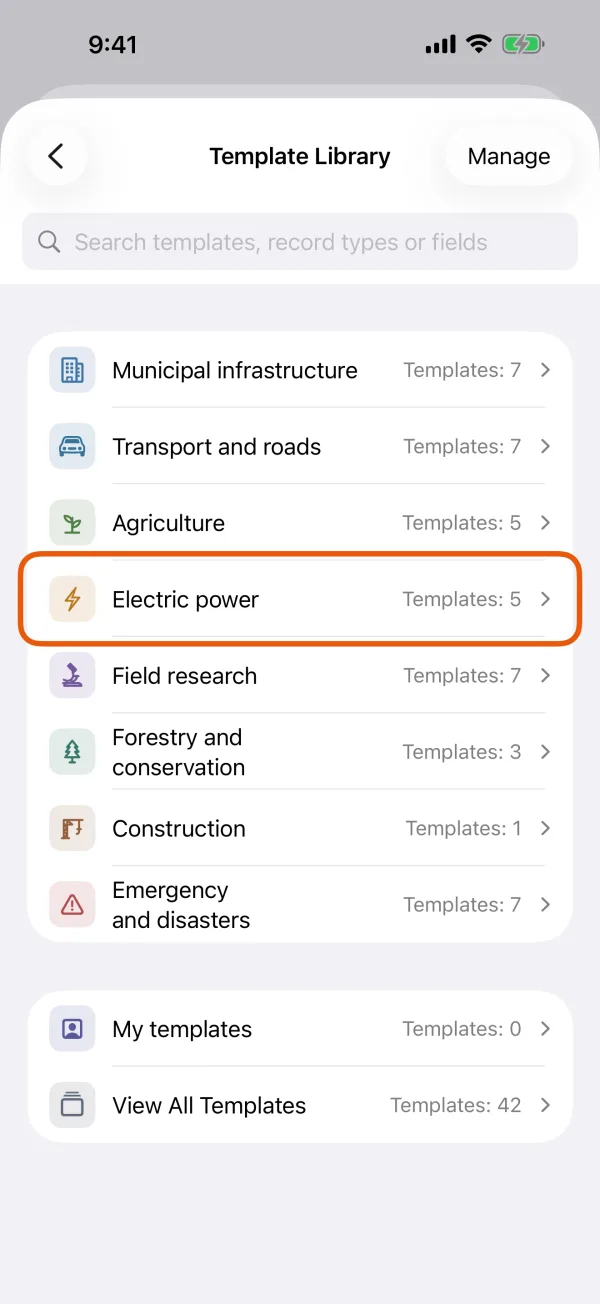
The industry shelves, with My templates and View All Templates below them. Tap Use Template.
The template's page shows its record types and the number of fields in each.
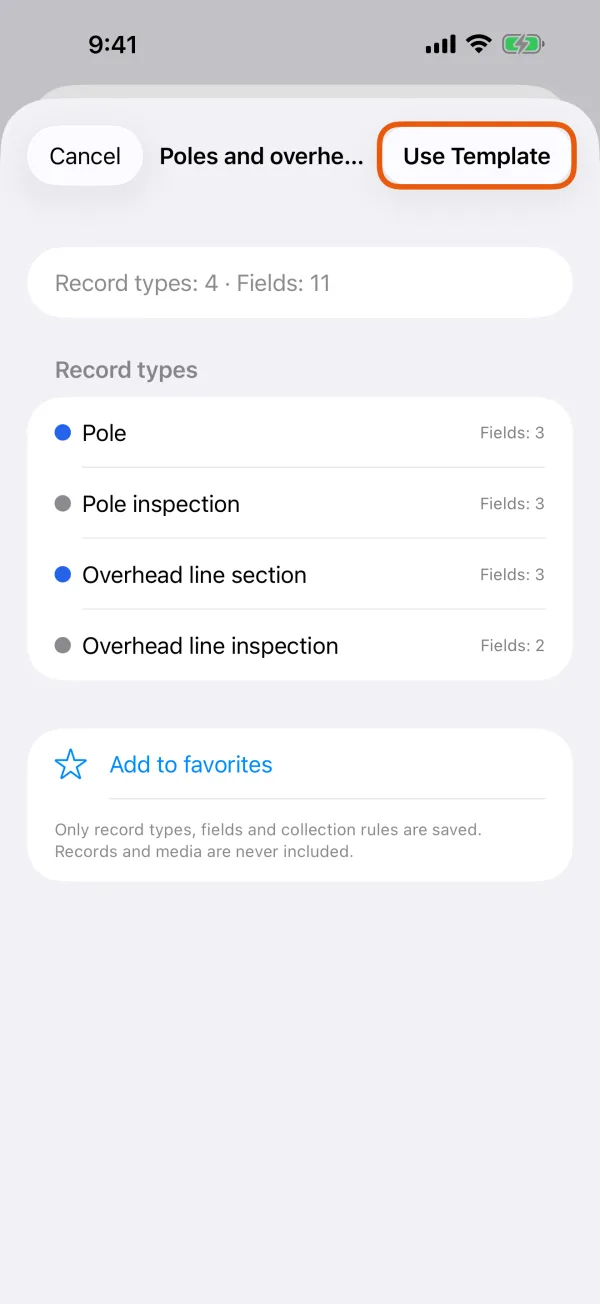
A template's record types, with Use Template at the top. Check the record types, then tap Create.
You're adjusting a copy, so the original template doesn't change. Tap a record type to change its name, shape, map symbol or fields. Add another record type adds one of your own.
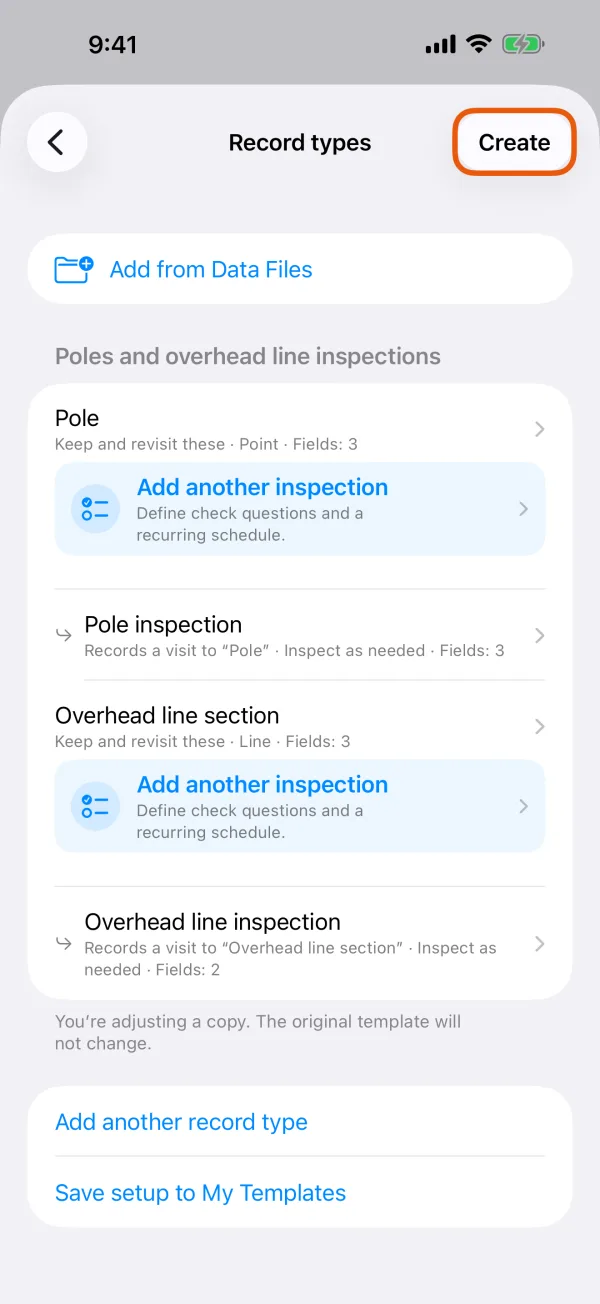
The template's record types, ready to create.
The new project opens on its Work tab. To start recording, see Record your first point.
Start from scratch instead
On New Project, tap Start from scratch, then Add a record type. Give each record type a name, choose whether it's a Point, Line or Area, and tap Done. Then open it to add fields with Add a field. When the list is complete, tap Create.
Start from a file you already have
Have a GeoPackage, Shapefile, GeoJSON, KML, CSV or Excel file? On New Project, tap Add existing records. On an empty Projects screen, Start from a data file does the same. See Import records from files.
To open a Dipper Field project file (.fwp), such as a backup or one a colleague shared, tap Import a project instead. See Back up and restore a project.
Where your projects are kept
Projects you create or import are stored on this device, inside Dipper Field. They aren't copied to us, and nothing leaves the device unless you export it or save a backup.