 Dipper Field
Dipper Field asks for each permission the first time you use something that needs it, not when the app starts. You can say no to any of them and still use the rest of the app.
| Permission | What it's for | When the app asks |
|---|---|---|
| Location | Placing records where you stand, and showing your position and its accuracy on the map | The first time you open the Map tab |
| Camera | Taking photos and videos for your records | The first time you take a photo or video |
| Bluetooth | Connecting an external GNSS receiver | The first time you open Location source to find a receiver |
| Microphone | Voice notes, and sound in videos | The first time you record a voice note or a video |
Dipper Field asks for location access only while you're using the app, never all the time. Choose to allow it while using the app, and leave precise location on: an approximate location can be off by a mile or more, which is no good for placing records.
Choosing photos with Library uses the system photo picker, so the app doesn't need access to your whole photo library.
Check what's allowed
Open Settings with the gear button and look under System access. Location and Camera each say Allowed, Needs attention or Not requested.
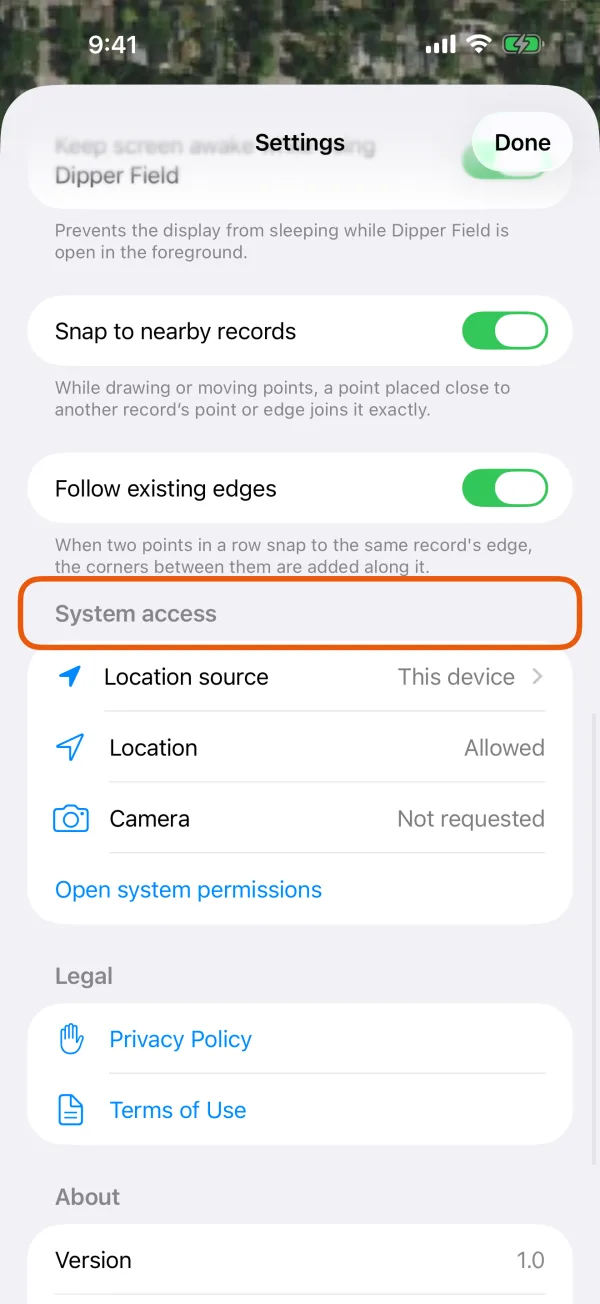
Bluetooth isn't listed there. If it's turned off, Location source shows Open Settings.
Turn a permission back on
Open Settings and tap Open system permissions.
It's under System access. The iPhone's Settings app opens on Dipper Field.
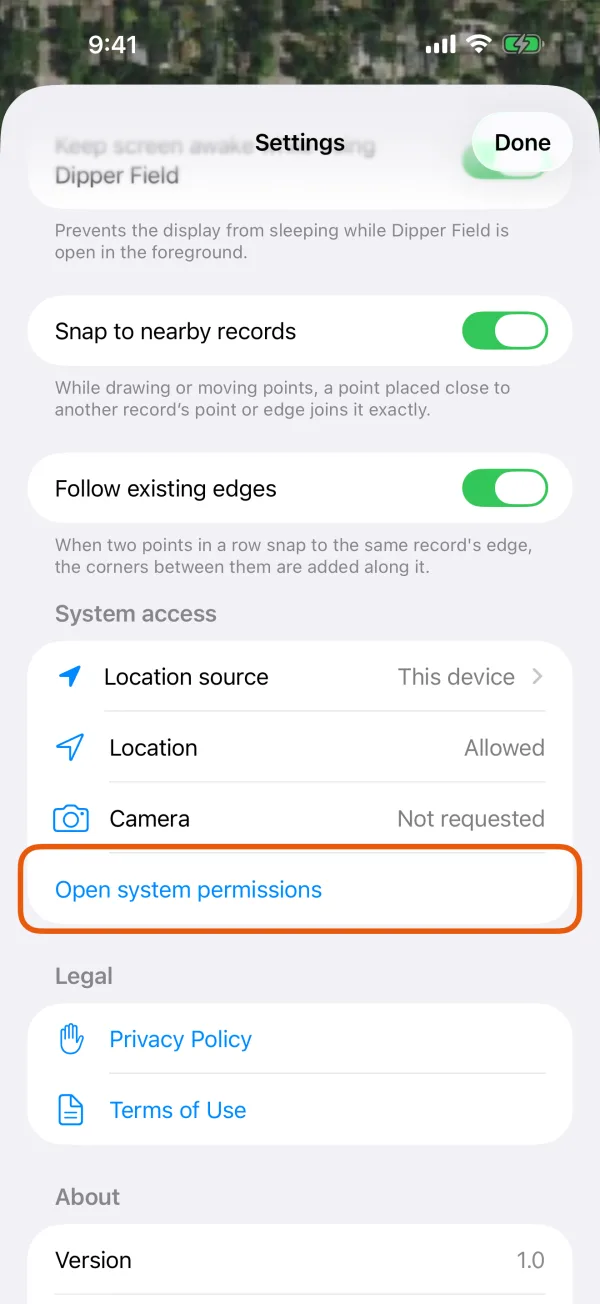
System access, with Open system permissions marked. Turn on what you need.
Set Location to allow it while using the app, with precise location on. Turn on Camera, Bluetooth and Microphone as needed.
Go back to Dipper Field.
The rows under System access update when you return.
Open Settings and tap Open system permissions.
It's under System access. Android's app settings open on Dipper Field.
Open system permissionsSystem access, with Open system permissions marked. Tap Permissions and turn on what you need.
Set Location to allow it only while using the app, with precise location on. Allow Camera, Nearby devices (for Bluetooth receivers) and Microphone as needed.
Go back to Dipper Field.
The rows under System access update when you return.
Where the app tells you something is off
Location.
Tapping Use my location on the map says Location is turned off for Dipper Field, with Open Settings.
Camera.
The camera says The camera is unavailable, with Open Settings.
Bluetooth.
Location source shows Open Settings instead of searching for receivers.
Location.
Tapping Use my location on the map asks for location again. Once Android stops asking, turn it on in Settings as above.
Camera.
Tapping Photo asks for the camera again. If you refused it and Android no longer asks, the camera doesn't open; turn it on in Settings as above.
Bluetooth.
Location source asks again when it searches. Once Android stops asking, it shows Open Settings.
Other permissions you may see
- Nearby devices, on Android 12 and later: this is how Android names Bluetooth access. On Android 11 and earlier, searching for a Bluetooth receiver needs location access instead, and the phone's location must be switched on.
- Notifications, on Android 13 and later: asked once, after a receiver first connects, to show that it's connected. If you refuse, the receiver still works.
- Local network, on iPhone: asked when Dipper Field first reaches a receiver or correction service on your local network, such as your own base station.
If your position is still missing or poor with location allowed, see My location isn't found or is inaccurate.