 Dipper Field
What the app is telling you
When you record a point, the Use my location row shows how your position is doing:
| It says | What it means |
|---|---|
| Getting location… | No position has arrived yet. |
| Location available | A position is here, with Estimated position error under it. |
| Location accuracy too low | The error is larger than the limit this project sets. |
| Location updates stopped | No new position for 30 seconds. |
| Waiting for RTK fixed | Record only with RTK fixed is on, and the position isn't RTK fixed. |
On iPhone, if Dipper Field isn't allowed to use your location, the row says Location is turned off for Dipper Field, and tapping the location button on the map offers Open Settings.
Check the permission
Open Settings in Dipper Field and look at Location under System access.
It should say Allowed. Needs attention means location was turned off; Not requested means the app hasn't asked yet.
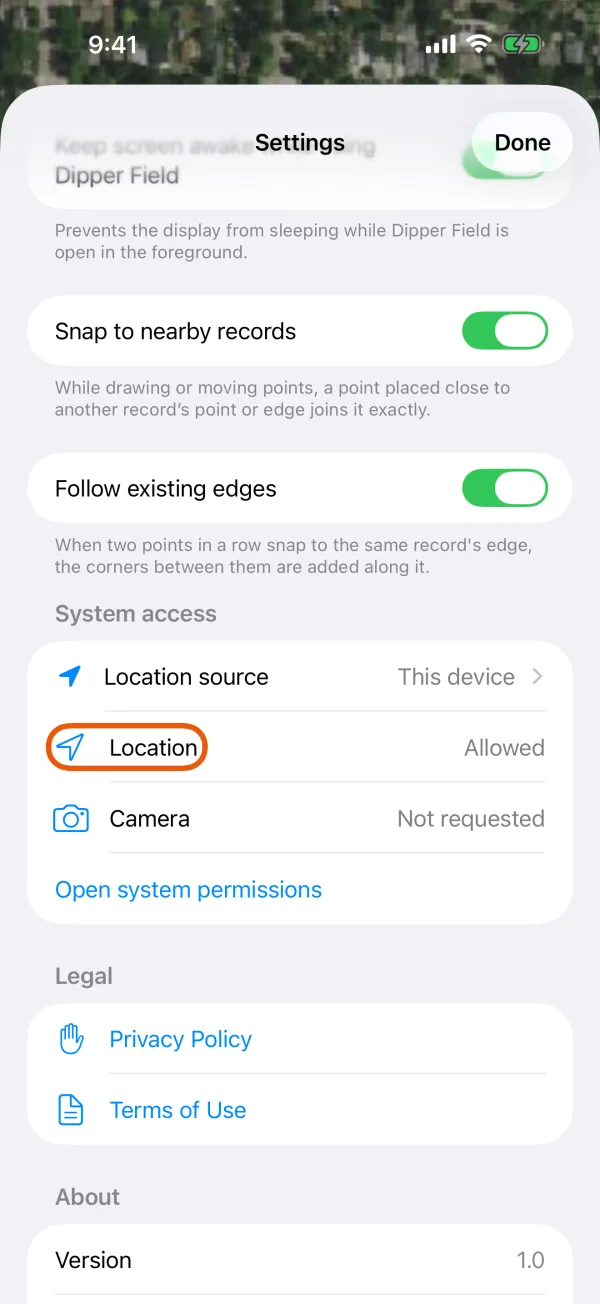
System access, with the Location status marked. Tap Open system permissions.
Set Location to While Using the App and turn on Precise Location.
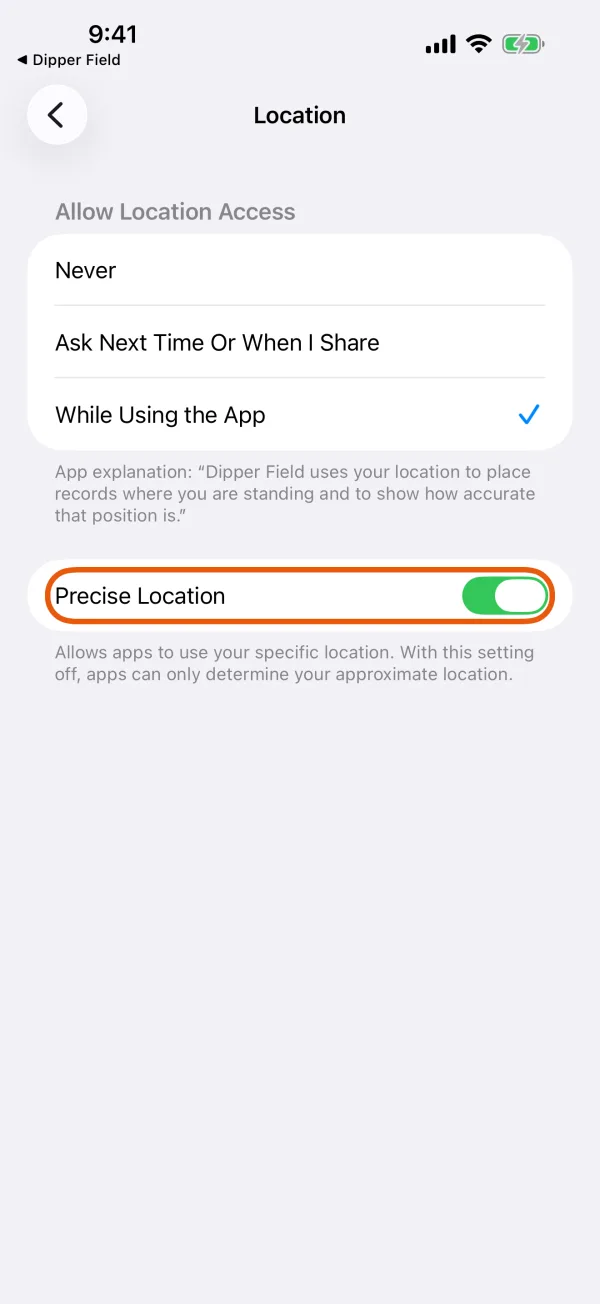
Dipper Field's location setting in iPhone Settings. Check that Location Services is on.
In iPhone Settings, under Privacy & Security, Location Services must be on for any app to get a position.
Open Settings in Dipper Field and look at Location under System access.
It should say Allowed. Needs attention means location was turned off; Not requested means the app hasn't asked yet.
LocationSystem access, with the Location status marked. Tap Open system permissions.
Under Permissions, set Location to Allow only while using the app and turn on Use precise location.
Use precise locationDipper Field's location permission in Android Settings. Check that Location is on.
Swipe down from the top of the screen and make sure Location is on.
Without precise location, the phone gives only an approximate position, which can be off by a mile or more. See allow location, camera and Bluetooth.
Check the location source
Open Settings and look at Location source under System access.
- It says This device: the phone's own GPS is in use.
- It shows a receiver's name: every position comes from that receiver, even when it has none to give. Indoors or with no sky view, the receiver may have no position while the phone does. Take the receiver outside, or tap Location source and Disconnect to go back to the phone.
- Record only with RTK fixed is on: positions that aren't RTK fixed wait, including the phone's own. Turn it off on the receiver screen if you don't need it. See record only with RTK fixed.
Give it sky and time
- Go outside, with open sky. GPS signals don't get through roofs, and walls, tall buildings, dense trees and canyons block or bounce them.
- Get out of the vehicle. A car roof weakens the signal, and a phone on the dashboard sees only part of the sky.
- Wait for the error to settle. The first position after the phone has been indoors or off for a while can be far out. Stand still for a minute and watch Estimated position error come down before you record.
- Hold the phone up. A phone in a pocket, or held against your body, gets a weaker signal.
If the position is still off
- Compare your position on the map with something you can see on the satellite imagery, such as a road edge. Map imagery itself can be off by several feet.
- Estimated position error is the phone's own estimate. The real error can be larger. See read the accuracy display.
- For positions within an inch or two, use an RTK receiver. See connect a receiver.