 Dipper Field
These settings are for high-accuracy work with an RTK receiver. Record only with RTK fixed and Antenna height (m) are on the receiver screen and apply to this phone. Accuracy rules are set per record type and belong to the project.
Before you start
- A receiver connected, with RTK corrections. See connect a receiver and get RTK corrections with NTRIP.
Open the receiver screen.
Open Settings and tap Location source.
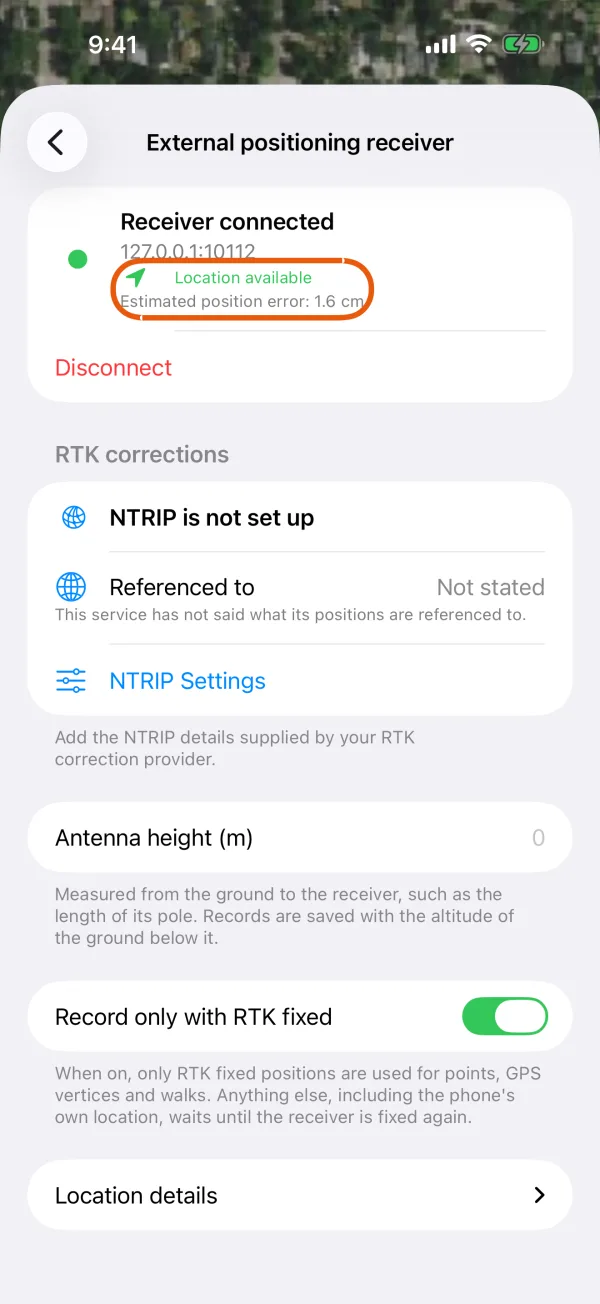
The receiver screen with a receiver connected. Enter the antenna height.
In Antenna height (m), enter the height from the ground to the receiver in meters, such as the length of its pole. You can enter up to three decimals.
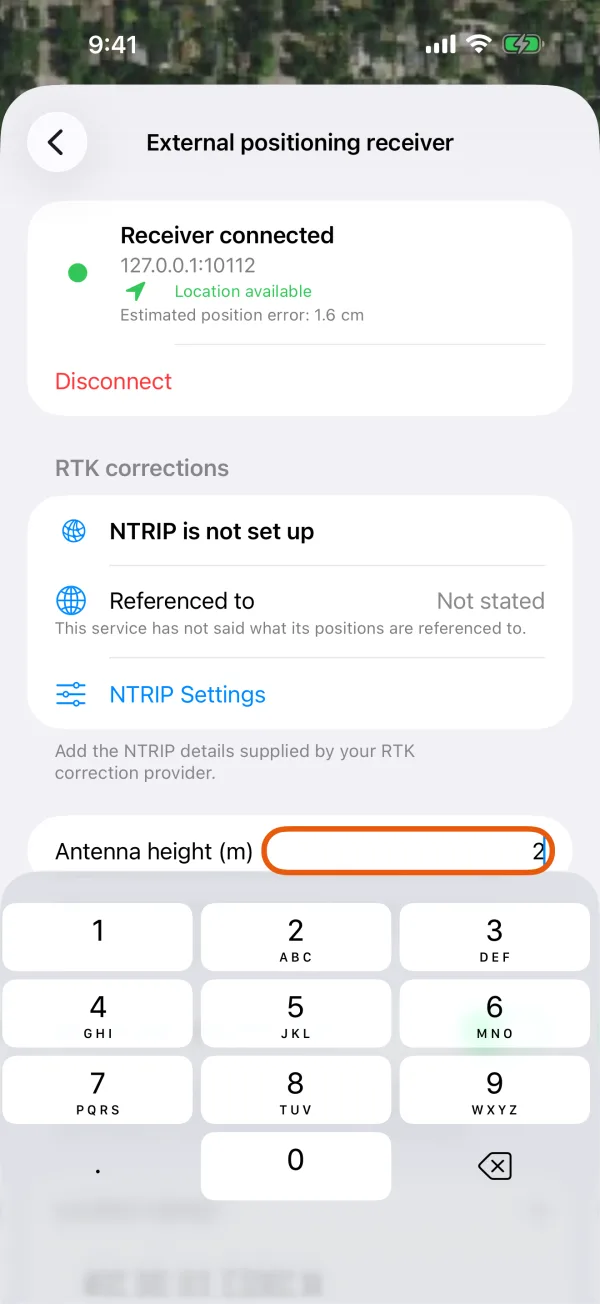
Antenna height, entered in meters. Turn on Record only with RTK fixed.
From now on, only RTK fixed positions are used for points, GPS vertices and walks.
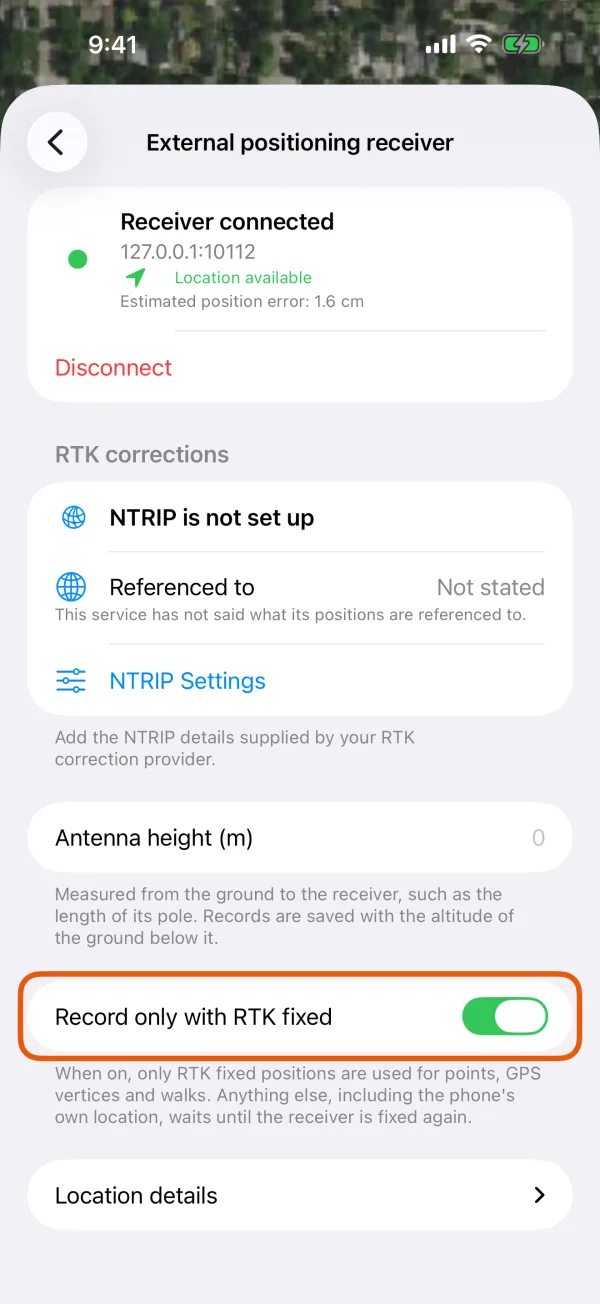
The Record only with RTK fixed switch, on.
What Record only with RTK fixed holds back
- Use my location and Offset from my location stay unavailable while the receiver isn't fixed. The status reads Waiting for RTK fixed, and the current estimated error still shows, so you can watch a float settle.
- In a walk or while adding GPS vertices, readings that aren't fixed are skipped, with Waiting for RTK fixed.
- The phone's own location never counts. If the receiver drops out, work waits instead of carrying on with the phone's GPS.
- Point to it on the map still works, because it doesn't use a measured position.
The setting stays on until you turn it off. While it's on, it also shows on the receiver screen when no receiver is connected, so you can always turn it off there.
Averaging
Averaging happens by itself. When you tap Use my location or set an offset while the receiver is RTK fixed, the app collects fixed readings and uses their average as the point:
- It stops at 10 readings or after 3 seconds, whichever comes first.
- Readings that aren't fixed are left out.
- If the pole moves more than about a foot (30 cm) from the first reading, it stops and uses the readings before that.
While it runs, the row shows Averaging position…. Afterward the form says, for example, Using your position, averaged from 10 readings (about ±0.4 in). Phone, standard and float positions aren't averaged; they're used as read.
Antenna height and the altitude saved
With an antenna height entered, every record gets the altitude of the ground under the pole, not of the antenna. The height is taken off both the height above the geoid and the ellipsoidal height, and the antenna height is saved with the record so the office can see what was used.
Altitude under Location details on the receiver screen shows the ground altitude a record would get now.
A saved point's location details show Elevation, Estimated height error, Ellipsoidal height and Antenna height when the receiver reported them.
Set an accuracy rule for a record type
Each record type can ask for a minimum accuracy. Everyone working on the project gets the same rule.
Open Project Contents.
In the Project tab, tap Project Contents.
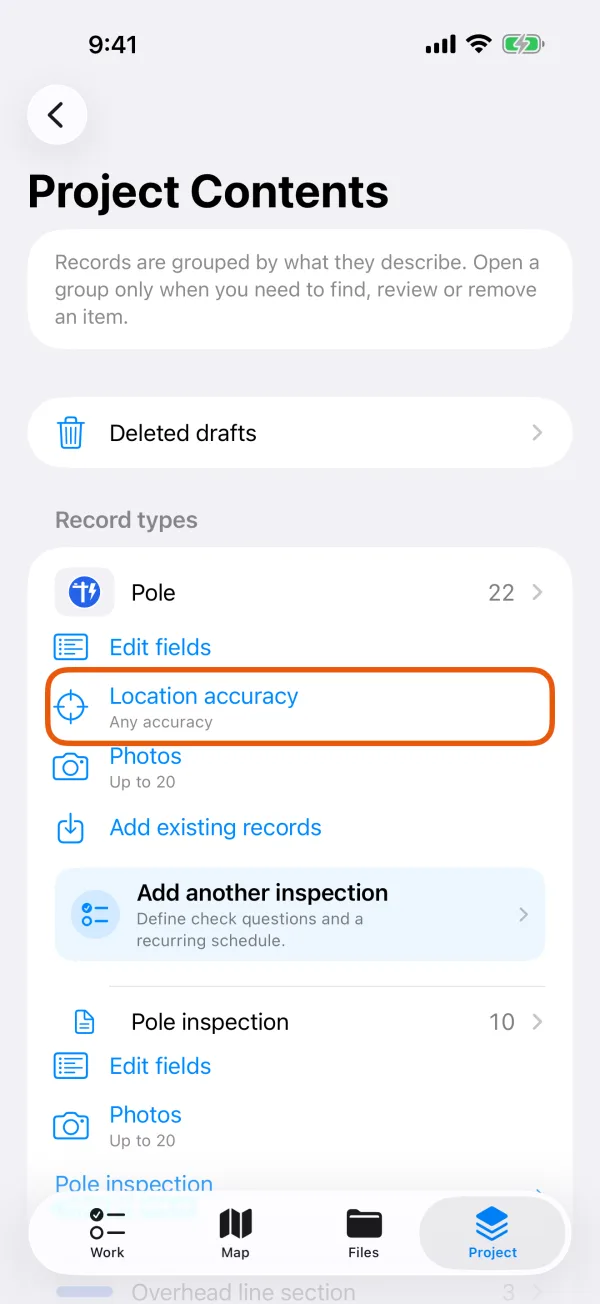
Record types, each with its Location accuracy row. Under the record type, tap Location accuracy.
It shows the current rule, such as Any accuracy.
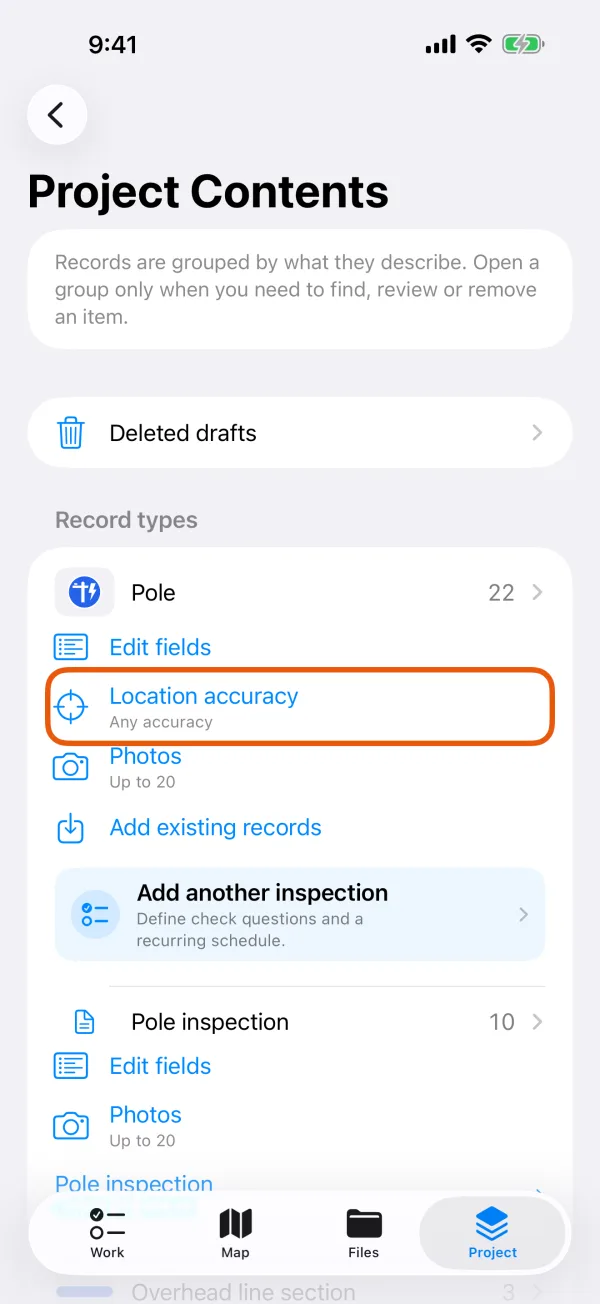
The Location accuracy row under a record type. Choose an accuracy.
Choose Any accuracy or a Better than value. In feet: 1 in, 2 in, 4 in, 2 ft, 3 ft, 10 ft, 15 ft or 30 ft. In meters: 2 cm, 5 cm, 10 cm, 50 cm, 1 m, 3 m, 5 m or 10 m.
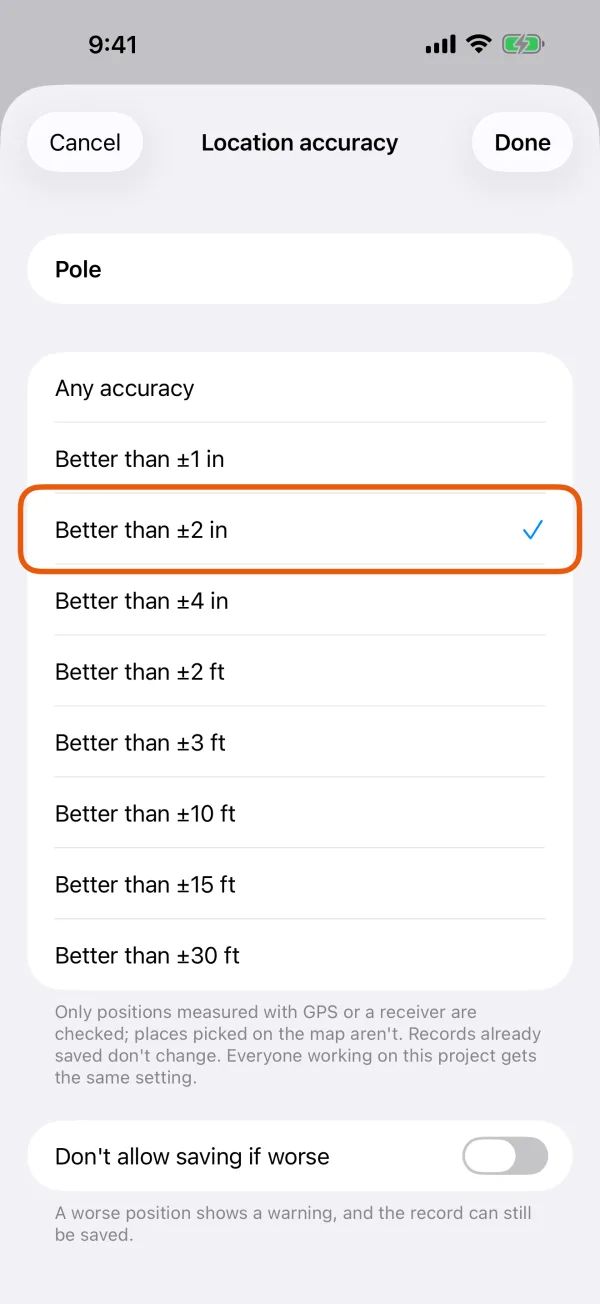
The accuracy choices for one record type. Choose whether a worse position may be saved, then tap Done.
Turn on Don't allow saving if worse to require the accuracy. Left off, a worse position shows a warning and the record can still be saved.
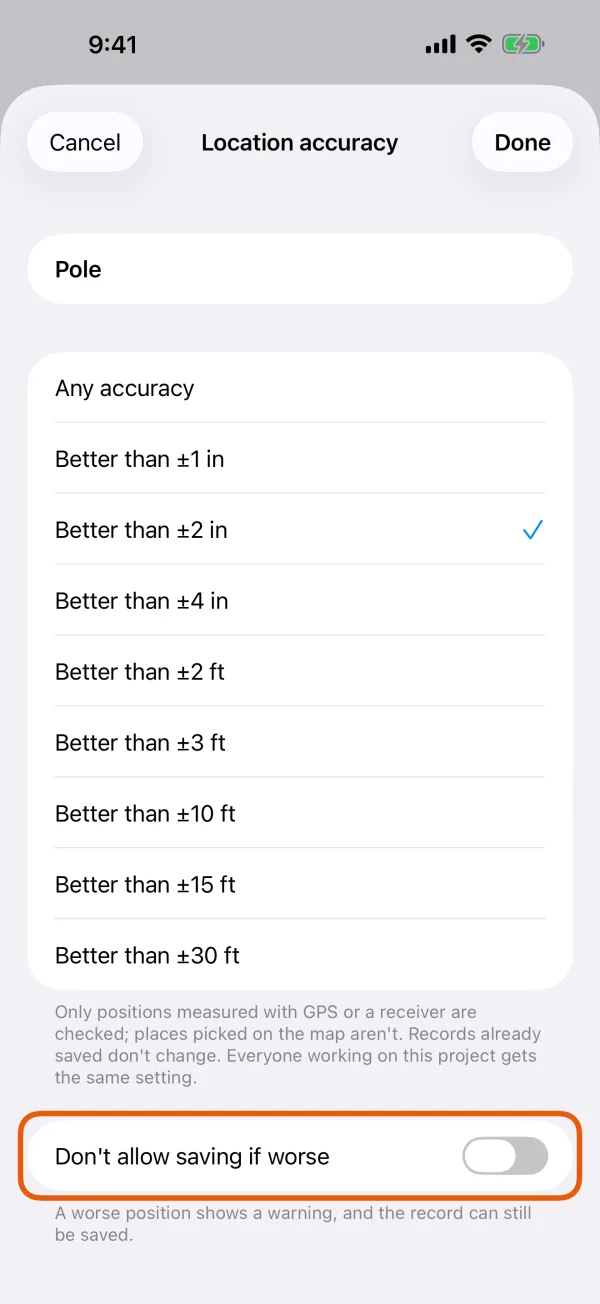
The switch that turns the warning into a requirement.
The row then reads, for example, Warn if worse than ±4 in or Must be better than ±4 in. With a rule set, the status line says Location accuracy too low while the estimate is worse.
Only positions measured with GPS or a receiver are checked; places picked on the map aren't. Records already saved don't change.