 Dipper Field
Dipper Field fetches RTK corrections from an NTRIP caster over the phone's internet connection and passes them to your receiver unchanged. It works with NTRIP 1 and NTRIP 2 casters.
Before you start
- A receiver connected to Dipper Field that accepts RTCM corrections. See connect a receiver and which receivers work.
- The details from your correction provider: caster address, port, mount point, user name and password.
- An internet connection on the phone, over cellular or Wi-Fi.
Open the receiver screen and tap NTRIP Settings.
Open Settings and tap Location source. NTRIP Settings is under RTK corrections.
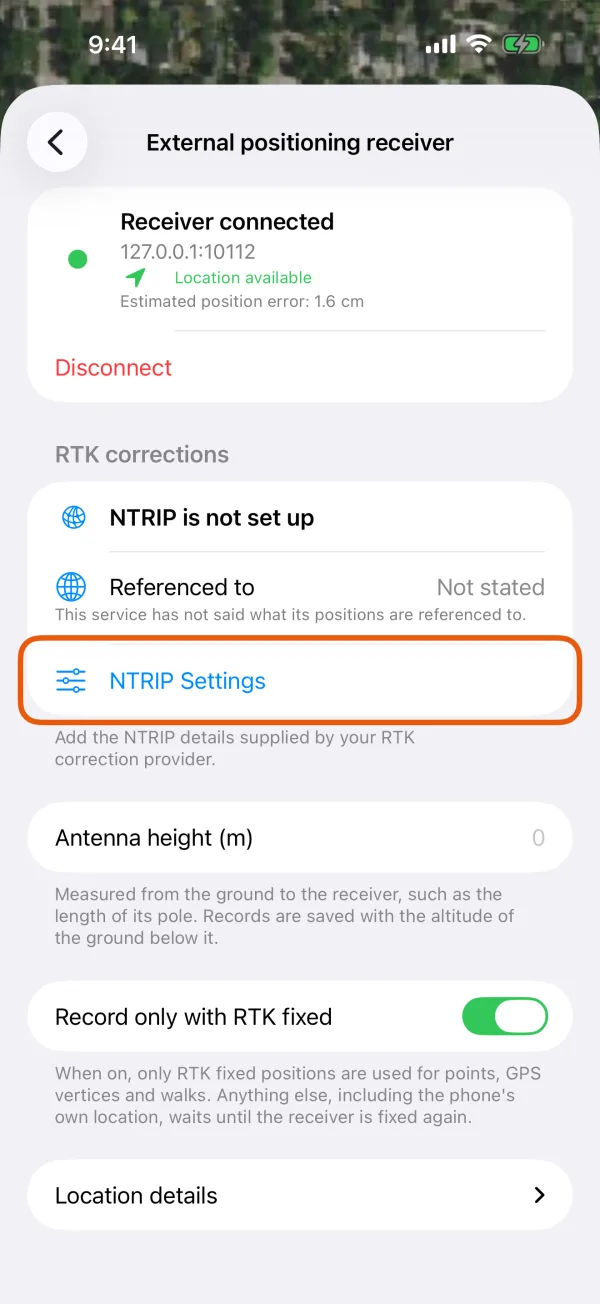
The receiver screen, with NTRIP Settings marked under RTK corrections. Enter the caster address, port and mount point.
Fill in Caster address, Port and Mount point. The port starts at 2101, the usual NTRIP port. Not sure of the mount point? Tap Choose from the caster's list and pick one. The list shows each stream's format and satellite systems, and you can search it.
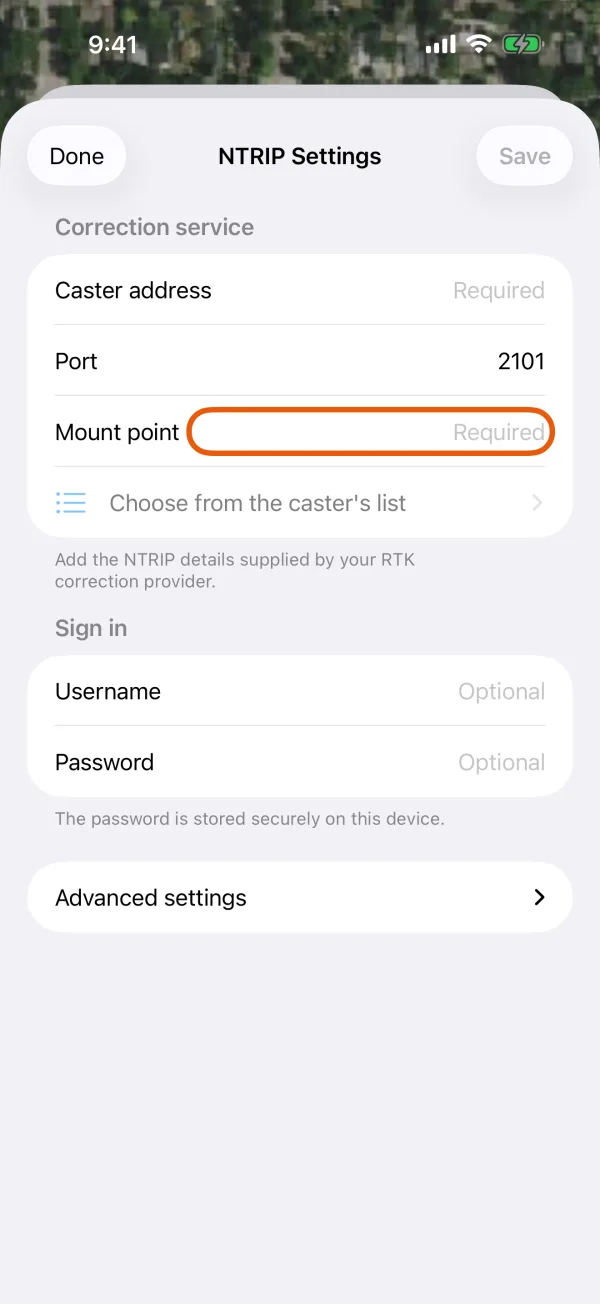
Caster address, port and mount point, with Choose from the caster's list below. Sign in.
Under Sign in, enter Username and Password. Once you enter a user name, the password is required. The password is stored securely on this device.
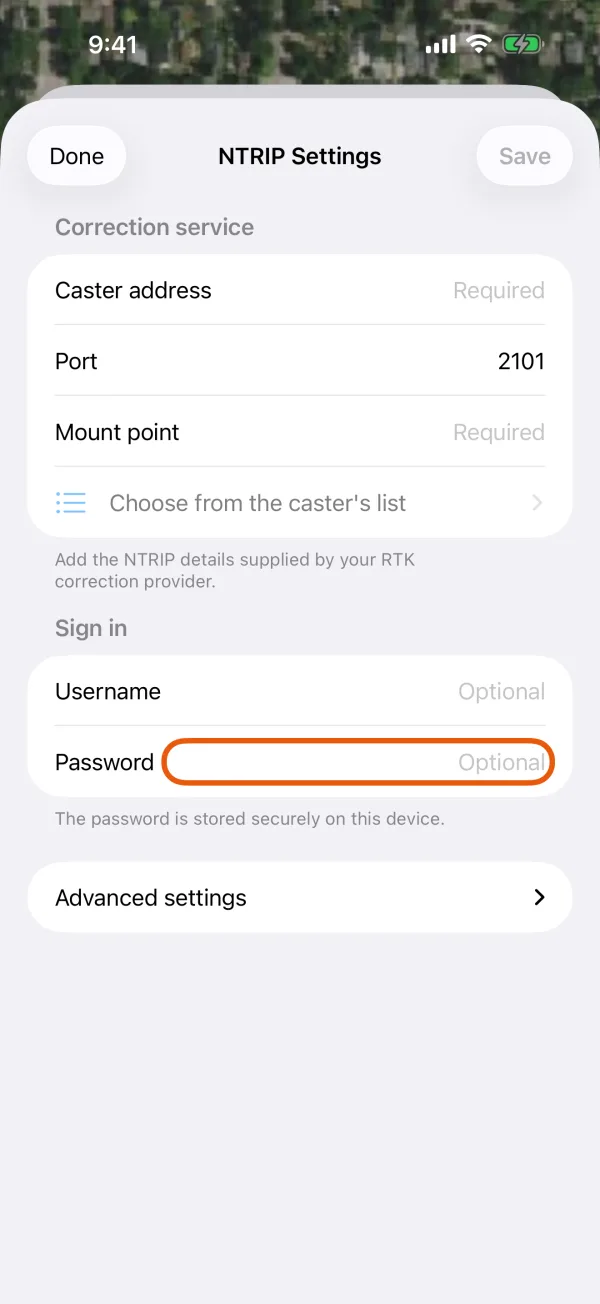
The Sign in section. Optional: open Advanced settings.
Give the service a Name, turn on Use encrypted connection if your provider offers it, and set Referenced to to the datum your provider publishes. Connect automatically is on unless you turn it off.
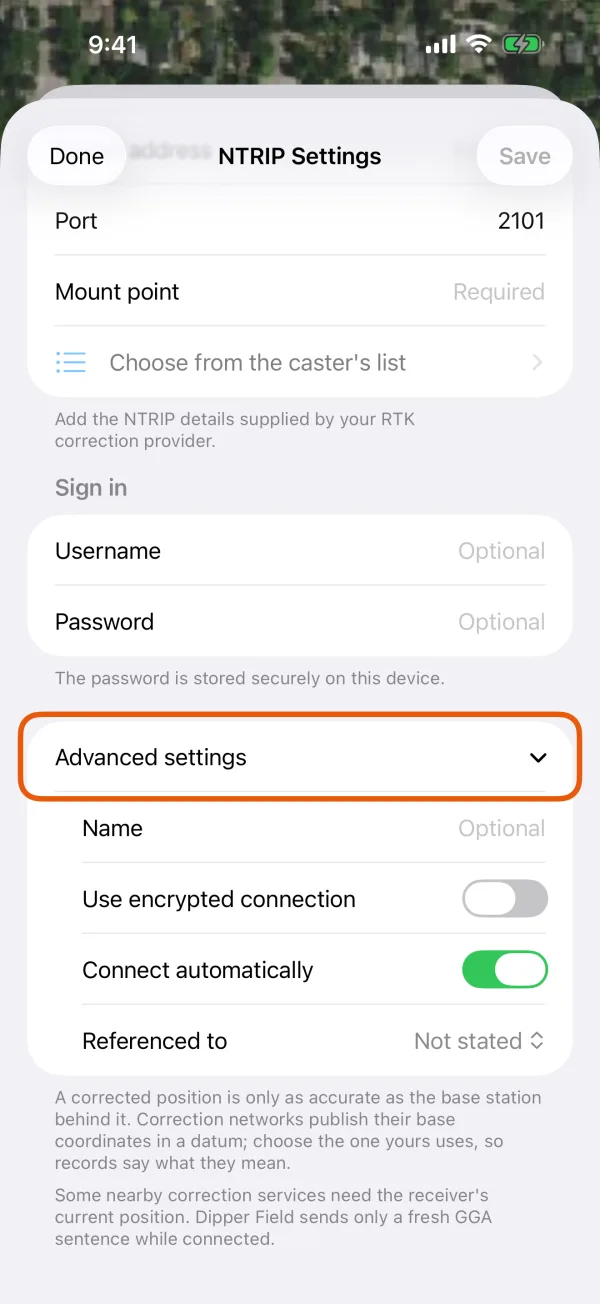
Name, encrypted connection, Connect automatically and Referenced to. Tap Save.
With Connect automatically on, the app connects right away. Otherwise, tap Connect Corrections on the receiver screen.
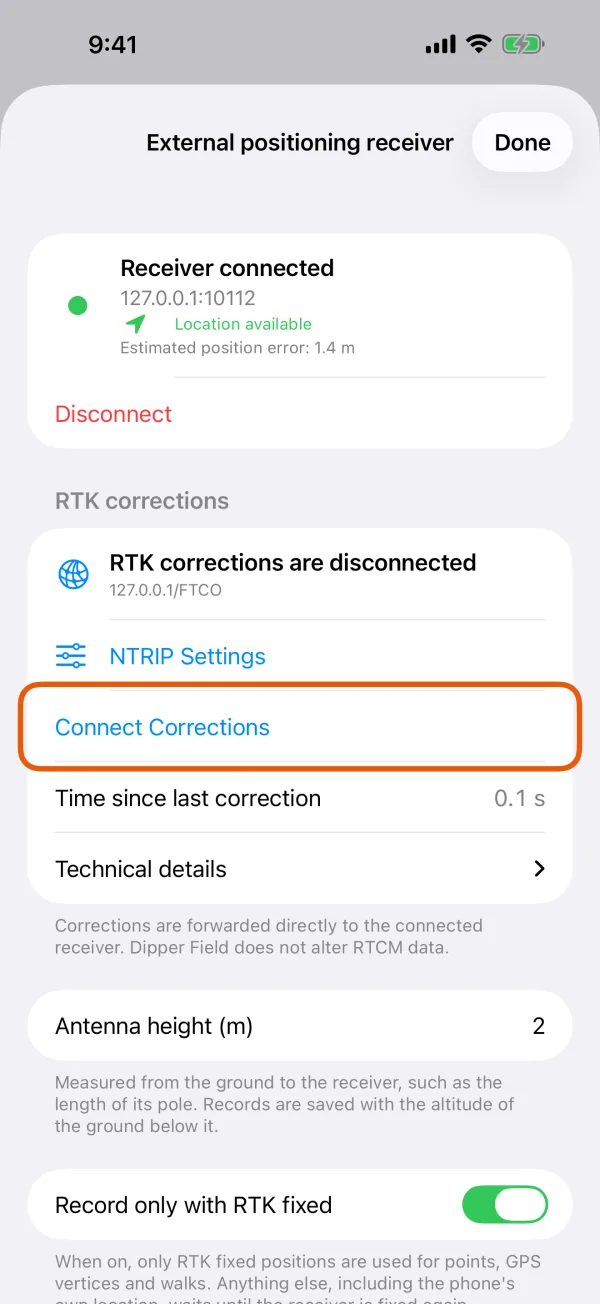
The RTK corrections section after saving. Check that corrections arrive.
The section reads Receiving RTK corrections and Time since last correction counts the seconds since the last one. Technical details shows Correction data rate, Sent to receiver and Position updates sent. Position type should move to RTK float, then RTK fixed.
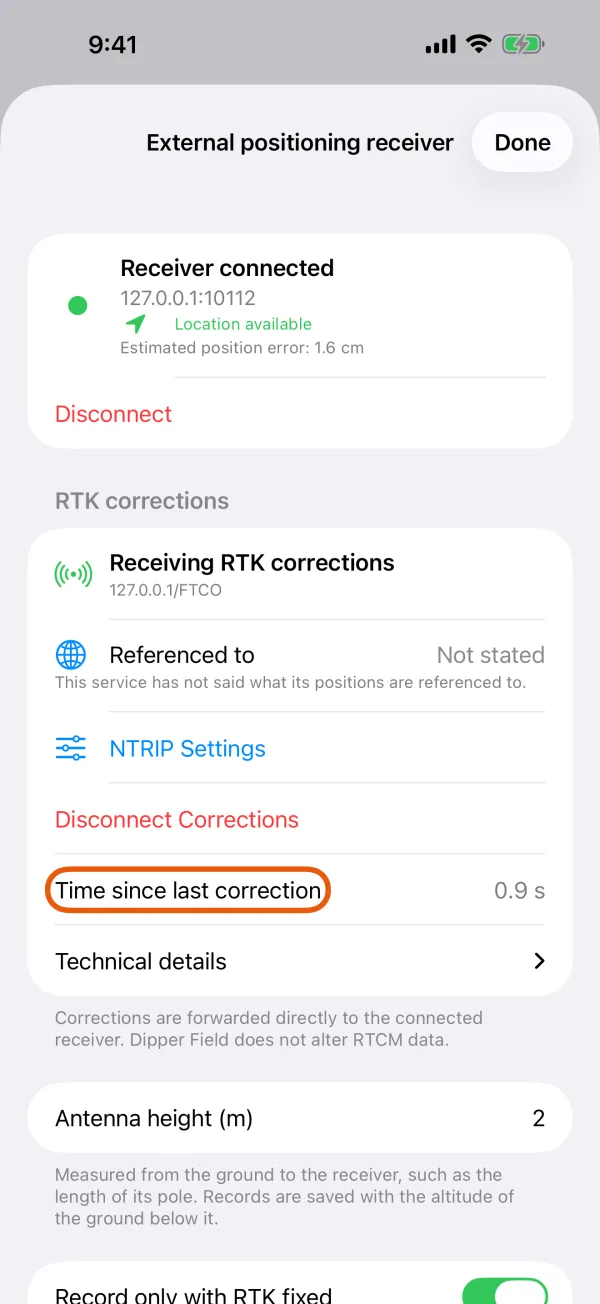
Corrections arriving, with the time since the last one.
To stop, tap Disconnect Corrections.
Referenced to
A corrected position is only as accurate as the base station behind it, and every correction network publishes its base coordinates in a datum. Choose the one in your provider's documentation: WGS 84 / ITRF, NAD83(2011), NAD83(CSRS), ETRS89, GDA2020, JGD2011, CGCS2000, or Other with its name. Many US networks publish NAD83(2011).
Records you take through the service keep this datum. Exports use it to convert correctly; see coordinate systems for import and export. Left at Not stated, records don't say what they're referenced to.
Once corrections are in use, the receiver screen shows Referenced to with the datum. For a datum held to a continental plate, such as NAD83(2011) or ETRS89, Google maps draw positions where today's satellite imagery shows them, up to about 6 ft from the network's numbers. The numbers themselves are kept.
Switch between saved services
Every service you save is kept under Saved services at the top of NTRIP Settings:
- Tap a service to switch to it at once. Its details show below, ready to check or edit.
- Tap Add a service to enter a new one.
- Swipe a service to remove it. Its password is removed from this device too.
With more than one service saved, the receiver screen also shows Corrections from with the service in use. Tap it to switch. In that list you can also swipe a service to rename or remove it: on iPhone, swipe left for both; on Android, swipe right to rename and left to remove.
The receiver's position is sent to the service
While connected, Dipper Field sends the receiver's latest position (a GGA sentence) to the caster every 5 seconds. Network services need it to send corrections for where you are; a single base ignores it. There's no switch for this. Only a position from the last 10 seconds is sent, so before the receiver has one the section says Connected. Waiting for a position from the receiver to report to the service.
Receivers that get their own corrections
Some receivers fetch corrections themselves, over their own Wi-Fi, cellular or a radio. Most caster accounts allow one session at a time, so the app doesn't open a second one. When it sees the receiver already corrected while the phone sends nothing, it pauses its own stream and shows The receiver is already being corrected by another source. Corrections from this device are paused. If the receiver then stays uncorrected for about 30 seconds, the app takes over again by itself.
With a Dipper receiver that fetches its own corrections over Wi-Fi, the section says Receiver fetches its own corrections; this device standing by. Then NTRIP Settings and Device NTRIP Settings open Dipper Connect, where the receiver's own service is set up.
If it doesn't work
| Message | What to do |
|---|---|
| NTRIP is not set up | Enter a service in NTRIP Settings. |
| Connect a receiver first; corrections are sent to it. | Connect your receiver. Connect Corrections stays unavailable until then. |
| The username or password was not accepted | Check the user name and password with your provider. |
| A password is required | Enter the password in NTRIP Settings. |
| The mount point could not be found | Check the mount point, or tap Choose from the caster's list. |
| The correction service rejected the connection | Your account may be in use elsewhere, or not allowed on this mount point. Ask your provider. |
| The correction service is unavailable | Check the phone's internet connection, and the caster address and port. |
| The correction service returned an unsupported response | Check the address and port; they may point to something other than an NTRIP caster. |
| Check the NTRIP settings | Something in the settings is incomplete or invalid. |
| Connected, waiting for RTK correction data | The caster accepted the connection but hasn't sent anything yet. Check the mount point. |
| This Bluetooth connection can read positions but cannot send RTK corrections to the receiver. | The receiver's Bluetooth service is read-only. See which receivers work. |
| Port 10110 carries positions only, so the phone cannot send RTK corrections to the receiver over it. | Connect over Wi-Fi again on the port the receiver takes corrections on. |
If the connection drops, the section shows Reconnecting to correction service and the app tries again by itself. Corrections arriving but no fix? See I never get RTK fixed.