 Dipper Field
Before you start
- A project with a record type that's a point, such as one made from a template. See Create your first project.
- Location access for Dipper Field, to place the point where you stand. See Allow location, camera and Bluetooth.
Open the Map tab and tap the record button.
It's the large button at the bottom right. With several record types, it shows the name of one: tap the name to record that, or tap the arrow next to it and choose under What are you recording? On the Work tab, Add a new record does the same.
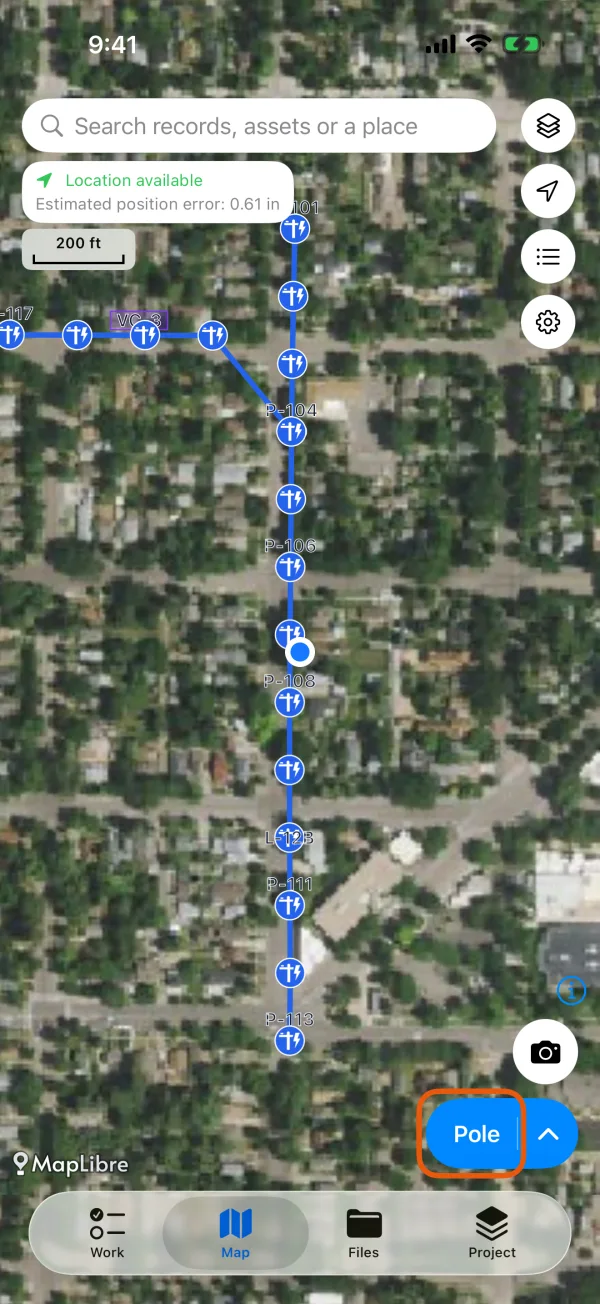
The record button at the bottom right of the map. Place the record.
Stand at the thing you're recording and tap Use my location. The row shows how accurate your position is, and you can tap it once there's a usable position. Can't stand there? Tap Point to it on the map, move the map until the crosshair is over it, and tap Use this spot. Some record types allow only one of these ways, so you may see just one.
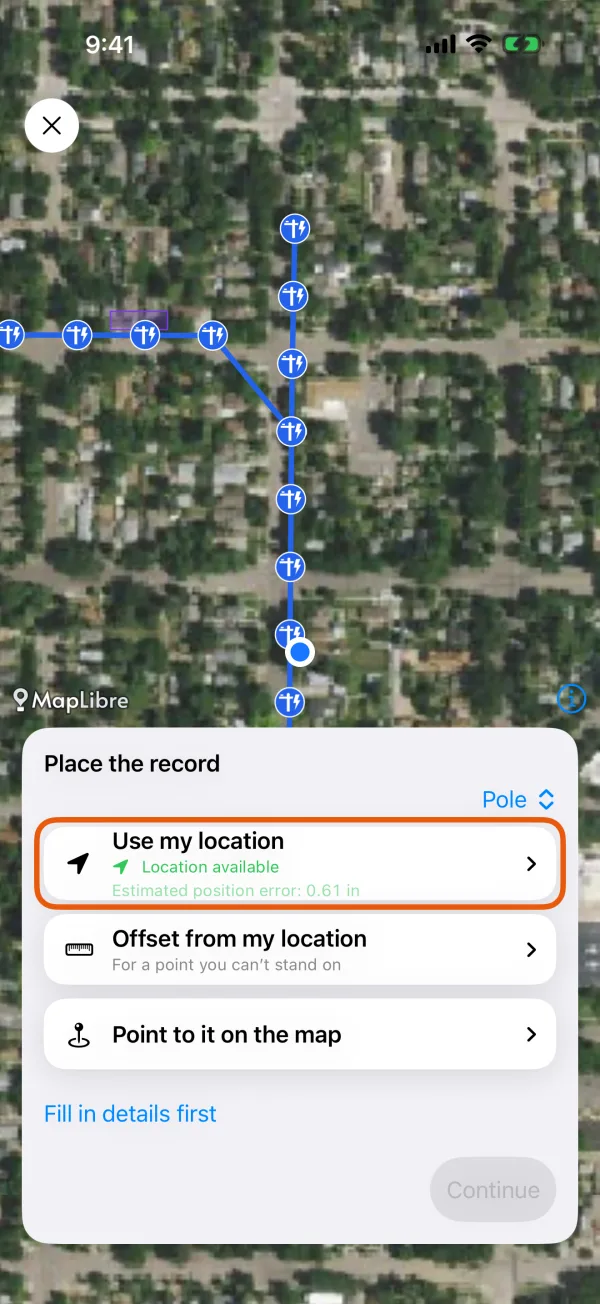
Place the record, with Use my location and Point to it on the map. Fill in the form.
The form opens once the point is placed. Fields marked Required need an answer before you can save.
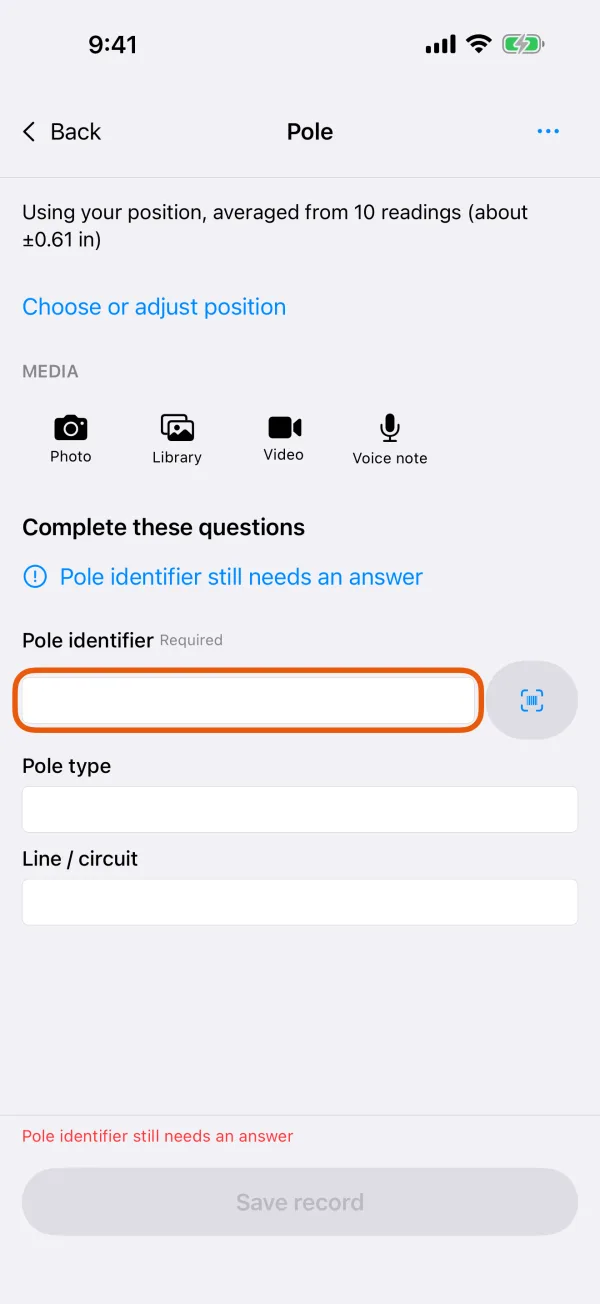
The record's form, with a required field. Add a photo.
Under Media, tap Photo and take the picture. On the review screen, tap Use Photo (Android: Use photo), or Retake. Library adds a photo you took earlier.
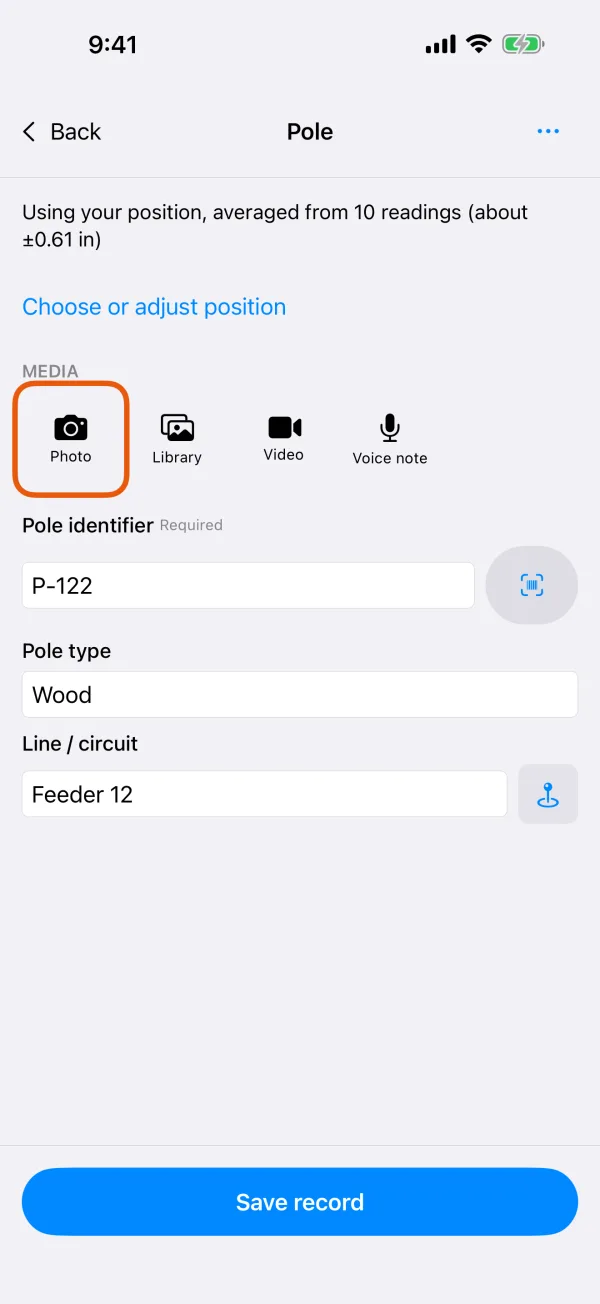
The Media row, with Photo and Library. Tap Save record.
The map shows Saved on this device. Tap View / edit to open the record again, or Record another to start the next one of the same type.
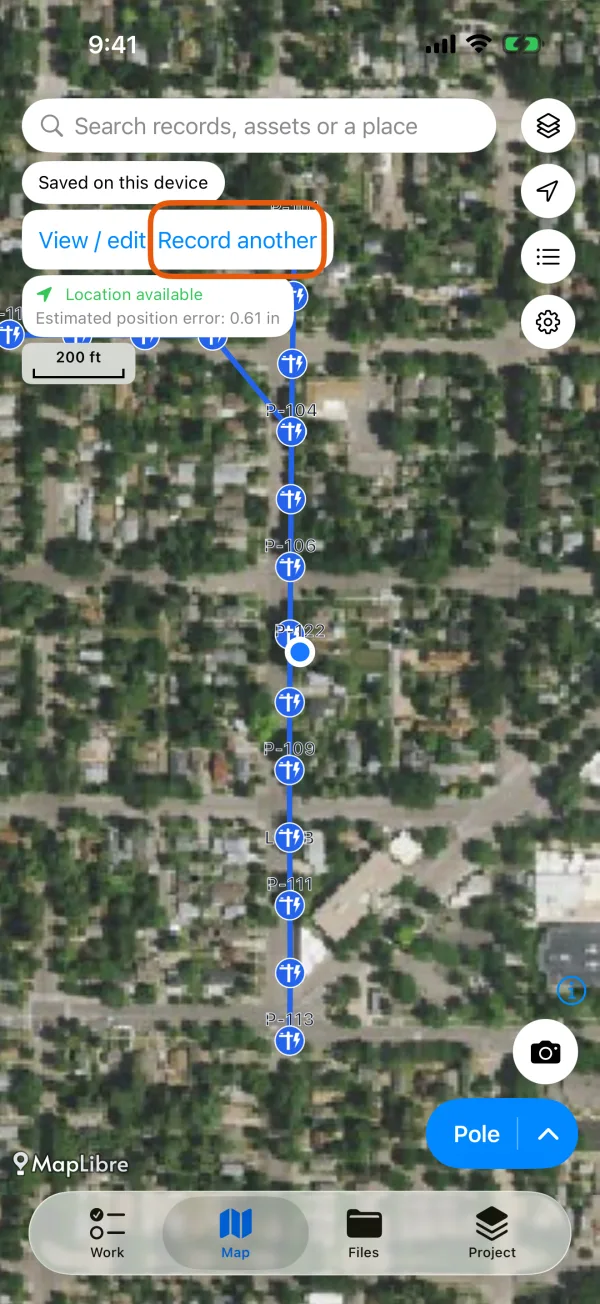
The saved message, with View / edit and Record another.
If Save record stays grayed out
The message above it says what's missing:
- This record still needs a position: place the point first.
- A field still needs an answer: scroll to that field and answer it.
- The record type asks for photos: the Media heading says how many more it needs.
Stop and finish later
Tap the More button at the top of the form and choose Continue later. What you've entered so far is kept. To pick it up again, tap Continue on the Work tab.
More ways to place a point
- Offset from my location measures a point you can't stand on from where you are. See Points, lines and areas.
- For better positions than the phone's GPS, connect a receiver.