 Dipper Field
Each record type in your project is a point, a line or an area. The record type decides which; you decide how to place it.
Before you start
- A project open on the Map tab. See create your first project.
- To use your position: location allowed for Dipper Field. See allow location, camera and Bluetooth.
Start a record
On the Map tab, tap the button at the bottom right.
It names the record type you used last. For another type, tap the arrow beside the name and choose from What are you recording? A project with only one record type shows a plain + instead.
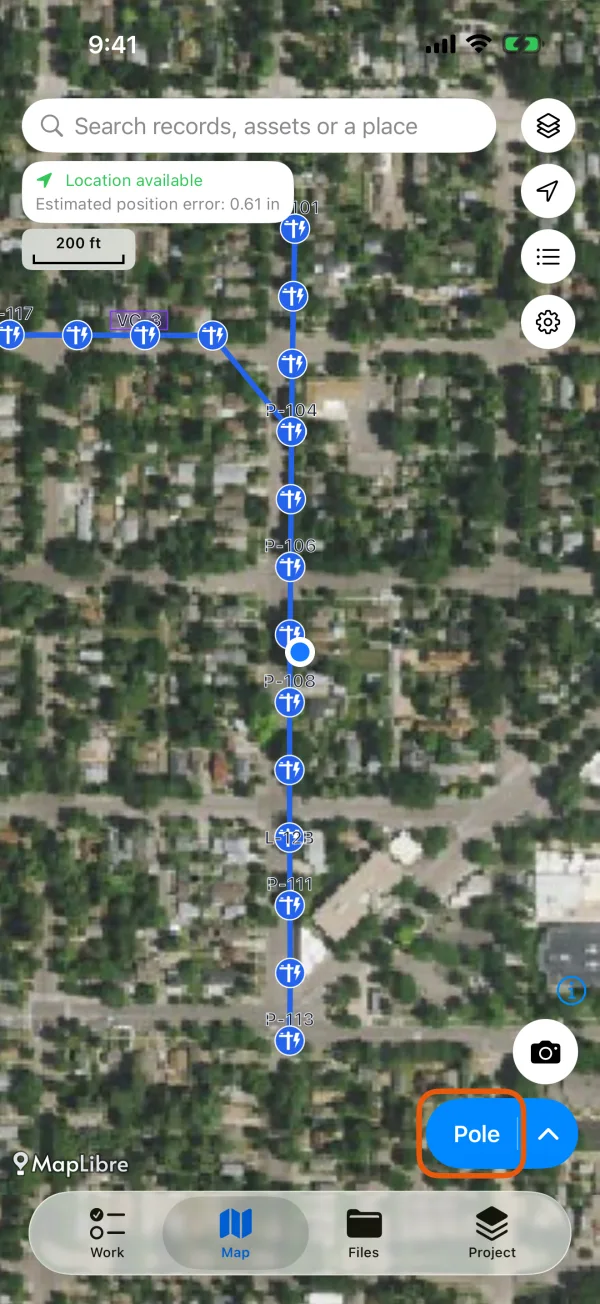
The button names the record type it starts. Check the type on the Place the record card.
Tap the type's name on the card to switch to another one. What the card offers next depends on whether the type is a point, a line or an area.
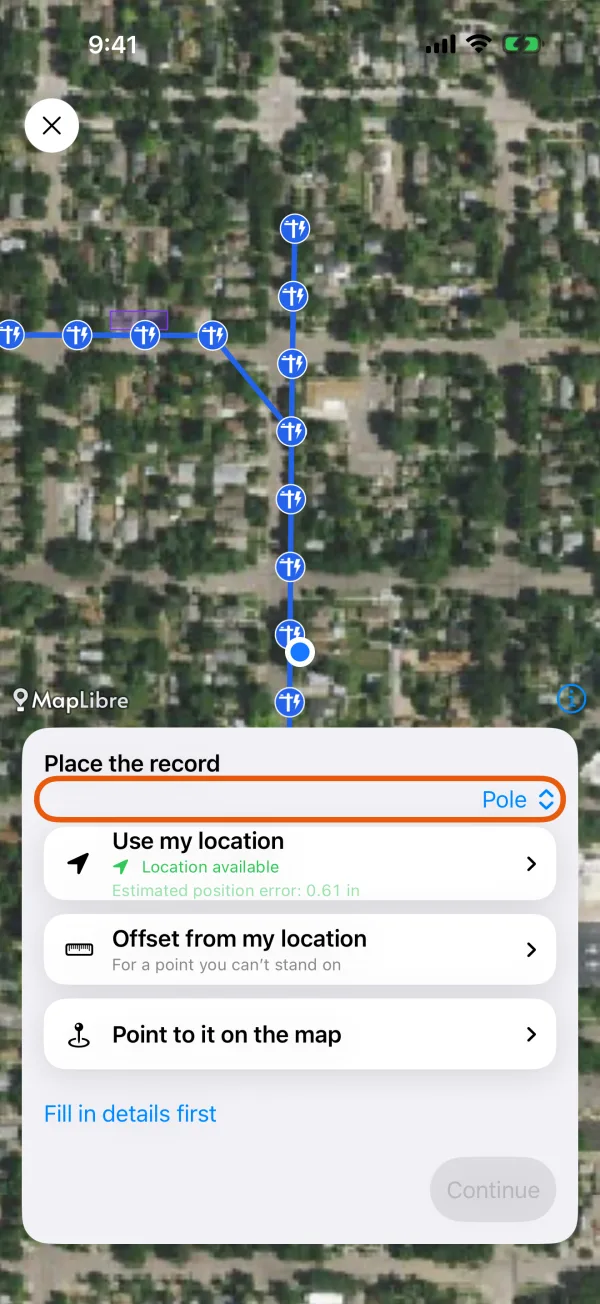
The Place the record card over the map.
Place a point
Choose how to place it.
Use my location takes your current position. It's available once the position is good enough for this record type.
Point to it on the map: move the map until the crosshair is over the object, then tap Use this spot.
Offset from my location is for a point you can't stand on. Enter its Distance across the ground and its Direction from true north, or tap Use phone direction with the top of the phone pointed at it. Then tap Done.
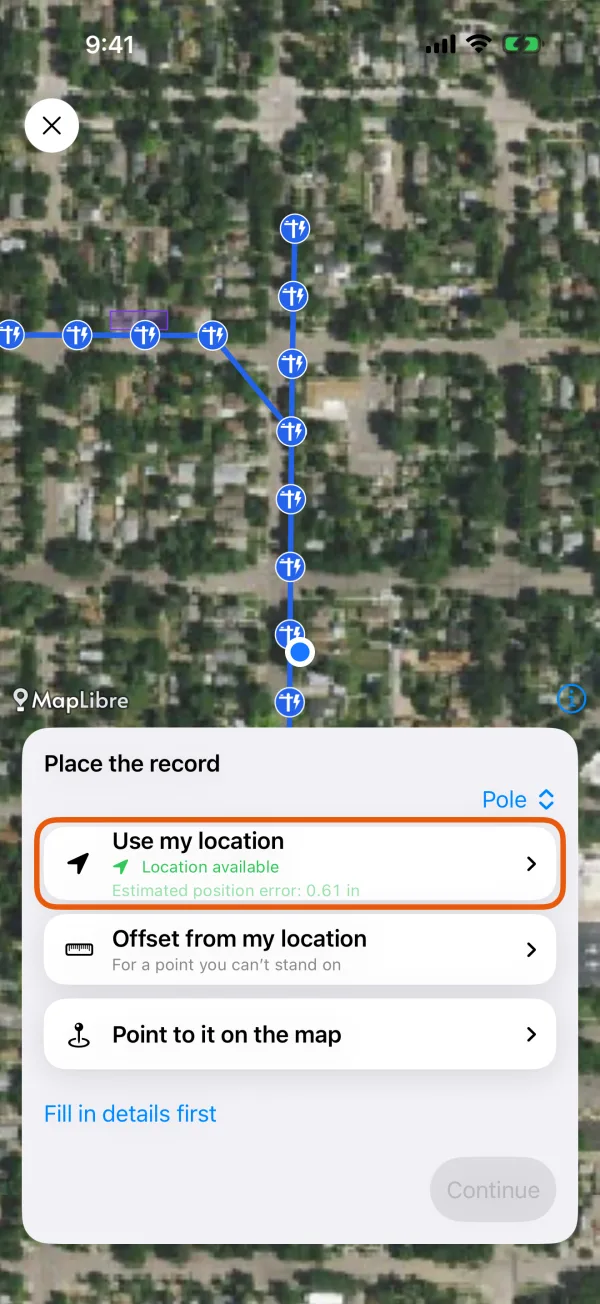
Three ways to place a point. Fill in the form and tap Save record.
Want to answer first? Tap Fill in details first and choose the position before saving.
Draw a line or an area
For a line or an area, the card offers GPS vertex capture, Continuous GPS capture and Draw on map. The two GPS ways are in walk a line or area with GPS. Drawing works from anywhere you can see the object on the map.
Tap Draw on map.
A crosshair appears in the middle of the map.
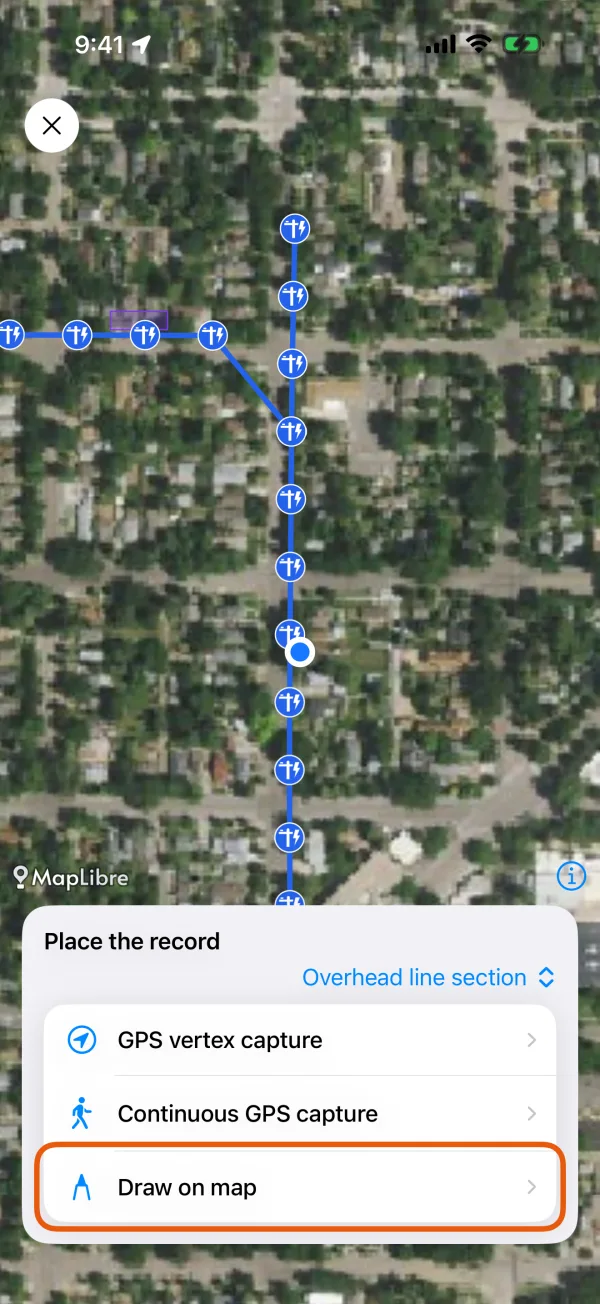
GPS vertex capture, Continuous GPS capture and Draw on map. Move the map so the crosshair is on the first corner, then tap Add point.
Repeat for every corner. The card shows the number of points and the length, or for an area the perimeter and area. A line needs at least two points and an area at least three. An area closes by itself.
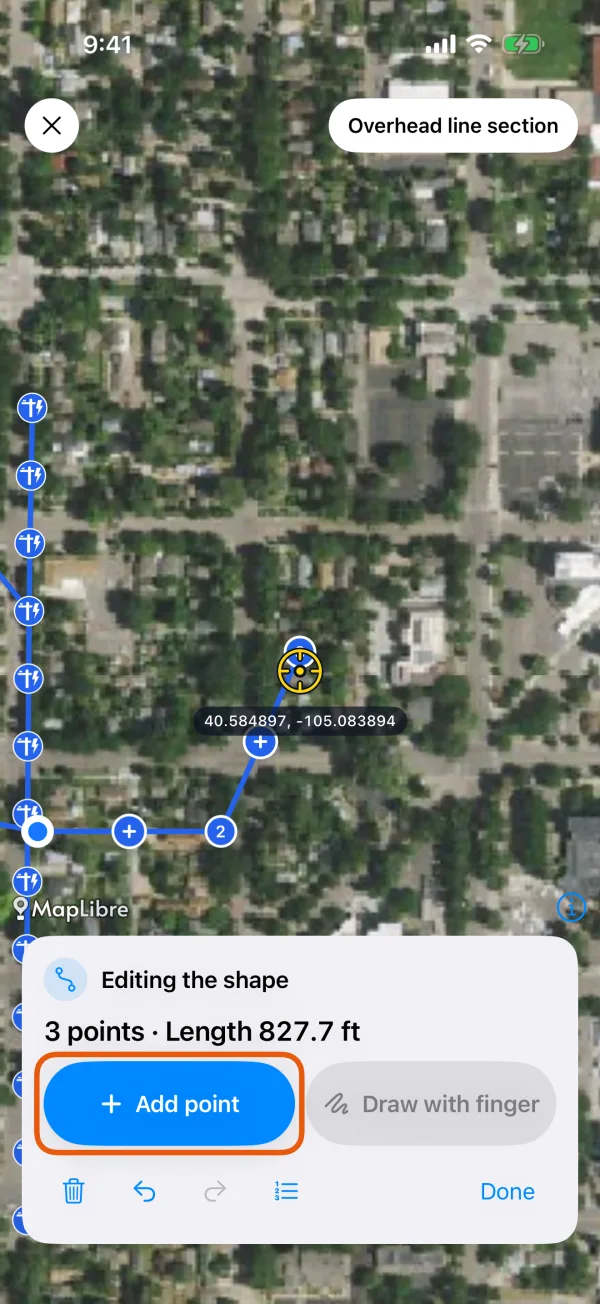
Add point puts a corner at the crosshair. Fix any point.
Tap a point to select it, move the map, then tap Move here. You can also drag a point. To add a point between two corners, tap the hollow point between them, then move it. To remove the selected point, tap the info button beside it and choose Delete point.
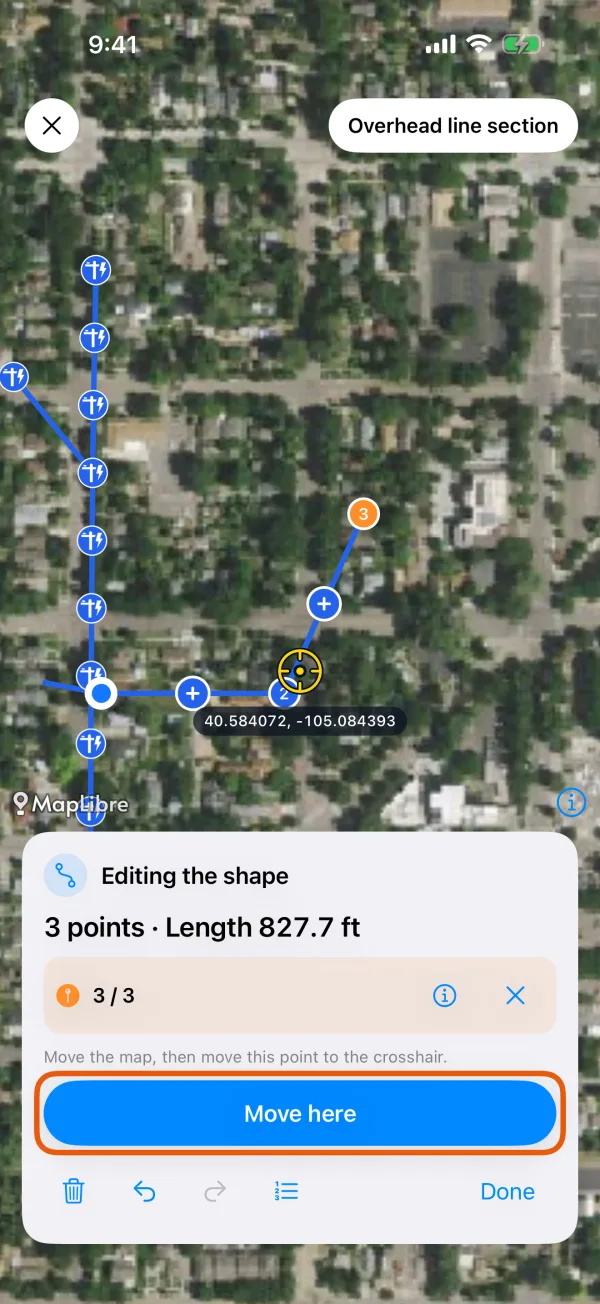
A selected point and Move here. Tap Done.
The form opens. Fill it in and tap Save record.
The buttons at the bottom of the card undo and redo your last change and open the Point list. The bin icon discards the whole shape; the app asks first.
Draw with your finger
Tap Draw with finger, then draw the line or outline with one finger. Lift your finger to finish; an area closes by itself. The map then moves with your finger again, and you can adjust the points as above.
Areas with several parts or holes
While you draw an area, a small button on the map shows which ring you are drawing, such as 1 / 1.
Tap the ring button and choose Add part or Subtract an area.
Add part starts another outline of the same record. Subtract an area cuts a hole in the current part.
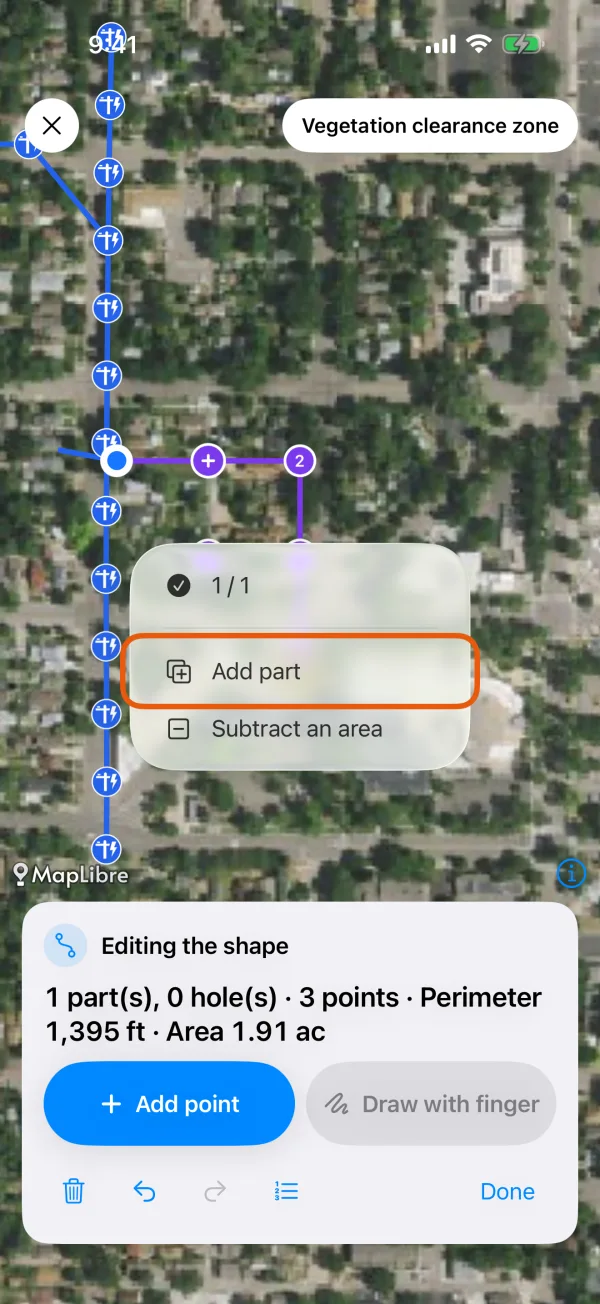
Add part and Subtract an area. Tap the map to add each corner, then tap Finish ring.
To delete a part or hole, choose it in the same menu and tap Delete ring.
Change a shape later
Tap a saved line or area on the map, then tap Edit shape. The same tools work there, including parts and holes. Tap Done to save the new shape.