 Dipper Field
A line or an area can take its shape from where you walk. There are two ways to do it:
| Way | How points are added | Good for |
|---|---|---|
| Continuous GPS capture | Automatically, as you move | Paths, fences, curved edges |
| GPS vertex capture | One each time you tap Capture vertex | Straight edges between corners |
Before you start
- A record type that is a line or an area.
- Location allowed for Dipper Field. See allow location, camera and Bluetooth.
- An open view of the sky. For better positions, connect a receiver.
Walk it continuously
Start the record and tap Continuous GPS capture.
On the Map tab, tap the record button at the bottom right. The Place the record card offers the ways to capture the shape.
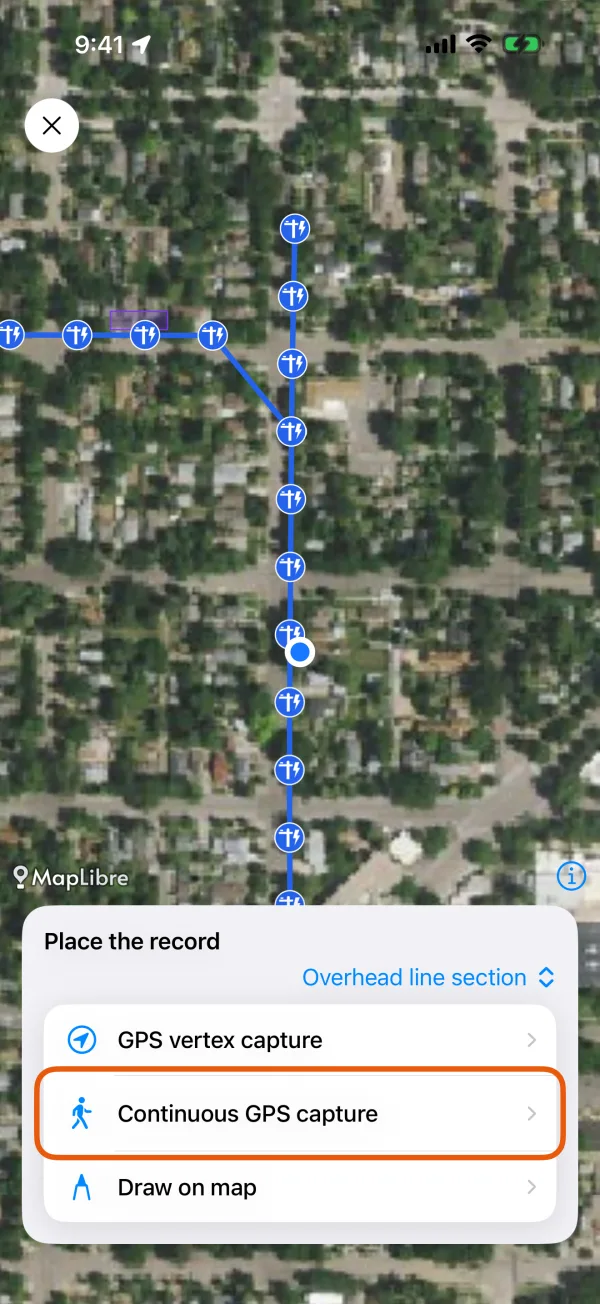
The ways to capture a line or area. For an area, stand still at the first corner.
The card says Stand still for a moment while the first point settles. A few readings are averaged into the first point. A line starts recording straight away.
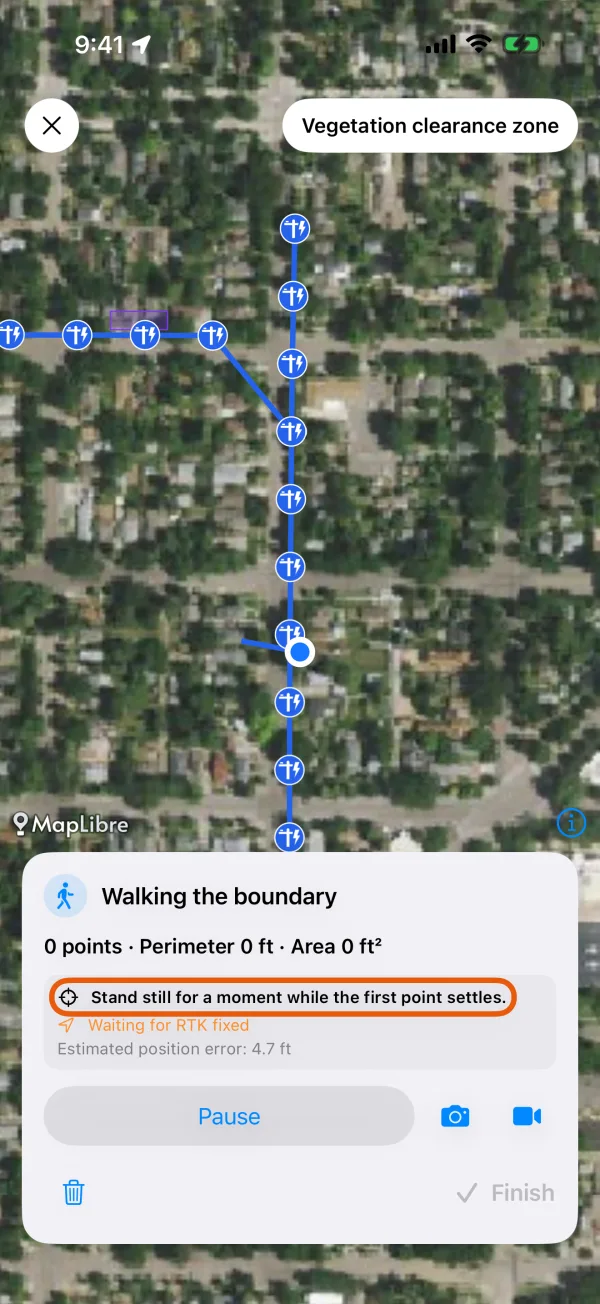
The first corner settling. Walk the line or the boundary.
Points are added as you move. The card shows the number of points, the length (or perimeter and area) and how good the current position is. When readings are held back, it says why, such as Waiting for a better signal.
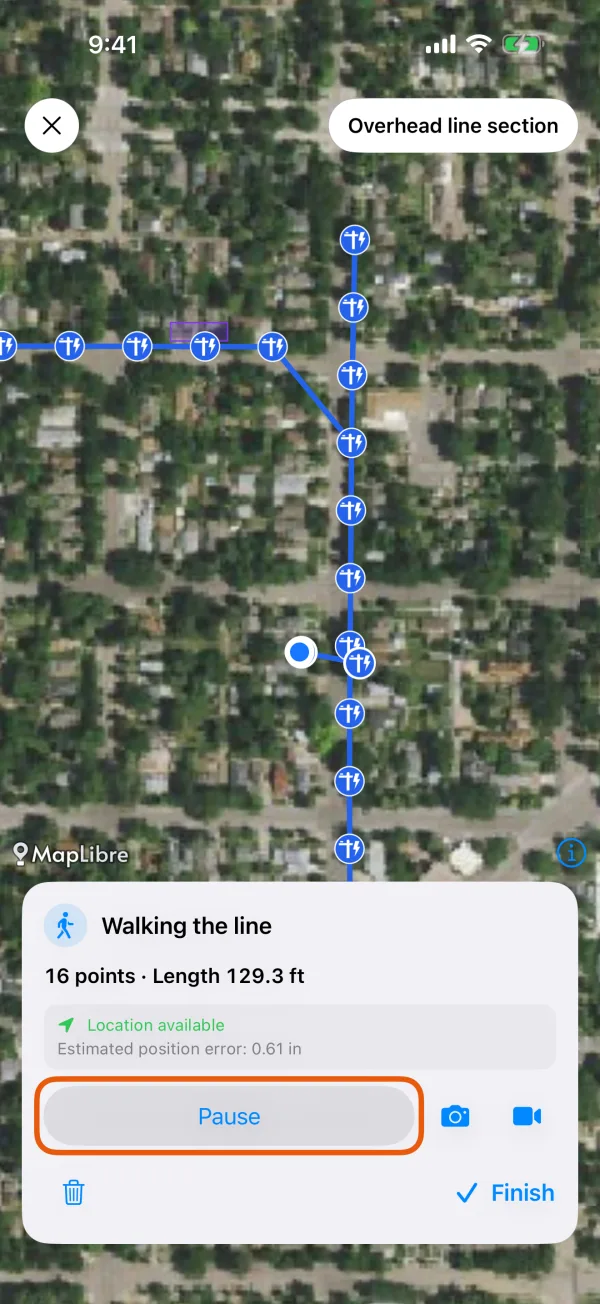
A walk in progress. Pause when you need to.
Pause stops adding points, for a detour or a break. Continue picks up again from where you are.
Tap Finish.
Back at the start of an area, the card says You are back where you started. The walk only ends when you tap Finish. For a walked line, you can then simplify it.
Fill in the form and tap Save record.
The form shows the walk's GPS quality: the average and worst accuracy, and how many readings were used or ignored.
With the screen locked
Lock the phone and put it in your pocket: points keep coming in while the walk records. A paused walk adds nothing.
- On iPhone, the blue location indicator shows while the walk records.
- On Android, a notification says Recording your walk.
The camera and video buttons on the card add photos and videos to the record without stopping the walk. See photos with on-site info and markup.
Capture corners one at a time
Start the record and tap GPS vertex capture.
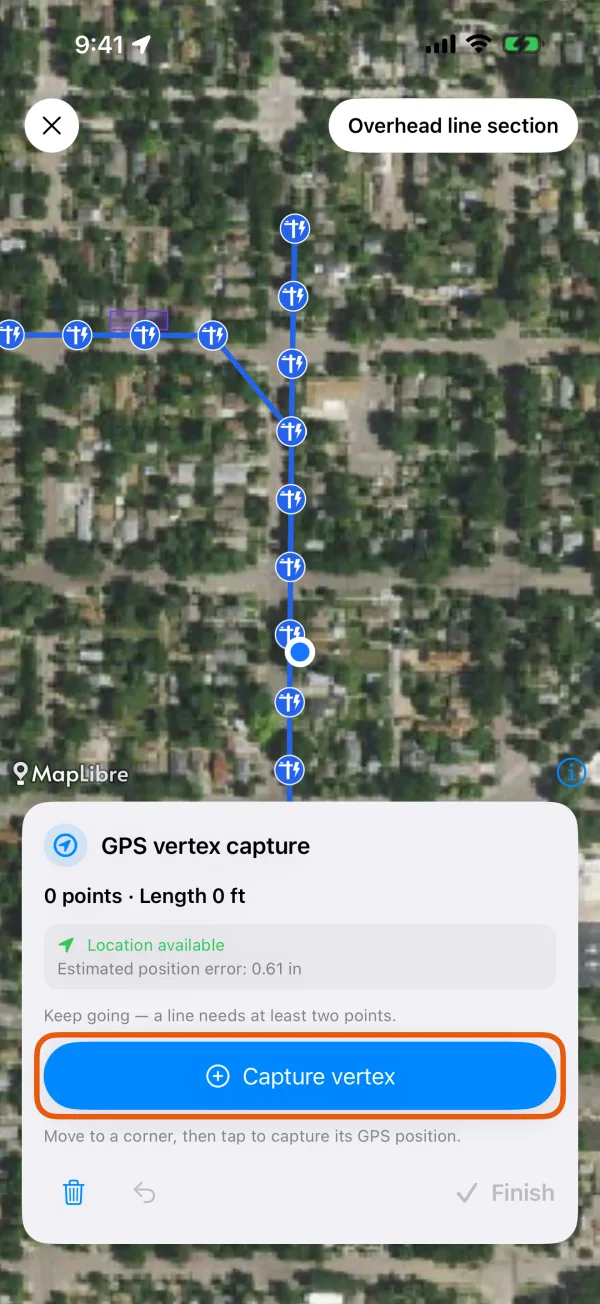
Capture vertex records your current position. Walk to a corner and tap Capture vertex.
The button is available once the position is good enough. If you tap twice in the same place, the card says This position matches the last vertex. Move to the next corner. The undo button removes the last corner.
Repeat for each corner, then tap Finish.
Fill in the form and tap Save record.
Corners are only taken when you tap, so keep the app open while you work this way.
Simplify a walked line
A walked line can have many more points than it needs. When you tap Finish on a line recorded with Continuous GPS capture, the app asks Simplify line?
Set the Distance threshold.
It starts at 2 m (about 6.5 ft). Points that lie within this distance of the simplified line are dropped, so a larger value removes more.
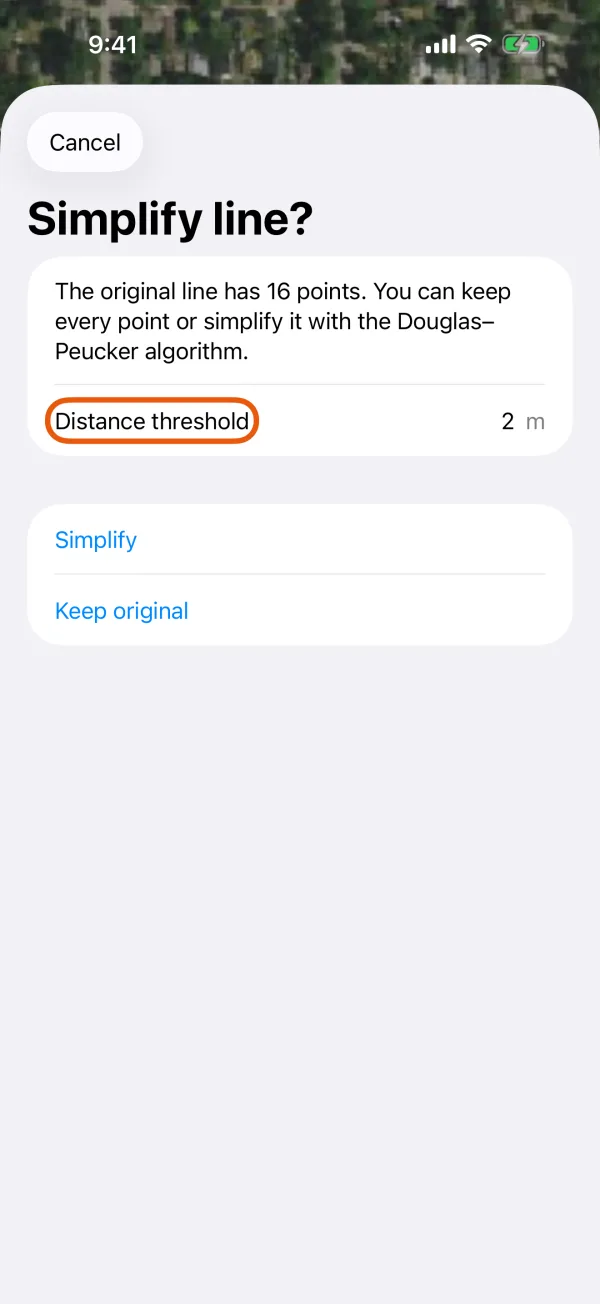
Simplify or keep the original line. Tap Simplify, or Keep original.
Cancel takes you back to the walk.
Areas and corners taken one at a time are never simplified.