 Dipper Field
Photos taken with Dipper Field's own camera keep the position and the direction the phone was facing. With On-site info on, the date, time, place and weather are also printed on the photo itself.
Before you start
- Camera allowed for Dipper Field. See allow location, camera and Bluetooth.
- For the address and weather on the photo: an internet connection. Without one, those lines are left out.
Take a photo
In the record's form, under Media, tap Photo.
While you walk a line or an area, the camera button on the walk's card does the same. See walk a line or area with GPS.
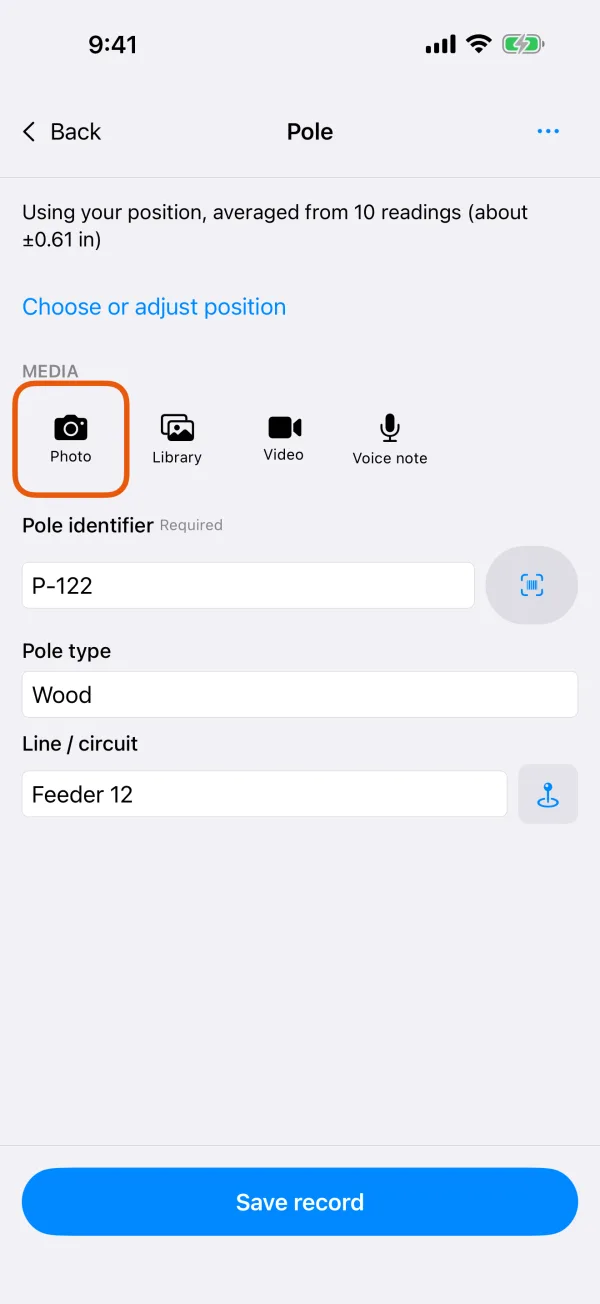
The Media row in a record's form. Turn On-site info on or off.
The switch is at the top of the camera, and Dipper Field remembers your choice. While it's on, the viewfinder shows what will be printed on the photo.
On-site infoThe On-site info switch and the information card in the viewfinder. Take the photo and check it.
The review shows the direction the phone was facing, such as Photo direction: 125°, and whether a position was available. Tap Use Photo (on Android, Use photo), or Retake.
Use PhotoThe review before the photo is added.
What On-site info prints
A card in the lower-left corner of the photo shows:
- the date and time it was taken
- the address, looked up online
- the latitude and longitude, with the estimated position error
- the temperature and weather, looked up online
The printed card is part of the saved photo and can't be removed later. With the switch off, the photo is saved without it. Position and direction are kept with the photo either way.
Add photos you already have
In the record's form, under Media, tap Library and choose up to 20 photos at a time. They are added as they are, without On-site info.
Mark up a photo
Tap the photo's thumbnail under Media.
On a saved record, open the photo from the record's details.
Tap Mark up.
Mark upMark up opens the drawing tools. Draw with your finger.
Pick red, yellow or white. Undo removes the last line.
Tap Done.
A marked-up copy is added right after the original. The original photo is kept as it was.
How many photos a record can have
- A record type can ask for a number of photos. The form shows how many are still missing, such as Still needs 2, and the record can't be saved until they're there.
- It can also set a limit. Once a record has that many photos, Photo, Library and Mark up are no longer offered.
- A marked-up copy counts as a photo. Signatures, videos and voice notes don't.
To change the numbers, open the Project tab, tap Project Contents, then tap Photos under the record type. Set Photos needed and Photos allowed, then tap Done. Records already saved don't change.