 Dipper Field
An inspection is a visit to an asset, such as a hydrant, a sign or a manhole, that you keep in the project and come back to. Each inspection has its own fields and one interval shared by all its assets.
Before you start
- A record type kept as an asset. When you create a project, turn on Keep and revisit these for that record type. See create your first project.
Set up an inspection
Open the Project tab and tap Project Contents.
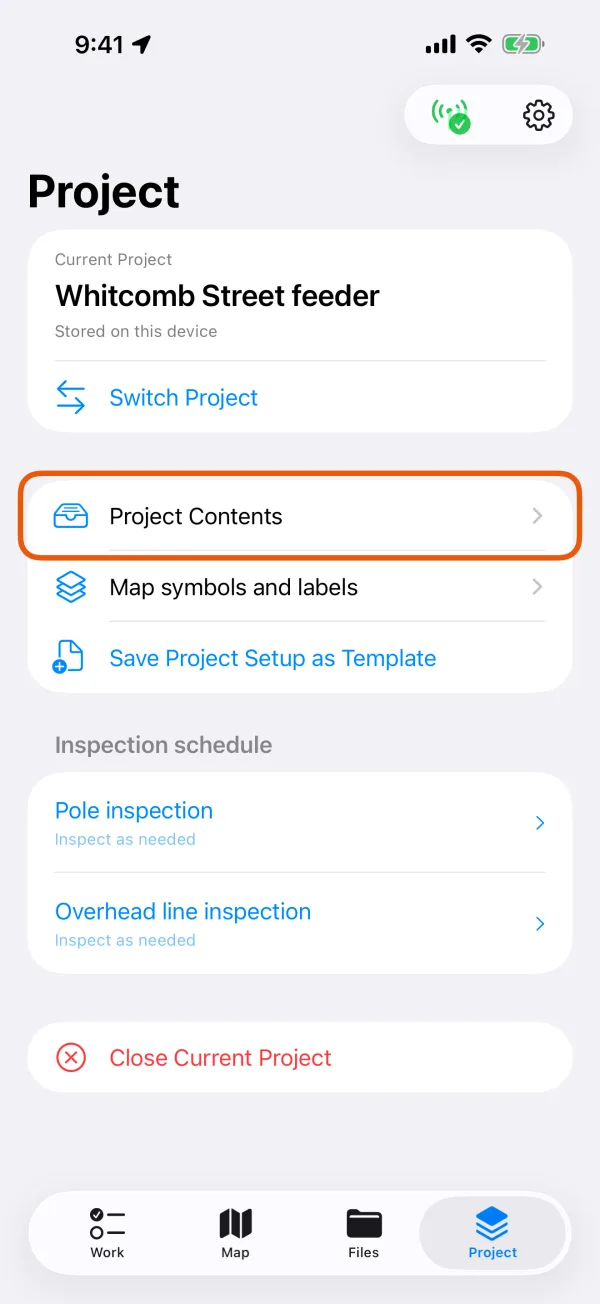
The Project tab. Under the asset's record type, tap Set up inspection.
A record type that already has an inspection offers Add another inspection.
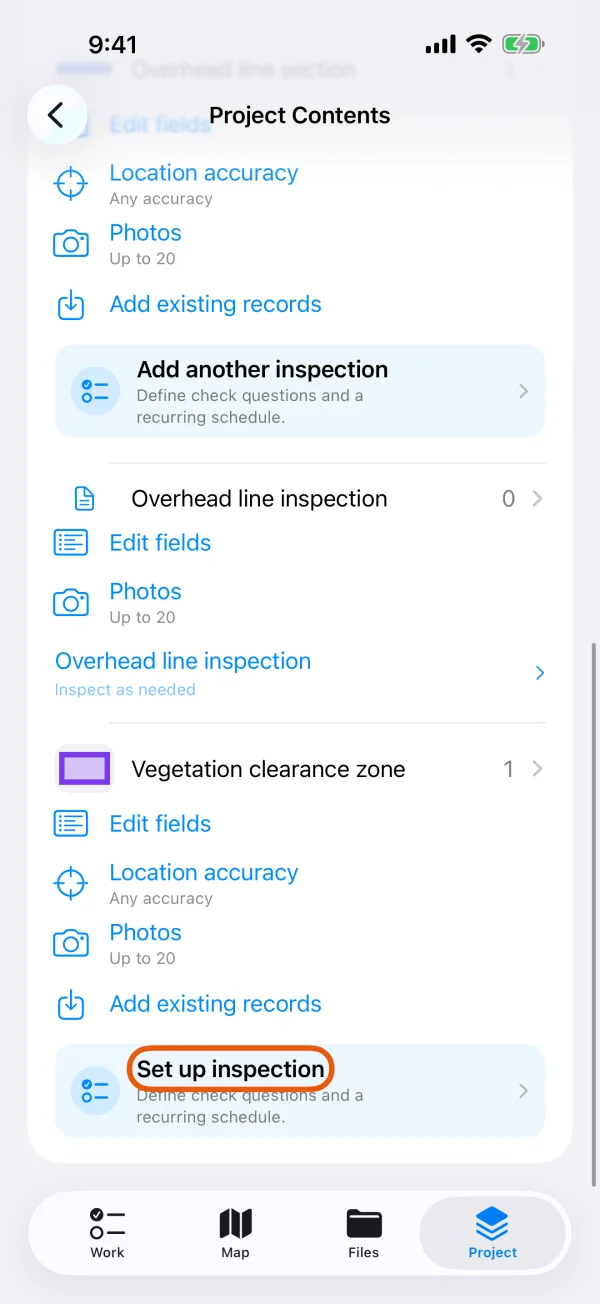
Set up inspection under an asset record type. Check the Inspection name.
It's filled in for you, such as Hydrant inspection. Change it if you like.
Choose the Inspection frequency.
Pick Inspect as needed, Every day, every 7, 14, 30, 90, 180 or 365 days, or Custom number of days (1 to 36,500). Intervals count days, not calendar months. Inspect as needed never makes an asset due.
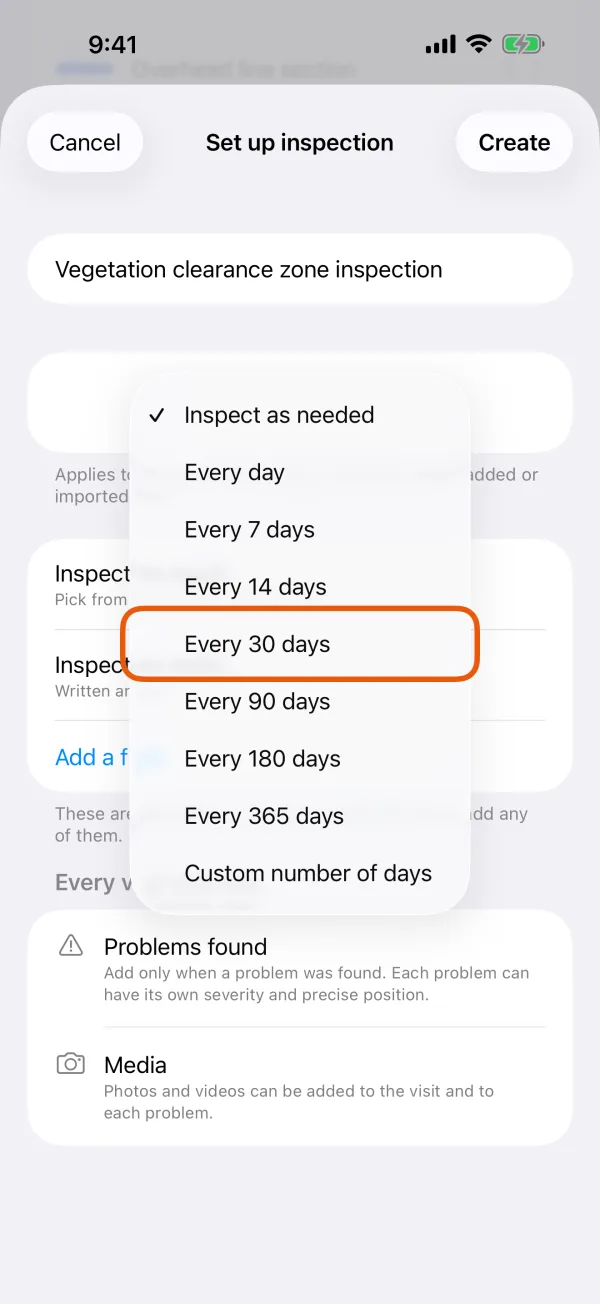
The interval choices. Check the fields a visit fills in.
You start with Inspection result and Inspection notes. Tap a field to change it, or tap Add a field. To remove one, touch and hold it (on iPhone you can also swipe left) and choose Remove this field. Every visit also has Problems found and Media, whatever the fields say.
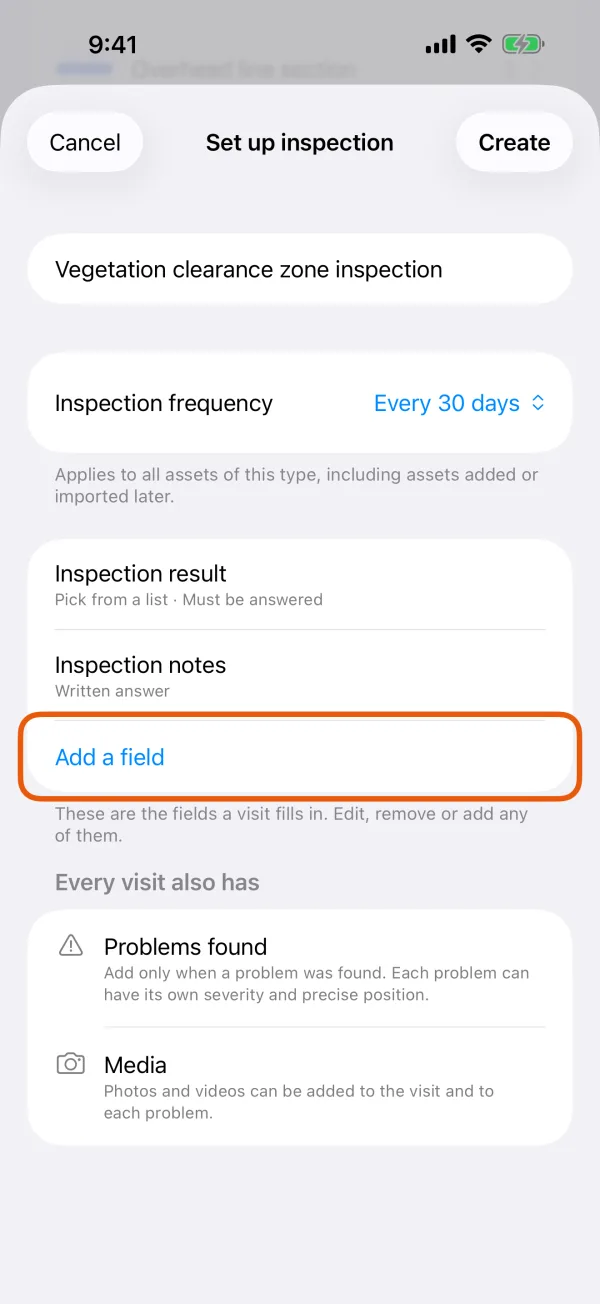
The fields of a visit and what every visit also has. Tap Create.
The four results of Inspection result are always, in order: normal, problem found, skipped and unable to inspect. You can reword them as your crew says them.
Change the interval
Open the Project tab.
Under Inspection schedule, each inspection shows its interval.
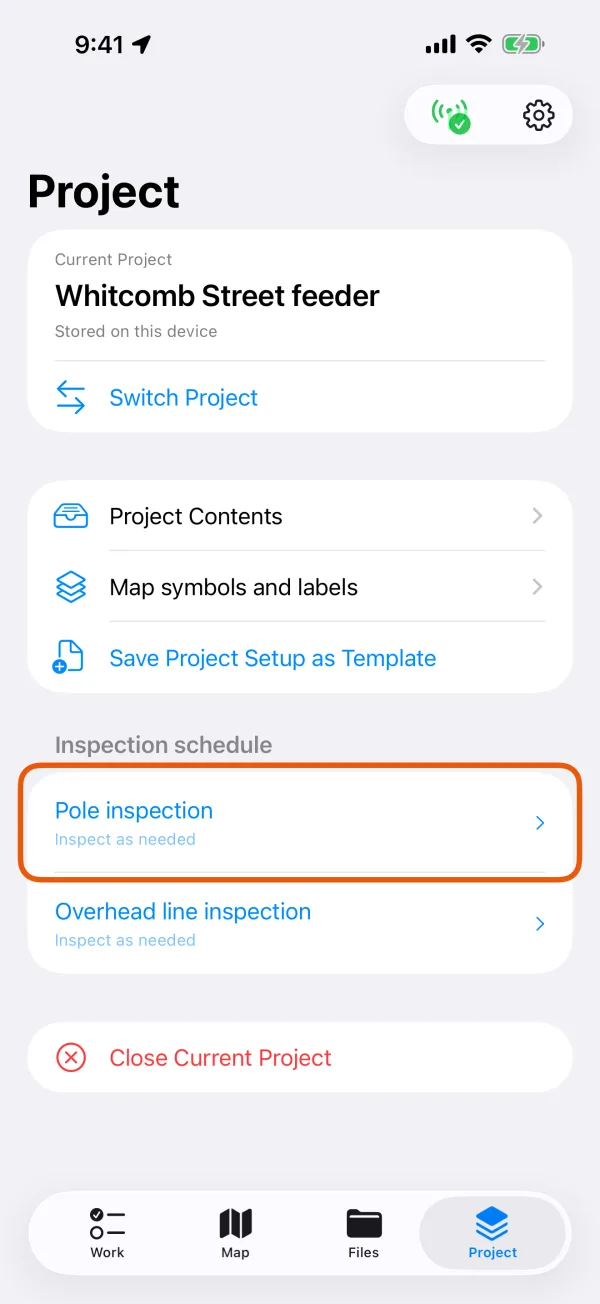
Each inspection with its interval. Tap the inspection, choose the new interval and tap Done.
Every asset following the shared interval changes, including assets added or imported later. Assets with their own interval keep it.
The same rows appear under the inspection in Project Contents.
Give one asset its own interval
Open the asset.
Tap it on the map and tap Record details, or find it on the Work tab.
Tap Inspection schedule, then Set this asset separately.
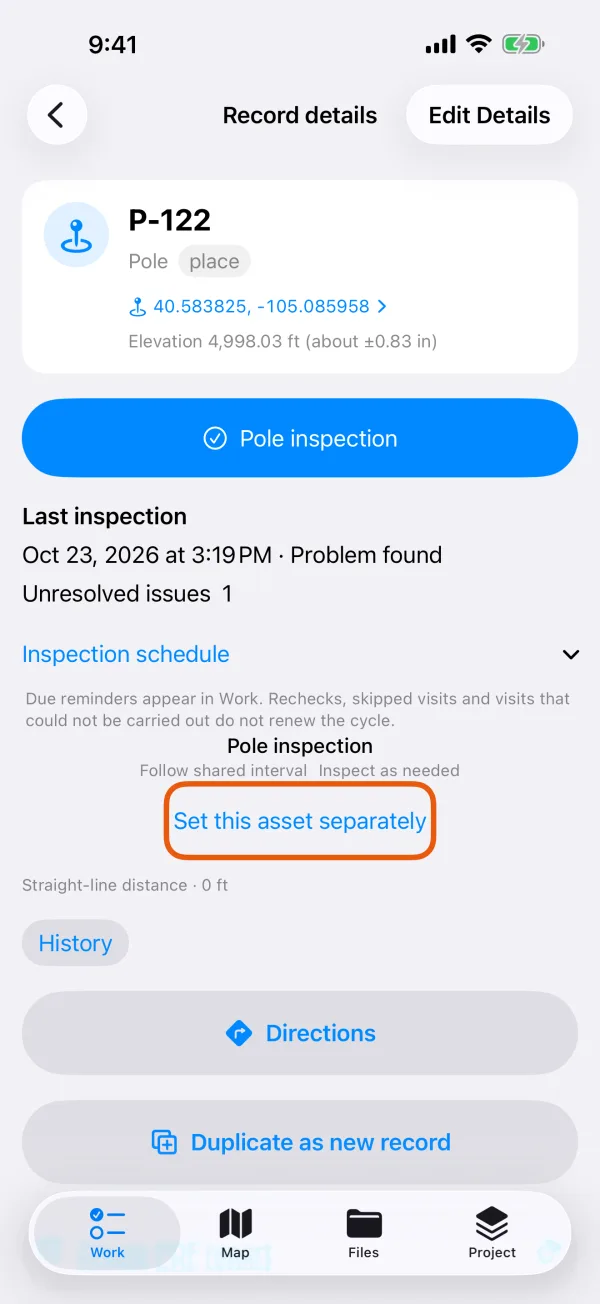
The asset's inspection schedule. Choose an interval and tap Done.
Follow shared interval puts the asset back on the inspection's interval. Inspect as needed stops reminders for this asset only.
When an asset is due
- The interval counts from the asset's latest inspection with the result Normal or Problem found.
- Skipped, Unable to inspect and rechecks don't restart it.
- An asset that has never been inspected is Awaiting first inspection.
- Once the interval has passed, the asset is Due for inspection. Until then, its details show the Next inspection date.
To see every asset that is due, open the Work tab, tap Inspections, then Due for inspection. It lists assets past their date and assets awaiting their first inspection, across the whole project.
The interval is saved in the project, so everyone who opens the project sees the same dates. To count how many assets were due, inspected and overdue over a period, see make a PDF report.