 Dipper Field
A problem is something wrong you find while inspecting an asset. Each problem has its own level, description, position and photos, and stays open until a recheck closes it.
Before you start
- An inspection set up for the asset. See set up inspections and intervals.
Record a problem
In the inspection, under Problems found, tap Add a problem.
The result changes to Problem found. Each problem is numbered: Problem 1, Problem 2 and so on.
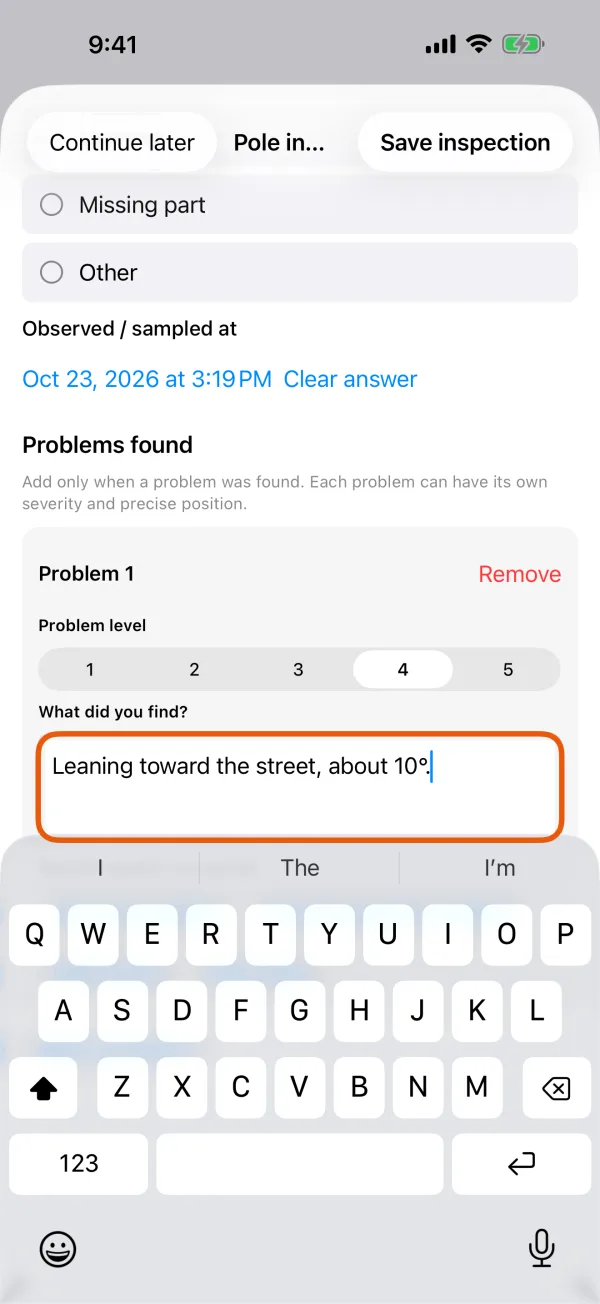
A problem being recorded during an inspection. Set the Problem level from 1 to 5.
It starts at 3.
Describe it under What did you find?
Mark where it is.
Use my position takes where you are standing now. Use the asset's position uses the asset's own place. The problem then shows its coordinates; until you choose, it says Specific position not marked.
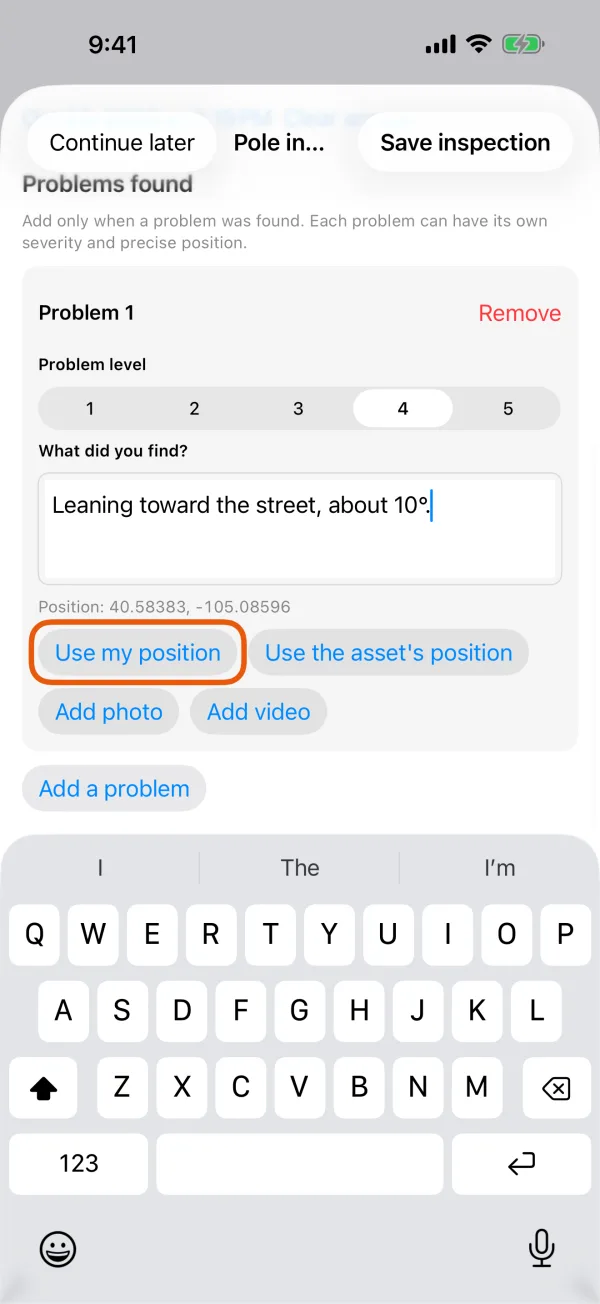
A problem with its own position. Add photos or videos of it.
Add photo and Add video attach them to this problem only. The On-site info switch works here too.
Add more problems if there are any, then tap Save inspection.
To take a problem off the list before saving, tap Remove beside it.
The asset's details count its open problems under Unresolved issues.
Recheck a problem
Open the asset and tap History.
Tap the asset on the map and tap Record details, or find it on the Work tab.
Find the problem under Problems to follow up.
Each one says Needs follow-up or Closed after recheck. Original problem & evidence opens the visit where it was found.
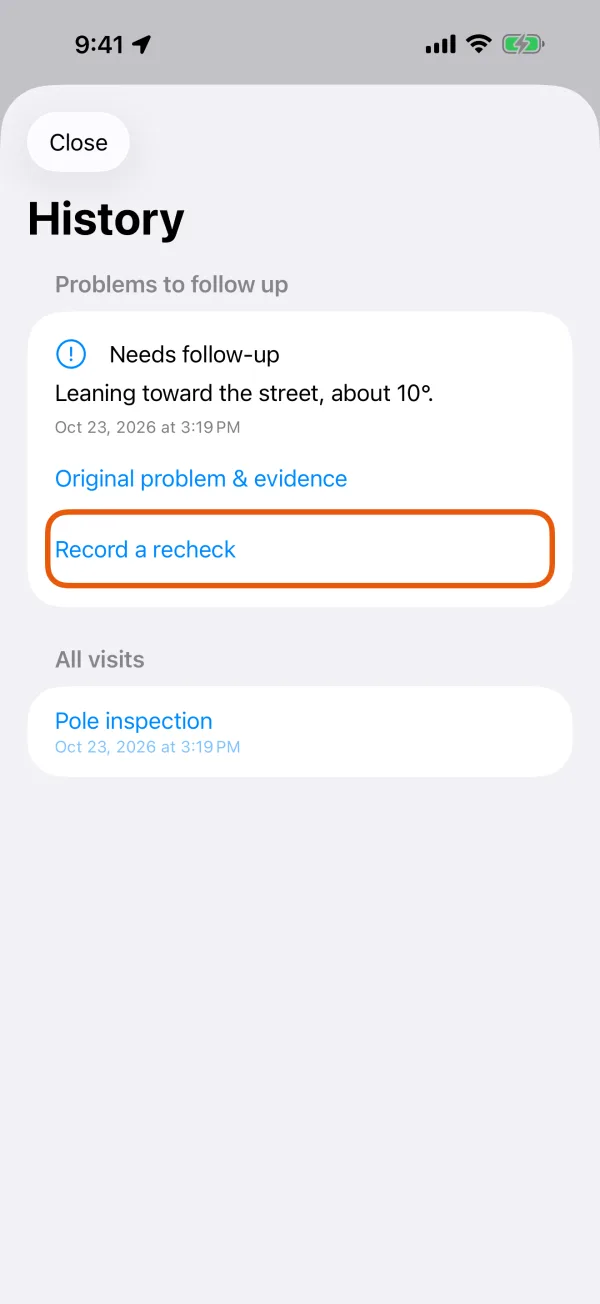
A problem waiting for follow-up. Tap Record a recheck.
The inspection opens with Recheck this problem. Normal closes it; a problem result keeps it open.
Choose the result and fill in Reason (required).
A recheck always needs a reason, such as what was repaired.
Tap Save inspection.
What a recheck does to the problem:
| Recheck result | The problem |
|---|---|
| Normal | Closes |
| Problem found | Stays open, or opens again if it was closed. Add at least one problem to describe what you see now. |
| Skipped or Unable to inspect | Doesn't change |
Each recheck is listed under its problem with its result, reason and date. All visits lists every inspection of the asset. A recheck doesn't restart the asset's inspection interval.
Review the day: Finish-work summary
At the end of a day or a round, open the Work tab and tap Finish-work summary.
Choose Today or Latest round.
Today counts results created on this device's date. Latest round appears once you have run a round and counts that round's results.
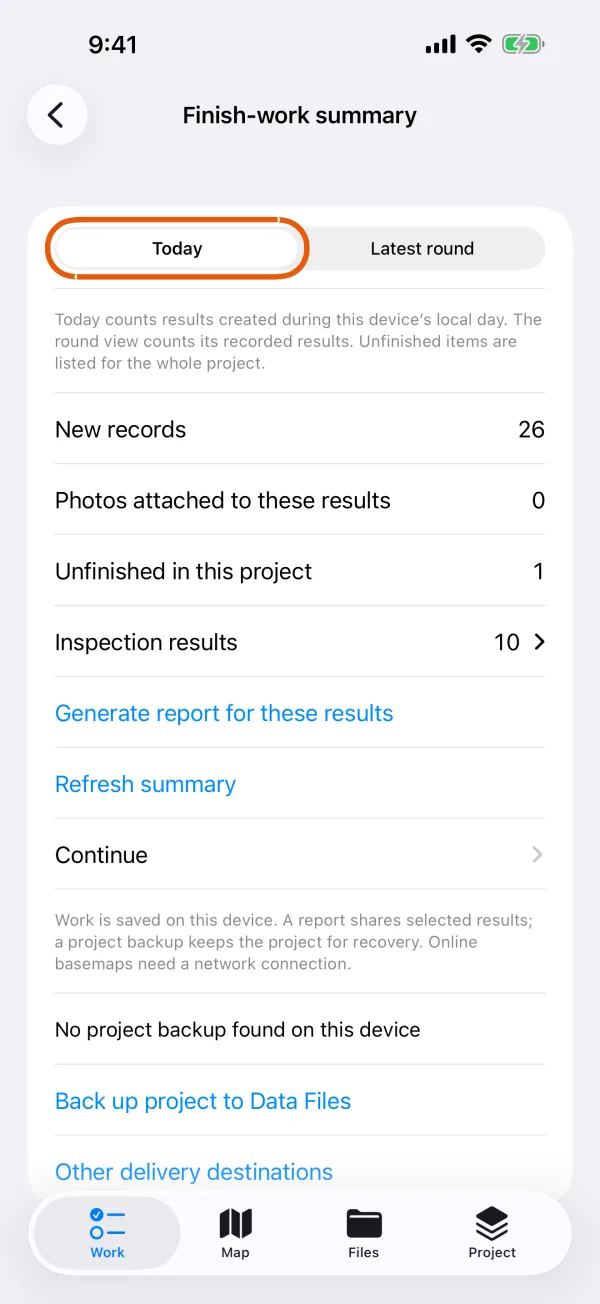
Counts for today's results. Check the counts.
New records, Photos attached to these results and Unfinished in this project. When there are any, also Inspection results (tap it to see each result), New problems recorded, Rechecks recorded and Closing rechecks.
Tap Generate report for these results.
A PDF of just these results opens to save or share. See make a PDF report.
Tap Back up project to Data Files.
The summary shows when the last backup was made. See back up and restore a project.
Continue on the same page lists unfinished records and inspections, so nothing is left half done.