 Dipper Field
A round is a list of assets to inspect in one go, such as every hydrant on a route. Dipper Field opens each asset's inspection in turn and keeps track of which ones have a result.
Before you start
- An inspection set up for an asset record type. See set up inspections and intervals.
- The assets already in the project, collected or imported. See import records from files.
Start a round
Open the Work tab, tap Inspections, then Inspection round.
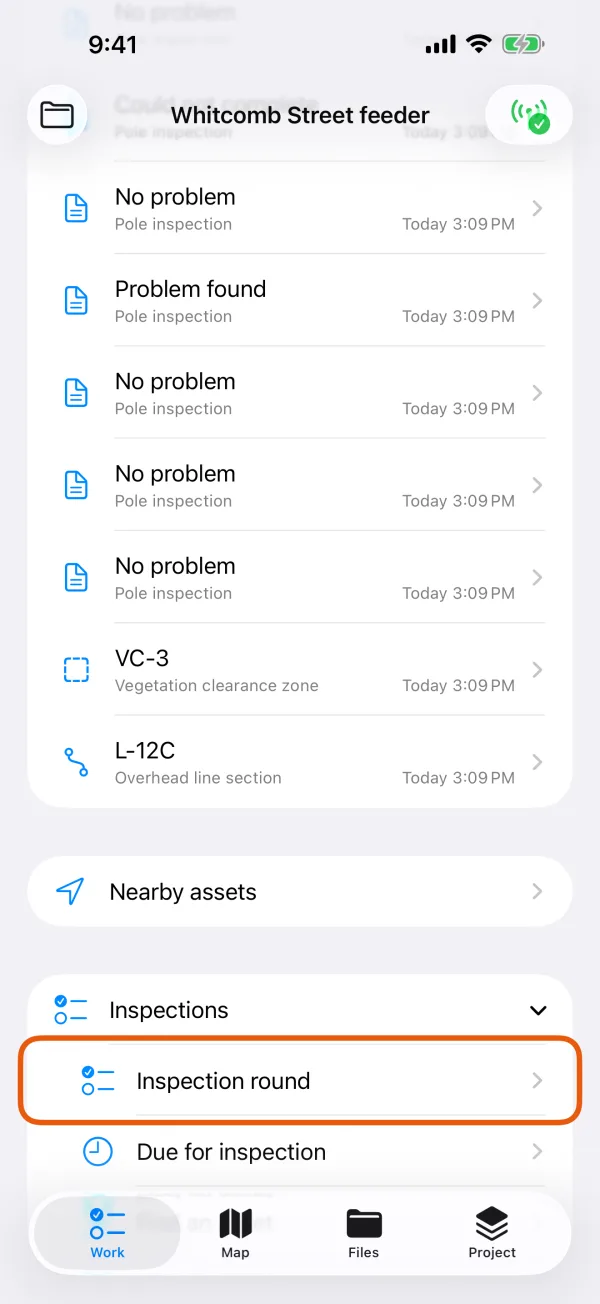
The Inspections group on the Work tab. Check the Inspection type.
If the project has more than one inspection, choose the one you're doing.
Tap each asset to include it.
The list shows 50 assets at a time; tap Load more for the next ones. A round can hold up to 500 assets.
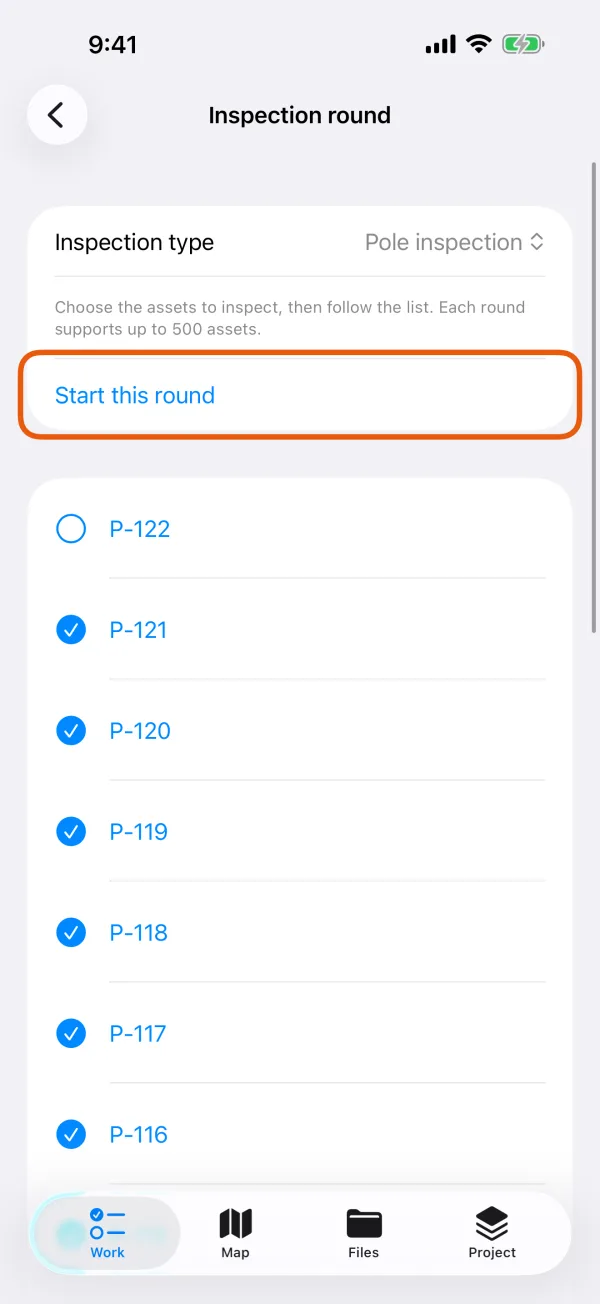
Assets ticked for the round. Tap Start this round.
The first asset's inspection opens.
Record each asset
Choose the Inspection result.
Normal, Problem found, Skipped or Unable to inspect. Your project may word these differently.
For Skipped or Unable to inspect, type why in Reason (required). The other fields are hidden.
For Problem found, add at least one problem with Add a problem. See record problems and rechecks.
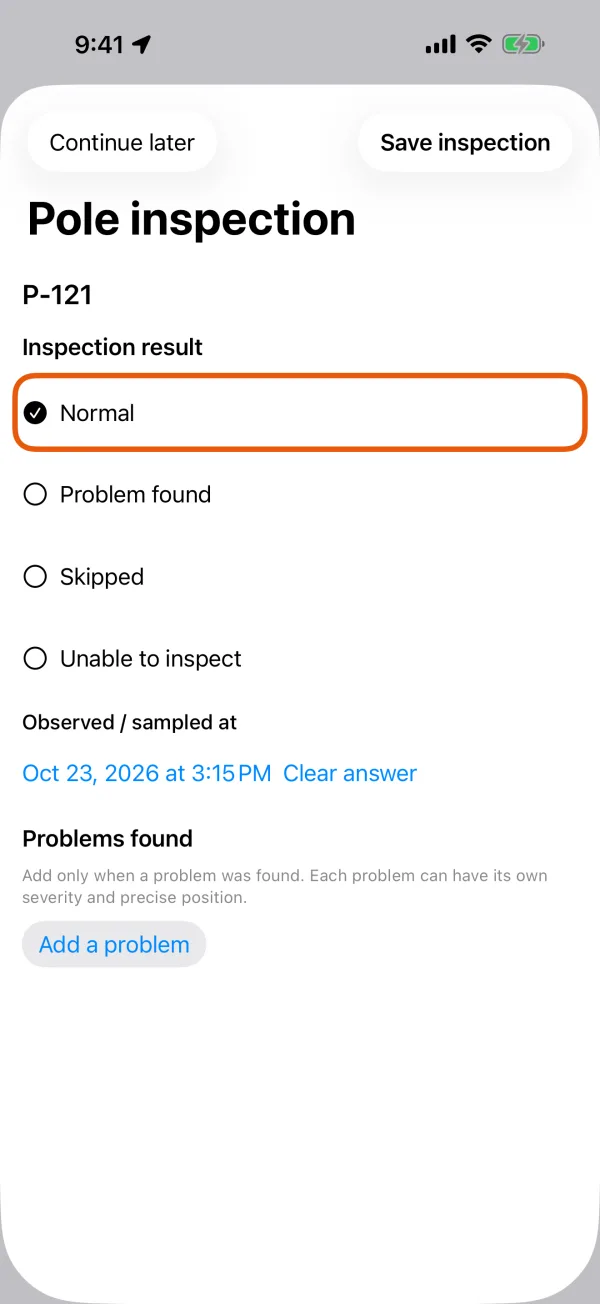
The four results at the top of the inspection. Answer the other fields.
Tap Save inspection.
The next asset in the round opens by itself.
Save inspection stays unavailable until the visit is complete: a result is chosen, a reason is given where one is needed, required fields are answered, and the problems listed match the result. With problems listed and any result other than Problem found, the inspection says Resolve or remove the listed problems before choosing this result.
Stop and pick up again
Tap Continue later at the top of the inspection.
What you entered is kept on this device. The round's page shows how far you are, such as 12 of 40 results recorded, and which asset is next.
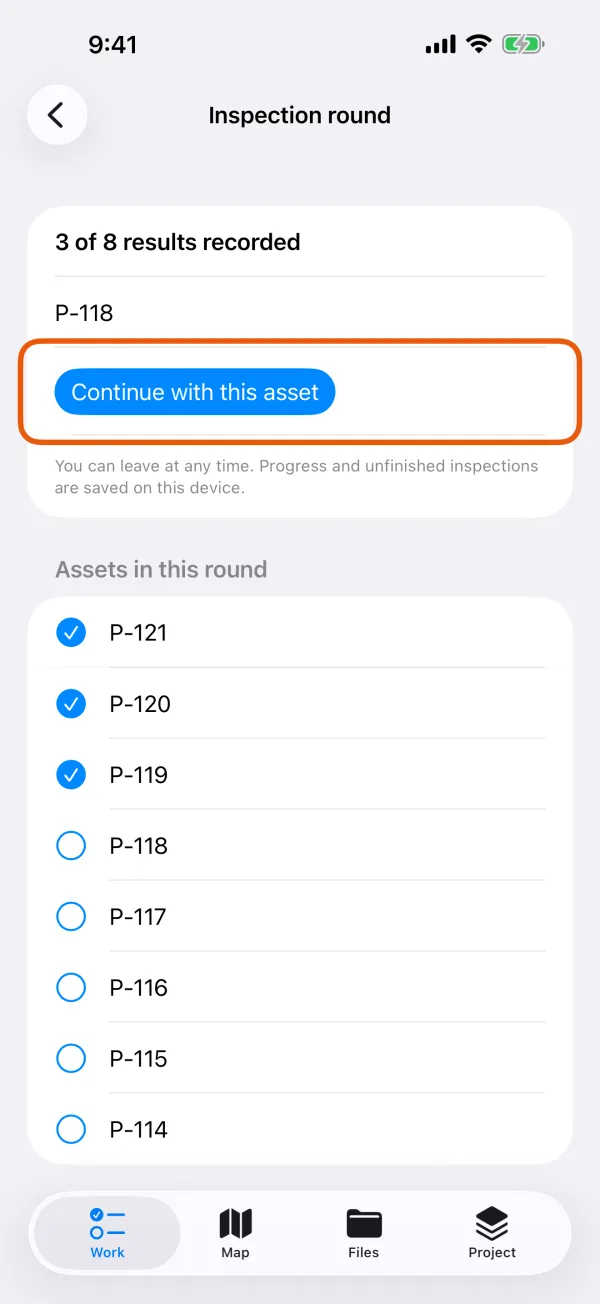
The round's progress and the next asset. When you're ready, tap Continue with this asset.
Until the round is finished, the Work tab also shows its progress near the top. Tap it to get back to the round.
Under Assets in this round, a check mark shows each asset that has a result. When all of them do, the page says Every asset in this round has a recorded result. Tap Start a new round for the next one. One round runs at a time.
Inspect a single asset
You don't need a round to inspect one asset:
- On the map: tap the asset, tap Record details, then tap the button with the inspection's name, such as Hydrant inspection.
- By its label: on the Work tab, tap Inspections, then Find an asset. Tap Scan QR or barcode, or type the Asset number or code and tap Find in this project. A single match opens straight away; if several assets share the code, choose the one in front of you.
- From what's due: Due for inspection under Inspections lists the assets that need a visit.