 Dipper Field
Before you start
- The map's web address from whoever provides it. It must start with
https://. - A key or token, if the service needs one.
- An internet connection. Dipper Field checks the map before it saves it.
On the map, tap Map layers.
It's the layers button on the map, just above the location button.
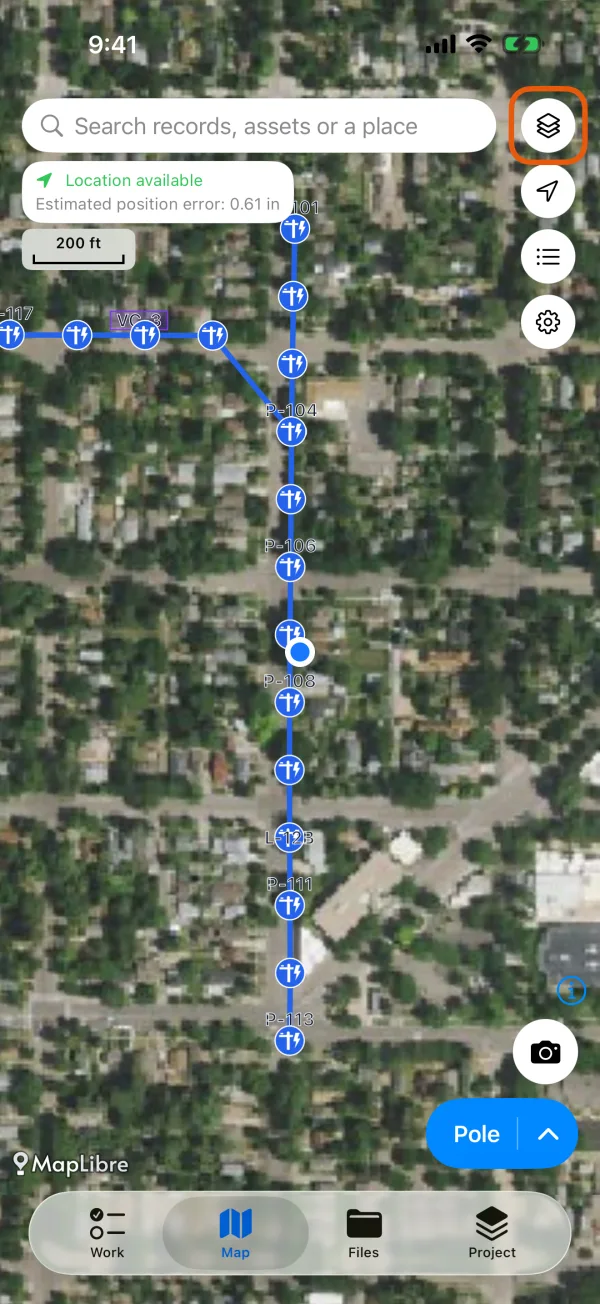
The map, with the Map layers button marked. Tap Manage map backgrounds.
It's under the list of maps. Map backgrounds opens.
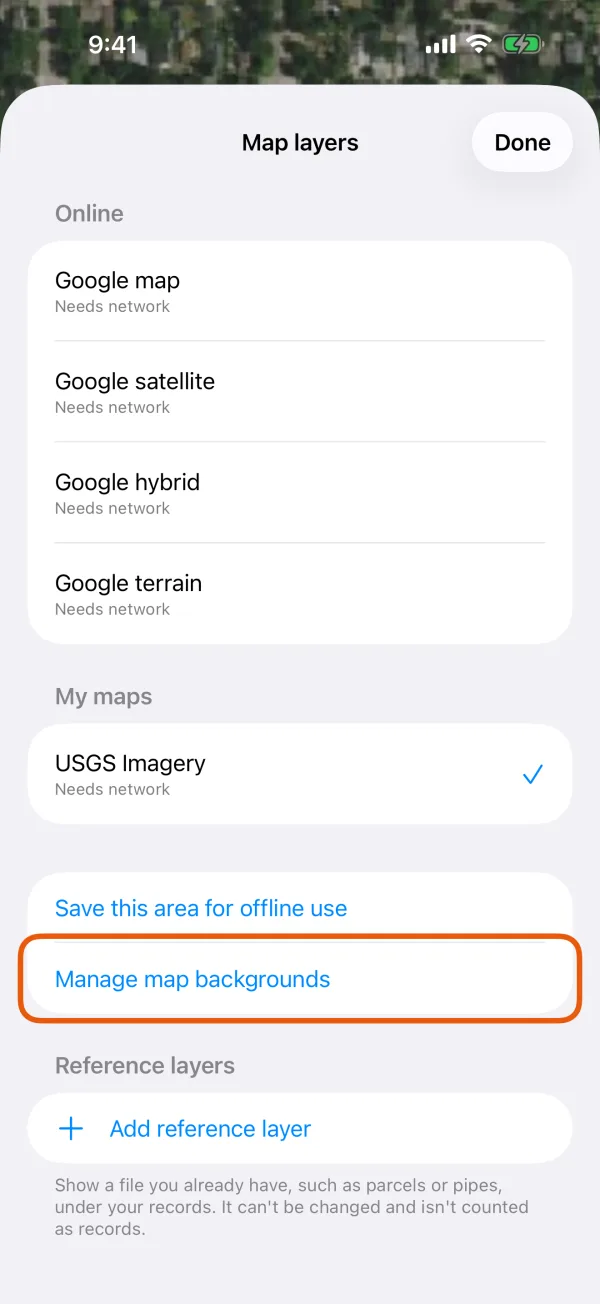
Map layers, with Manage map backgrounds marked. Under My maps, tap Add an online map.
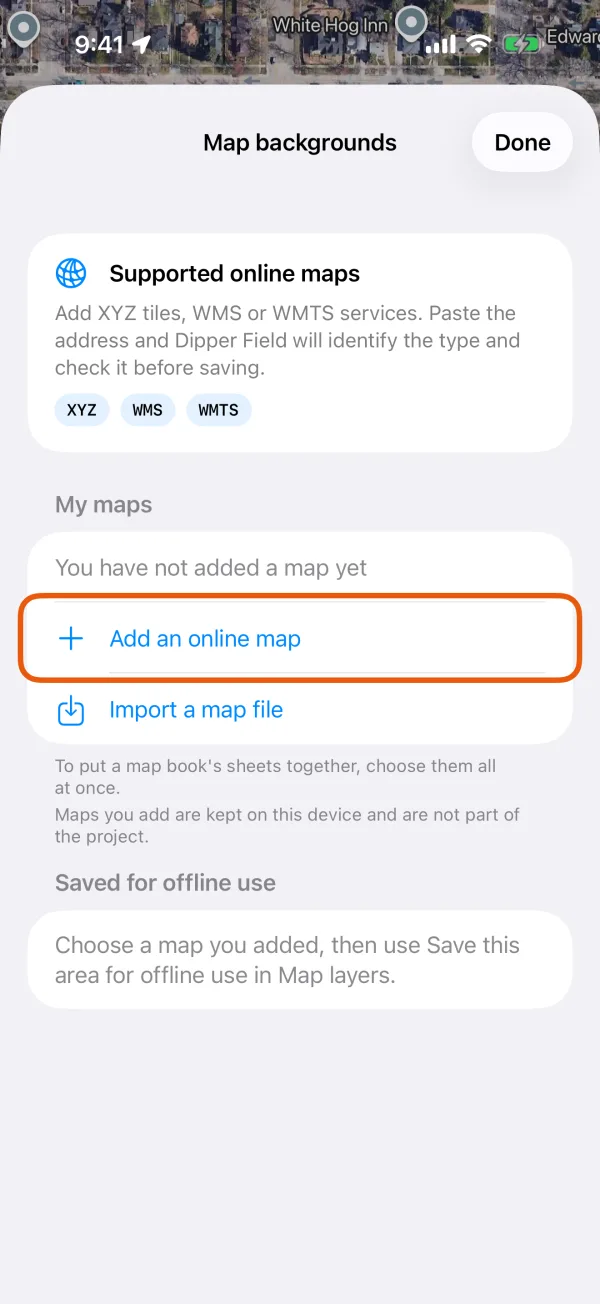
Map backgrounds, with Add an online map marked. Paste the address and tap Continue.
You don't choose the service type. Dipper Field reads the address, works out whether it's XYZ, WMS, WMTS or ArcGIS, and asks the service what it offers. See what to paste.
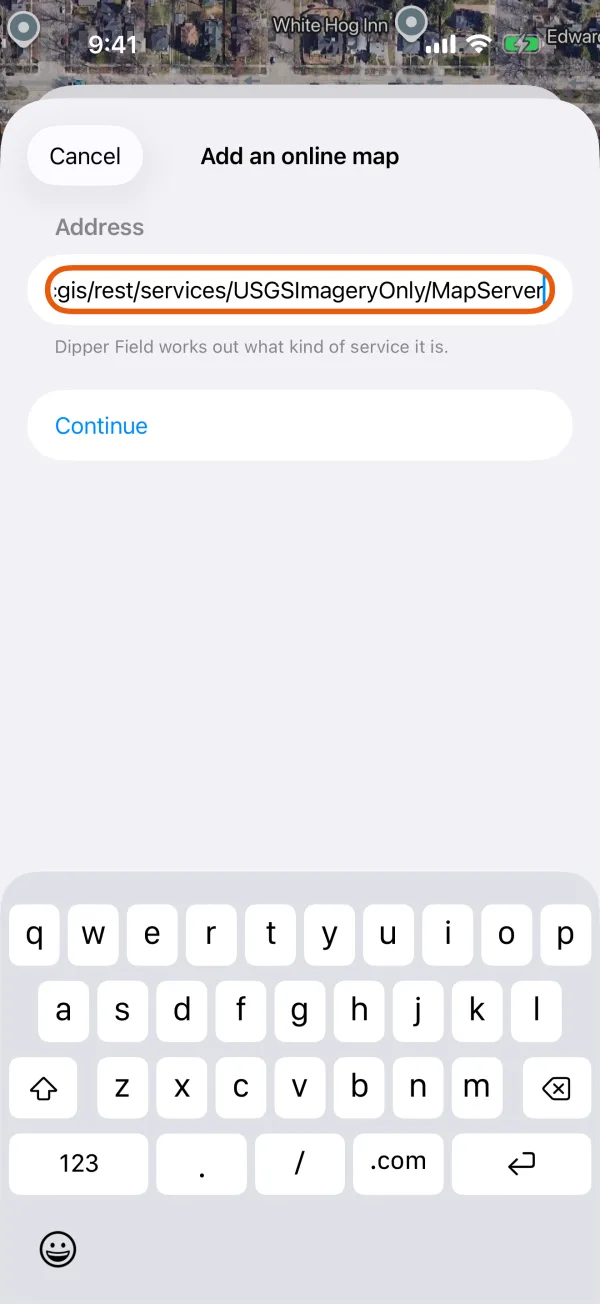
The address field, with Continue below it. If you see Which layer?, tap the map you want.
This appears when a WMS or WMTS service offers more than one map. With only one, Dipper Field takes it.
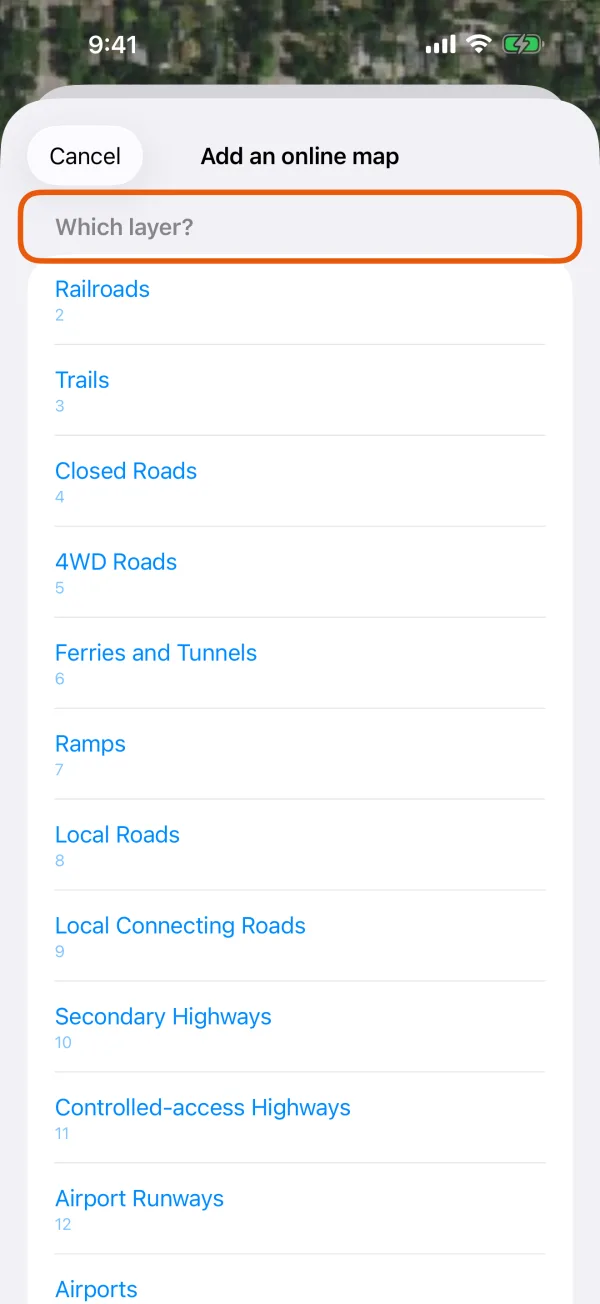
The layers the service offers. If you see This map needs a sign-in, enter the key.
In Key name, e.g. access_token, enter the name the service uses for its key. In Key or token, paste the key. Then tap Continue.
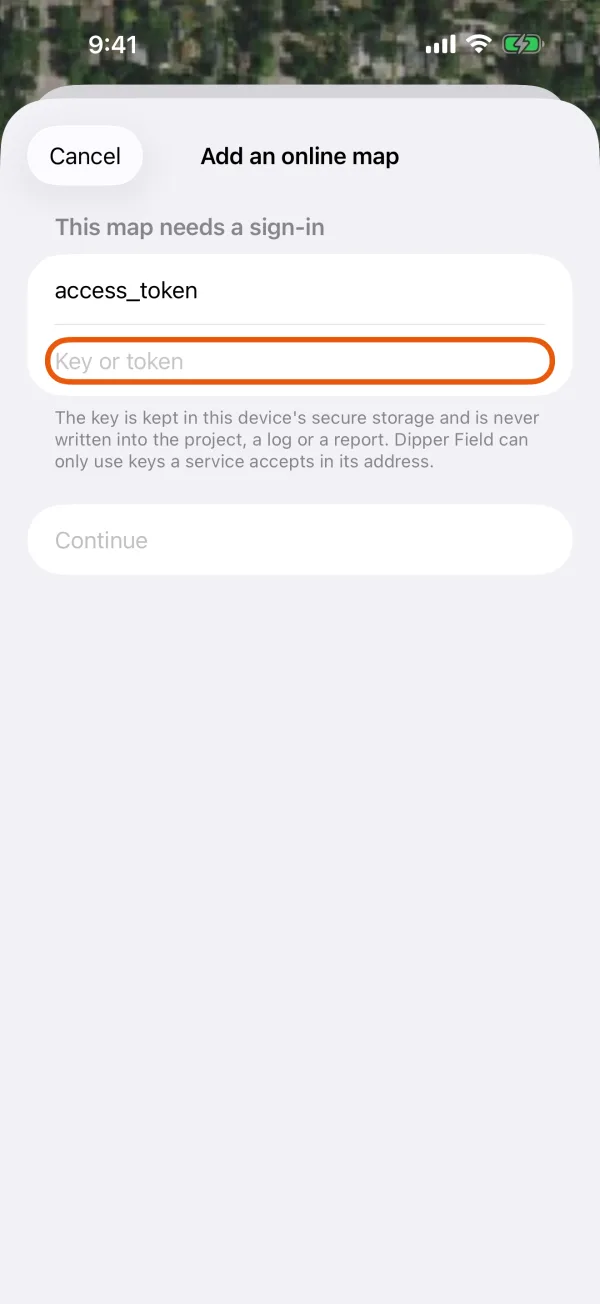
Key name and Key or token. Name the map and tap Save this map.
Under What the service answered, This map works means a tile came back and drew. The name is filled in from the service; change it if you like, and add What it is (optional).
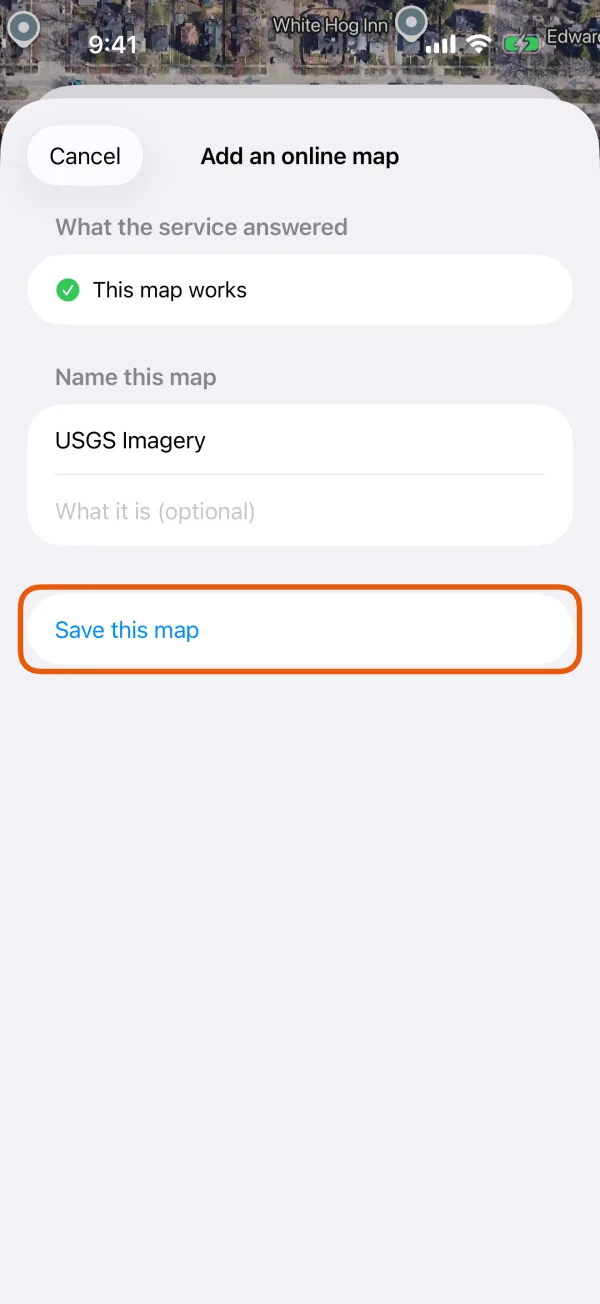
The service's answer, the name, and Save this map.
The map now appears in Map layers under My maps. Tap it to use it as the background. It's marked Needs network: to use it without a connection, save an area for offline use.
What to paste
| Service | Paste | For example |
|---|---|---|
| XYZ tiles | A tile address with {z}, {x} and {y} (or {-y}) | https://tiles.example.com/{z}/{x}/{y}.png |
| WMS | The service address, with or without its GetCapabilities part | https://example.com/geoserver/wms |
| WMTS | The service address, or its WMTSCapabilities.xml | https://example.com/wmts/1.0.0/WMTSCapabilities.xml |
| ArcGIS | The map service address, ending in /MapServer | https://example.com/arcgis/rest/services/Imagery/MapServer |
For an ArcGIS map service, Dipper Field uses the service's cached tiles. It works with services that publish tiles in the standard web map tiling scheme (Web Mercator). Its Service type then shows as XYZ.
WMS and WMTS image format
You don't set an image format. Dipper Field asks a WMS or WMTS layer for PNG when the layer offers it, otherwise JPEG. It requests 256-pixel tiles in Web Mercator (EPSG:3857), with a transparent background.
A layer that isn't offered in Web Mercator can't be added. You'll see This service does not offer this map in the projection Dipper Field draws.
To see what was chosen, open Map backgrounds and tap the map. Technical details shows its Service type, Address, Layer, Image format and Zoom range.
Check or remove a map
In Map backgrounds, tap the map:
- Check this map now, under Availability, asks the service for a tile again and says what it answered.
- Remove this map removes the connection and any key stored for it. Areas saved from it for offline use are deleted too.
Good to know
- Only secure addresses work. An
http://address shows Only secure (https) addresses can be used. - A key works only if the service accepts it in the address. It's kept in the device's secure storage and is never written into the project, a log or a report.
- Maps you add are kept on this device, not in the project. Every project on this device can use them. Colleagues add the map on their own phones, and a project backup doesn't include it.
- Each map needs its own name, up to 60 characters.
If it doesn't work
- This address is not a map service Dipper Field recognises: paste the GetCapabilities address, or a tile address with
{z},{x}and{y}. - A tile address needs {z}, {x} and {y}: part of the tile address is missing. Copy it again from the provider.
- The service wants a sign-in or The service refused this key: check the key name and the key with your provider.
- This service offers no map that can be drawn: the service lists no layer Dipper Field can show.
- This service is slow to answer: you can still save the map, but it may load slowly in the field.
- The map was fine but is blank now: it needs a connection. Without one, use an area you saved for offline use or an imported map file.