 Dipper Field
Before you start
- A map file with a location: a GeoPDF, a GeoTIFF (including Cloud Optimized GeoTIFF), or an MBTiles file of map images.
- The file on the device, in a cloud drive the Files app can reach, or attached to a message.
On the map, tap Map layers, then Manage map backgrounds.
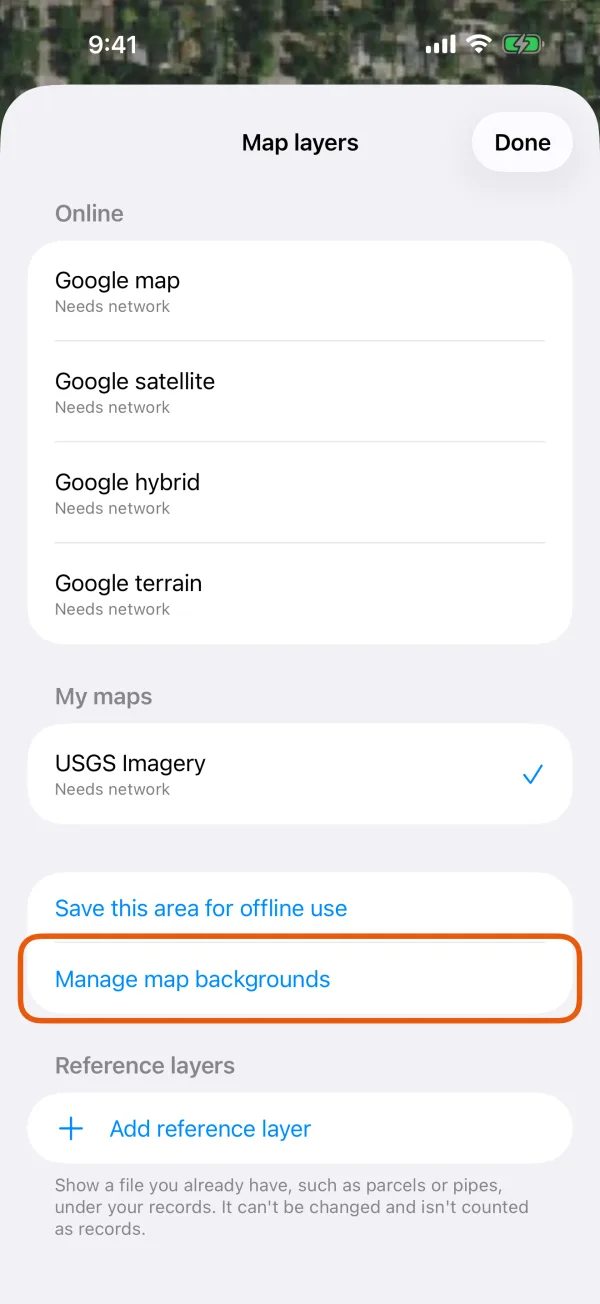
Map layers, with Manage map backgrounds marked. Under My maps, tap Import a map file.
Choose the file. For a map book split into sheets, choose all the sheets at once.
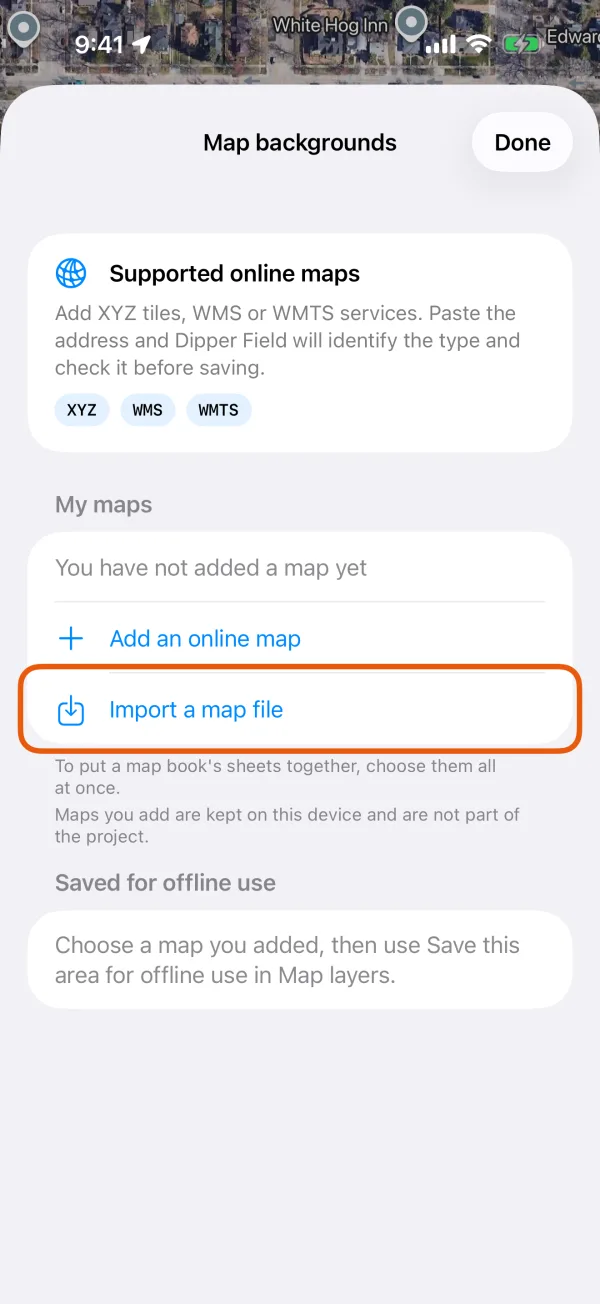
Map backgrounds, with Import a map file marked. Check the name and tap Import.
Dipper Field reads the file first and shows its format and size in tiles, such as GeoPDF · 18,240 tiles. Change the Name if you like.
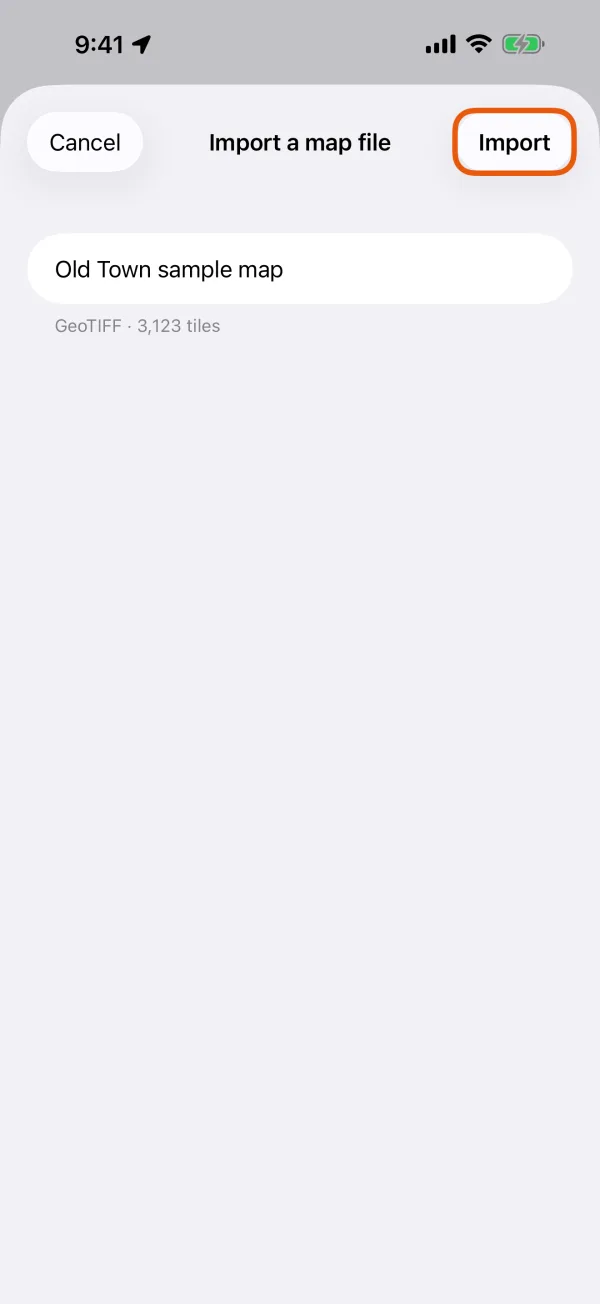
The name, the format and the tile count. Keep Dipper Field open while it imports.
Progress is under Saved for offline use in Map backgrounds. If you leave the app, the import carries on when you come back.
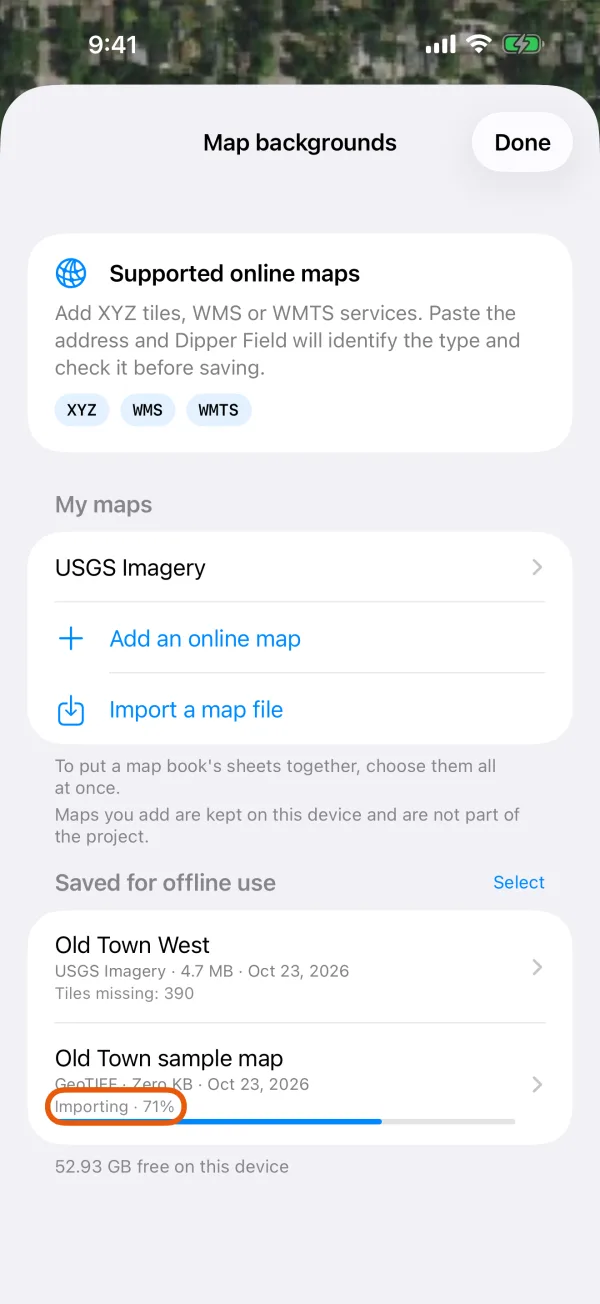
The imported map under Saved for offline use, with its progress.
On the map, tap Map layers, then Manage map backgrounds.
Manage map backgroundsMap layers, with Manage map backgrounds marked. Under My maps, tap Import a map file.
Choose the file. For a map book split into sheets, touch and hold one sheet in the file list, then choose the others.
Import a map fileMap backgrounds, with Import a map file marked. Check the name and tap Import.
Dipper Field reads the file first and shows its format and size in tiles, such as GeoPDF · 18,240 tiles. Change the Name if you like.
ImportThe name, the format and the tile count. Carry on working while it imports.
It runs in the background with a notification, Importing a map, and carries on if the phone restarts. Progress is under Saved for offline use in Map backgrounds.
Importing · 60%The imported map under Saved for offline use, with its progress.
When it's done, open Map layers. The map is listed under Available offline here; tap it to use it as the background. It needs no connection.
Open a map file from another app
You can also send a file straight to Dipper Field:
- iPhone and iPad: in Files, Mail or another app, share the file and choose Dipper Field.
- Android: open the file with Dipper Field, or share it to Dipper Field.
Import a map file opens over whatever you're doing. This way brings in one file at a time; to put a map book's sheets together, use Import a map file in Map backgrounds.
What happens to each kind of file
GeoPDF
- USGS US Topo and US Forest Service FSTopo maps are trimmed to their 7.5-minute quadrangle. The collar, with its legend and notes, is left out, so neighboring quads line up.
- Other GeoPDFs are trimmed to their map frame when the file defines one.
- In a GeoPDF of several pages, pages without a location, such as a cover, legend or index, are skipped. The map pages are put together into one map, the more detailed drawn over the less detailed.
- Pages that show the same area at about the same detail, such as summer and winter editions, are kept apart as separate offline maps. Before you import, Dipper Field says how many pages are maps and what they become.
Several files chosen together
GeoPDF and GeoTIFF files chosen at once are put together the same way, as the sheets of one map book.
GeoTIFF
The whole image becomes the map. A very detailed image is kept at a little less detail to stay a sensible size; Dipper Field says so before you import.
MBTiles
The tiles are used as they are. An MBTiles file is imported on its own, not together with other files. MBTiles files of vector map data aren't supported; Dipper Field imports map images (raster tiles).
If it can't be imported
- This file has no location, so it can't be placed on the map. The file is an ordinary PDF or image, such as a scan. Georeference it in desktop GIS software and save it as a GeoTIFF or GeoPDF.
- This file holds vector map data. Dipper Field imports map images, as raster tiles. Export the map from its source as raster MBTiles, GeoTIFF or GeoPDF.
- An MBTiles file is imported on its own. To put map files together, choose only GeoPDF and GeoTIFF files.
- Dipper Field can't read this file as a map. It imports MBTiles, GeoTIFF and GeoPDF files.
Good to know
- Importing is free, and the map works with no connection.
- The imported map belongs to the device: every project on it can use it, and it isn't part of a project backup.
- To remove it, tap it under Saved for offline use, then Delete. The original file isn't changed.