 Dipper Field
Before you start
- A map you added, or one your organization provides. See add your own map service.
- An internet connection. Areas over 20 MB wait for Wi-Fi unless you allow mobile data.
- Free space on the device. Dipper Field shows the size before it downloads anything.
Show the map you want to save.
Tap Map layers and choose it under My maps (or Provided by your organisation).
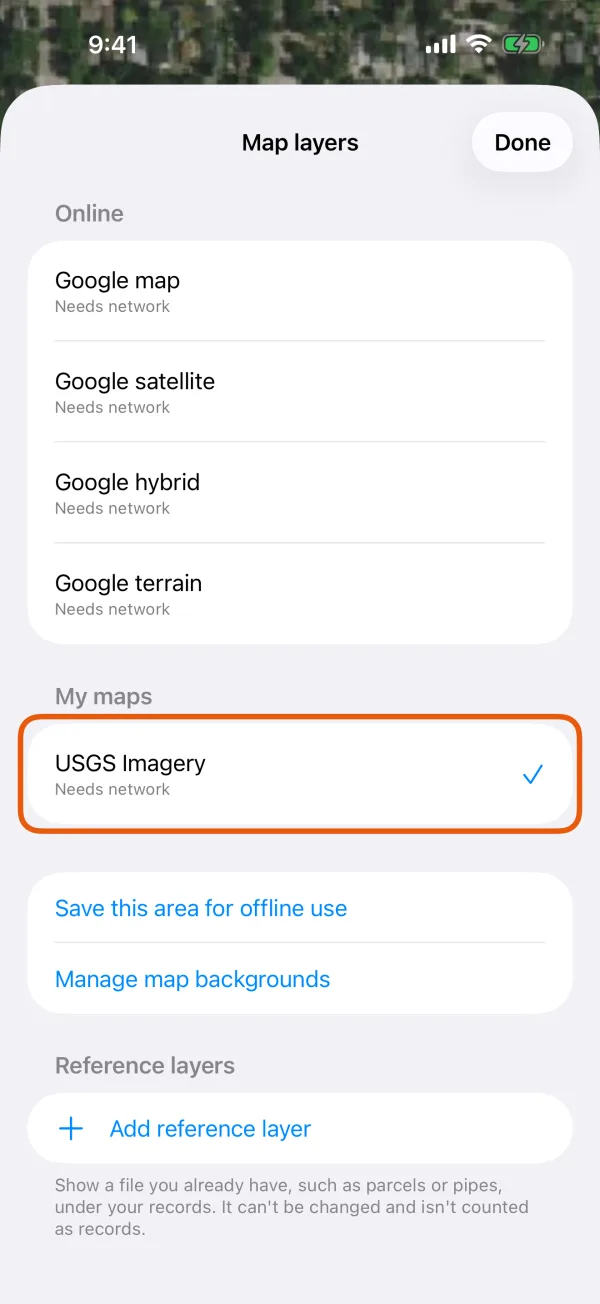
Map layers, with a map under My maps chosen. Move and zoom the map to the area.
Dipper Field saves what the screen shows. To find a place, use the search bar at the top of the map, Search records, assets or a place.
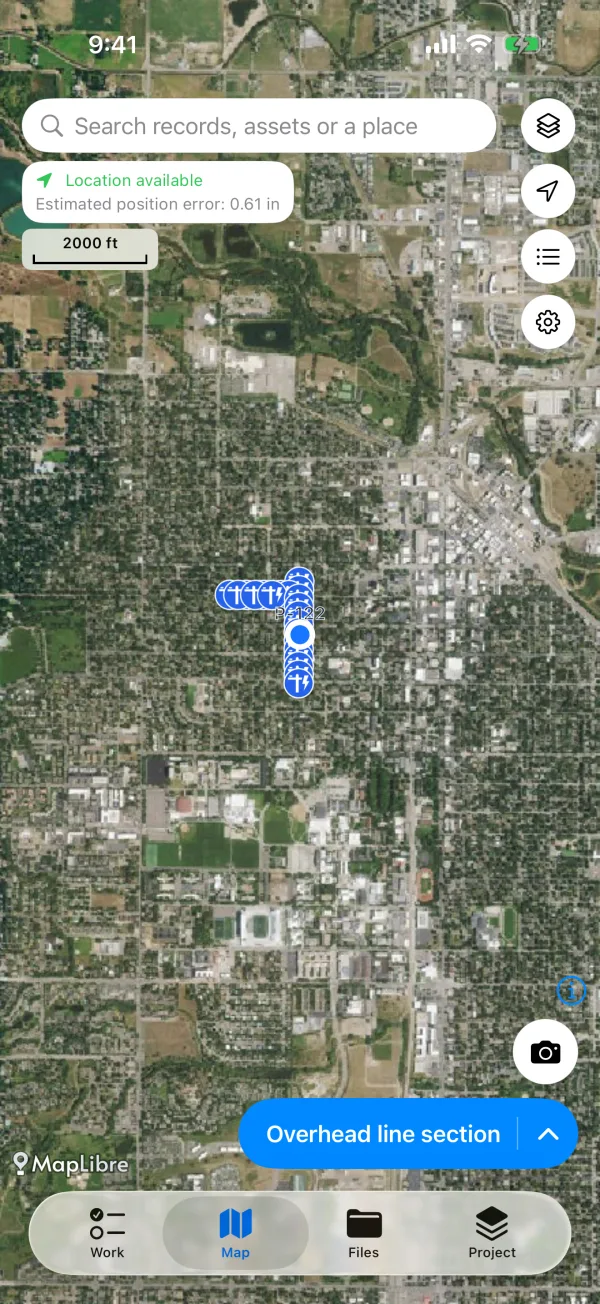
The map framed on the area to save. Tap Map layers, then Save this area for offline use.
It's there while a map you added is on screen.
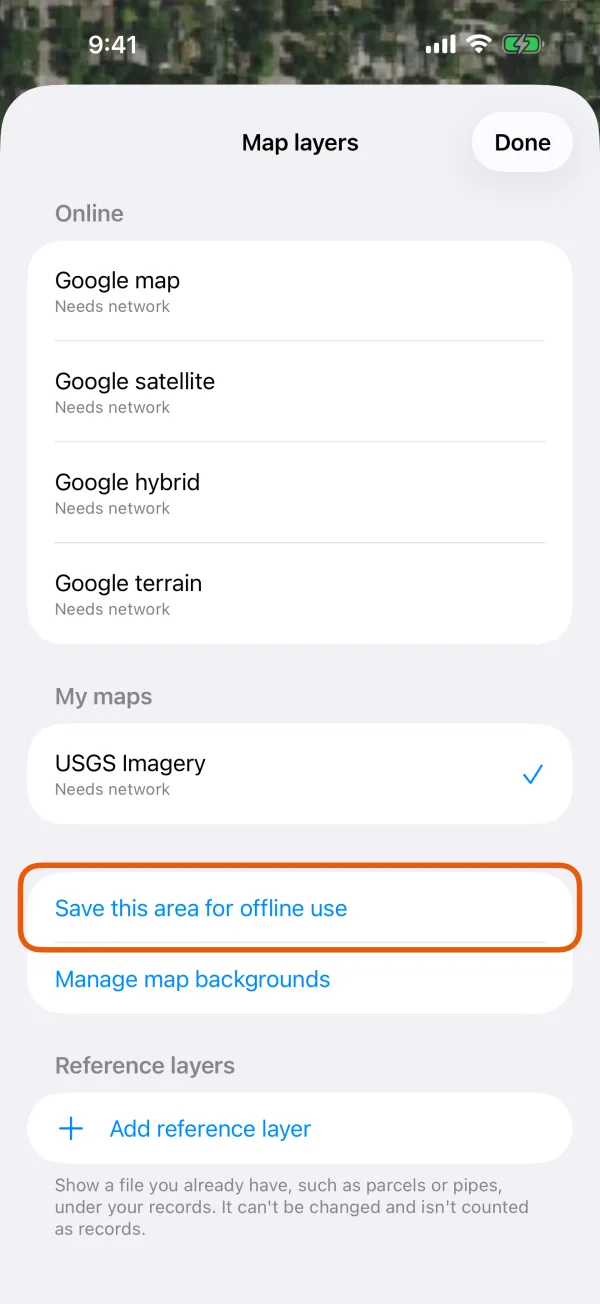
Map layers, with Save this area for offline use marked. Choose Standard or Detailed.
Standard: streets and buildings are clear; closer in, the map is enlarged. Detailed: the finest detail the map has, at many times the size.
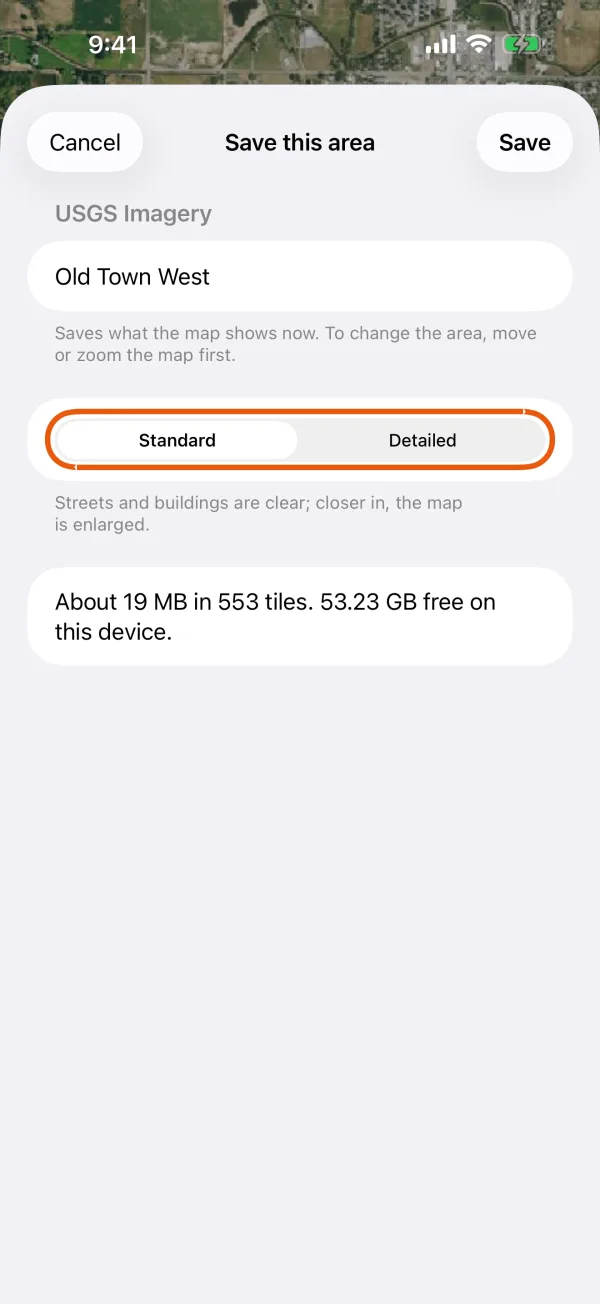
Standard and Detailed, with the size estimate below. Check the estimate and tap Save.
Dipper Field checks the map once and shows the size, for example About 38 MB in 2,140 tiles. 41 GB free on this device. The Name is filled in with the place when the device can tell; change it if you like.
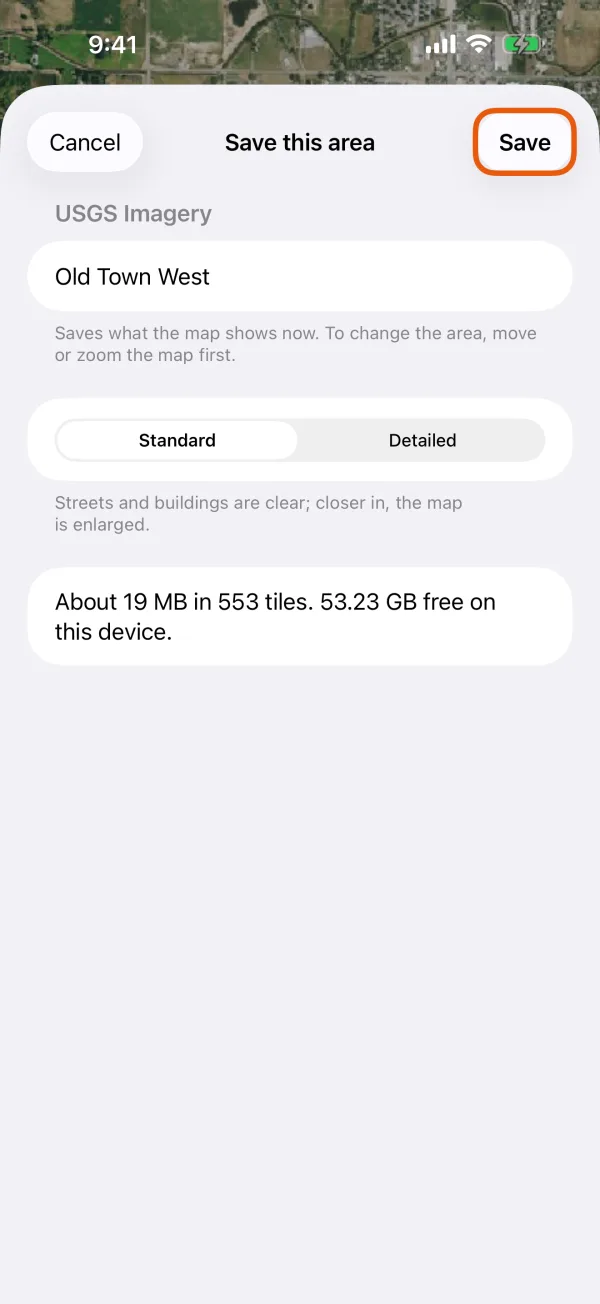
The estimate, the Name field and Save.
It says Saving in the background. Progress is under Manage map backgrounds.
An area over 20 MB starts when the device is on Wi-Fi. To download it on mobile data as well, turn on Also download on mobile data before you tap Save.
Follow the download
Tap Map layers, then Manage map backgrounds.
Under Saved for offline use, each area shows its status, such as Downloading · 45%.
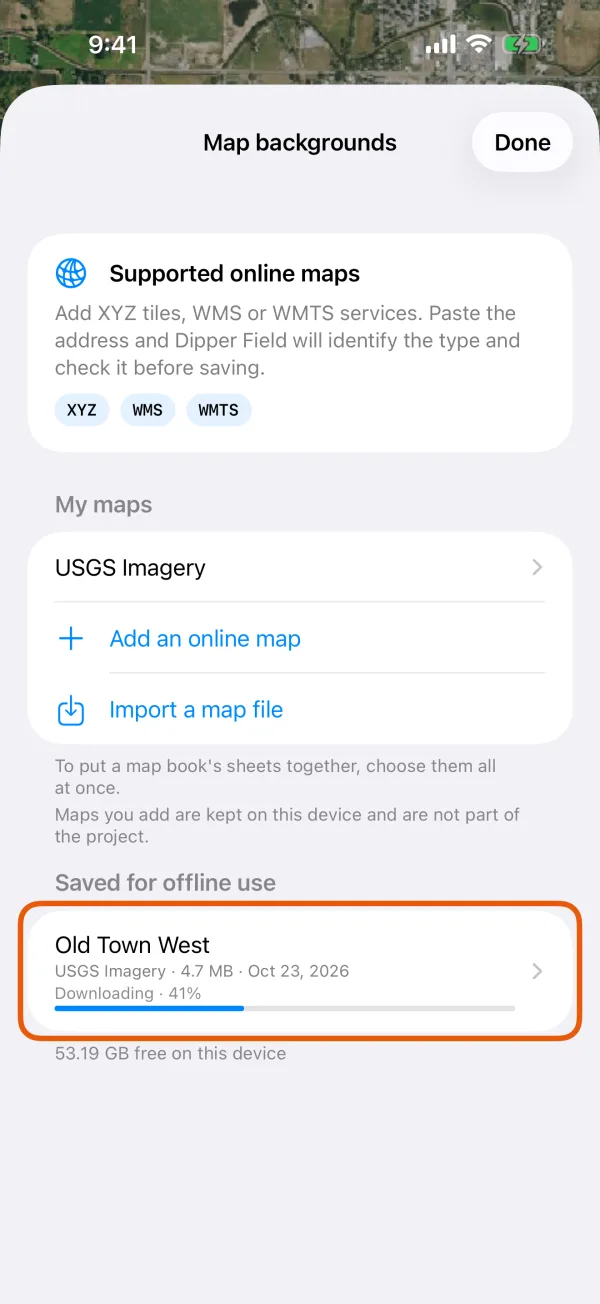
Saved areas, each with its status. Keep Dipper Field open while it downloads.
If you leave the app, the download stops and carries on when you come back.
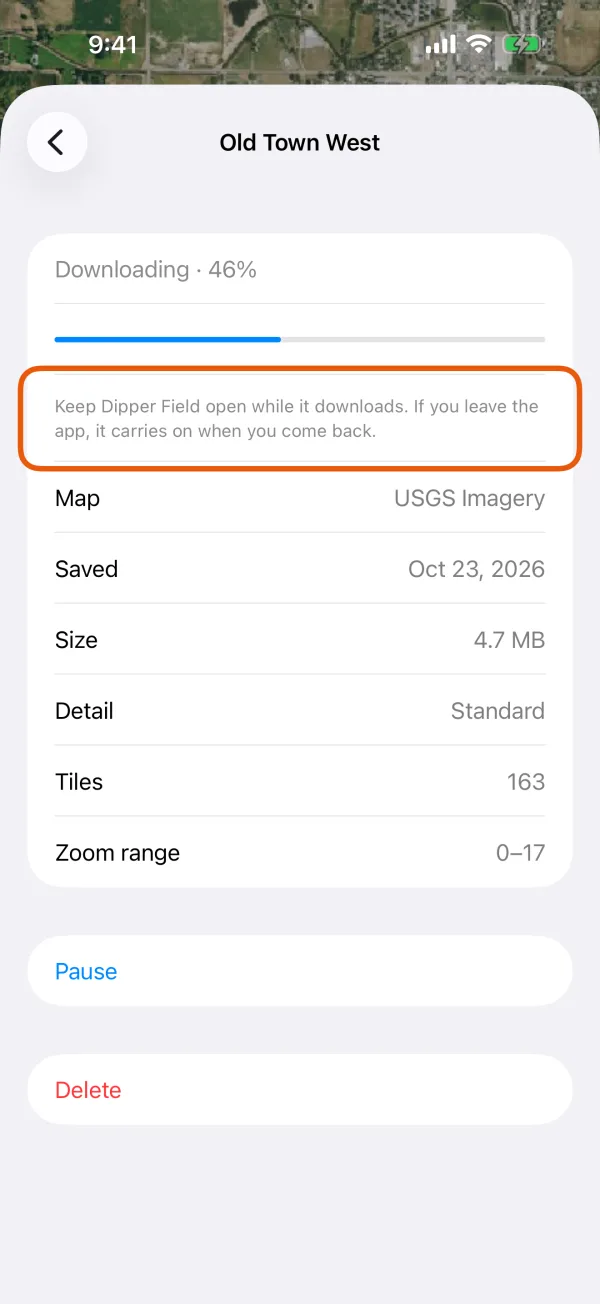
An area's page while it downloads.
Tap Map layers, then Manage map backgrounds.
Under Saved for offline use, each area shows its status, such as Downloading · 45%.
Saved for offline useSaved areas, each with its status. Carry on working, or leave the app.
The download runs in the background with a notification, Saving a map area. If the phone restarts, it carries on.
Saving a map areaThe download's notification.
| Status | What it means |
|---|---|
| Downloading · 45% | Tiles are coming in. |
| Waiting for Wi-Fi | Over 20 MB, so it starts on Wi-Fi. |
| Waiting for a connection | The connection dropped. It carries on by itself. |
| Paused | Stopped. Tap the area, then Resume. |
| Complete | Ready to use offline. |
| Tiles missing: 12 | The service had no tile, or wouldn't send it, in some places. There the map shows the nearest zoom it has. |
| Did not finish | Nothing usable arrived, or a reason is shown instead. |
Tap an area to Show on map, Pause, Resume, Try missing tiles again, Download again for imagery the service has updated, or Delete it. To delete several, tap Select.
Use it offline
Choose the map in Map layers as usual. Where you saved an area, the map's row says Saved for offline use here, and the map draws the saved tiles when there's no connection.
If Google's map can't load and you have an area saved where you are, the map offers Use [name], saved here.
Maps that can't be saved
Some providers' terms don't allow their maps to be downloaded or cached for offline use. When one of these is on screen, Save this area for offline use explains why instead: This map can't be saved for offline use. The list includes Google, OpenStreetMap's own tiles, Esri's ArcGIS Online basemaps, Bing Maps, Apple Maps, Mapbox, MapTiler, HERE, TomTom, CARTO, Nearmap, Vantor (Maxar) and Planet.
What to do instead:
- Tap Add a map and add one that allows saving, such as imagery from a county, state or national mapping agency. Then save an area of it.
- Or import a map file, such as a USGS topo map.
An ArcGIS service says itself whether its tiles may be exported. If it doesn't allow it, you'll see This map's provider does not allow saving it for use offline.
Some providers allow saving within limits. OpenFreeMap and OpenTopoMap allow up to 3,000 tiles in one download, and Stadia Maps up to 100 MB. A bigger area shows This is more than the map's provider allows in one download. Zoom in to save a smaller area. Thunderforest allows it on paid plans only, so Dipper Field asks you to save only if your plan includes it.
Limits
- One area holds up to 50,000 tiles and 1 GB. A bigger one shows This area is too large to save at this detail. Zoom in, or choose Standard.
- Dipper Field always leaves 200 MB free on the device.
- Saved areas belong to the device. Every project on it can use them, and they aren't part of a project backup.
- Removing a map you added also deletes the areas saved from it.