 Dipper Field
Dipper Field can fill in some answers for you, so a crew types less and makes fewer mistakes. Some ways are set up on a field for everyone using the project. Others are a choice each person makes while recording.
Work an answer out
Open the field's settings.
While you create a project: on Record types, tap the record type, then the field. In a project you already have: open the Project tab, tap Project contents, tap Edit fields under the record type, then tap the field.
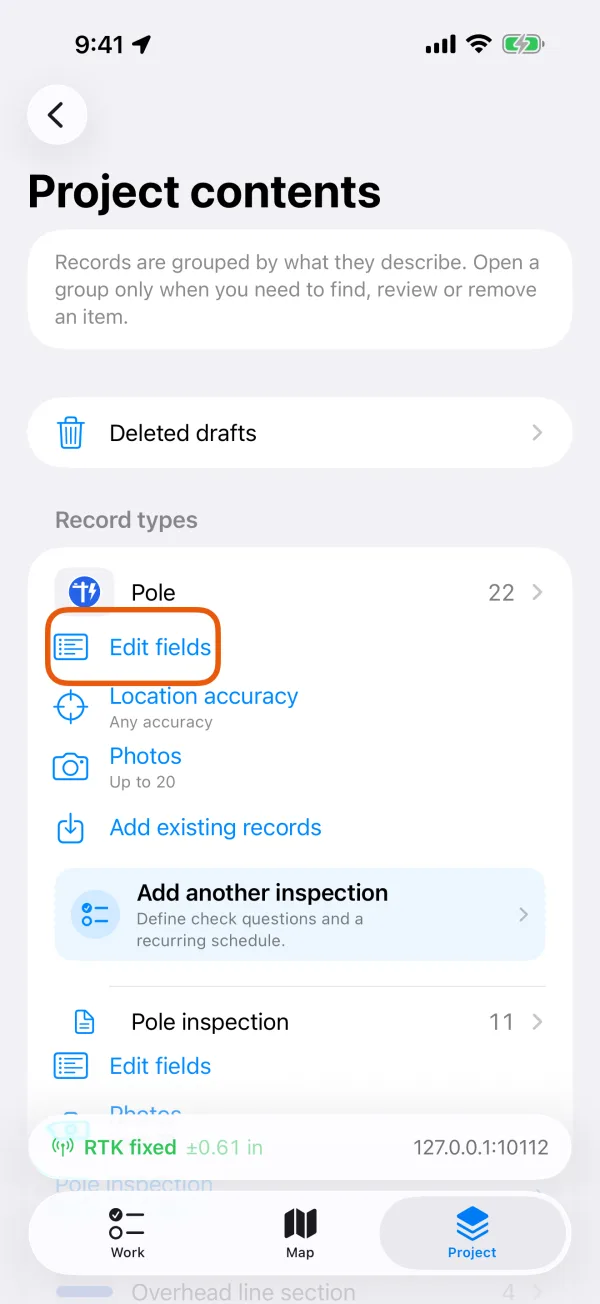
Edit fields under a record type. 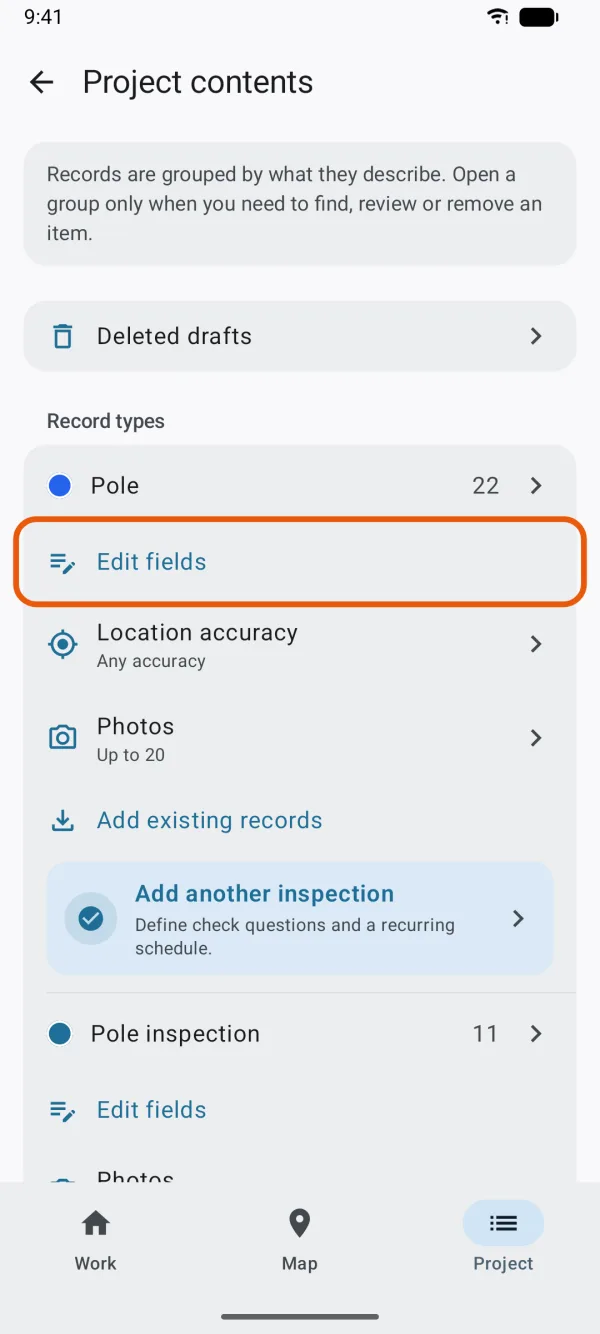
Edit fields under a record type. Under Fill in automatically, tap Fill in and choose a way.
By hand is the usual choice. Only the ways that can work for this field are listed.
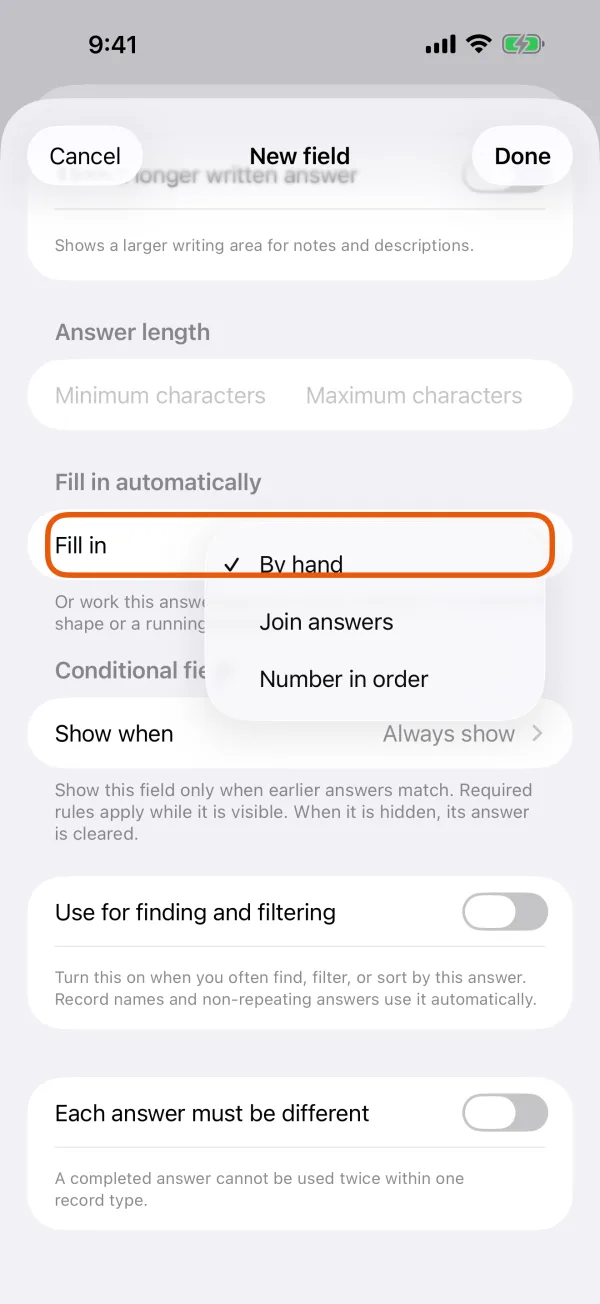
The ways an answer can be filled in. 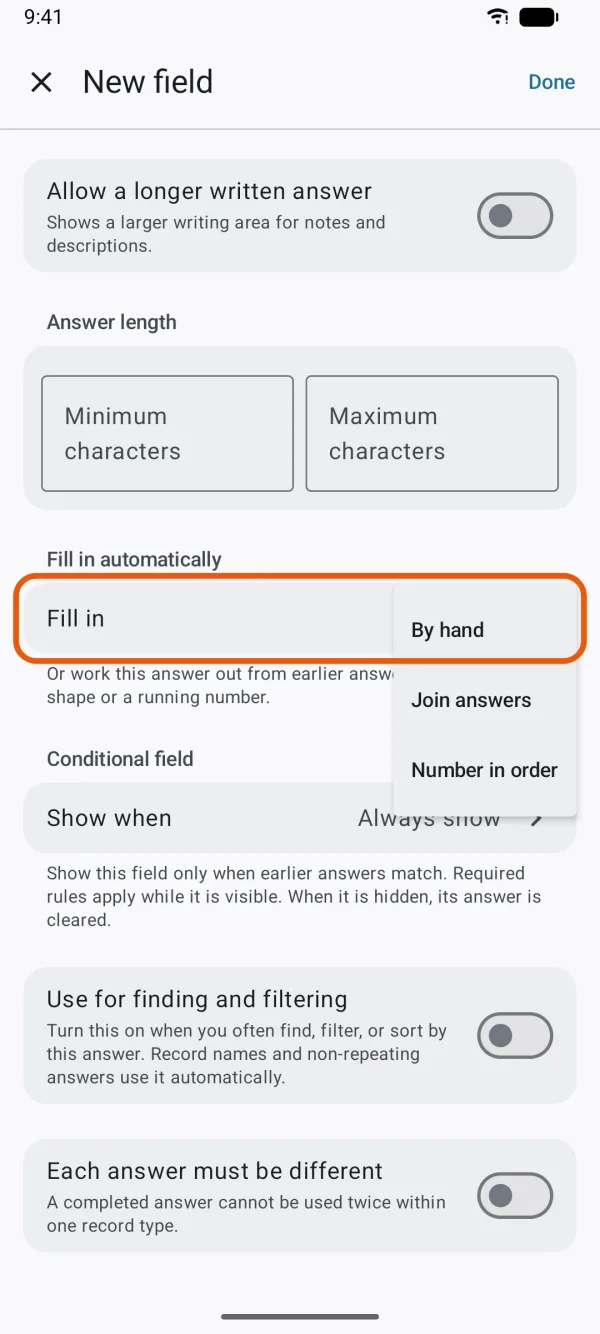
The ways an answer can be filled in. Set it up in the rows below.
If something doesn't fit, a red line under them says what, such as Use at least one earlier answer, not only fixed numbers.
Choose whether it Can be changed.
On, people can type over the worked-out answer and put it back with one tap. Off, the answer is shown on the form but always worked out.
Tap Done.
| Way | What it gives | For a field that's |
|---|---|---|
| Calculate from answers | Earlier numbers and Fixed number values, added, subtracted, multiplied or divided in turn, such as length × width. | A Number, with a Number field above it |
| Measure the shape | The record's Length (for an area, its perimeter), Area, Elevation (points), Latitude or Longitude, in the Unit you choose. It's measured again whenever the shape is edited. | A Number in a point, line or area record type |
| Join answers | Earlier answers and Fixed text one after another, with what goes Between parts, such as a label or a code. | A Written answer or Scanned code |
| Number in order | The next number after the highest one on this device, such as P-001, P-002. Set the Digits, and for text, what goes Before the number. A number, once given, doesn't change. | A whole Number, a one-line Written answer or a Scanned code |
| Match an answer | An answer you set for each answer to an earlier Pick from a list (one choice) or Yes or no field, such as a priority for each condition. | A Number, Written answer, Scanned code or Pick from a list (one choice) |
| Sort a number into ranges | For an earlier number, the answer for the first range it falls in: Up to a limit, then Anything above. Add more with Add a range. | The same fields as Match an answer |
The inputs are always fields above this one. A worked-out answer stays empty until every answer it uses is filled in. For a number, Decimal places sets how many decimals it keeps.
You can't work out a Yes or no, Date or Signature answer, or a list that allows more than one choice. Their settings have no Fill in automatically section.
On the form
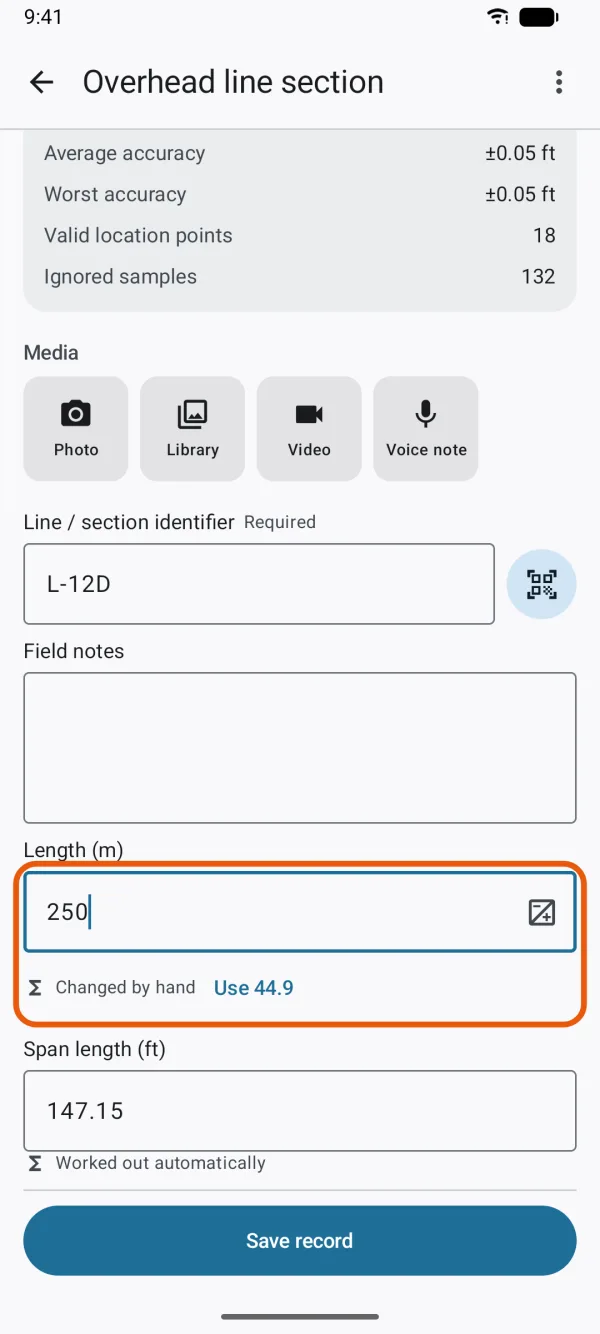
A worked-out answer says Worked out automatically under it, and follows its inputs as they change. If someone types over it, it says Changed by hand and keeps what they typed, with a Use button that puts back the worked-out answer.
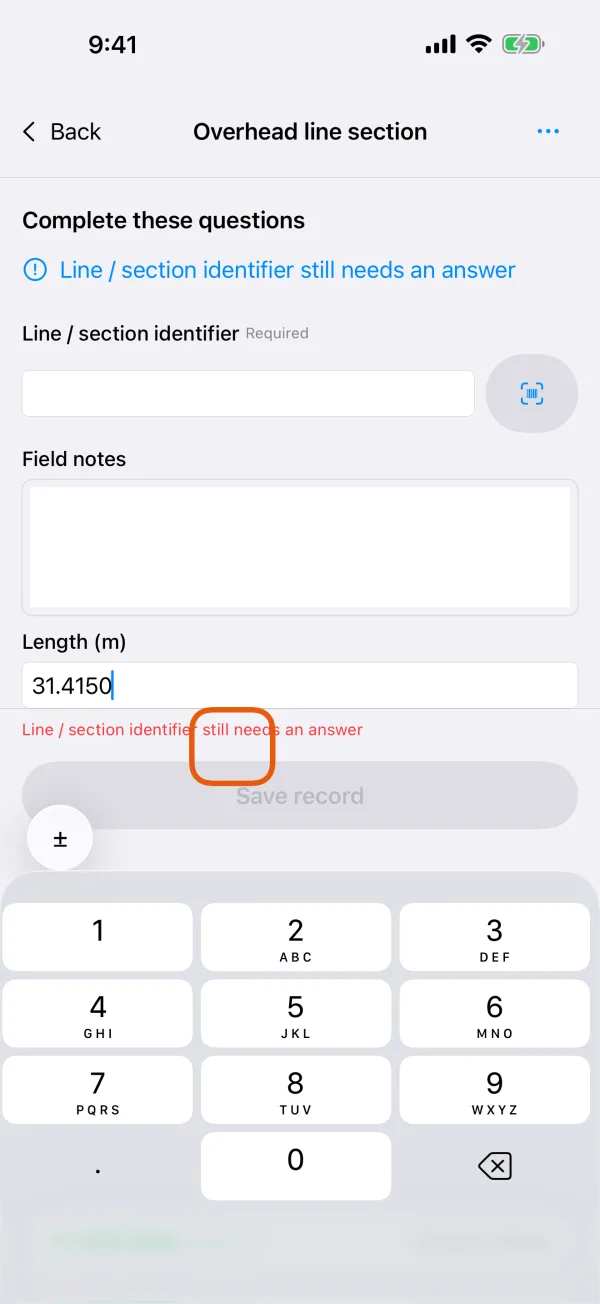
Keep answers for the next record
When you record a run of similar things, such as the trees along one street, the next record can start with some answers from the last one.
While you record, tap the More button at the top of the form.
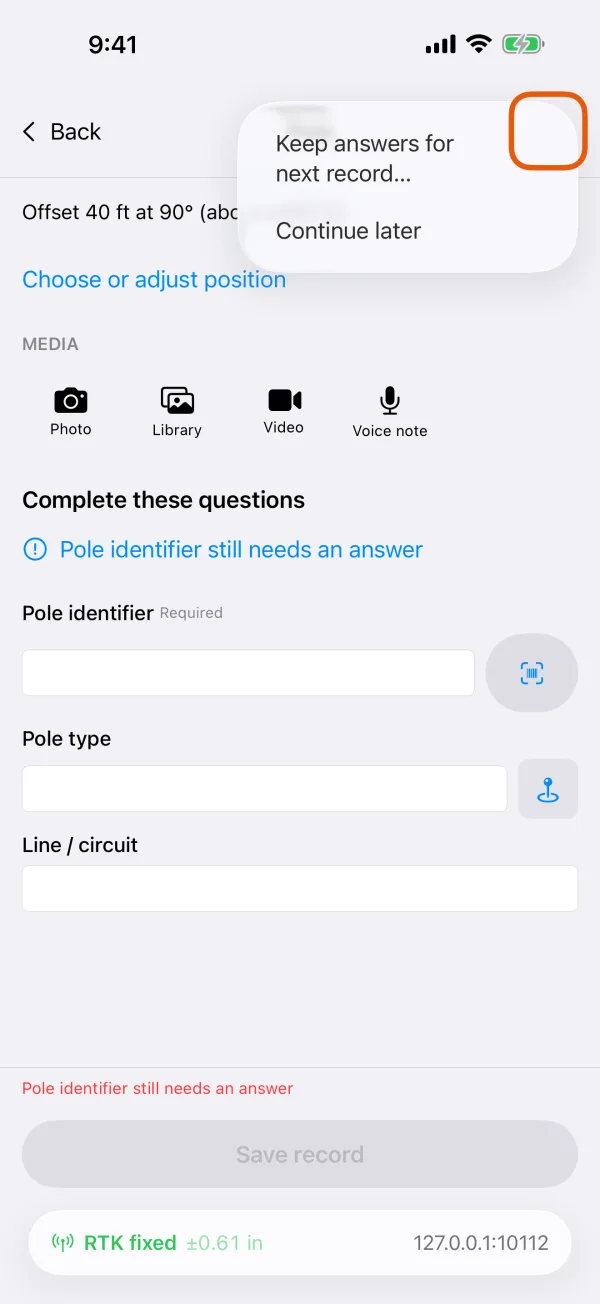
The More menu at the top of the form while recording. 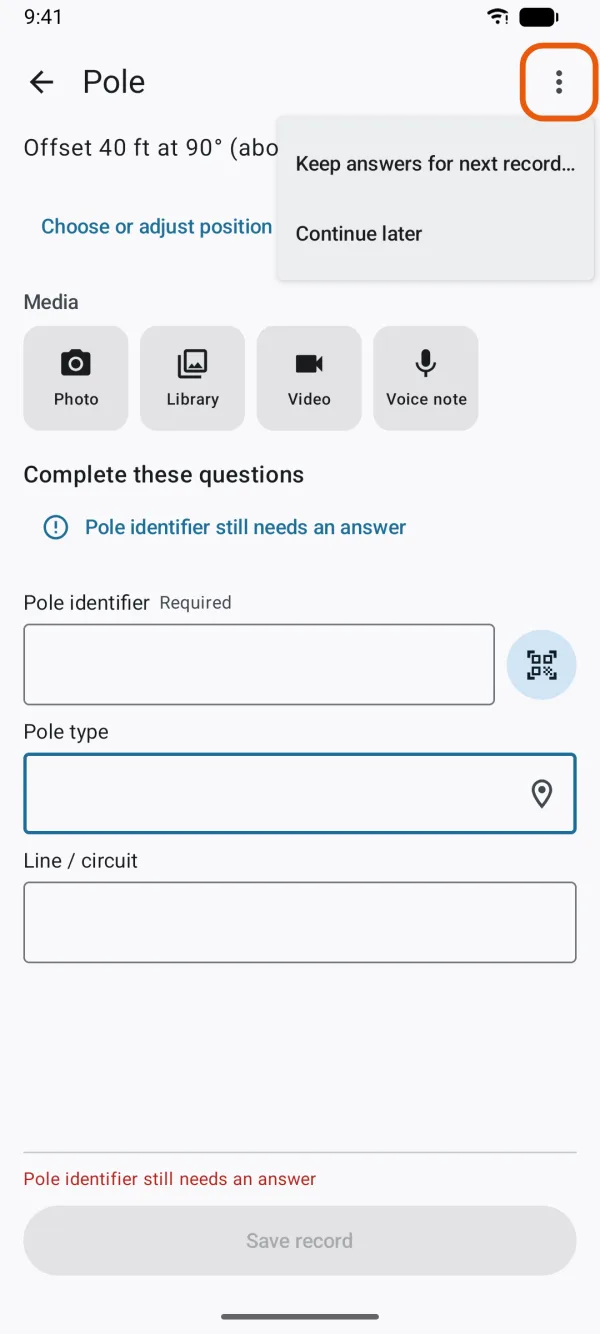
The More menu at the top of the form while recording. In the menu, tap Keep answers for next record…
Turn on the fields to keep, then tap Done.
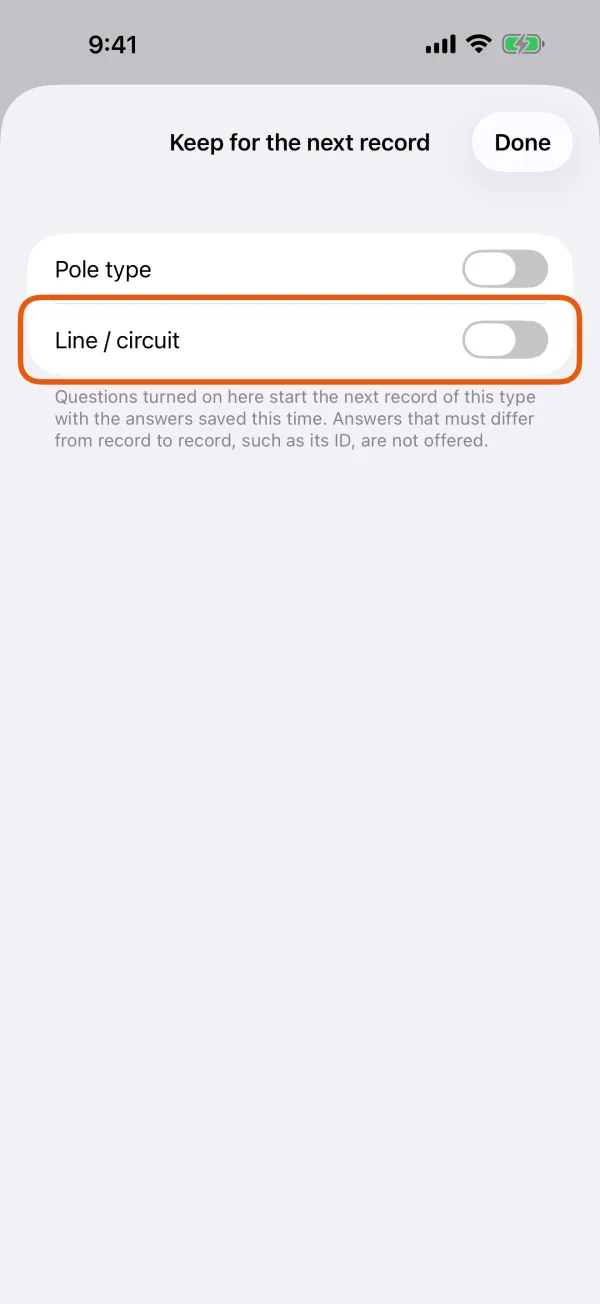
The fields whose answers the next record starts with. 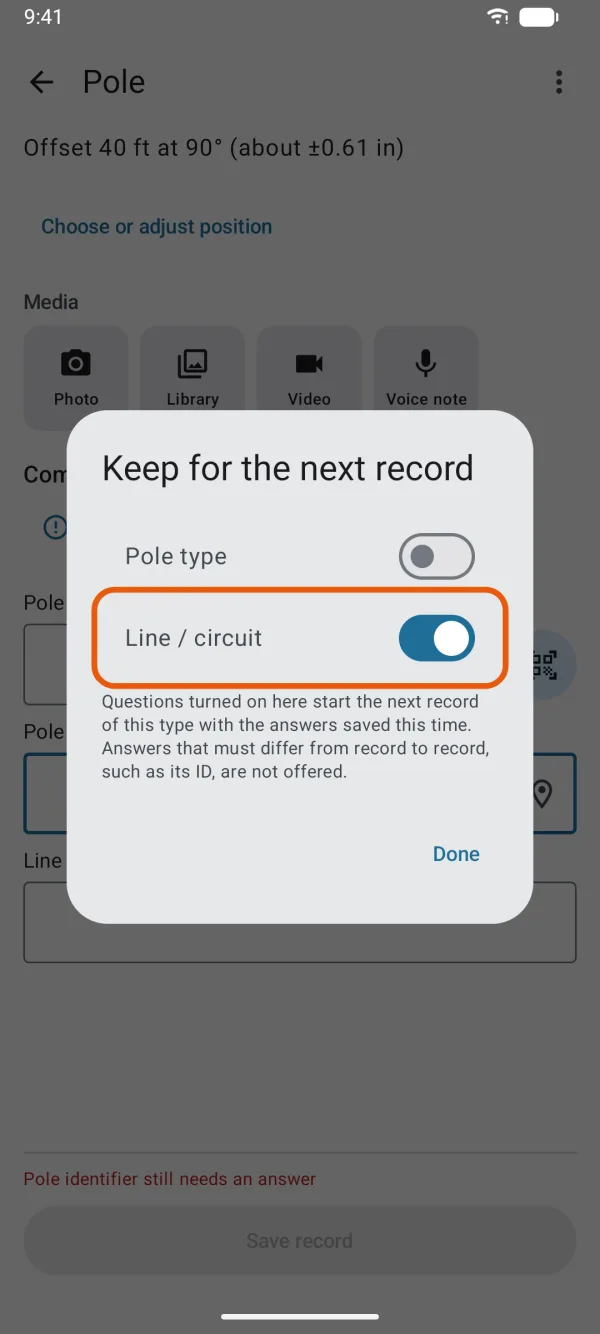
The fields whose answers the next record starts with.
After you save, the next new record of this type starts with those answers, and each kept field has a pin mark beside its name. Change any answer before you save as usual.
- Only answers saved with the last record are carried over, never a record you left unfinished.
- An ID, an answer that must be different each time, a signature and a worked-out answer can't be kept.
- Your choice is kept on this phone or tablet for this project and record type. It isn't part of the project, so colleagues choose their own.
Fill in the address or coordinates
A Written answer can take the record's address or coordinates, while you record and when you edit a record.
Tap in the written answer.
A map pin button appears beside it.
Tap the map pin button and choose Fill in the address or Fill in the coordinates.
Until the record has a position, it says Set the record's location first.
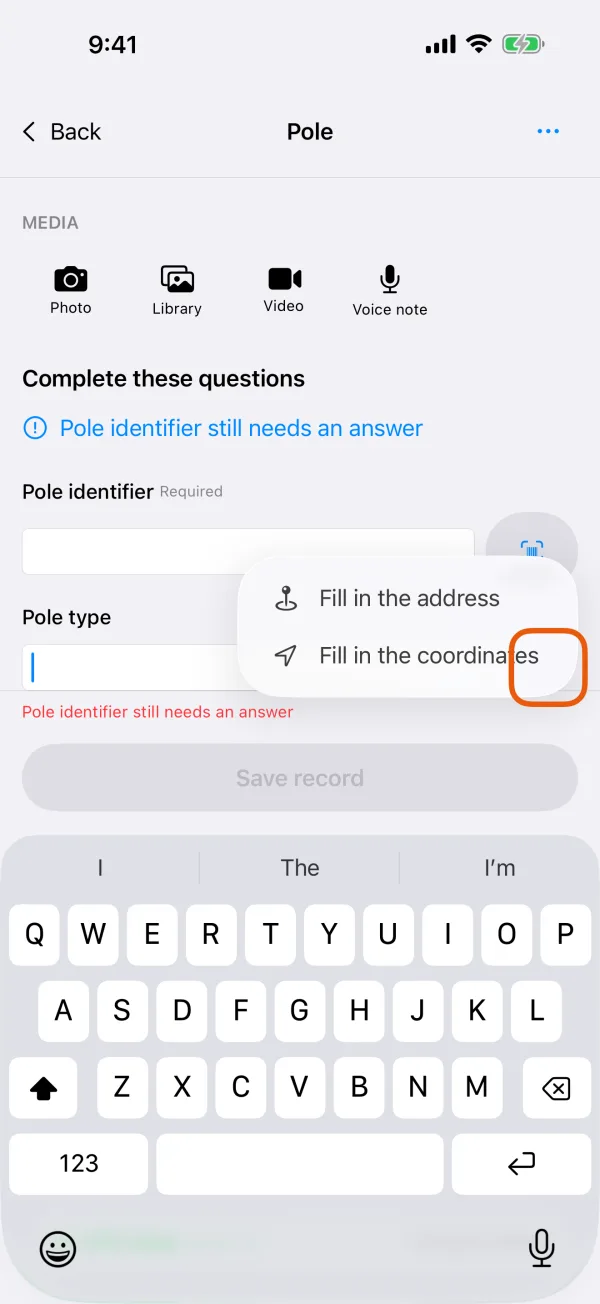
The map pin button beside a written answer, with its two choices. 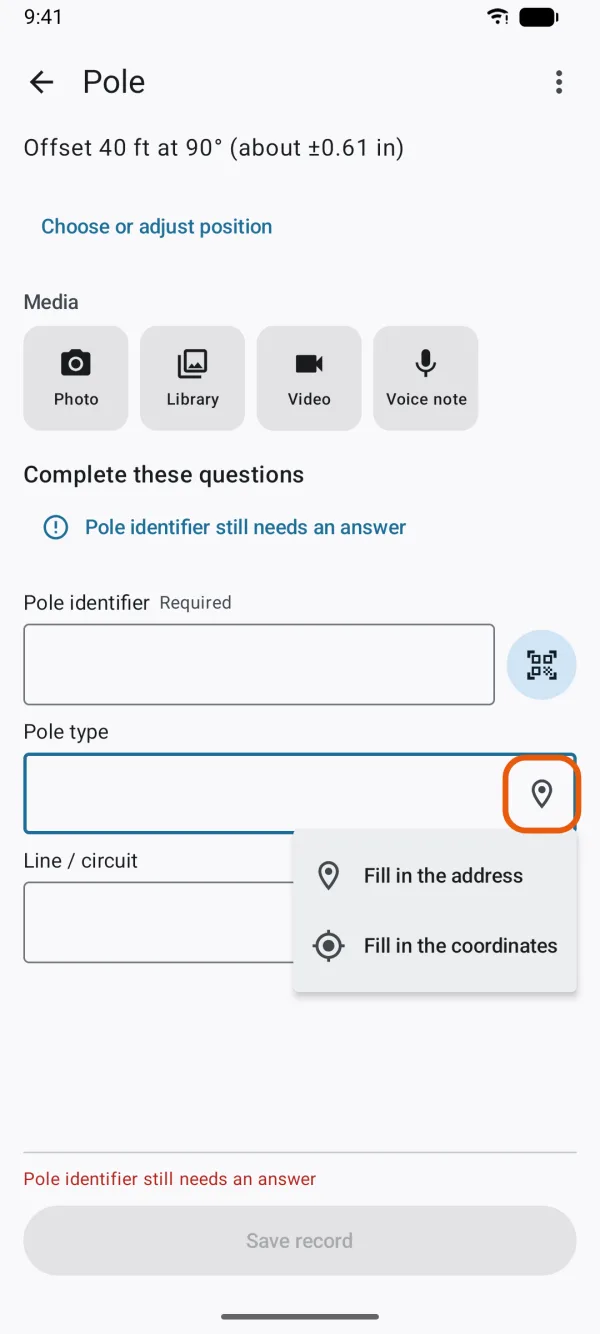
The map pin button beside a written answer, with its two choices.
- The text is added after anything already typed, so you can fill in both.
- The address is looked up online, and the form says Address estimated by the map service. Check it before saving.
- Coordinates are written in the Coordinate format chosen in Settings. See Units, language and coordinate format.
- For a line or area, the place used is the middle of the shape.
Start a new record from an existing one
Tap a record on the map, tap Record details, then tap Duplicate as new record. The new record has the same type and answers. You place it on the map and save it like any new record.
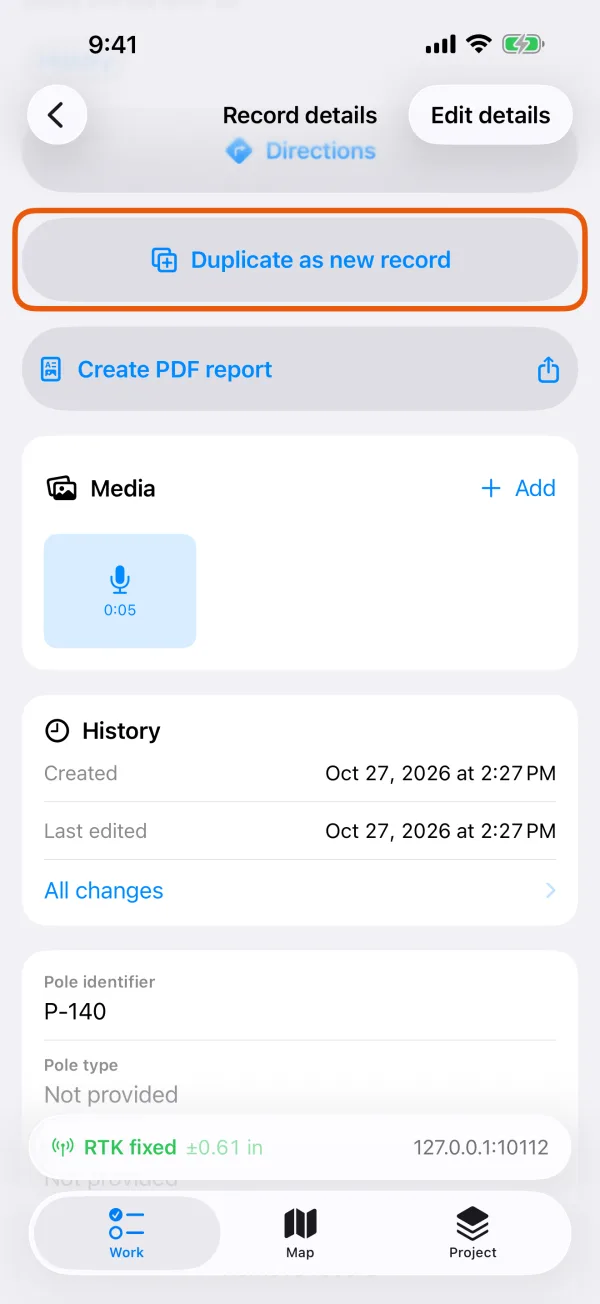
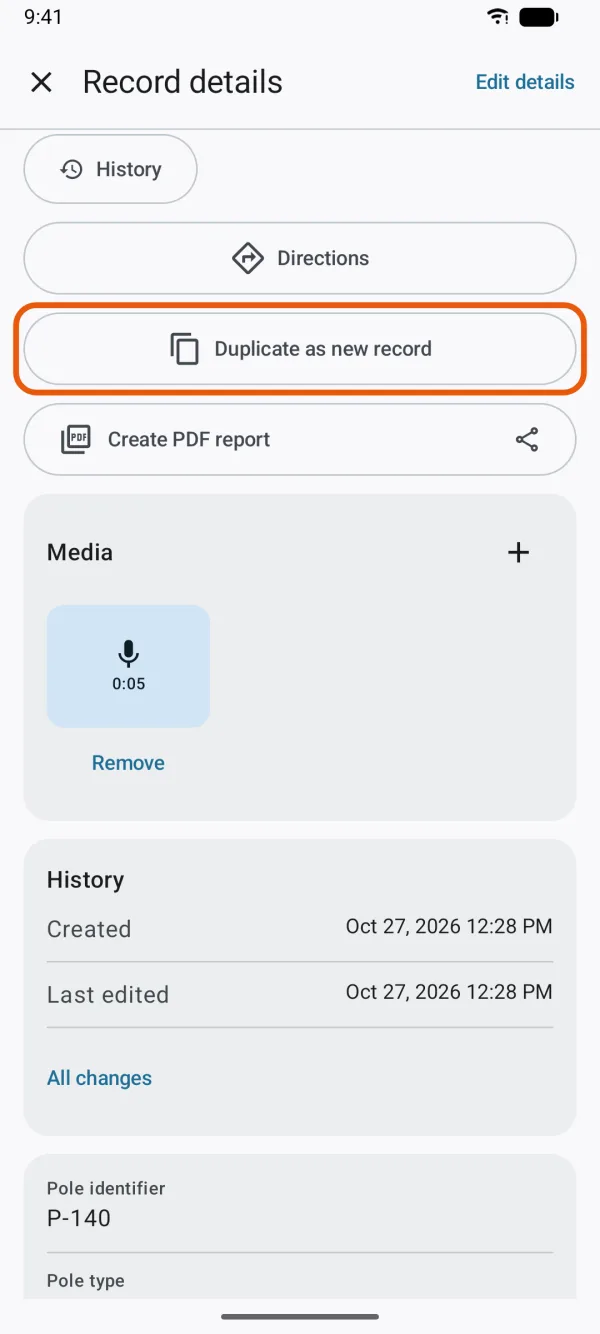
It doesn't bring the photos, the ID, answers that must be different, or a signature. Worked-out answers are worked out again, and a date and time that starts at the current time takes the new record's time. Duplicate as new record isn't offered for inspection visits and other records that belong to another record.
Dates that fill themselves in
Many built-in templates have a date-and-time field, such as Observed / sampled at, that starts at the current date and time when you start the record. Change it if the observation was made earlier.