 Dipper Field
A conditional field stays off the form until an earlier answer calls for it. In the built-in Field survey and sampling template, for example, Sample identifier and Sample type appear only when Collect a sample is Yes.
Before you start
- The field the condition waits on comes earlier in the list of fields. A condition can only wait on a field above it, and a new field is added at the end.
- That earlier field has a name.
Add a condition
Open the field's settings.
While you create a project: on Record types, tap the record type, then the field. In a project you already have: open the Project tab, tap Project contents, tap Edit fields under the record type, then tap the field.
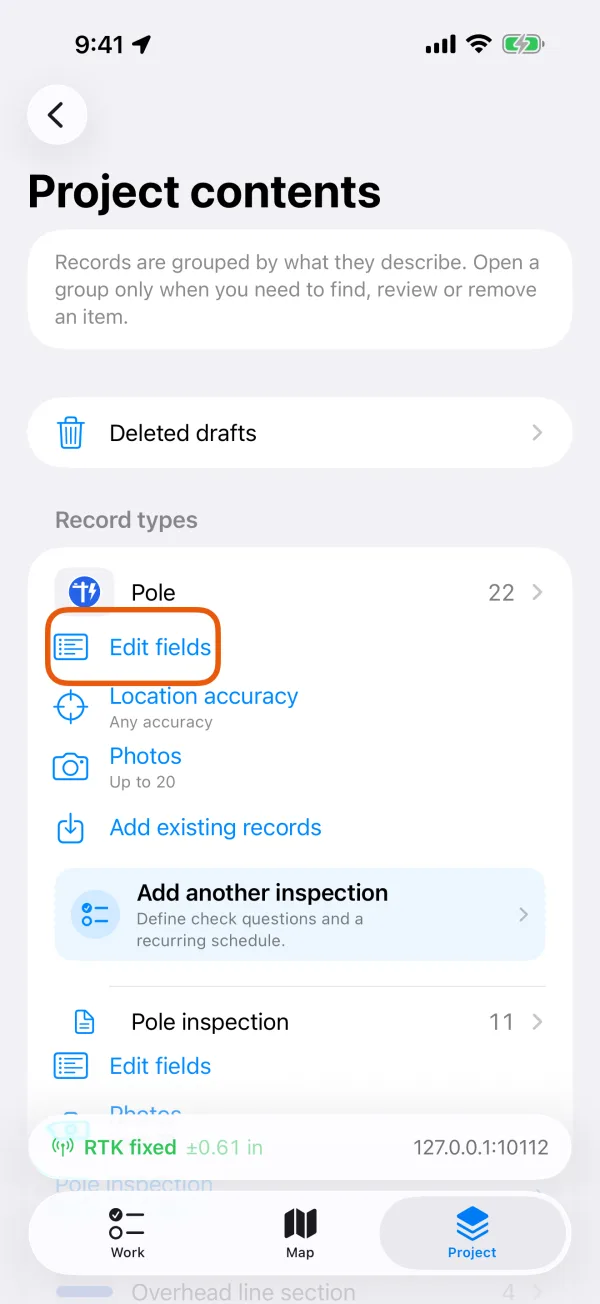
Edit fields under a record type. 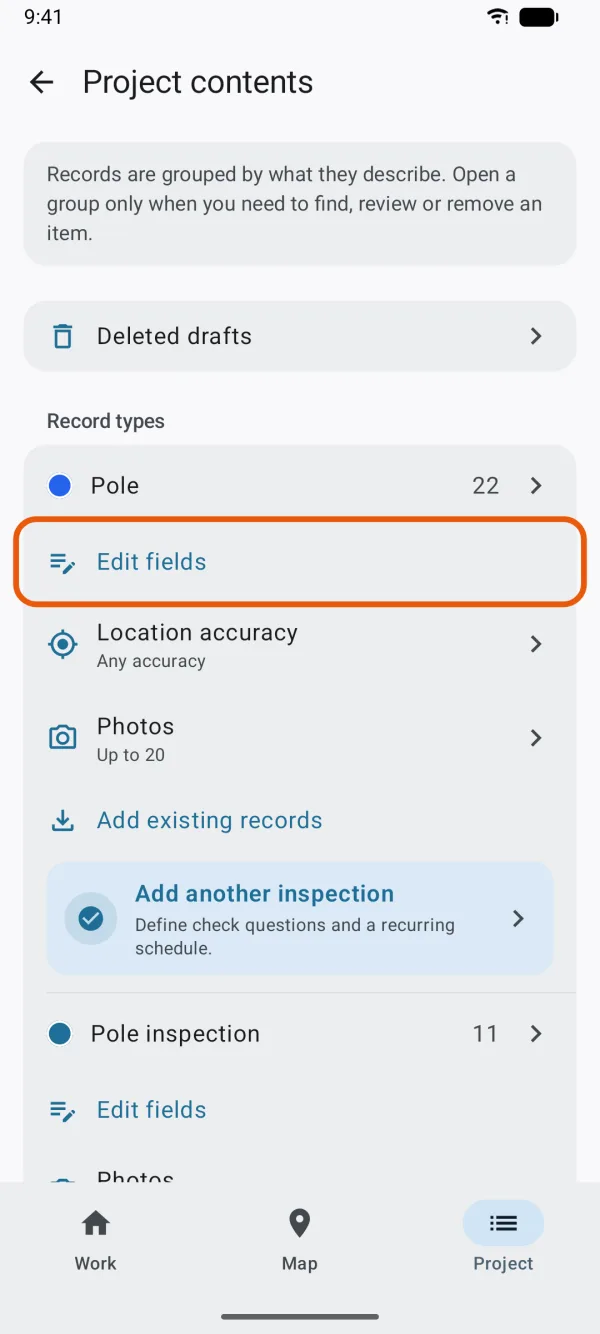
Edit fields under a record type. Under Conditional field, tap Show when.
It reads Always show until there's a condition. It can't be tapped when no earlier field has a name.
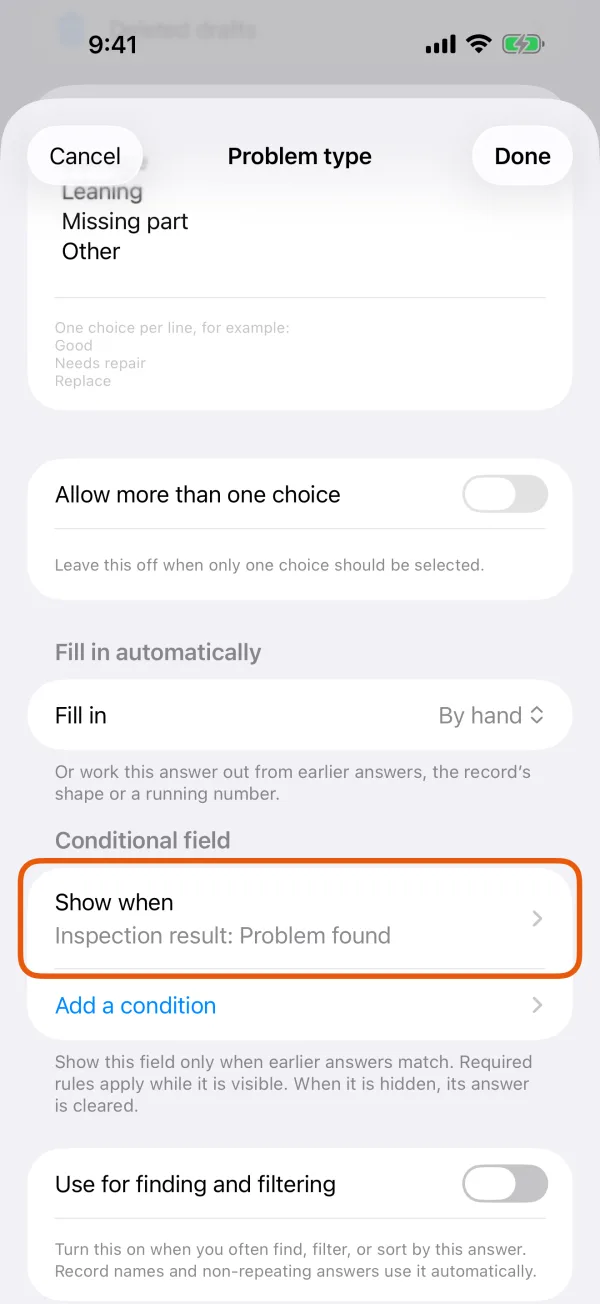
The Conditional field section, with Show when. 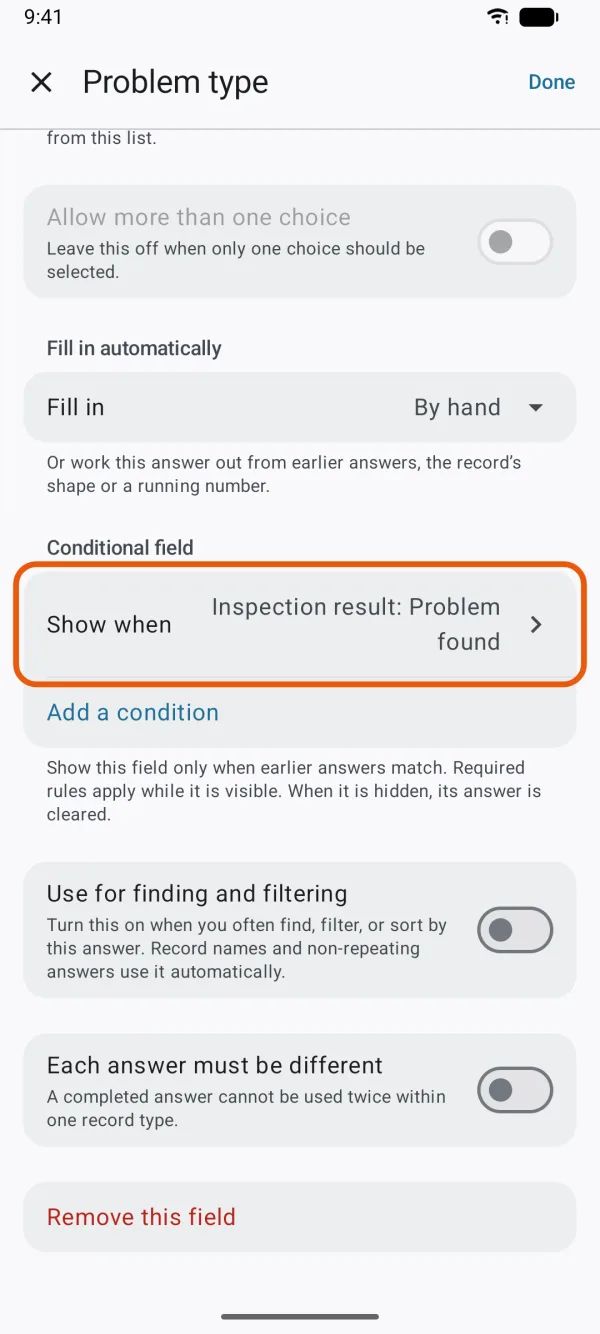
The Conditional field section, with Show when. Choose the Field to wait on.
Choose the answers that show this field.
For Pick from a list and Yes or no, tick one or more answers under Shown for these answers. For any other answer format, the condition is Has an answer: the field shows once the earlier one is filled in. At least one answer stays ticked.
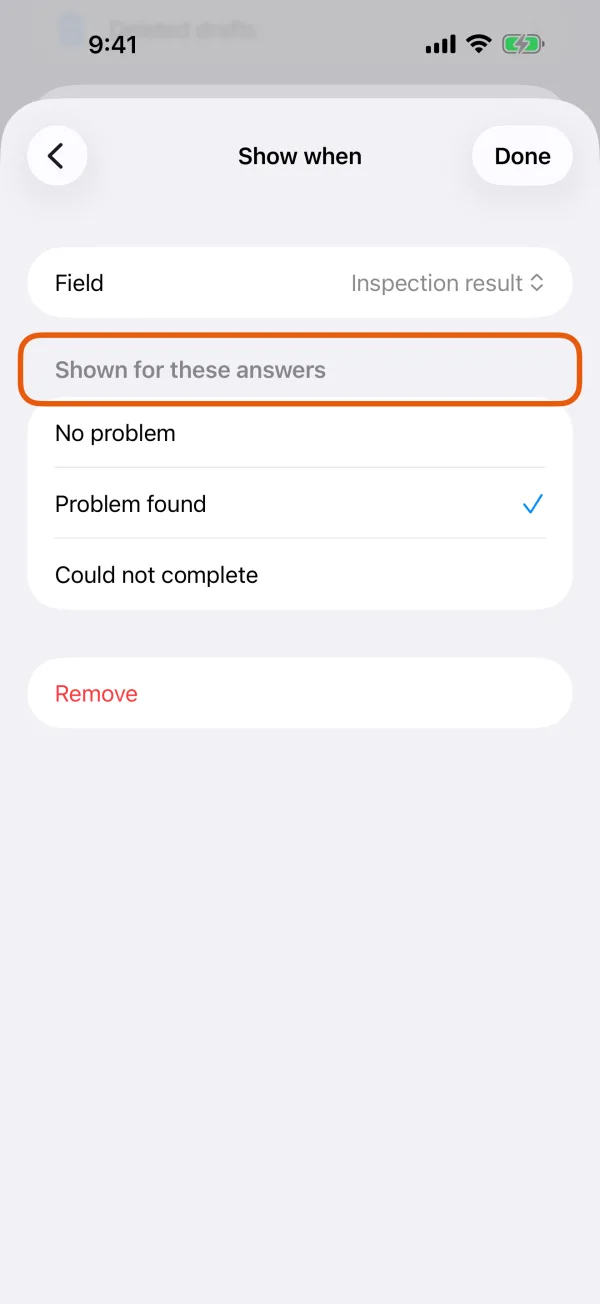
The earlier field and the answers that show this one. 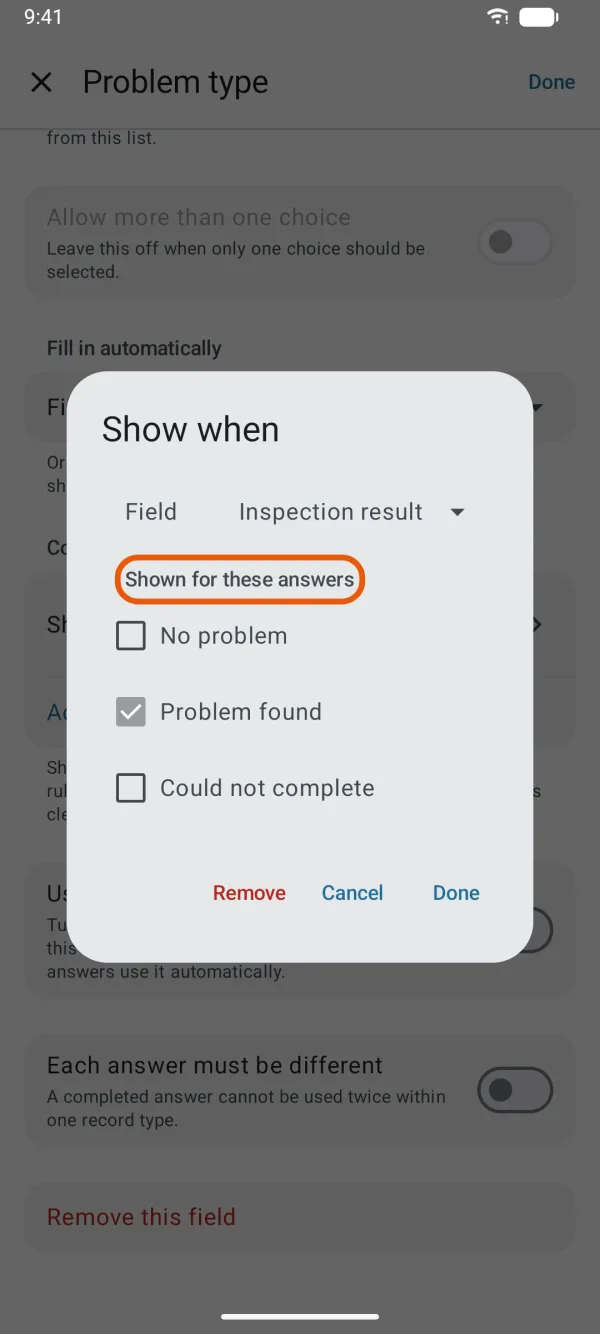
The earlier field and the answers that show this one. Tap Done, then Done for the field.
Show when now reads like Condition: Fair / Poor.
Wait on more than one answer
After the first condition, tap Add a condition and set up the next one the same way. A field can have up to 10.
With two or more, choose at the top of the list how they combine:
- All of these: the field shows only when every condition holds.
- Any of these: one is enough.
Change or remove a condition
Tap the condition to change its field or answers. To remove it, open it and tap Remove. With several conditions you can also swipe left on one (iPhone) or touch and hold it (Android). Remove the last one and the field shows always.
On the form
- The field appears as soon as the earlier answer matches, and disappears when it no longer does.
- When a field is hidden again, its answer is cleared, so it isn't saved with the record.
- A required field is only required while it's shown.
- For a list that allows more than one choice, the condition holds when any of the ticked answers is among those chosen.
- A field that waits on a hidden field stays hidden too, so when one field in a chain of conditions hides, everything after it that waits on it hides as well.