 Dipper Field
These settings belong to your phone or tablet, not to a project. They change how distances, areas, coordinates and the app's words are shown. They never change the data you've collected.
Choose feet or meters
Open Settings.
On the Projects screen, tap the gear button, labeled Settings. In a project, open the Project tab and tap Settings at the bottom.
Under Measurement units, tap Distance unit and choose one.
Automatic, Meters, Kilometers, Feet, Yards or Miles.
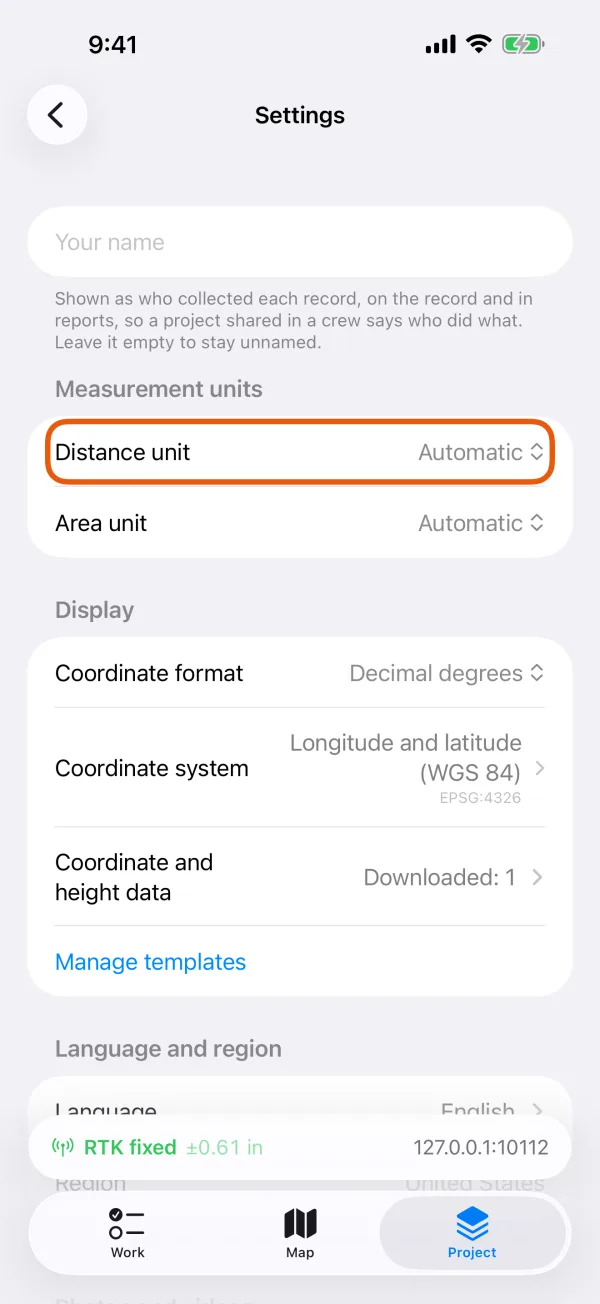
Distance unit and Area unit under Measurement units. 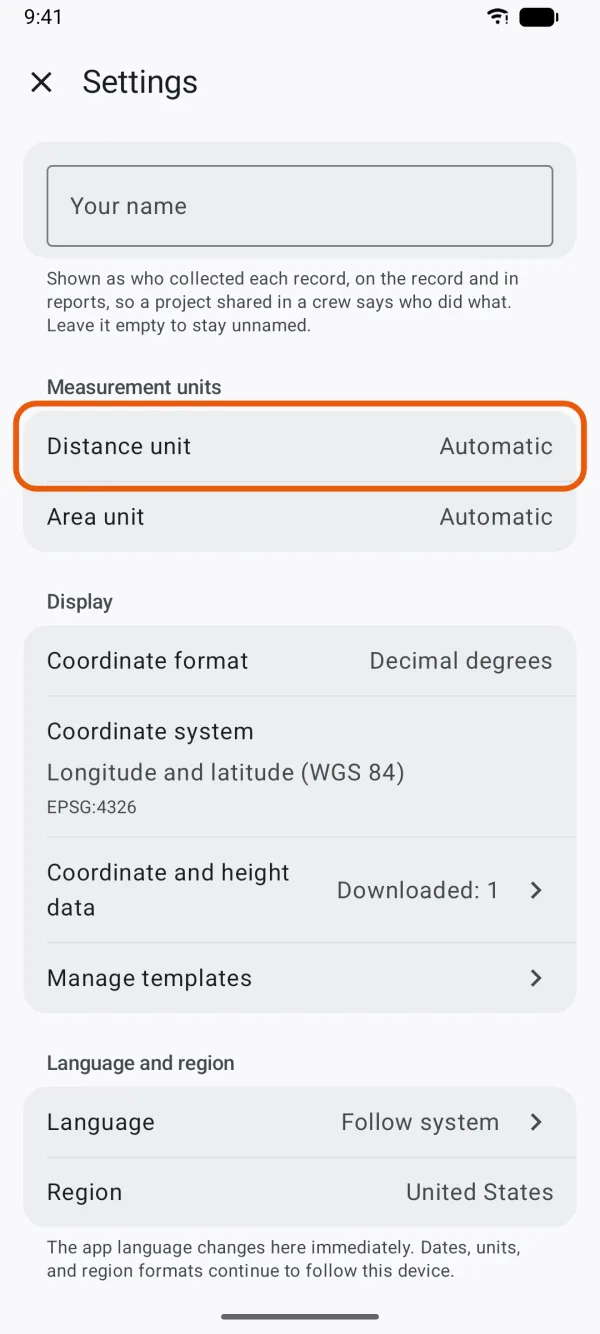
Distance unit and Area unit under Measurement units. Tap Area unit and choose one.
Automatic, Square meters, Hectares, Square kilometers, Square feet, Square yards, Acres, Square miles, Mu or Ping.
Automatic follows the region your phone is set to, not the app's language. It picks a unit to suit the size:
| Phone's region | Distances | Areas |
|---|---|---|
| United States, Liberia and Myanmar | Feet, then miles from 1 mile | Square feet, then acres from 1 acre, then square miles from 1 square mile |
| Everywhere else | Meters, then kilometers from 1,000 m | Square meters, then hectares from 1 ha, then square kilometers from 1 km² |
The units you choose are used for:
- the length, perimeter and area while you draw, walk or edit a line or area, and on its card when you tap it on the map
- the Estimated position error and heights. These are always in feet or meters, never miles or kilometers. An error under 1 ft is shown in inches, and under 1 m in centimeters.
- the distance you type for an offset point
- PDF reports, and the place and accuracy printed on photos
The units also decide one built-in template: in a project you create from Storm drain, manhole & pipe inspection, Pipe diameter is in inches when Distance unit is Feet, Yards or Miles, or Automatic in the United States. Otherwise it's in millimeters.
Choose how coordinates are written
Open Settings and, under Display, tap Coordinate format.
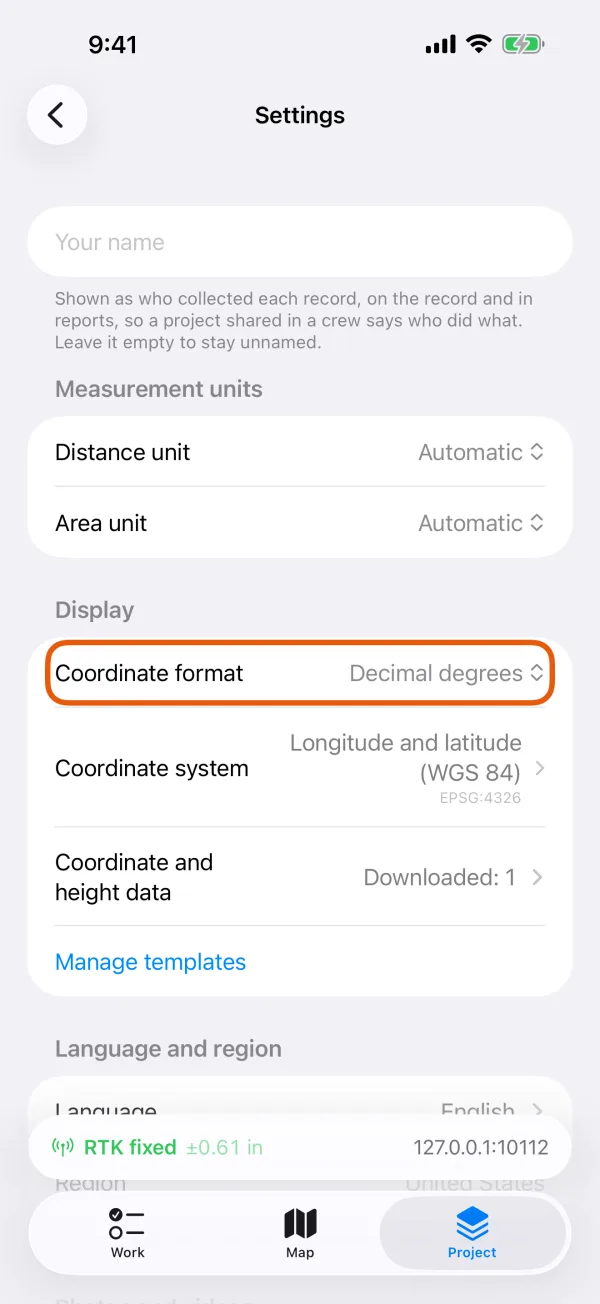
Coordinate format and Coordinate system under Display. 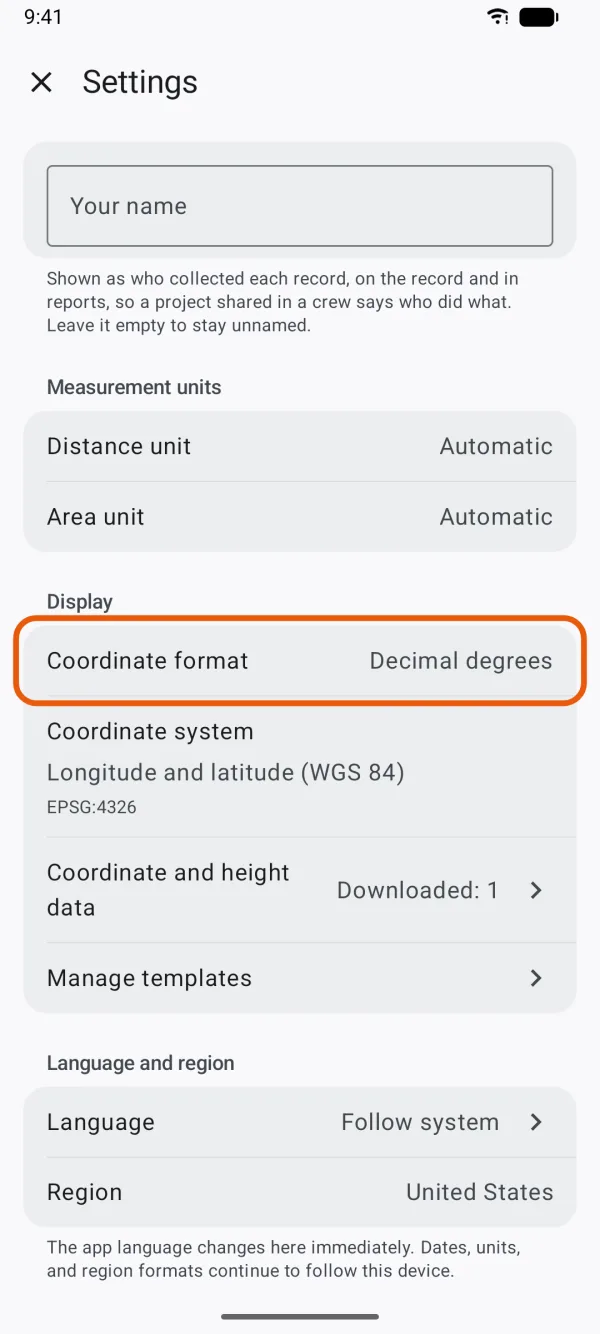
Coordinate format and Coordinate system under Display. Choose Decimal degrees or Degrees, minutes, seconds.
| Coordinate format | Example |
|---|---|
| Decimal degrees | 40.712800, -74.006000 |
| Degrees, minutes, seconds | 40°42′46.1″N 74°00′21.6″W |
Latitude comes first. The format is used in My location, for coordinates you fill into a written answer, for coordinates you type into the map search, for offset points, and on photos with on-site info. Records are always kept in longitude and latitude, whichever format you choose.
To read and type eastings and northings instead, such as a State Plane zone in US survey feet, choose a Coordinate system under Display. See Coordinate systems for import and export.
Change the language
Open Settings and, under Language and region, tap Language.
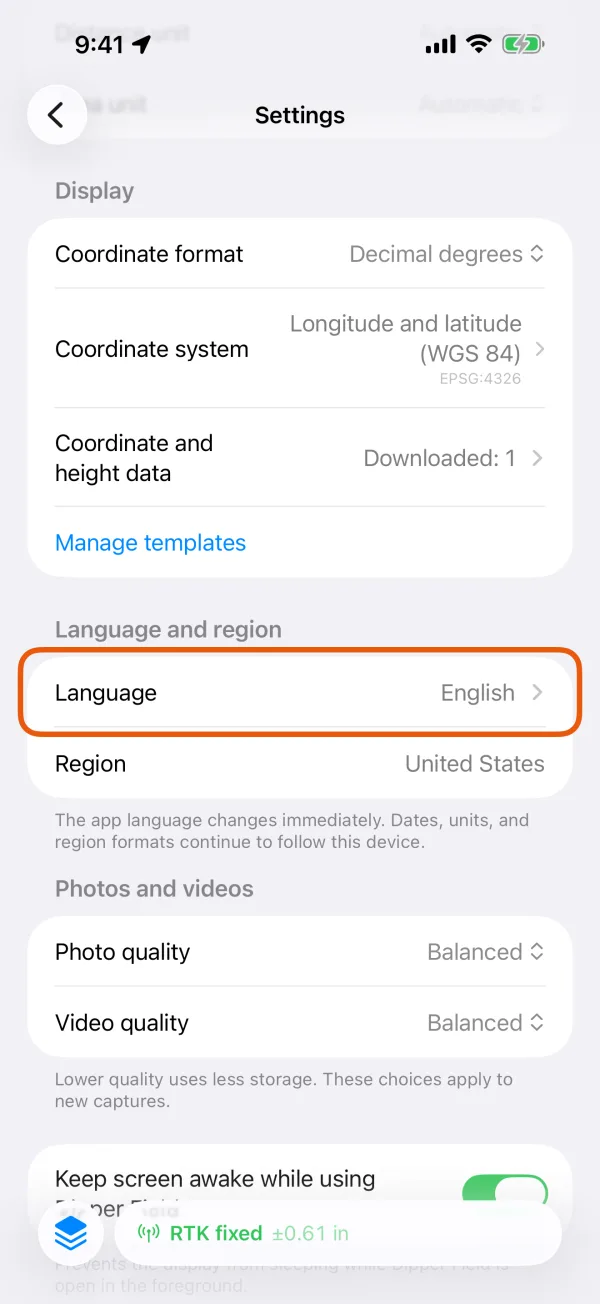
Language and region, with the app's language. 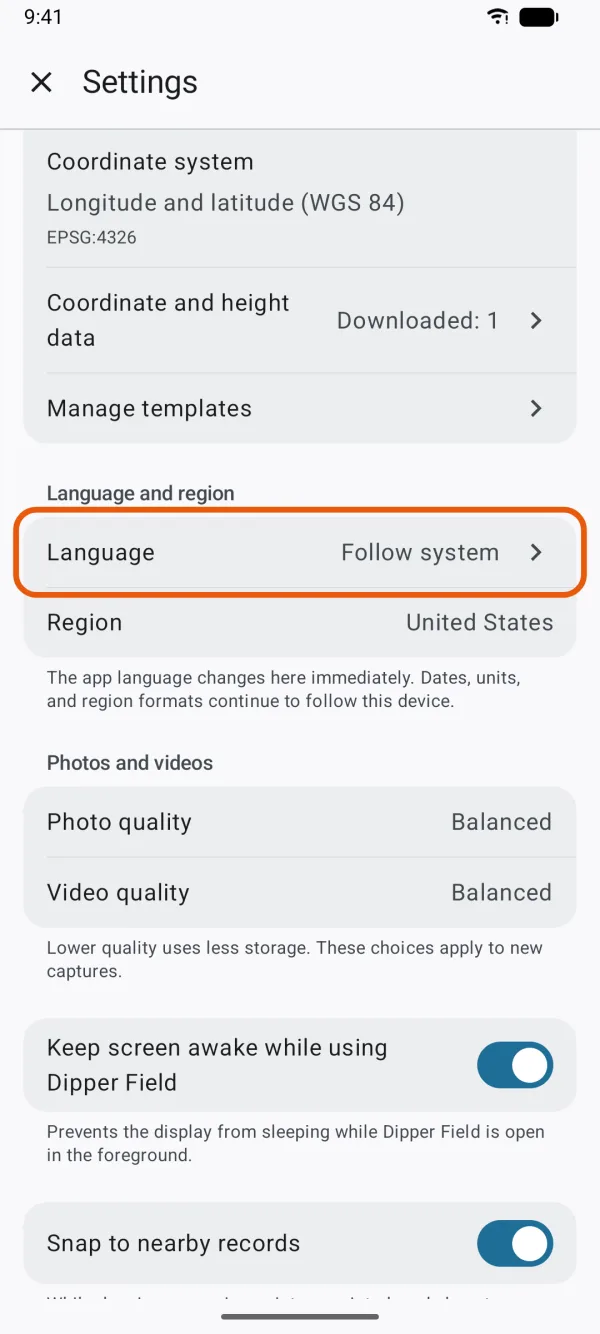
Language and region, with the app's language. Tap a language.
Automatic (Android: Follow system), at the top, uses your phone's language. To find a language quickly, type its name in the search box.
The app changes language straight away. Some things stay as they were:
- Dates, region formats and Automatic units keep following your phone's region. Region, under Language and region, shows which one. Change it in your phone's own settings.
- Names in a project you already have, such as its record types, fields and choices, stay in the language they were written in.
- The built-in templates in Template Library switch to the new language, so projects you create from them afterwards use it.