Dipper Field
Two ways to record what you can see but can't easily walk: draw a line or an area freehand on the map, or set out a point from where you stand by measuring how far away it is and in which direction.
Before you start
- A project open on the Map tab. See create your first project.
- For an offset point: location allowed for Dipper Field. See allow location, camera and Bluetooth.
Draw a line or an area with your finger
Start the record and tap Draw on map.
On the Map tab, tap the record button at the bottom right and choose a record type that is a line or an area. The Place the record card offers Draw on map.
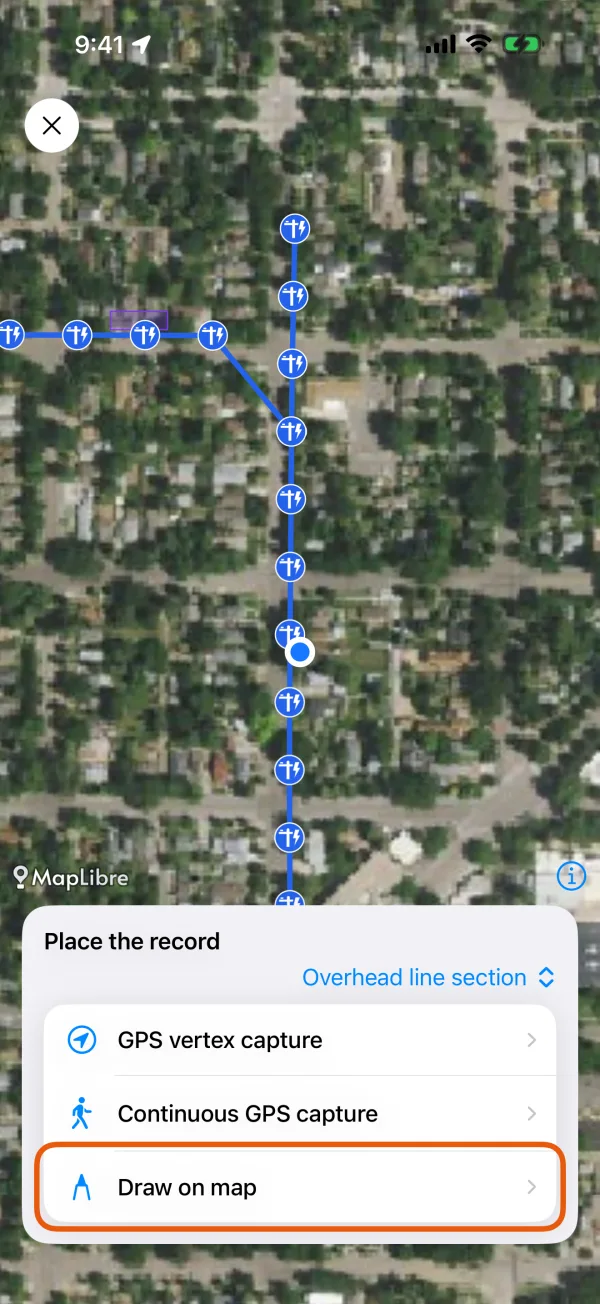
GPS vertex capture, Continuous GPS capture and Draw on map. 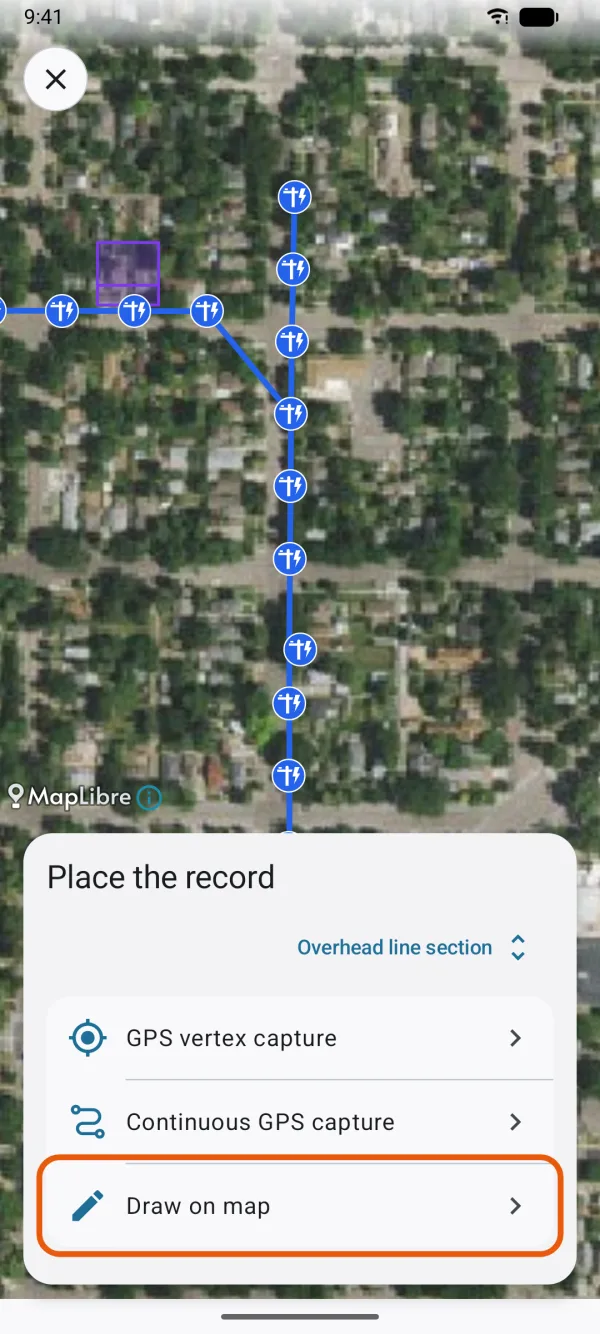
GPS vertex capture, Continuous GPS capture and Draw on map. Tap Draw with finger.
It's beside Add point and stays lit while drawing is on. The card says Draw with one finger. Lift it to finish; an area closes by itself. The map no longer moves under your finger, and Add point is unavailable.
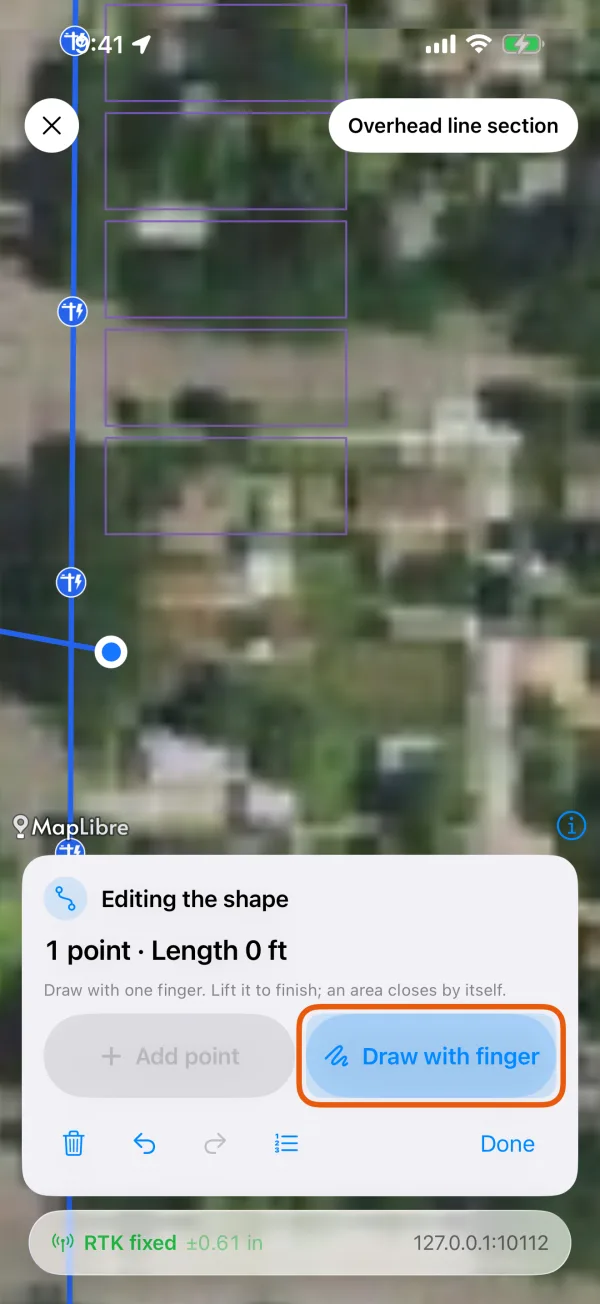
Draw with finger, lit, beside Add point. 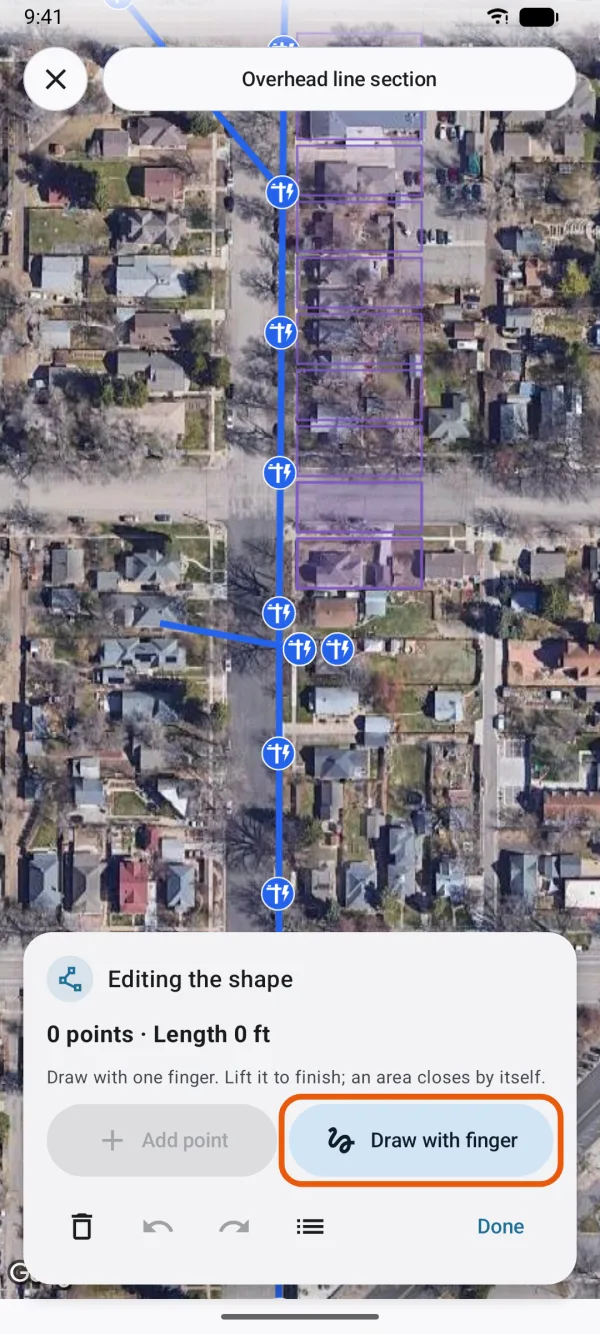
Draw with finger, lit, beside Add point. Draw the line or the outline in one stroke.
Lift your finger to finish. For an area, bring the stroke back near where it started: anything drawn past that spot is left out, and the area closes by itself.
Check the points.
Drawing turns off, and the map moves with your finger again. The stroke is now ordinary points, which you can move, add and delete as in edit shapes.
Tap Done.
The form opens. Fill it in and tap Save record.
Good to know
- One stroke is one step. The undo button takes the whole stroke back.
- Add more by drawing again. Tap Draw with finger again; the next stroke continues from the last point of the line or outline.
- Zoom in for detail. The points follow your stroke as it looks on the screen, so a stroke drawn zoomed in keeps finer detail. One stroke gives at most 300 points; a longer stroke is thinned more.
- Strokes don't snap. Snapping applies to points you add with Add point or move afterwards, not to a drawn stroke. To meet a neighboring record exactly, move the end points onto it once the stroke is in.
- Use one finger. A second finger on the screen cancels the stroke; drawing stays on, so you can start again.
- An outline that crosses itself gets the message This shape crosses itself or has an invalid edge. Fix it before saving. Undo the stroke, or move the points that cross.
Place a point you can't stand on
Use an offset point for something across a fence, a creek or a busy road: stand where your position is good, measure how far the point is and in which direction, and Dipper Field works out where it is.
Start a point record.
On the Map tab, tap the record button and choose a record type that is a point. The Place the record card opens.
Tap Offset from my location.
It's under Use my location, and becomes available at the same time: once your position is good enough for this record type.
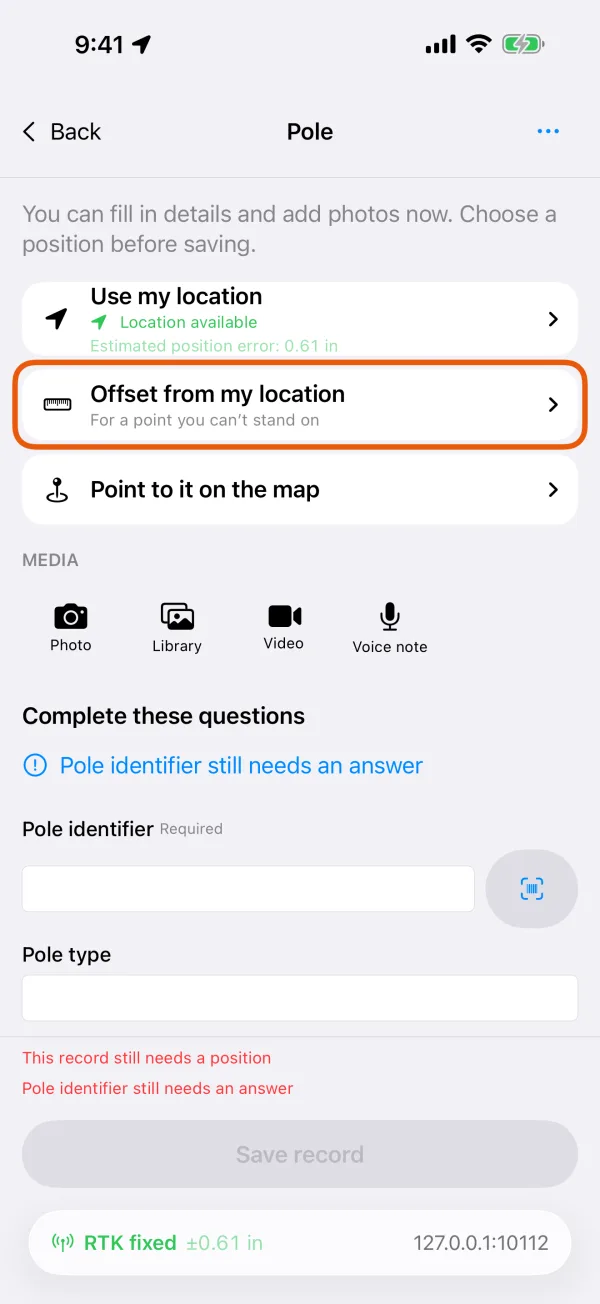
Offset from my location, under Use my location. 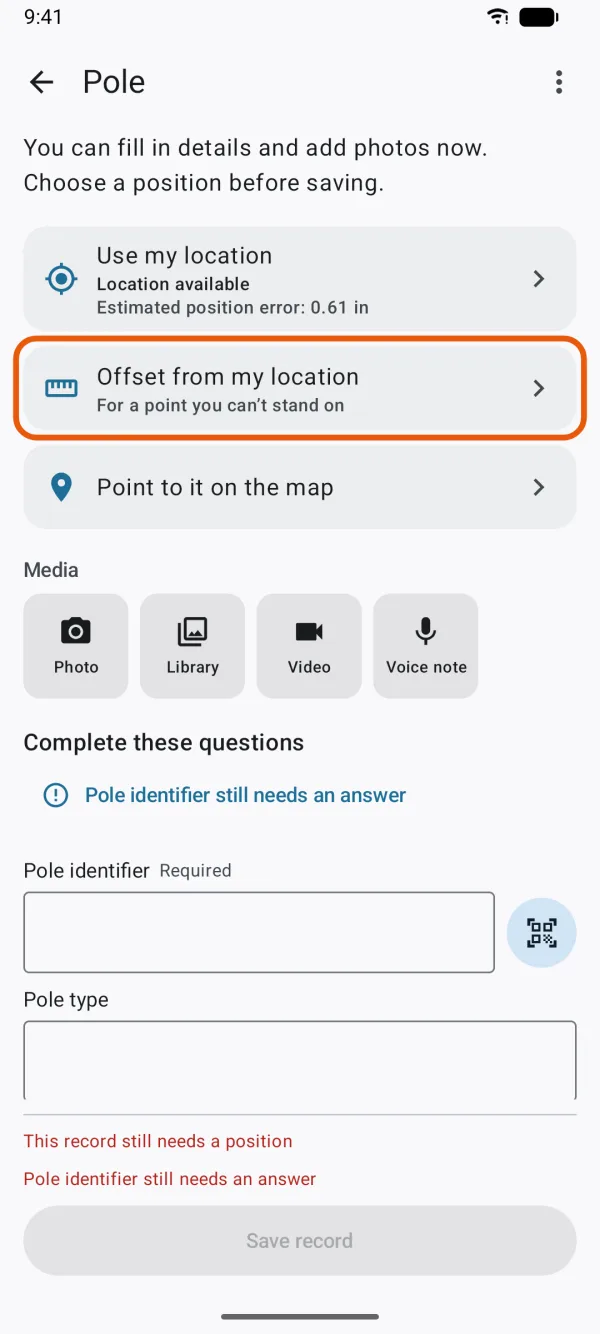
Offset from my location, under Use my location. Enter the Distance.
How far the point is across the ground. The unit, feet or meters, follows Distance unit in Settings, under Measurement units. Up to about 6,560 feet (2,000 m), with up to two decimals.
Enter the Direction, or tap Use phone direction.
The direction is in degrees from true north, 0 to 360, to a tenth of a degree.
To take it from the phone, hold the phone flat and point its top at the point. The button shows the live reading, such as Use phone direction · 245°. Tap it to copy the reading into Direction, which then says From the phone compass. Typing over the number makes it a typed direction again.
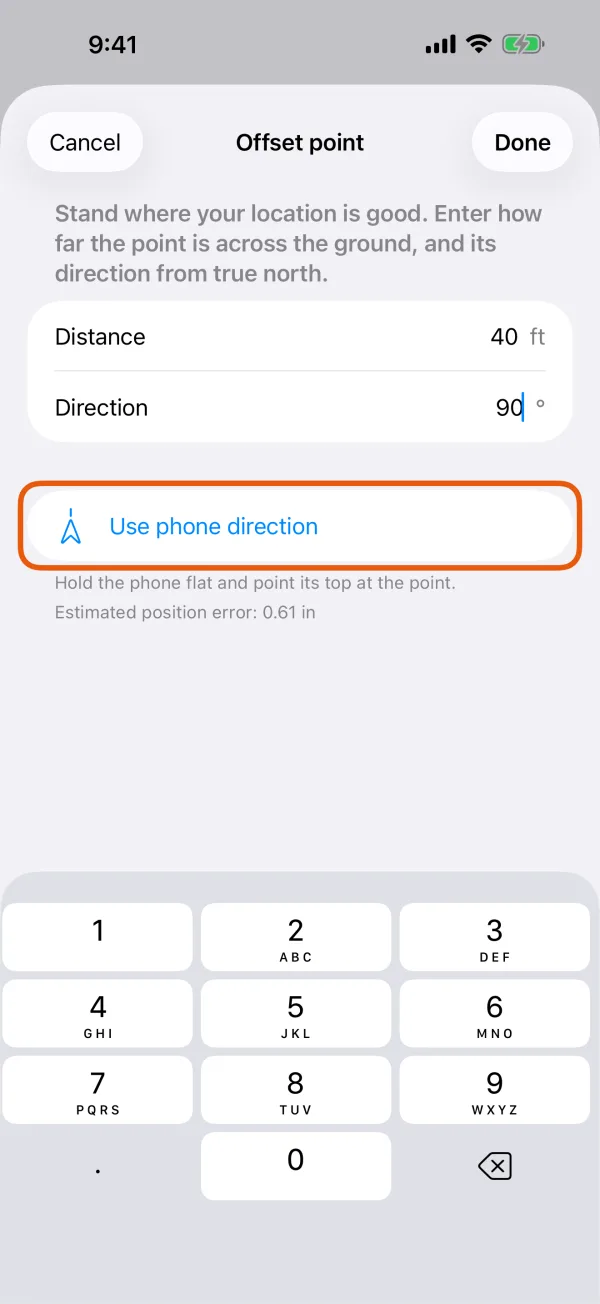
Distance, Direction and Use phone direction. 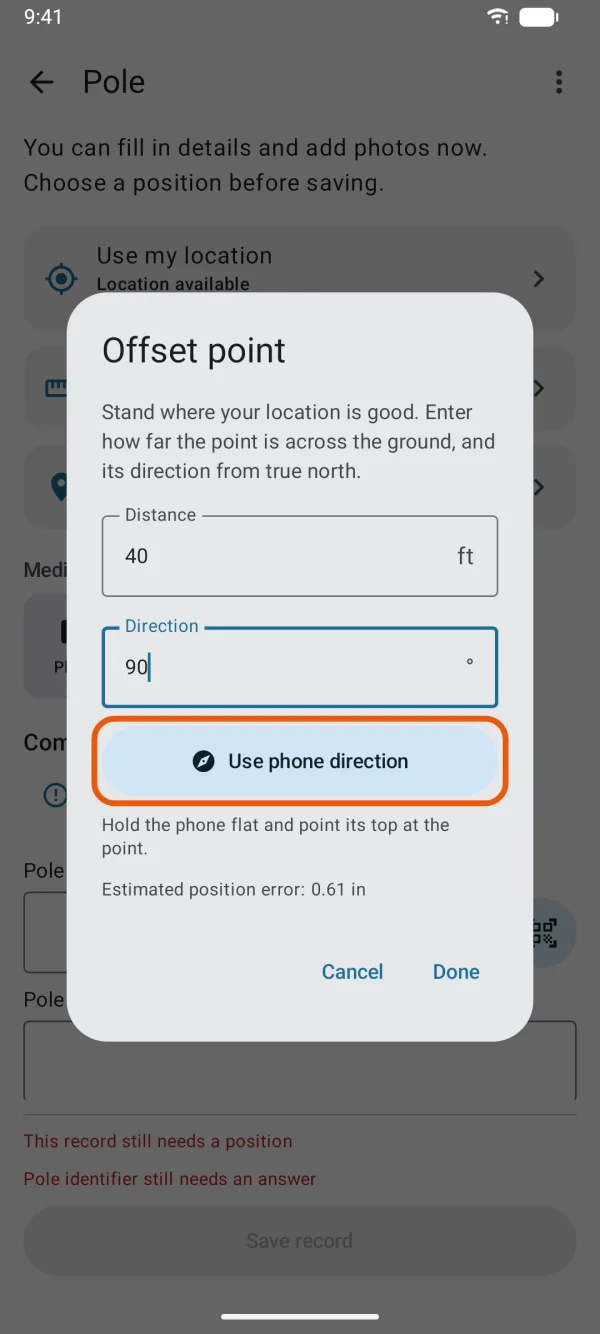
Distance, Direction and Use phone direction. Check the estimate and tap Done.
Below the button, Estimated position error shows how far off the point may be. While your position isn't ready, it says Getting location… (or Waiting for RTK fixed, if you record only with RTK fixed), and Done waits.
Fill in the form and tap Save record.
The form shows where the point came from, such as Offset 40 ft at 245° (about ±10 ft).
If the phone can't read its direction, the sheet says The phone’s direction isn’t available. Type it instead.
How the point is worked out
- The point is set out from your position at the moment you tap Done. With a receiver in RTK fixed, that position is first averaged over a few readings, as Use my location does.
- The estimate adds the error of your own position to the error of the direction. A direction from the phone compass is only good to some degrees, so its share grows with the distance. A typed direction is taken as exact.
- An offset point has no elevation: the ground over there isn't the ground under your feet.
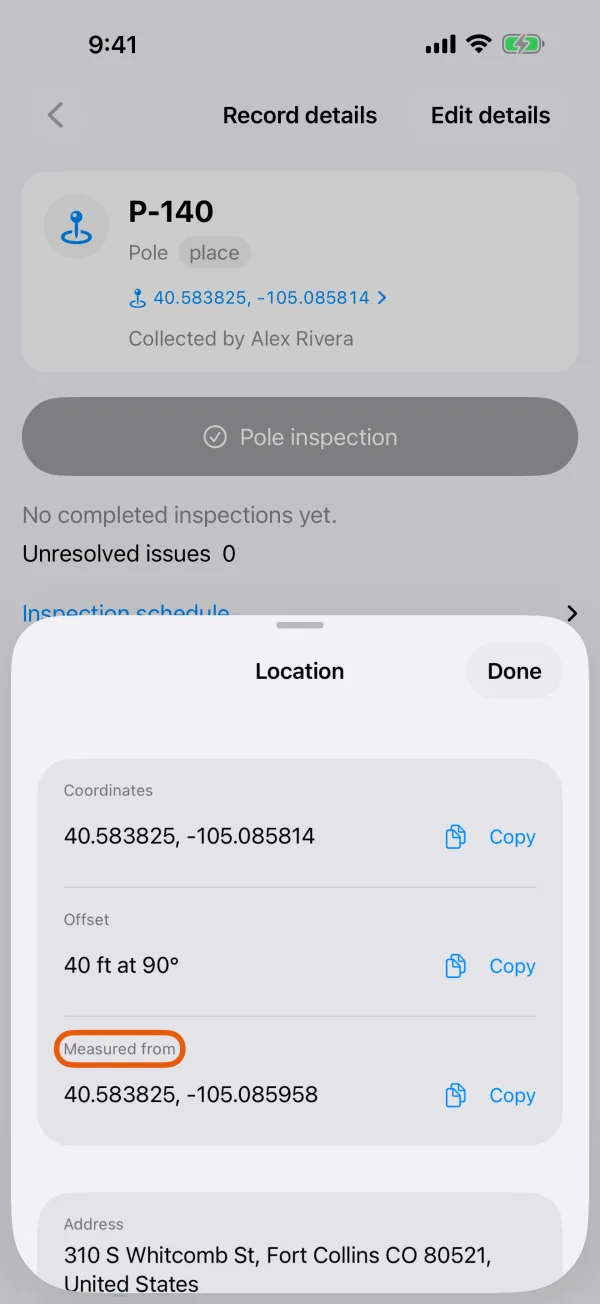
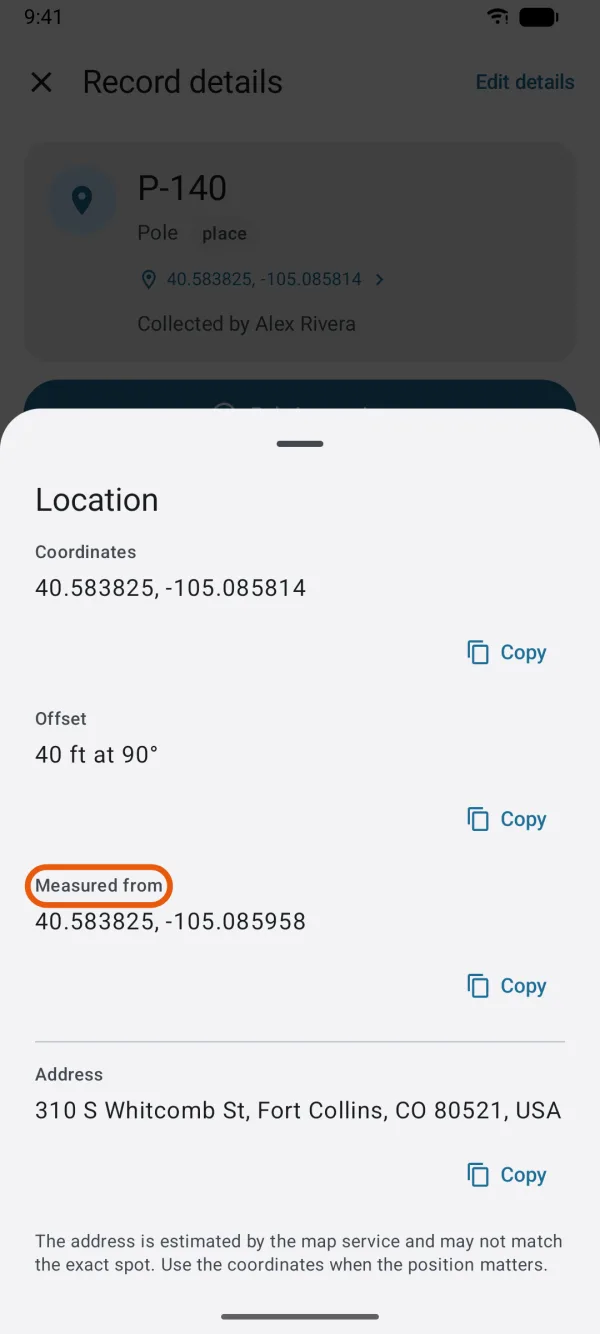
See it on the saved record
Open the record and tap its coordinates. Location lists Offset, such as 40 ft at 245° by phone compass, and Measured from, the coordinates you stood at. If the point is moved later, these two lines are no longer shown.