 Dipper Field
A line or an area you've saved can be reshaped at any time. The same point tools also work while you draw a new one.
Before you start
- A project with a saved line or area, open on the Map tab. See points, lines and areas.
Open a shape for editing
Tap the line or area on the map.
A card shows its record type, its length (or perimeter and area), Directions, Edit shape and Record details. Tapping a shape never starts editing by itself.
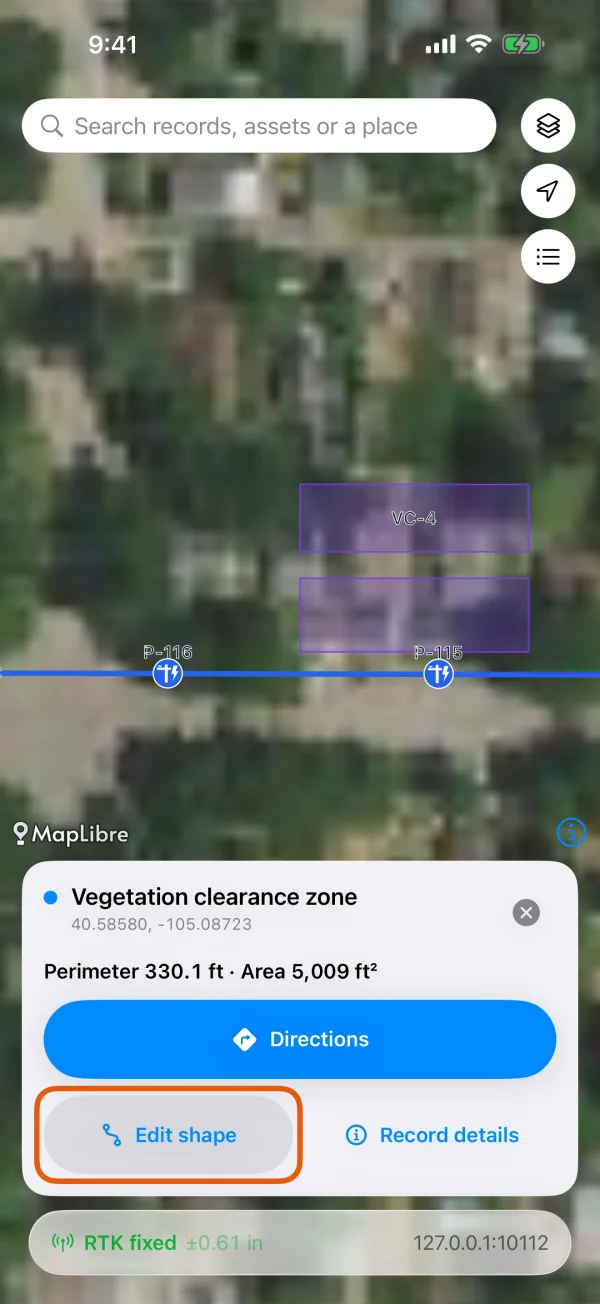
The card for a tapped area, with Edit shape. 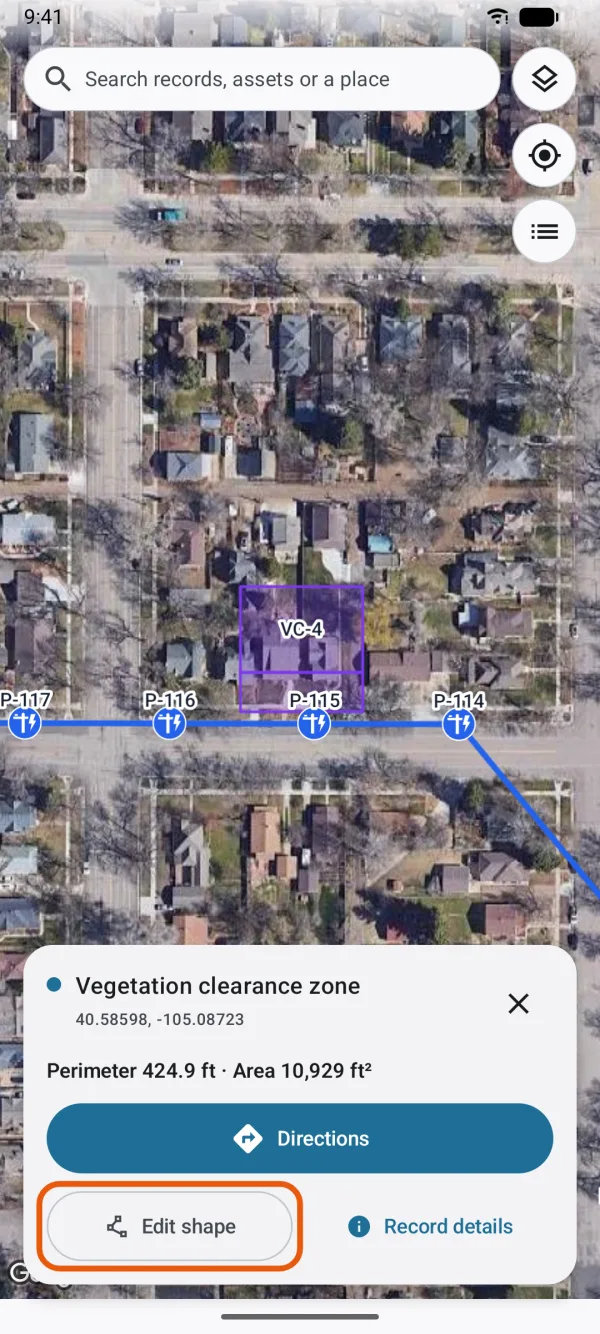
The card for a tapped area, with Edit shape. Tap Edit shape.
The card is now Editing the shape, with the number of points and the length, or for an area its parts, holes, perimeter and area. The record type's name is at the top, with the ✕ on the left and the Point list button on the right.
Move, add and delete points
Tap a point to select it.
It turns orange, and the card shows which one it is, such as 3 / 12.
Move it.
Move the map until the crosshair is where the point belongs, then tap Move here. Or drag the point itself: a magnifier above your finger shows exactly where it will land.
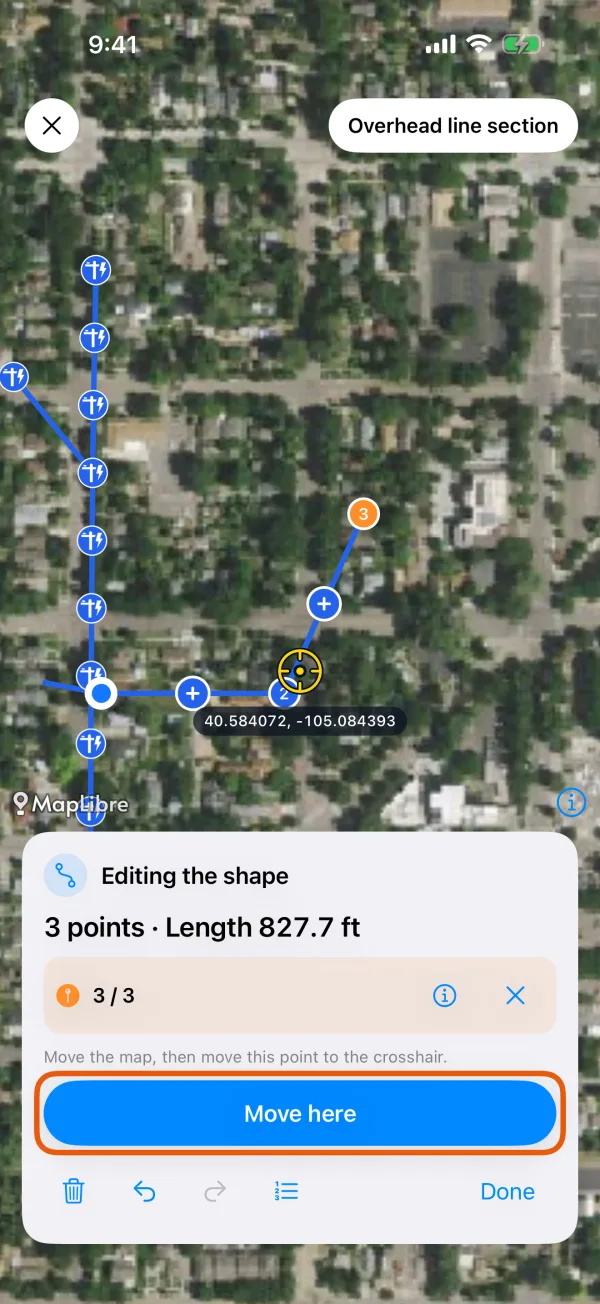
A selected point and Move here. 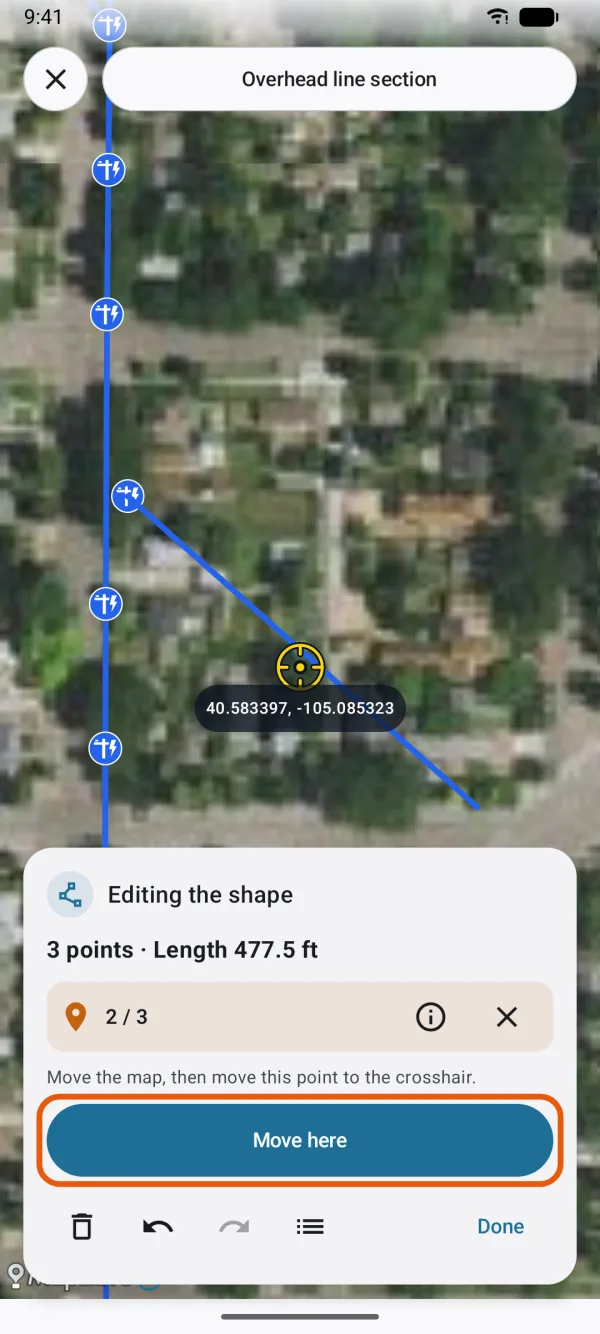
A selected point and Move here. To add a point, tap the hollow point between two corners.
A new point appears there, already selected. Move it with Move here or by dragging.
To delete the selected point, tap the info button beside it and choose Delete point.
A line keeps at least two points and an area at least three. Otherwise the card says A line needs at least two points or A boundary needs at least three points.
Tap Done.
The card says Shape saved. If nothing changed, Done just closes.
- The ✕ beside the selected point lets go of it without moving anything.
- The undo and redo buttons at the bottom of the card take back or repeat the last change.
- Point list lists every point with its coordinates. Tap one to select it and center the map on it, which helps with dense shapes. Tap Done to go back.
- A shape that crosses itself isn't saved: This shape crosses itself or has an invalid edge. Fix it before saving.
- The ✕ at the top left leaves editing. If you changed anything, the app asks Discard unsaved changes? Tap Discard to leave the record as it was, or Keep Editing.
For an area, the button on the map that shows the ring, such as 1 / 1, adds parts and holes, as when you draw. See points, lines and areas.
Snap to neighboring records
Snapping makes neighbors meet exactly instead of nearly. A point you place or move close to another record's point or edge lands exactly on it. When a corner and an edge are both within reach, the corner wins.
It works for points placed with Add point, Move here, a drag, and taps while you draw a part or a hole. While the crosshair is on the map, a small ring shows the point or edge it will join, and the coordinates under the crosshair are the joined ones.
Open the Project tab and tap Settings.
It's at the bottom. On the Projects screen, the gear button opens it too.
Check Snap to nearby records.
It's on unless you turn it off. While drawing or moving points, a point placed close to another record’s point or edge joins it exactly.
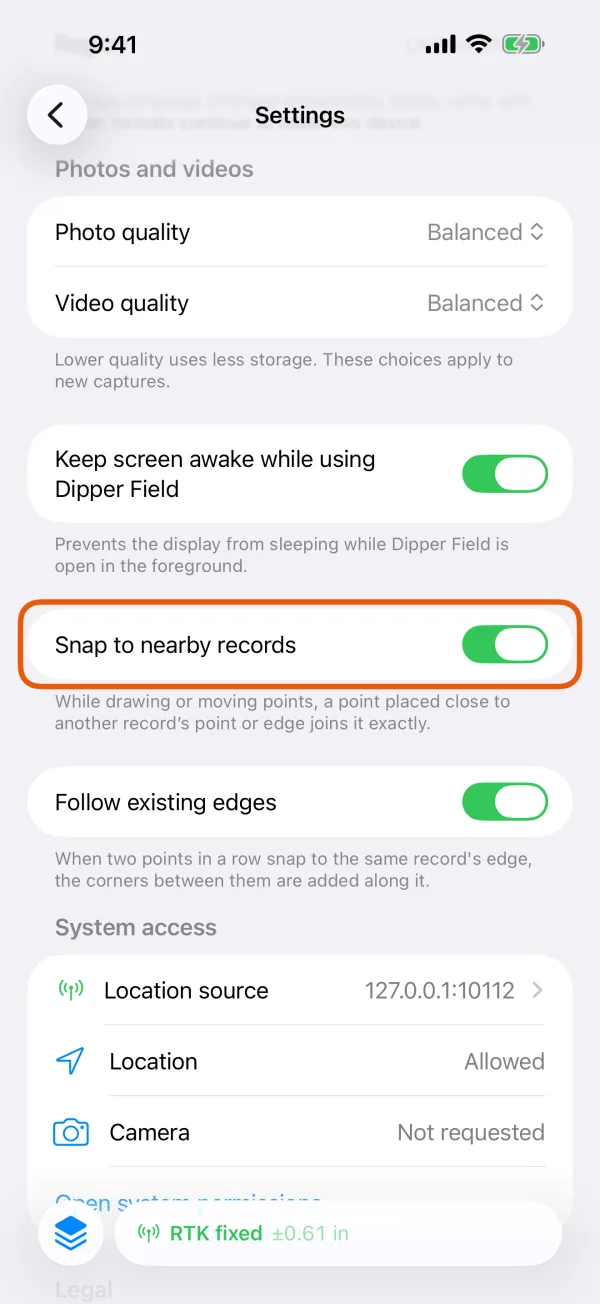
Snap to nearby records and Follow existing edges. 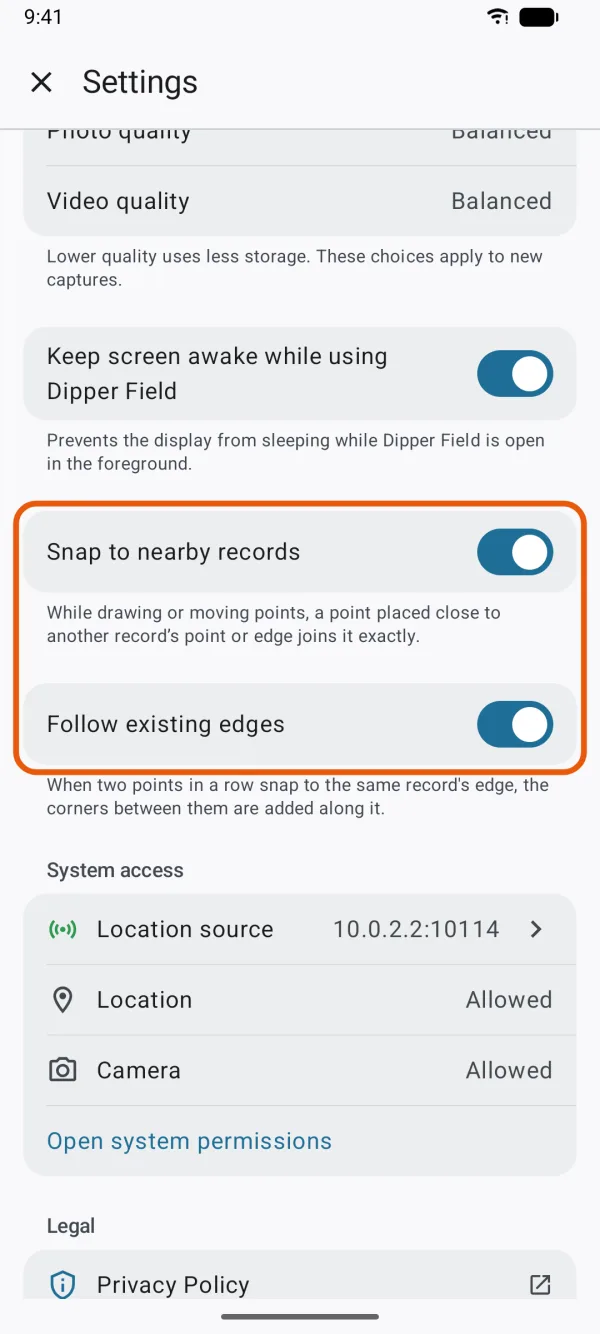
Snap to nearby records and Follow existing edges. Check Follow existing edges.
It's shown while snapping is on, and is on unless you turn it off. When two points in a row snap to the same record's edge, the corners between them are added along it, and the card says Followed the existing edge.
- How close is close enough depends on the zoom: about a fingertip on the screen. Zoom in to place a point near a neighbor without joining it, or turn snapping off.
- A shape doesn't snap to itself while you edit it.
- Shapes drawn with Draw with finger don't snap. See draw with a finger.
- Points also snap to a reference layer that has Snap to this layer on. See reference layers.
Split a line in two
Use this when one line turns out to be two things, such as a pipe that changes material halfway.
Tap the line, then tap Edit shape.
Tap the point where the line should be cut.
It can't be the first or last point.
Tap the info button beside the point and choose Split line here.
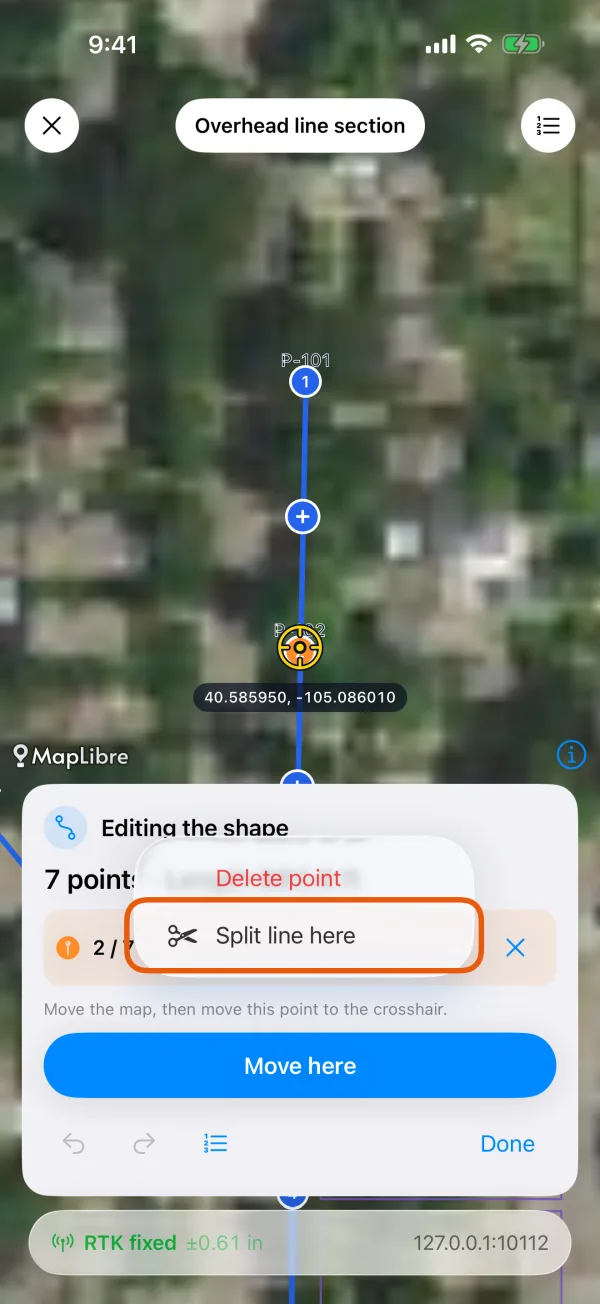
The point's menu, with Split line here and Delete point. 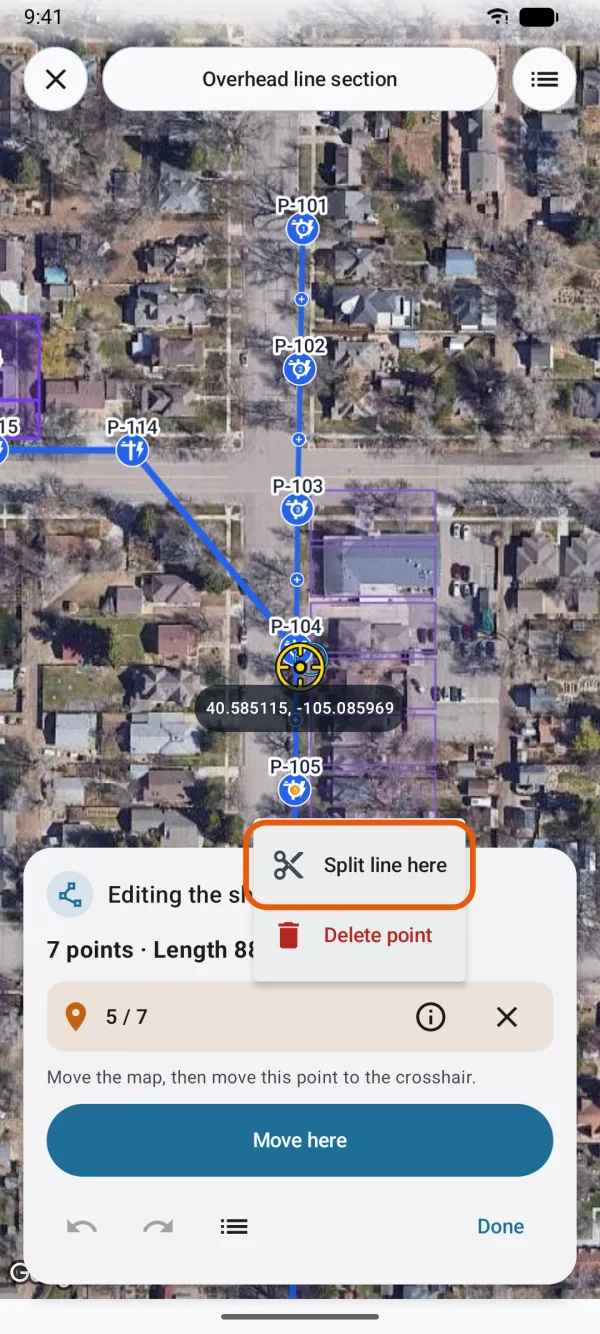
The point's menu, with Split line here and Delete point.
The split is saved straight away, and the card says Split into two records:
- The record keeps the line up to the point. A new record of the same type takes the rest. Both keep the point, so they still meet.
- The new record starts with the original's answers, except an answer that must differ between records (its identifier and unique answers), signatures, and answers the form works out, which are worked out again, such as its length.
- Photos and other media stay with the original record.
- Any other changes you made to the shape before splitting are saved with it.
Merge two areas into one
Use this when two areas of the same type turn out to be one, such as two parcels that are one holding.
Tap the area you want to keep, then tap Edit shape.
Tap the ring button on the map and choose Merge with another area.
The card says Tap the area of the same type to merge into this one. Tap Cancel on the card to stop.
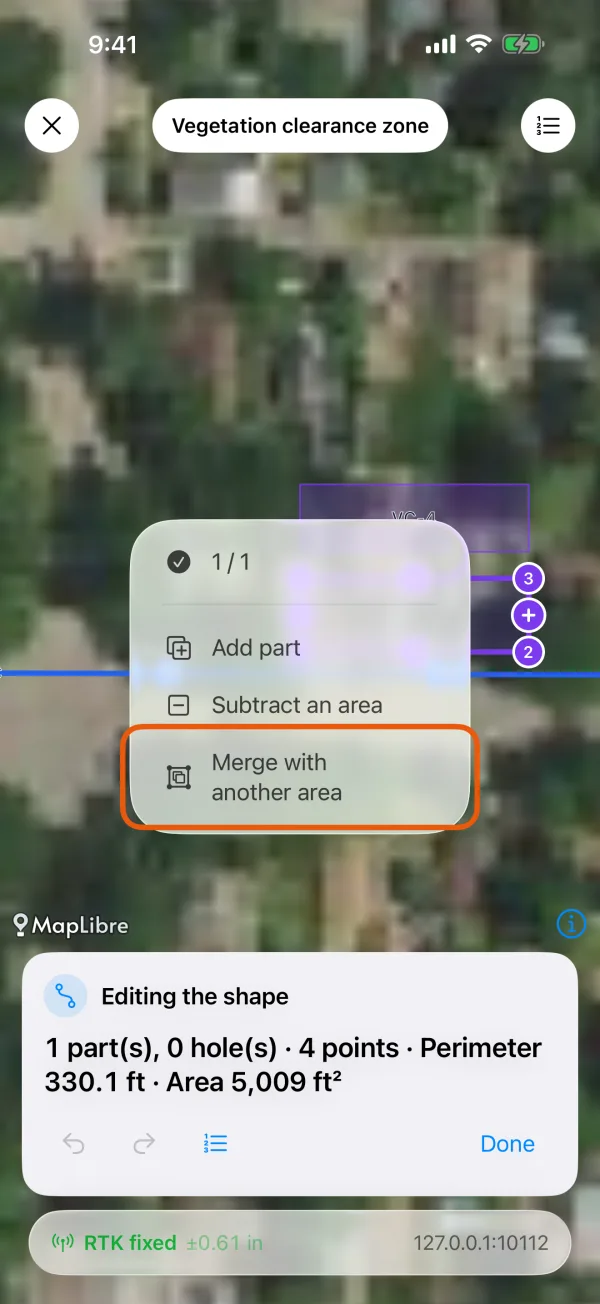
The ring menu, with Add part, Subtract an area and Merge with another area. 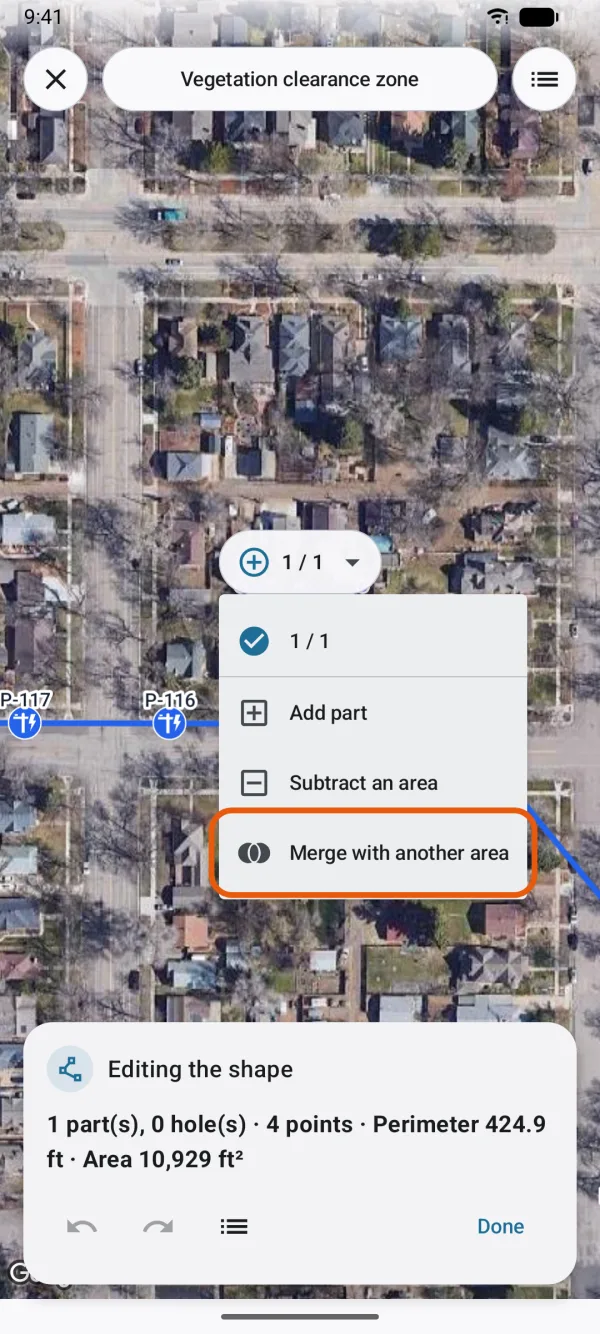
The ring menu, with Add part, Subtract an area and Merge with another area. Tap the other area.
It must be of the same record type. Otherwise the card says There's no area of the same type there.
Tap Merge.
The app first asks Merge these areas?: The other area becomes part of this one and is removed. Its photos move here; its answers aren't kept.
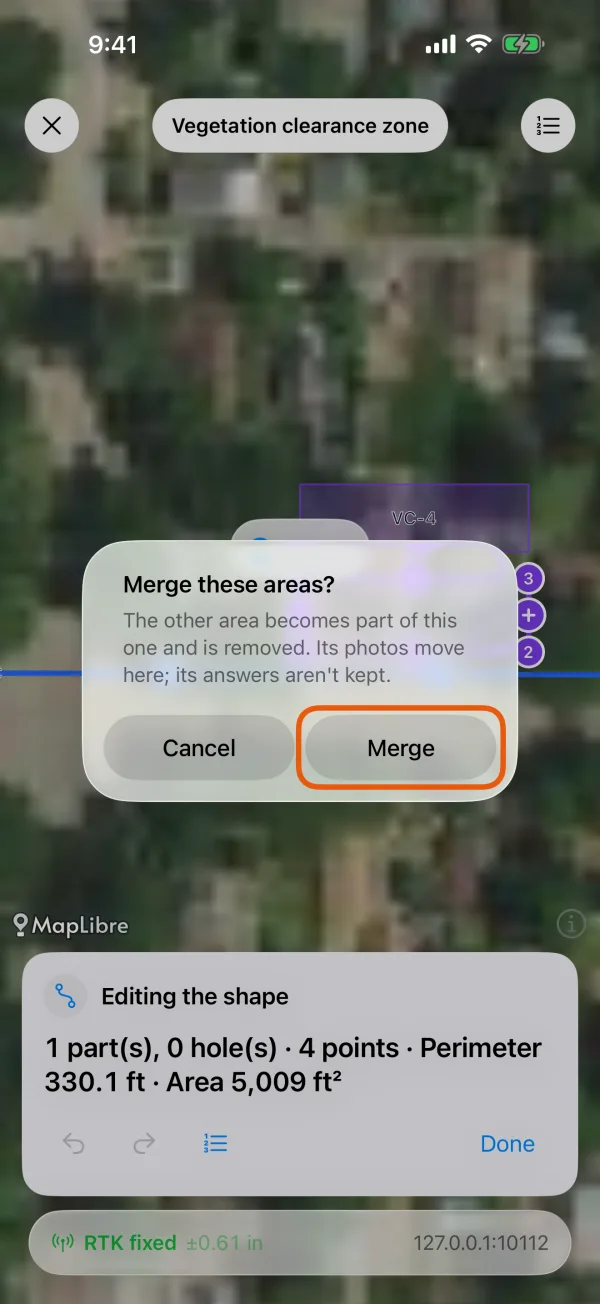
The question before two areas are merged. 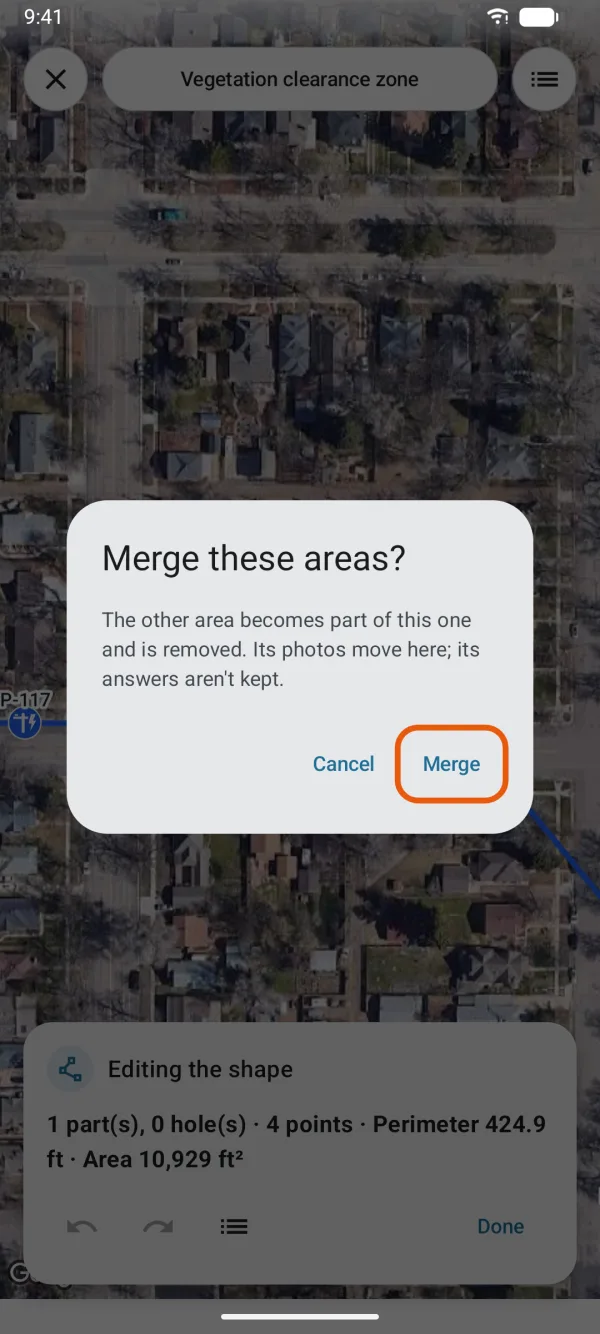
The question before two areas are merged.
The card says Merged into one record. Where the two shared a boundary, it goes; where they overlapped, the area is counted once; two areas that don't touch become one record with two parts. The shape you were editing is saved with the merge, changes and all.