 Dipper Field
A reference layer is a file you already have, such as parcels, pipes or a site plan, shown on the map to work against. It's drawn over the background and under your records, as a faint fill and a thin line, with small dots for points. It can't be changed, isn't counted as records, and doesn't change when you switch backgrounds.
To add one from a GeoPackage, Shapefile ZIP, GeoJSON or KML file, see import records from files. This article covers what you can do with it once it's on the map.
Find your reference layers
On the map, tap Map layers.
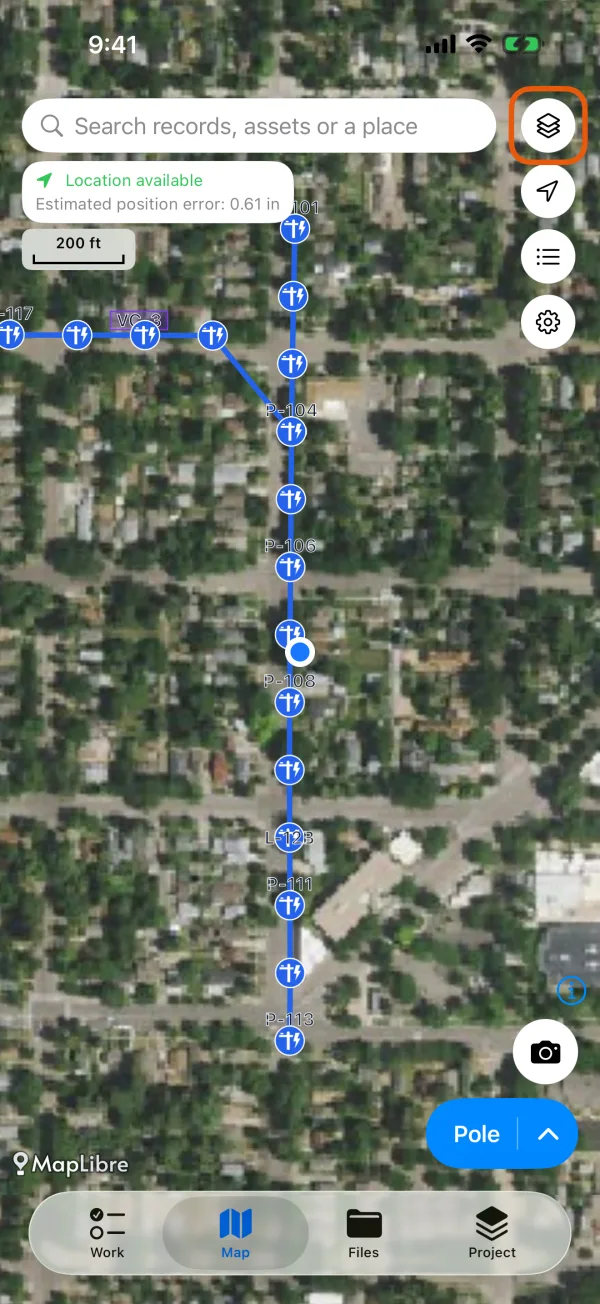
The map, with the Map layers button marked. 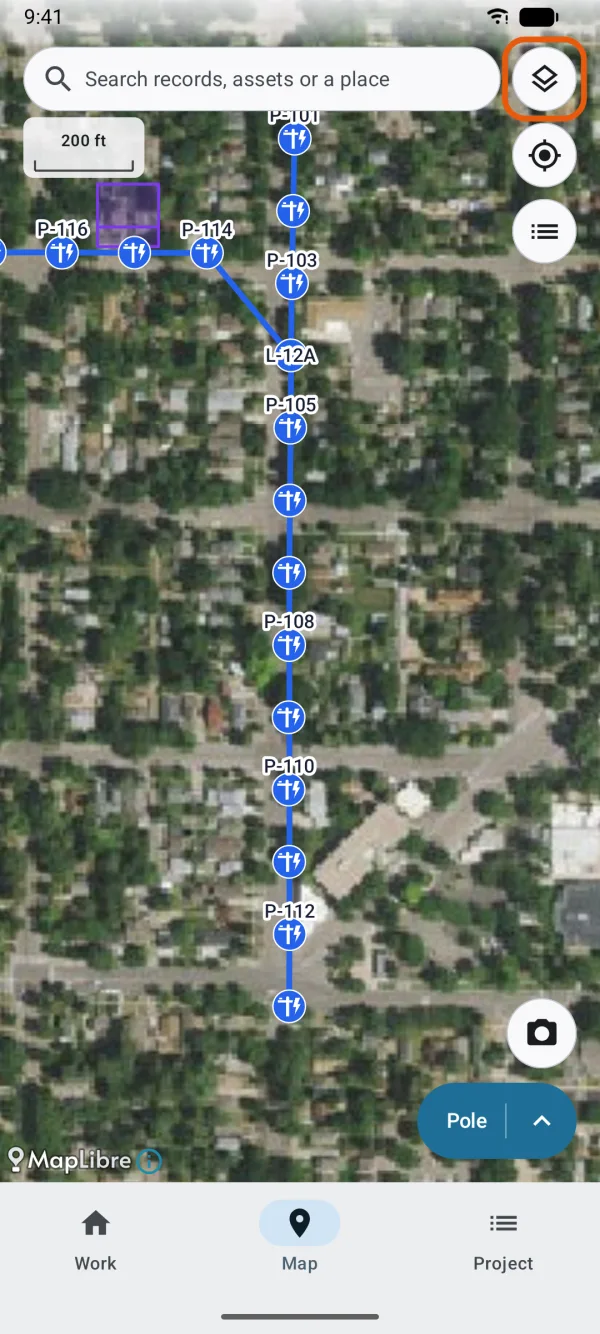
The map, with the Map layers button marked. Look under Reference layers, below the backgrounds.
Each layer shows its color, its name and how many shapes it has, such as Shapes: 12,480, with a switch beside it. Add reference layer is at the bottom.
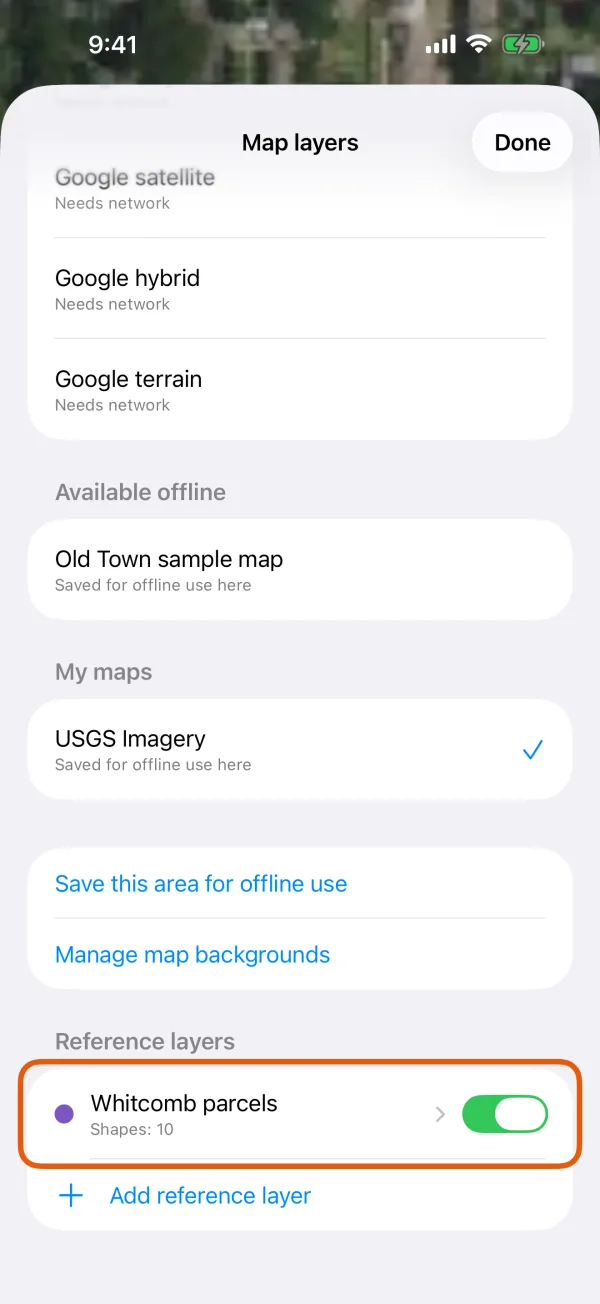
A reference layer with its color, shape count and switch. 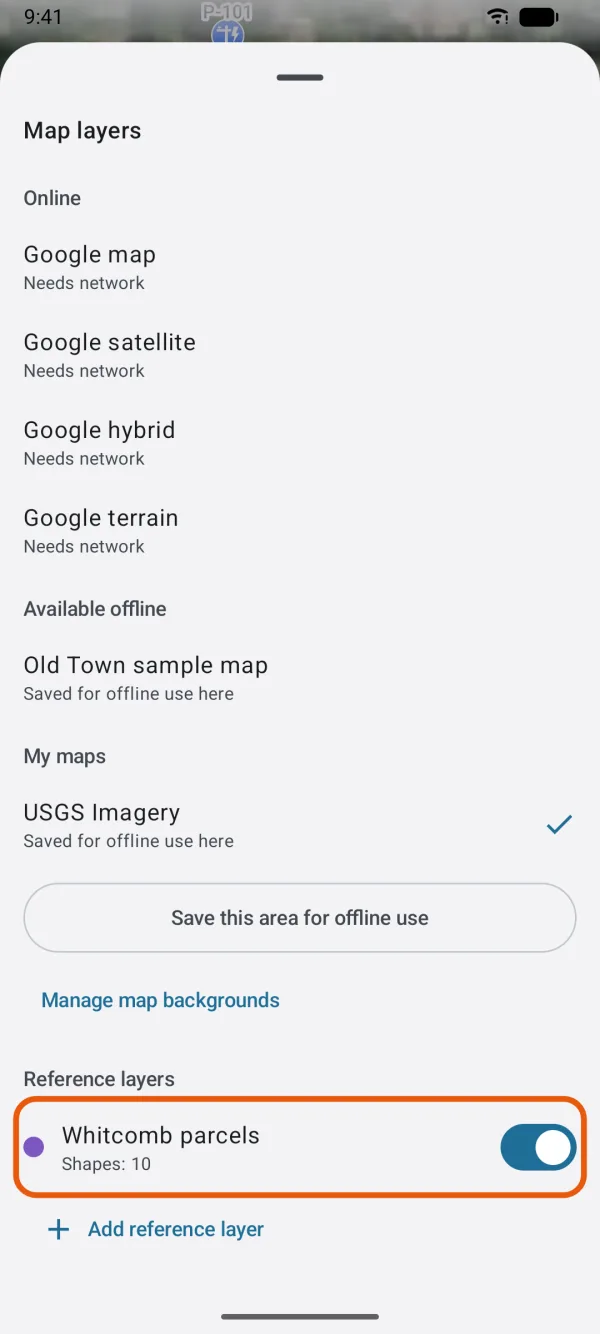
A reference layer with its color, shape count and switch.
Show or hide a layer
Turn the switch beside the layer on or off. A hidden layer stays in the project, ready to show again, and points don't snap to it.
Change a layer's settings
Tap the layer's name in Map layers to open its page.
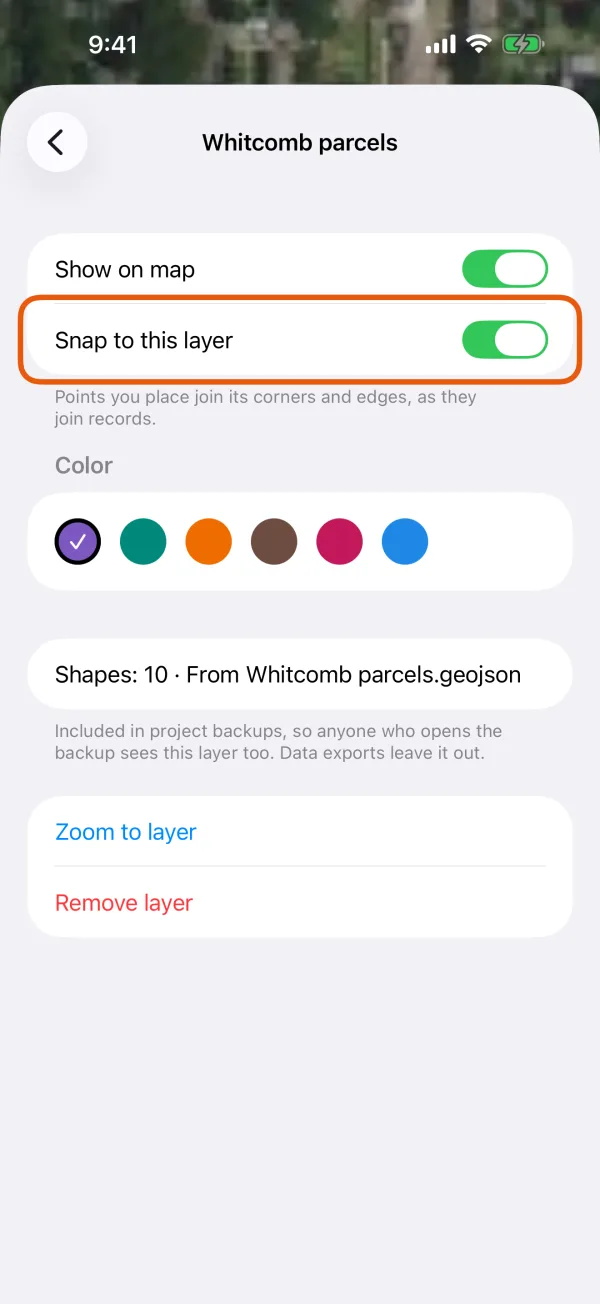
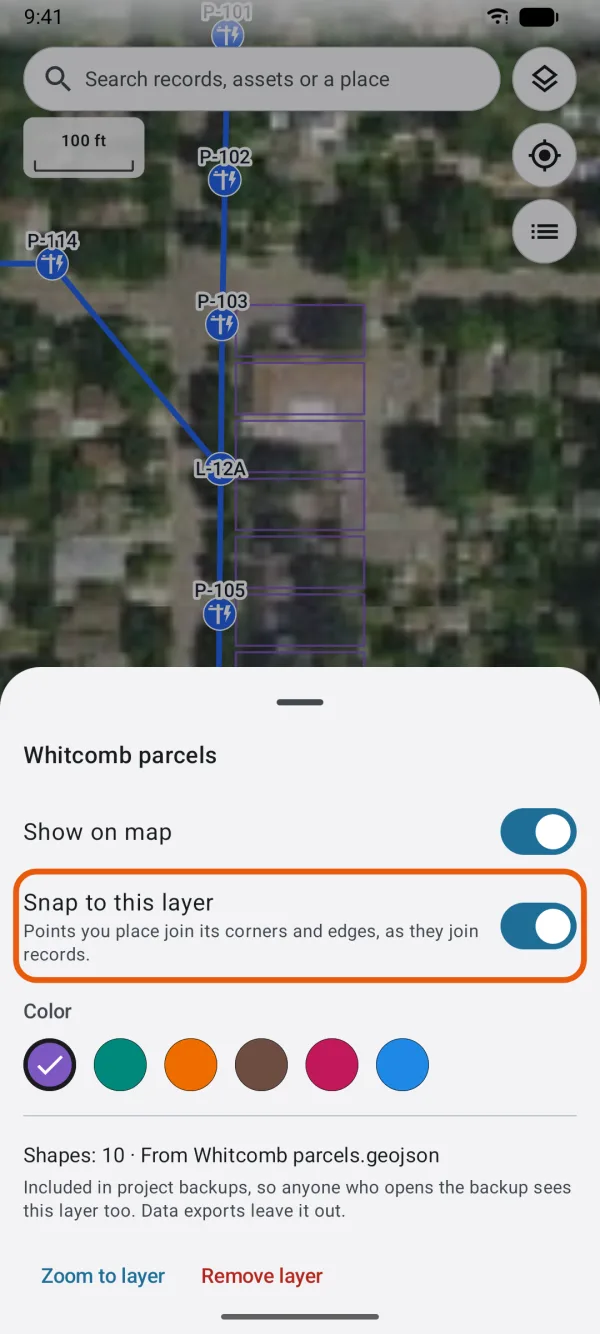
- Show on map: the same switch as in the list.
- Snap to this layer: see snap to a layer.
- Color: tap one of the six colors. A new layer starts with a color no other layer is using, while one is left.
- The details: how many shapes it has and the file it came from. Left out, with no shape to show counts features in the file that had no shape to place.
- Zoom to layer: closes Map layers and moves the map to show the whole layer.
- Remove layer: see remove a layer.
Snap to a layer
Snap to this layer is on for a new layer. While you draw or move points on the map, a point placed close to one of the layer's corners or edges joins it exactly, as it would join a record. This way a new area can share a parcel's boundary exactly.
Snapping to a layer needs all three:
- Snap to this layer on for the layer.
- The layer shown on the map.
- Snap to nearby records on in Settings. It's on unless you turn it off.
With Follow existing edges on in Settings, two points in a row on the same edge of a layer's shape add the corners between them along it, as with records. For drawing and editing shapes, see edit shapes: vertices, snapping, split and merge.
See what a shape is
Tap one of the layer's shapes on the map. Its details open: the file's columns that have a value, under the shape's name when one of its columns reads like a name, ID or number. The note Reference layer · can't be changed says where it comes from.
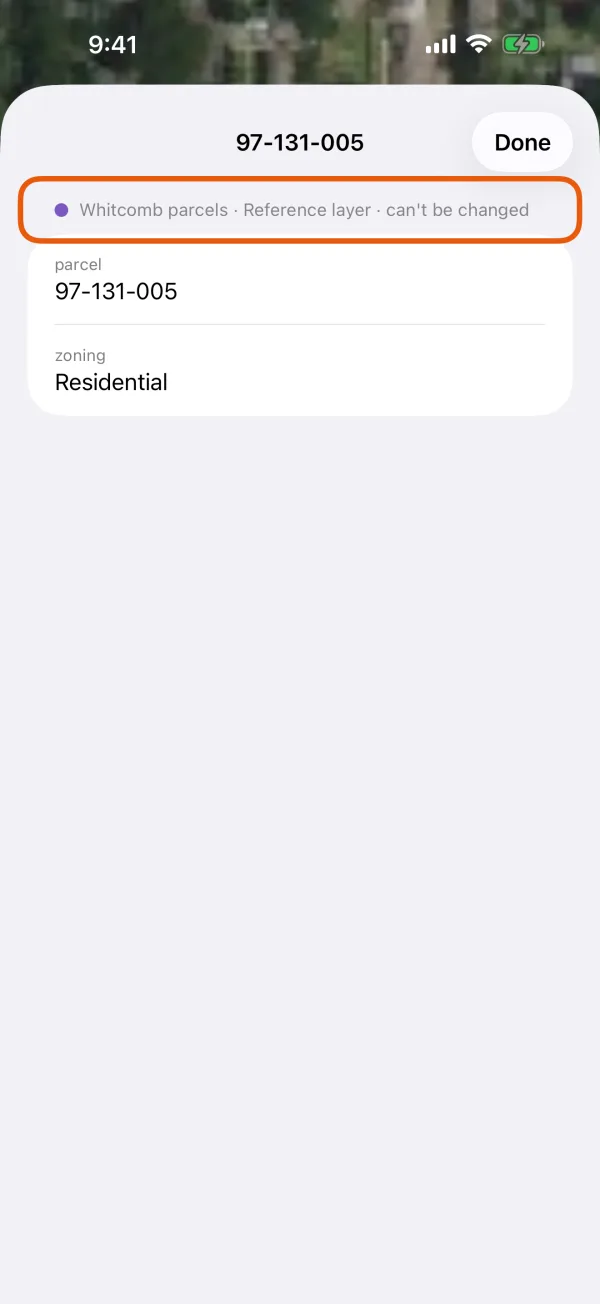
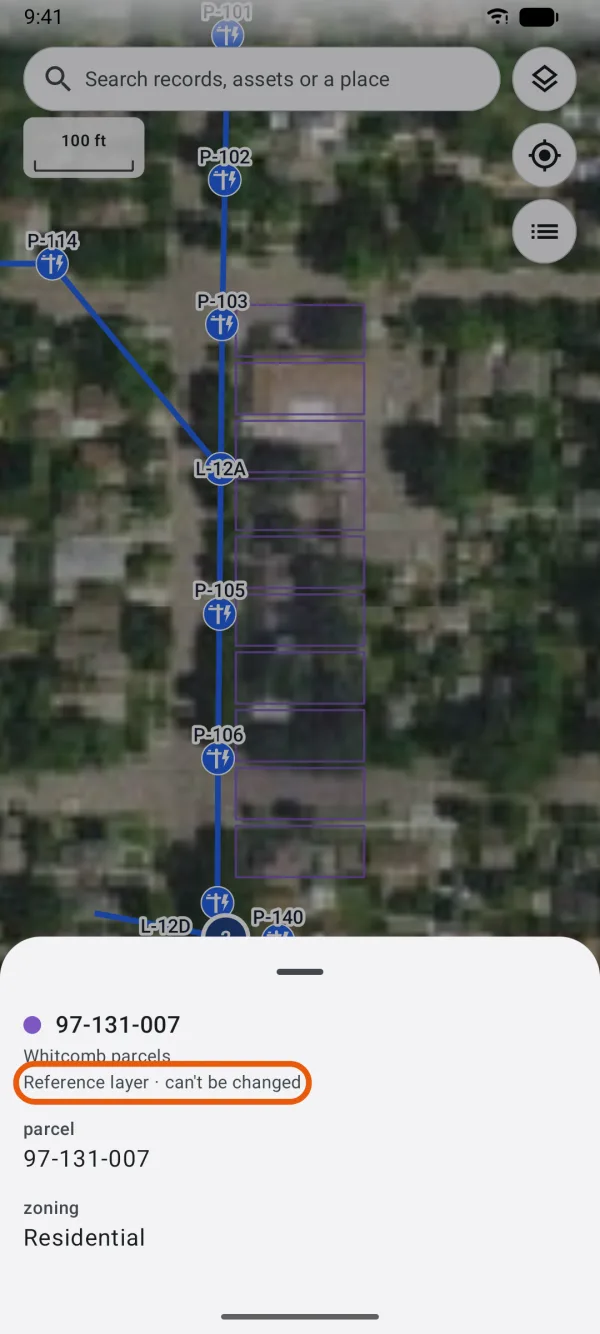
A tap goes to a record first. A reference shape answers only where no record or your own position is under your finger, and not while you're recording.
Remove a layer
In Map layers, tap the layer's name.
Tap Remove layer, and confirm.
It asks Remove "[name]" from this project on this device? The file it came from isn't changed.
Backups and exports
- A reference layer is included in project backups, so anyone who opens the backup sees it too, with its color and switches.
- Data exports leave reference layers out. Only your records are exported.
Limits
- A project can have up to 8 reference layers, shown or hidden. To add another, remove one: A project can show up to 8 reference layers. Remove one to add another.
- Each layer can hold up to 500,000 shapes.