 Dipper Field
US Topo maps from the USGS and FSTopo maps from the US Forest Service are 7.5-minute quadrangle maps, published as GeoPDF files. Dipper Field recognizes both. It keeps only the map inside the quadrangle and leaves out the collar, the margin with the legend, title and notes, so the quads you bring in fit together edge to edge. Once imported, they work with no connection.
Before you start
- The quad sheets as GeoPDF files, downloaded before you head out. Keep them as the USGS or the Forest Service published them.
- The files on the device, in a cloud drive the device's file picker can reach, or attached to a message.
- All the neighboring sheets you want to use together, so you can choose them in one go.
Import a set of quads
iPhone and iPad
On the map, tap Map layers, then Manage map backgrounds.
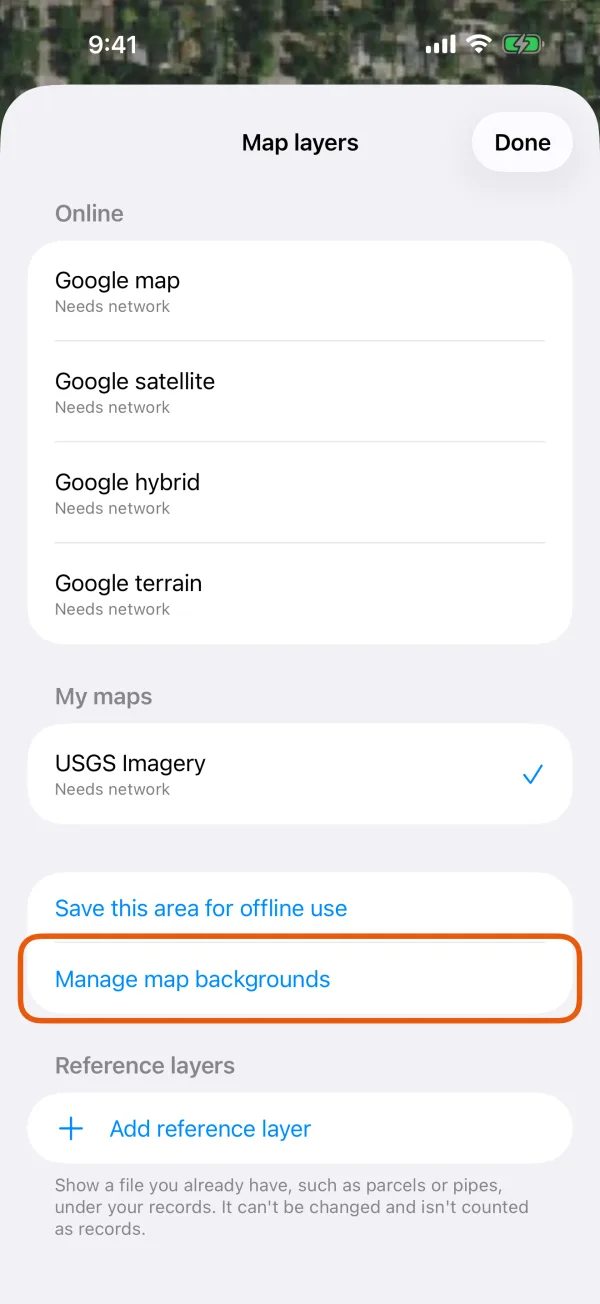
Map layers, with Manage map backgrounds marked. Under My maps, tap Import a map file.
Choose all the quads at once. Sheets chosen together become one map.
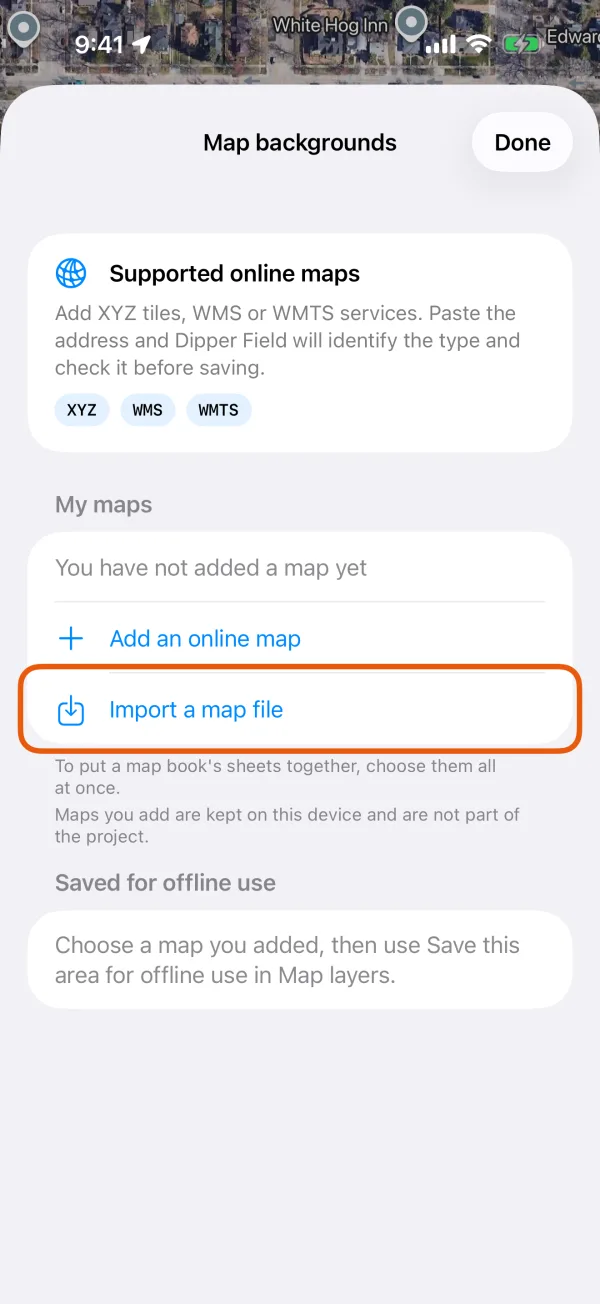
Map backgrounds, with Import a map file marked. Check what Dipper Field found, and tap Import.
With four quads chosen, for example, it says Maps on 4 of 4 pages, made into one offline map. The Name comes from the first sheet or the file names; change it to one that covers the whole set.
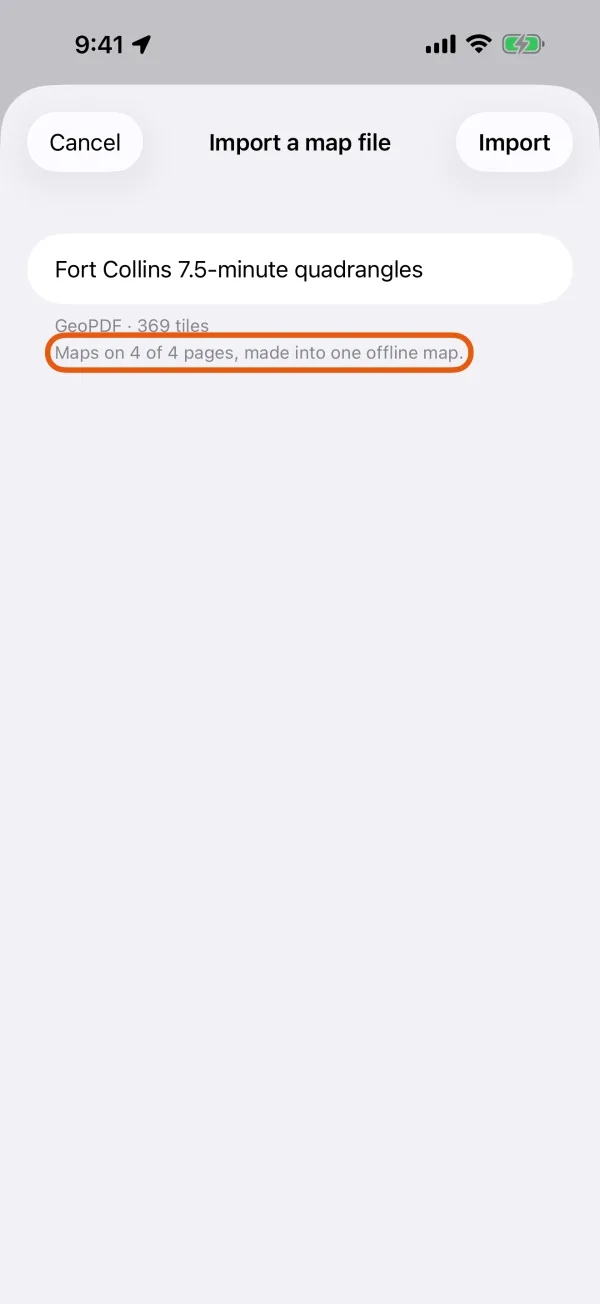
Four quad sheets about to become one map. Keep Dipper Field open while it imports.
Progress shows under Saved for offline use in Map backgrounds. If you leave the app, the import carries on when you come back.
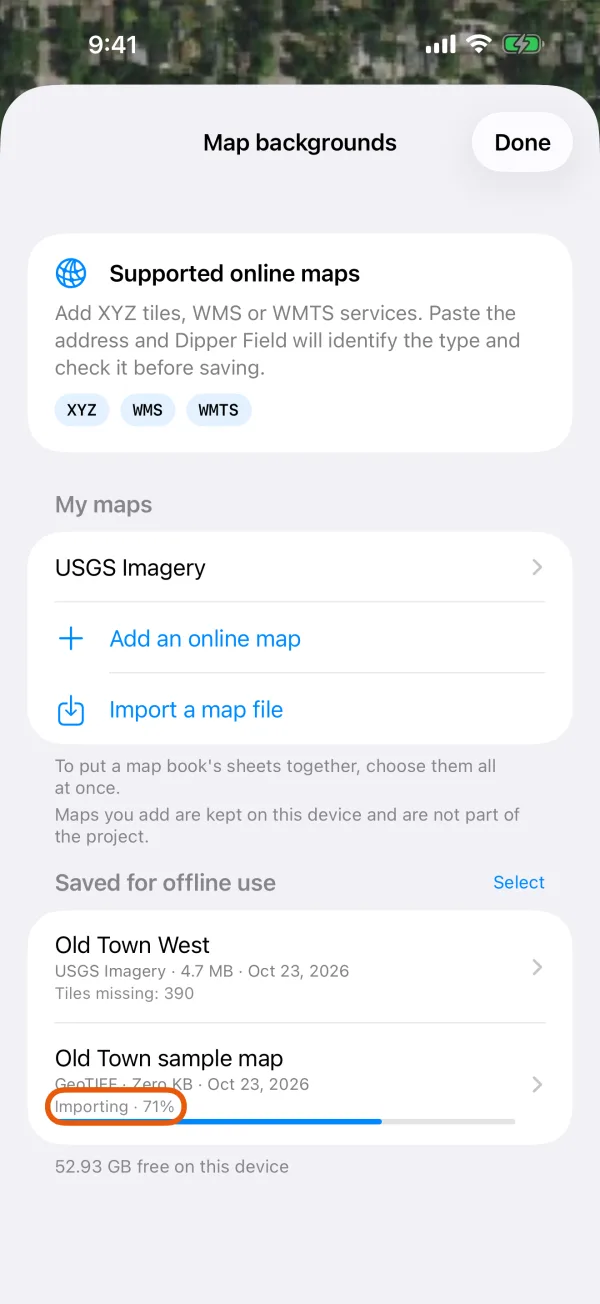
The imported map under Saved for offline use, with its progress.
Android
On the map, tap Map layers, then Manage map backgrounds.
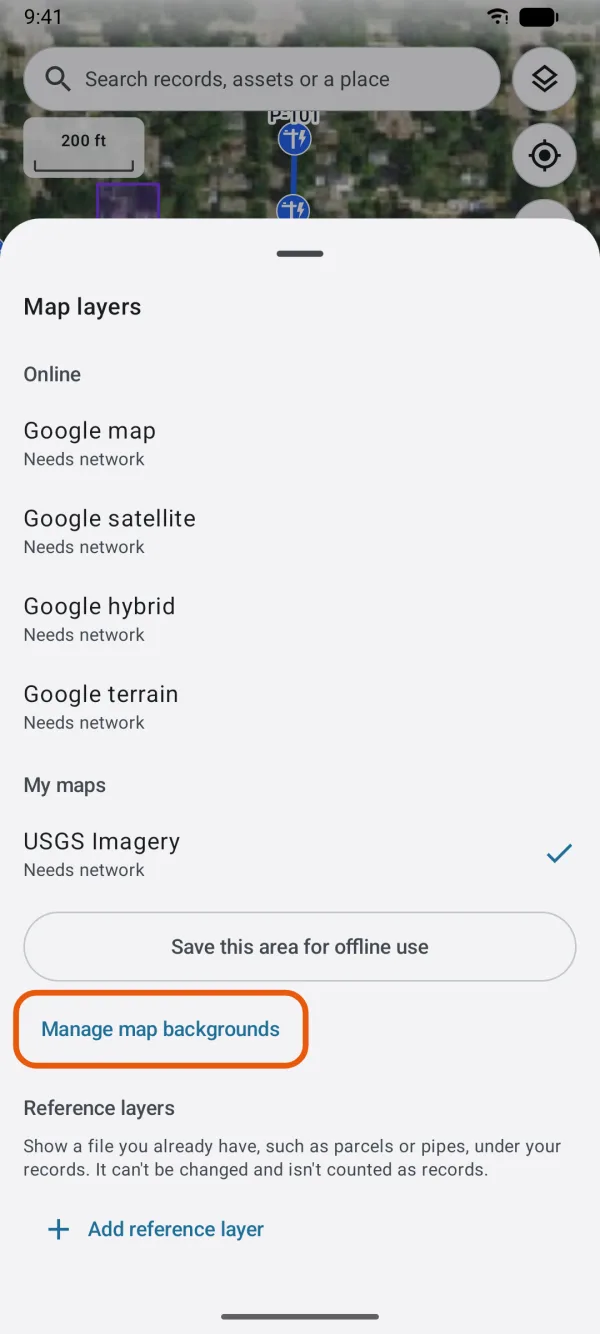
Map layers, with Manage map backgrounds marked. Under My maps, tap Import a map file.
To choose several quads, touch and hold one sheet in the file list, then tap the others. Sheets chosen together become one map.
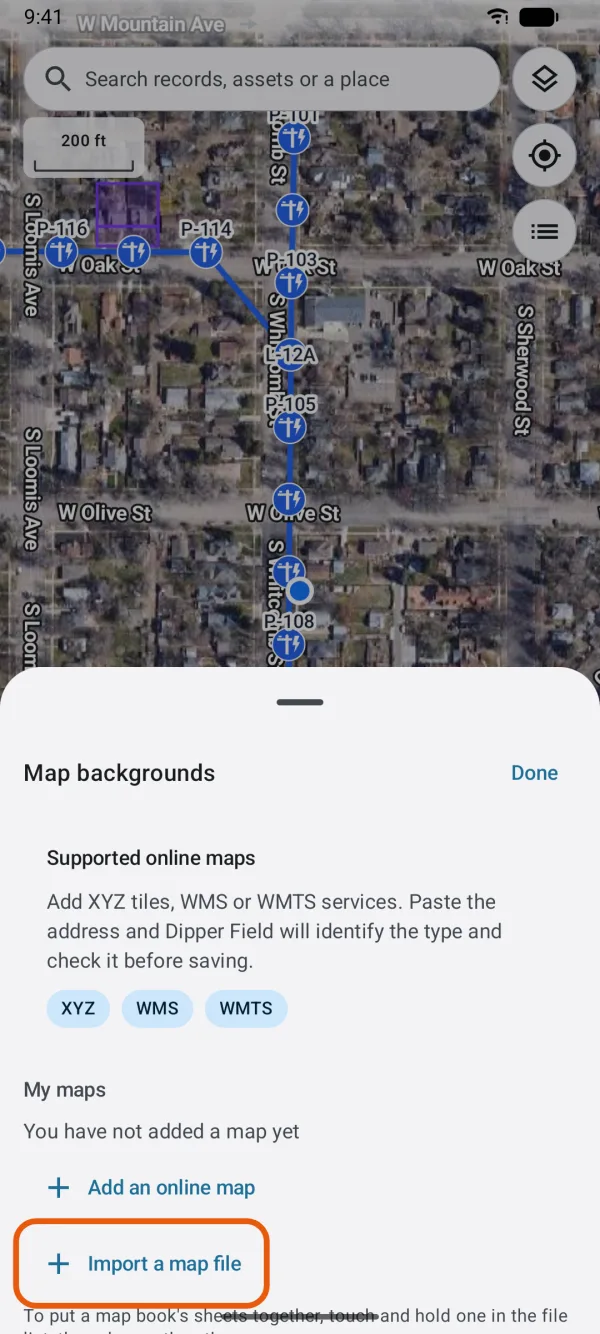
Map backgrounds, with Import a map file marked. Check what Dipper Field found, and tap Import.
With four quads chosen, for example, it says Maps on 4 of 4 pages, made into one offline map. The Name comes from the first sheet or the file names; change it to one that covers the whole set.
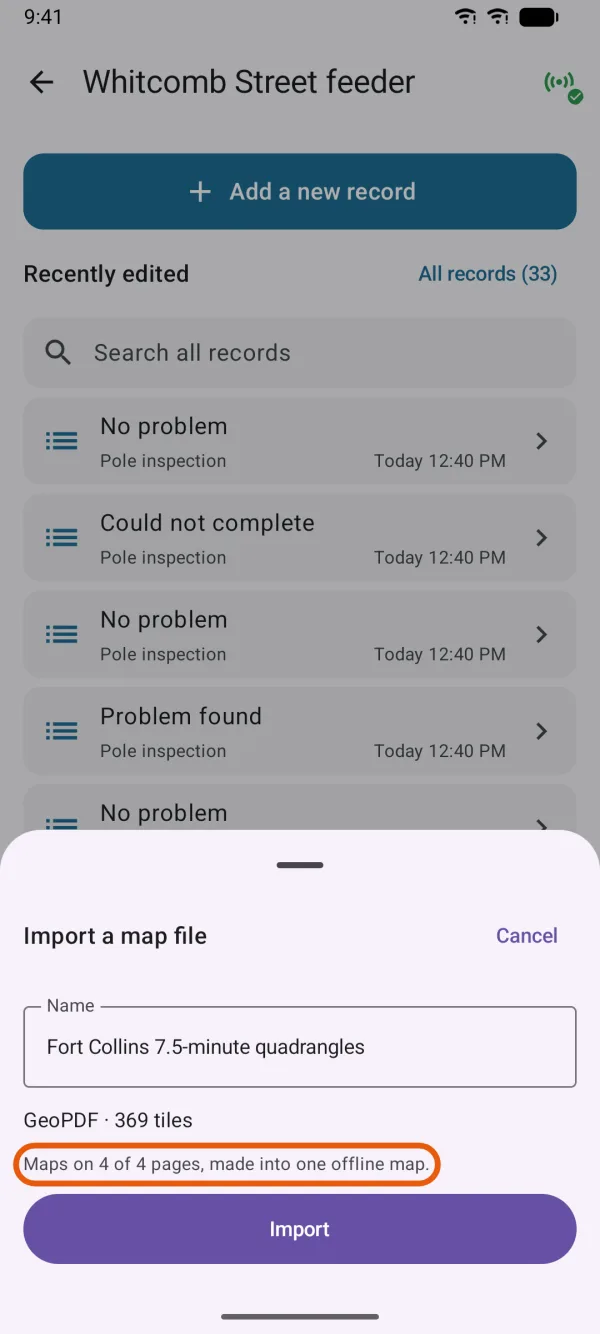
Four quad sheets about to become one map. Carry on working while it imports.
It runs in the background with a notification, Importing a map. Progress shows under Saved for offline use in Map backgrounds.
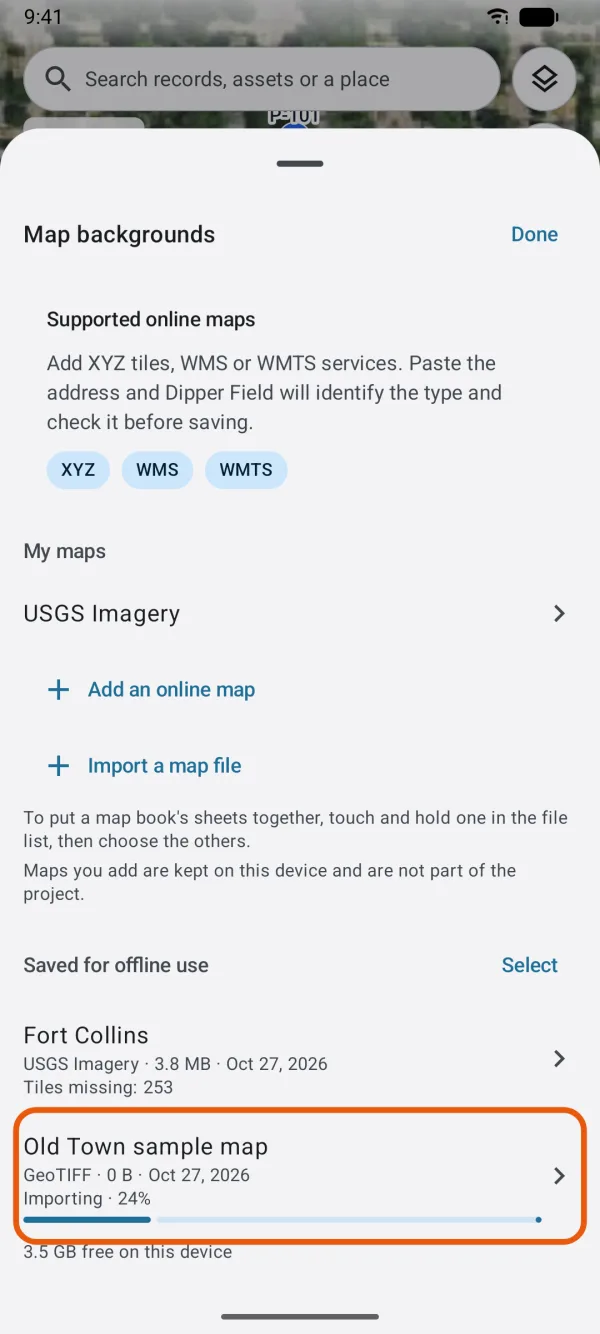
The imported map under Saved for offline use, with its progress.
Use the quads as your background
Tap Map layers.
Under Available offline here, tap the map.
While the middle of the screen is on the quads, its row says Saved for offline use here.
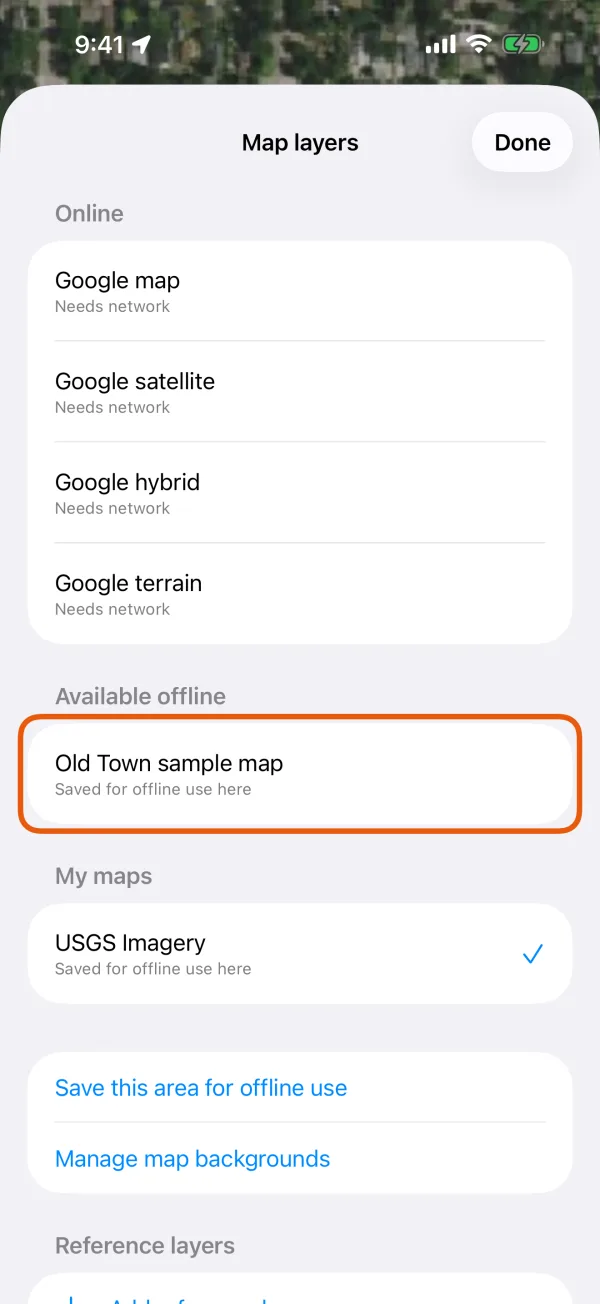
An imported topo map under Available offline here. 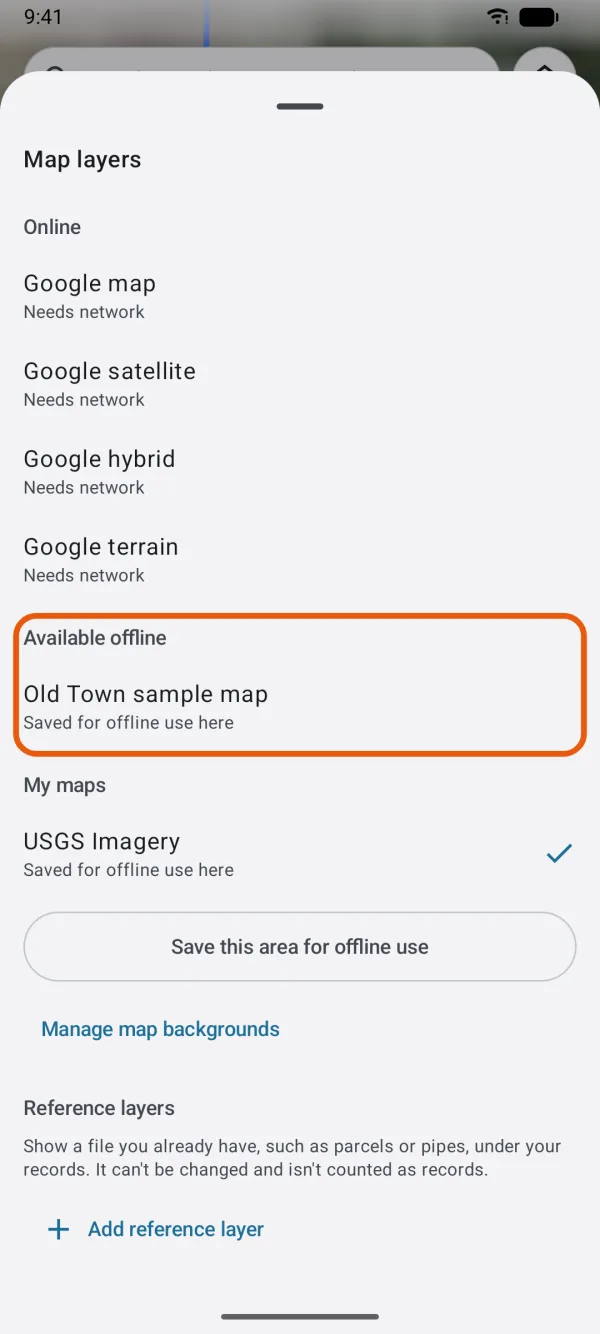
An imported topo map under Available offline here.
To see which ground the set covers, open Map backgrounds, tap the map under Saved for offline use, then Show on map. The map moves to it and outlines it.
Zoomed in closer than the sheets' own detail, the map is enlarged rather than left blank. Outside the quads you imported, the background is plain gray.
What happens to each sheet
- The collar is trimmed off. A US Topo or FSTopo sheet is cut to its 7.5-minute quadrangle, so the legend and margins of one sheet never cover the map of the next.
- Neighboring sheets join. Quads chosen together are put into one map, with no seams or collars between them.
- Two editions of the same quad stay apart. Sheets that show the same ground at about the same detail, such as an older and a newer edition of one quad, become separate maps. Before you import, Dipper Field says how many maps it will make: Pages showing the same area are kept apart, as 2 offline maps.
- Other GeoPDFs are trimmed to their map frame when the file defines one. A PDF without a location, such as a scan, can't be imported; see import GeoPDF, GeoTIFF and MBTiles.
Add or remove quads later
An import can't be added to. Each import is a map of its own, and the map shows one background at a time. To add a neighboring quad to a set, import the whole set again with the new sheet, then delete the old map.
To delete a map, open Map backgrounds, tap it under Saved for offline use, then Delete. The original files aren't changed.
Good to know
- Importing is free, and the map works with no connection.
- The imported map belongs to the device, not the project. Every project on the device can use it, it isn't part of a project backup, and colleagues import the sheets on their own phones.
- A large set of very detailed sheets may be kept at a little less detail to stay a sensible size. Dipper Field says so before you import.