 Dipper Field
Saving an area downloads a map's tiles to the device. Many map providers' terms of use don't allow that, or allow it only up to a limit. Dipper Field follows those terms, so for some maps Save this area for offline use explains why it can't save instead of downloading.
When saving isn't allowed at all
Tap Map layers, then Save this area for offline use.
It's there while a Google background or a map you added is shown.
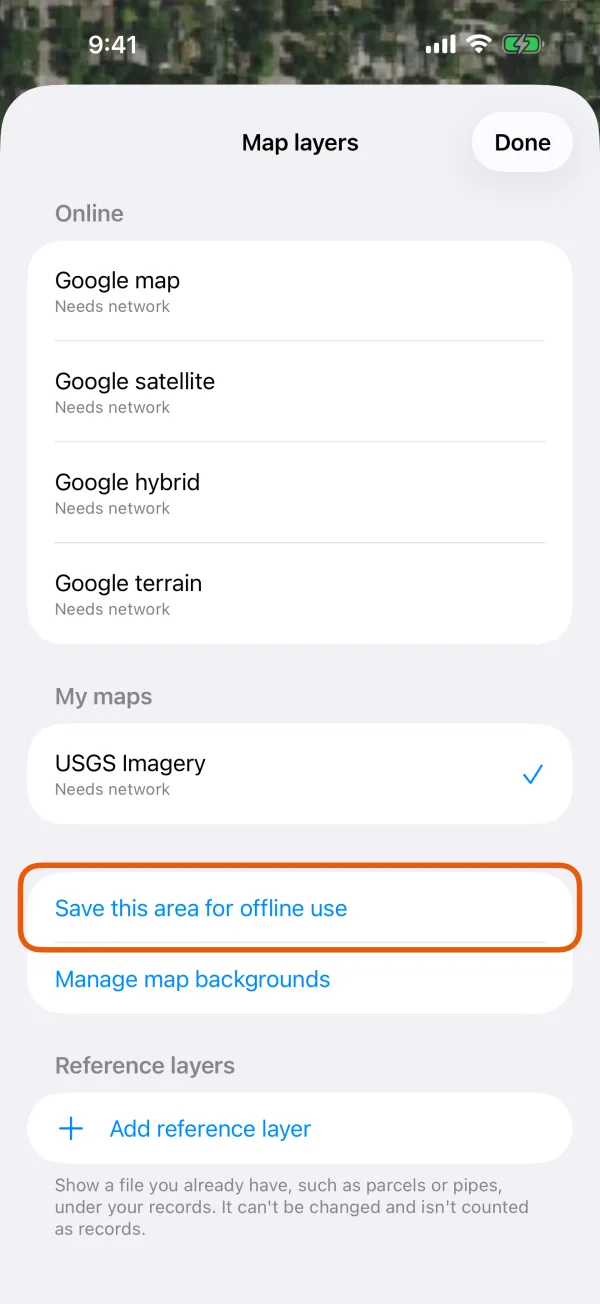
Map layers, with Save this area for offline use marked. 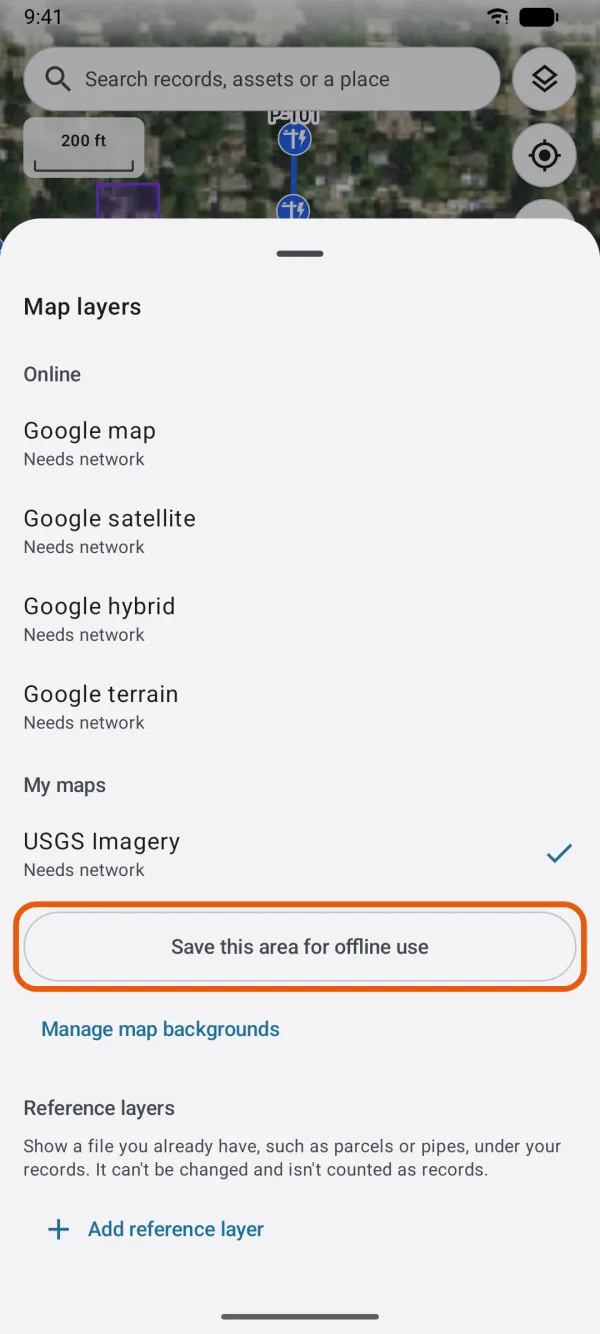
Map layers, with Save this area for offline use marked. Dipper Field says why.
This map can't be saved for offline use, with the provider's name, for example Under its terms of use, Google doesn't allow its maps to be downloaded or cached for use offline. Tap Add a map to add one that allows saving, or OK.
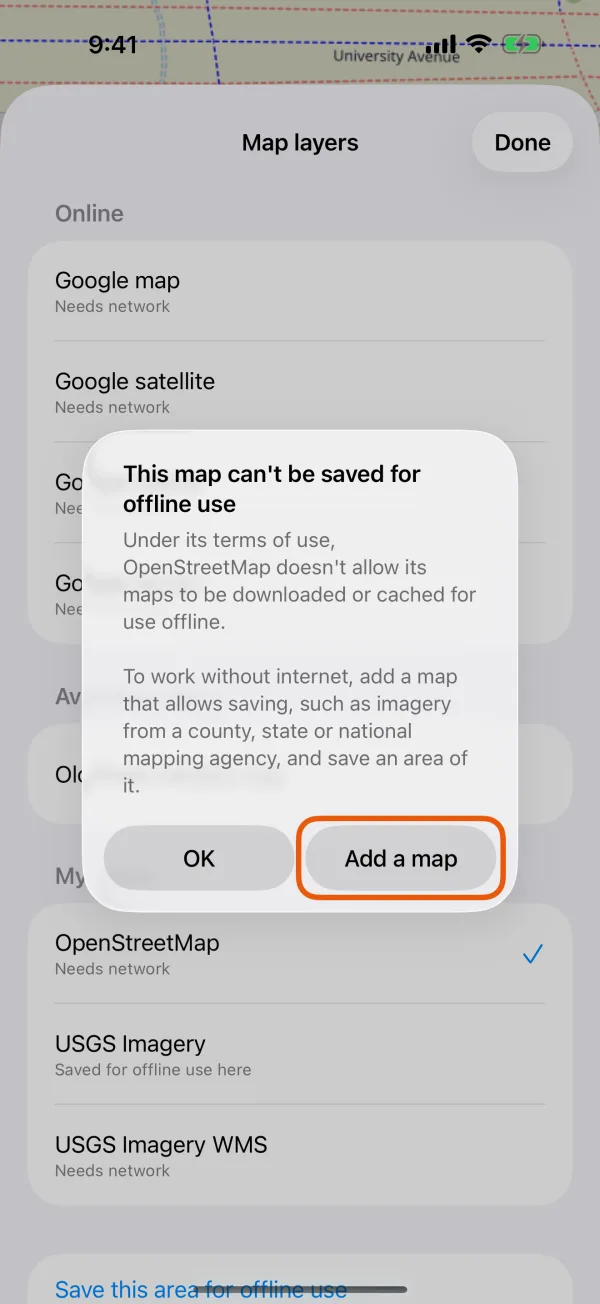
The message naming the provider, with Add a map and OK. 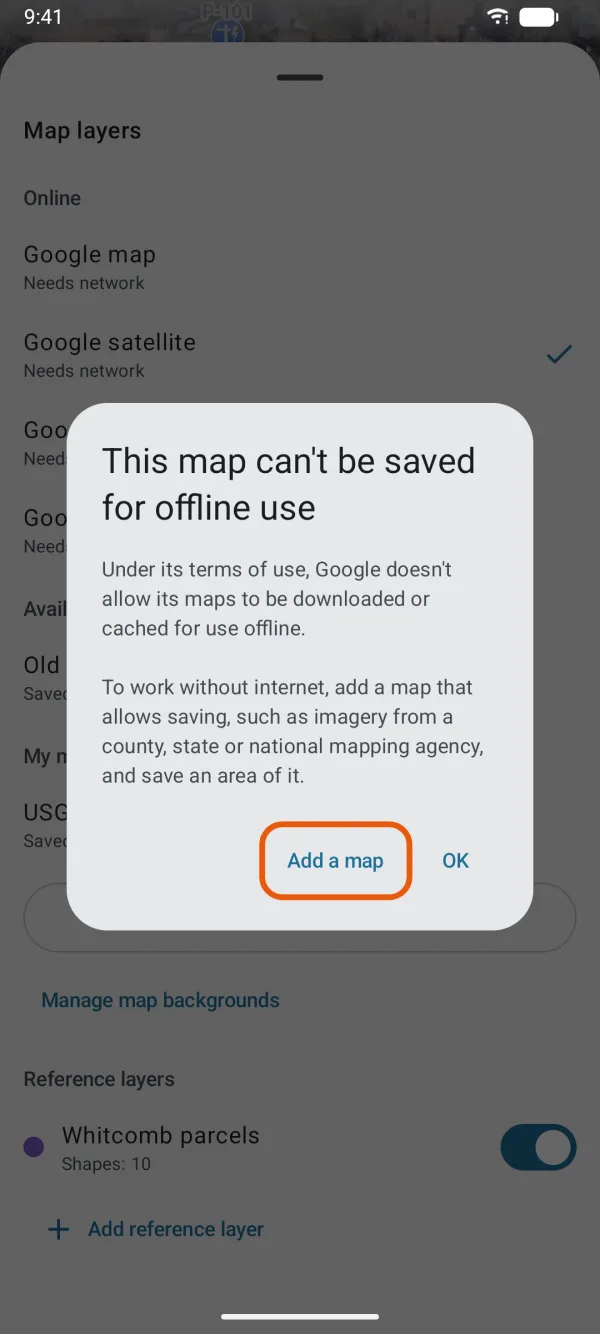
The message naming the provider, with Add a map and OK.
These providers don't allow their maps to be saved for offline use, as of October 2026:
- Google, including the four Google backgrounds under Online
- OpenStreetMap's own tiles, and OpenStreetMap France's (with the Humanitarian and CyclOSM maps it hosts)
- Wikimedia Maps
- Esri's ArcGIS Online basemaps
- Bing Maps, Apple Maps, Mapbox, MapTiler, HERE, TomTom and CARTO
- Stadia Maps satellite imagery
- Nearmap, Vantor (Maxar) and Planet
- Yandex, Baidu, Amap and Tencent Maps
Dipper Field knows a provider by the address of the map you added. Using these maps online is unaffected.
When saving is allowed within limits
These providers allow saving up to a limit in one download. Dipper Field checks the size before anything downloads.
| Provider | Limit in one download |
|---|---|
| OpenFreeMap | 3,000 tiles and 50 MB |
| OpenTopoMap | 3,000 tiles |
| Stadia Maps (other than satellite imagery) | 100 MB |
| An ArcGIS service that sets its own limit | The number of tiles the service allows |
| Thunderforest | Paid plans only |
For Thunderforest, Save this area says Thunderforest allows saving its maps for offline use only on paid plans. Save only if your plan includes it. You can still save; whether your plan covers it is up to you.
An ArcGIS service decides for itself
An ArcGIS map service you added says in its own description whether its tiles may be exported, and how many. Dipper Field asks it when you open Save this area. If the service doesn't allow it, you'll see This map's provider does not allow saving it for use offline. If its description can't be read, the usual check of one tile decides.
Messages in Save this area
Before anything downloads, Save this area works out the size and asks the map for one tile in the middle of the area. When the area can't be saved as it is, it says why, and Save can't be tapped.
| Message | Why | What to do |
|---|---|---|
| This map's provider does not allow saving it for use offline. | An ArcGIS service doesn't allow exporting its tiles. | Use another map, or import a map file. |
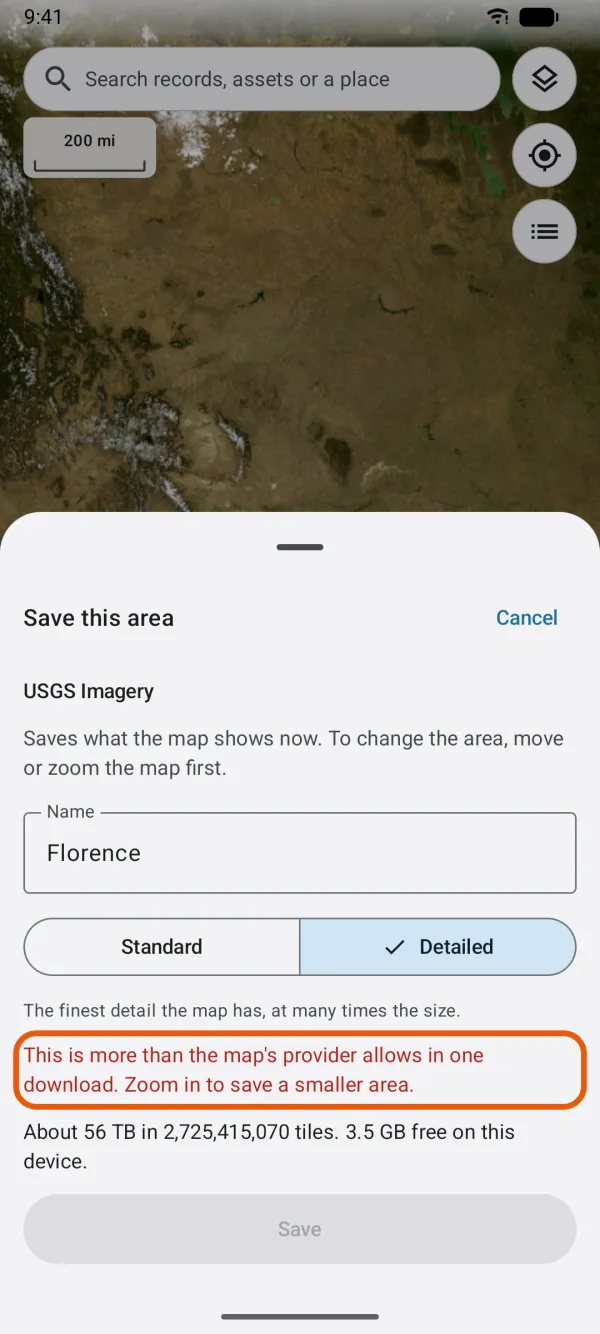
| This is more than the map's provider allows in one download. Zoom in to save a smaller area. | The area is over the provider's limit above. | Cancel, zoom in, and save a smaller area. Save neighboring areas one at a time. |
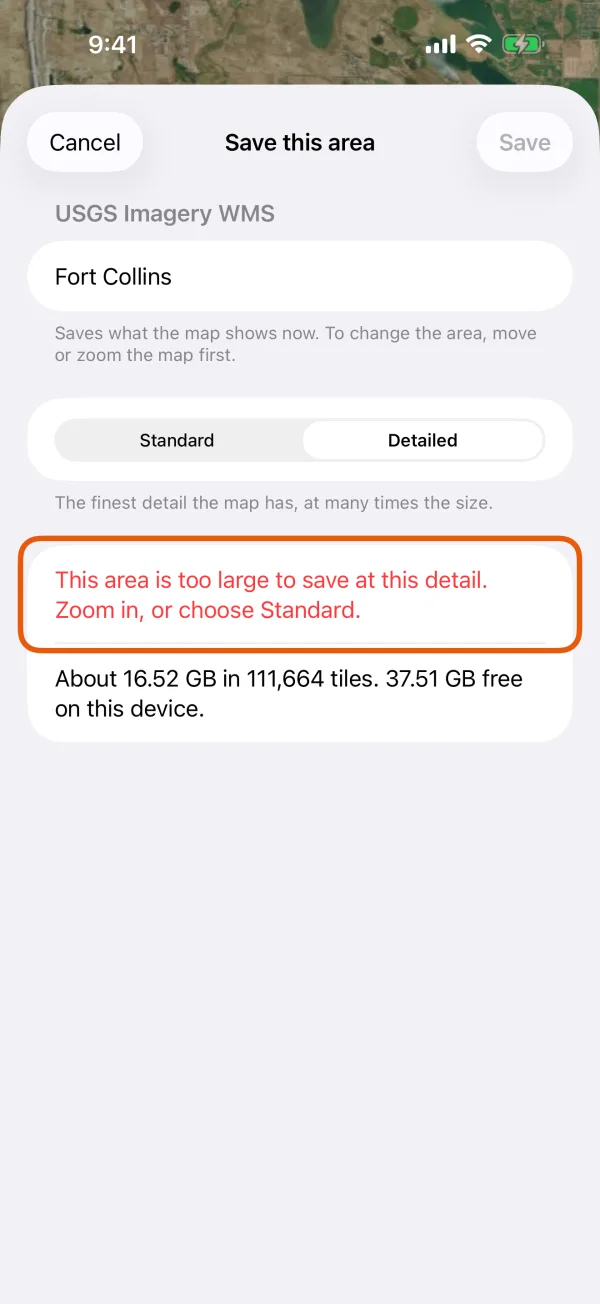
| This area is too large to save at this detail. Zoom in, or choose Standard. | Over Dipper Field's own limit of 50,000 tiles or 1 GB for one area. | Choose Standard, or zoom in. |
| There is not enough free space on this device. | Dipper Field always leaves 200 MB free. | Free up space, or save a smaller area. |
| The service did not answer | There's no connection, or the service is down. | Saving needs a connection. Try again online. |
| The service wants a sign-in or The service refused this key | The map's key is missing or no longer accepted. | Check the key with the provider. |
| This map has nothing in the middle of this area. It may not cover it. | The service sent no tile for the middle of the area. | A warning only: you can still save. Check that the map covers the place. |
Maps that are already offline
Save this area for offline use doesn't appear while a map file you imported is shown. The whole file is already on the device. See import GeoPDF, GeoTIFF and MBTiles.
What to use instead
- Public imagery and maps. Many county, state and federal agencies publish imagery and maps you can add and save, such as a county's aerial imagery service. Tap Add a map, or see add your own map service, then save an area.
- Map files. Import a GeoPDF, GeoTIFF or MBTiles file, such as USGS US Topo and FSTopo sheets or a drone orthophoto.
- Your own tiles. If your organization runs a map server, add its address. A map from a provider not on the lists above can be saved; whether its terms allow that is your responsibility, as adding it was.