 Dipper Field
The background is the map under your records. Every project starts on Google hybrid: satellite imagery with roads and place names. Each project remembers the background you choose on this device, so one job can stay on county imagery while another stays on a USGS topo map.
Switch the background
On the map, tap Map layers.
It's the top button on the right side of the map.
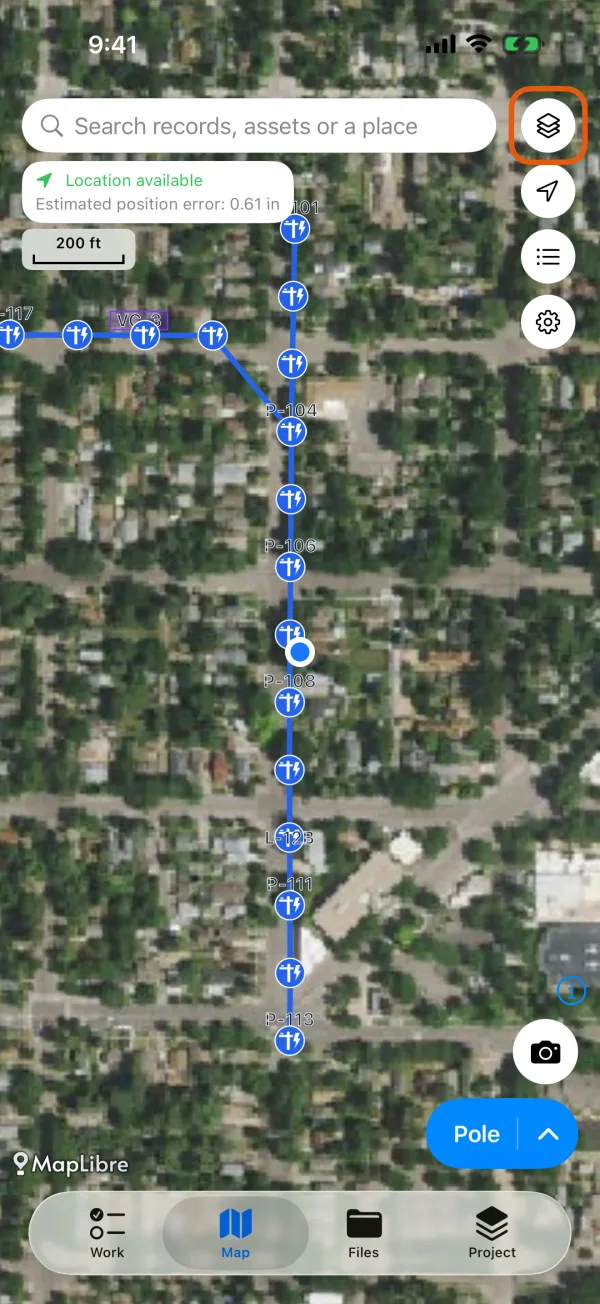
The Map layers button. 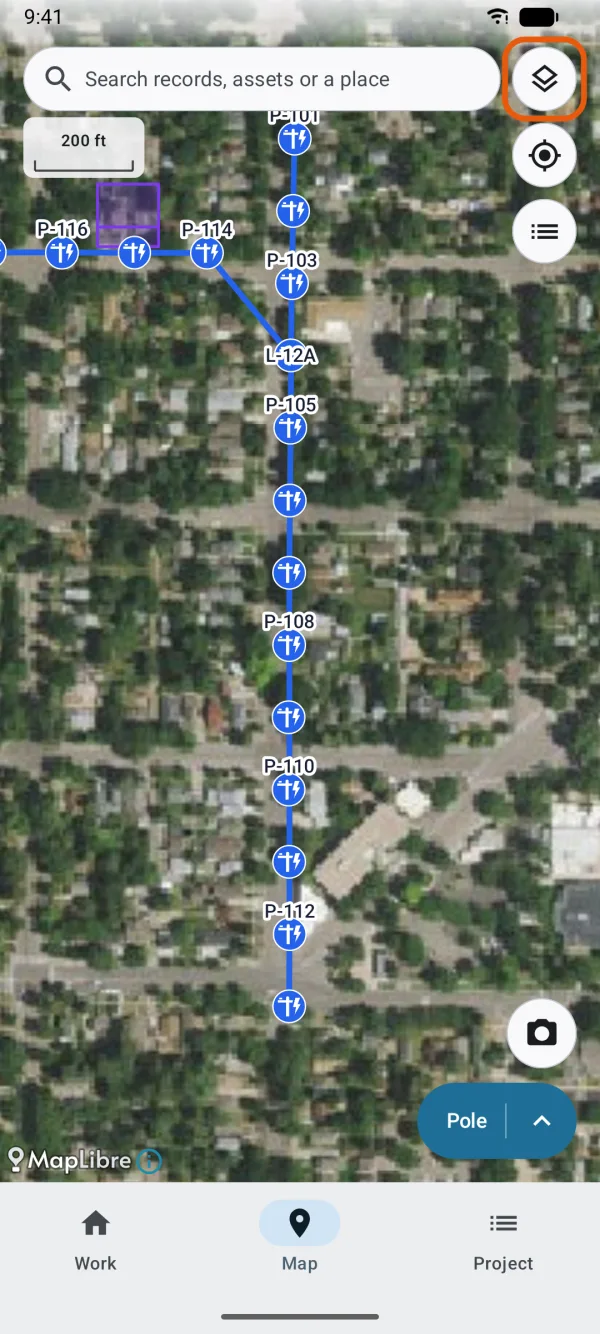
The Map layers button. Tap the background you want.
A check mark shows the one in use. Map layers closes and the map redraws on the new background. Records and reference layers stay where they are.
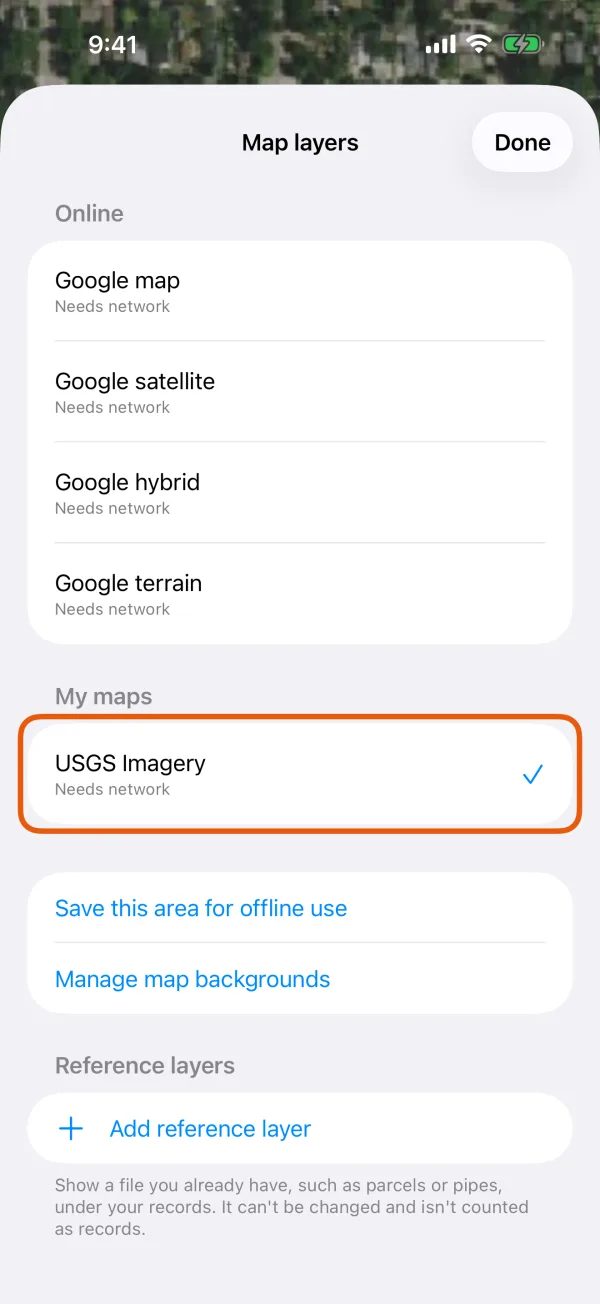
The background maps, grouped, with the current one checked. 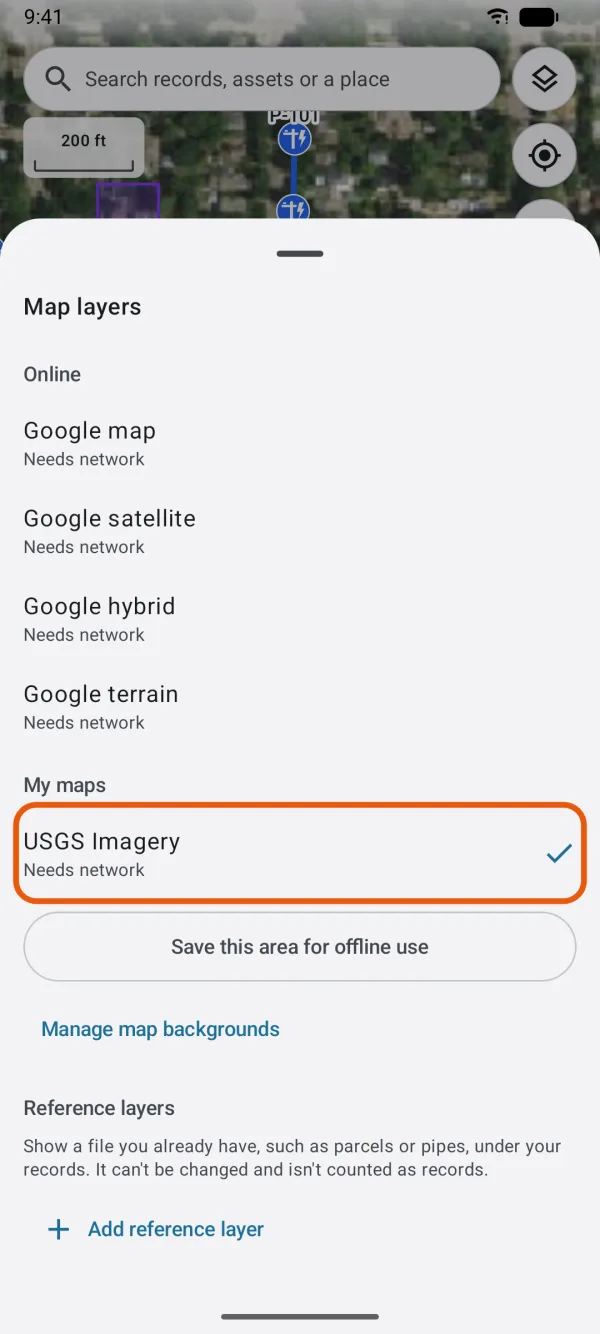
The background maps, grouped, with the current one checked.
What's in the list
The backgrounds are grouped by where they come from. A group appears only when it has something in it.
| Group | What's there | Needs a connection |
|---|---|---|
| Online | Google map, Google satellite (imagery only, no roads or labels), Google hybrid (imagery with roads and labels) and Google terrain. | Yes |
| Available offline here | Map files you imported, such as USGS topo maps, GeoTIFF orthophotos and MBTiles. | No |
| My maps | Map services you added yourself, such as county or state imagery. | Yes, except where you saved an area for offline use |
The line under a background tells you what it needs:
- Needs network: it loads from the internet as you move the map.
- Saved for offline use here: you saved an area of this map, or imported a map file, that covers the middle of the screen. It draws here without a connection.
- Not available right now: it can't be used at the moment, so it's grayed out.
Get more backgrounds
Below the list, Manage map backgrounds opens Map backgrounds, where you add and look after your own maps:
- Add your own map service: an XYZ, WMS, WMTS or ArcGIS address from your county, state, agency or company.
- Import a GeoPDF, GeoTIFF or MBTiles file, such as USGS US Topo and FSTopo sheets.
- Save an area for offline use of a map you added. While one of your maps is shown, Save this area for offline use appears in Map layers too.
Maps you add or import are kept on this device, not in the project. Every project on the device can use them, and a colleague adds them on their own phone.
When there's no connection
If the background needs a connection and the device has none, the map says No internet connection, so the map background may not load. You can keep recording. Your records, reference layers and your position still show, and recording works as usual.
To see a map again:
- Choose a map under Available offline here, or one of your maps that says Saved for offline use here.
- On a Google background, if an area you saved or a map file you imported covers where you are, the message offers Use [name], saved here. Tap it to switch.
If the map stays blank with a connection, see an online map is blank.
Reference layers
Under the backgrounds, Reference layers shows files such as parcels or pipes on top of the background and under your records. They don't change with the background. See reference layers.