 Dipper Field
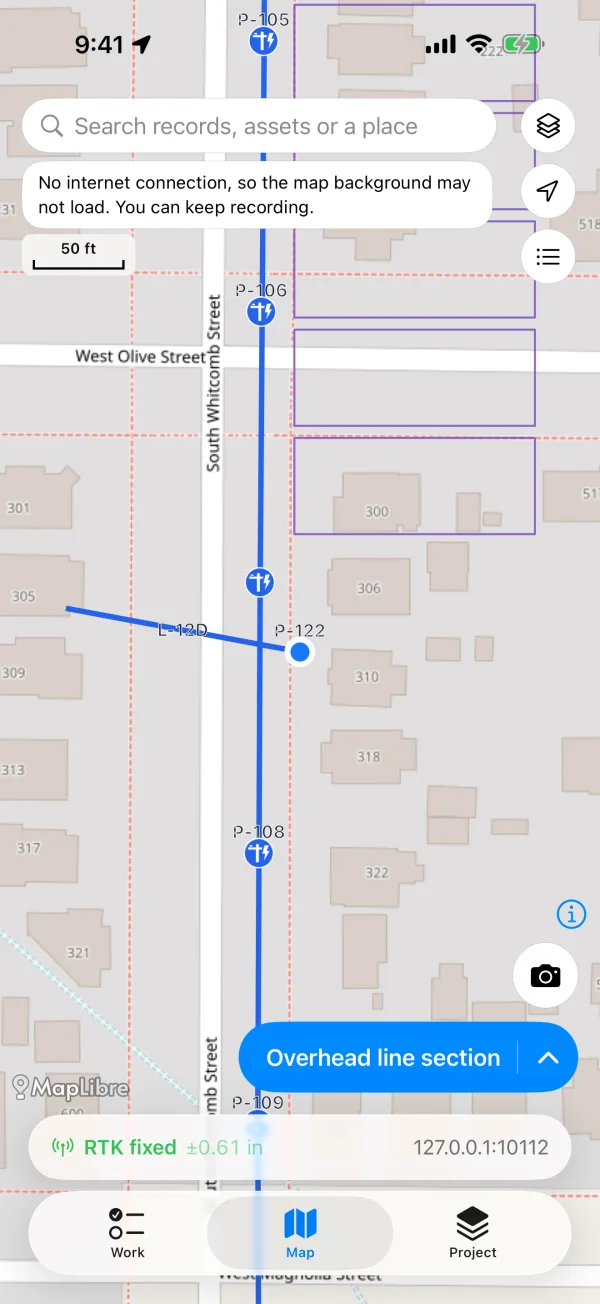
When the background can't draw, the map shows a plain light gray ground. Your records, reference layers and your position still show on it, and you can keep recording: the background is only a picture under them.
What the map is telling you
| It says | What it means |
|---|---|
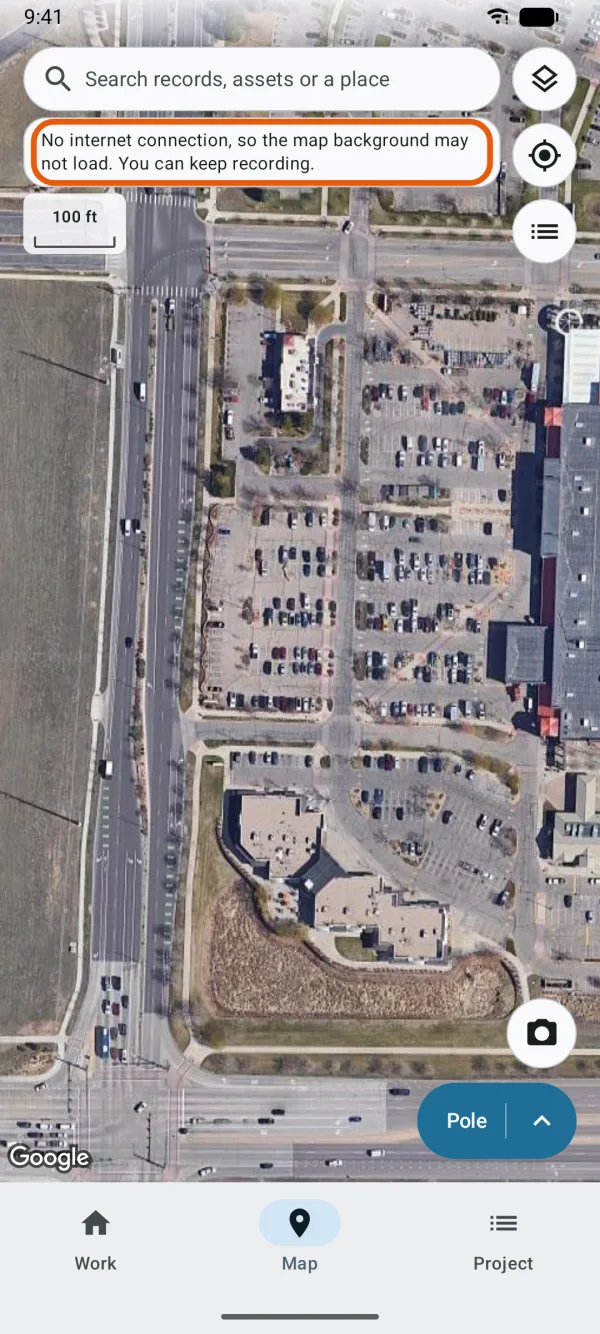
| No internet connection, so the map background may not load. You can keep recording. | The background loads from the internet, and the device has no connection. |
| The map background is loading slowly. You can keep recording. | The background has been loading for more than 8 seconds since the map stopped moving. The signal or the service is slow. |
| This map is unavailable, with Choose a map | The background chosen for this project can't be used on this device, for example because the map was removed from it. Dipper Field doesn't swap in another map on its own. Tap Choose a map and pick one. |
| Nothing, but the map is gray | The service answered with nothing to draw here. See a map you added is blank. |
No connection: use a map that's on the device
Tap Map layers.
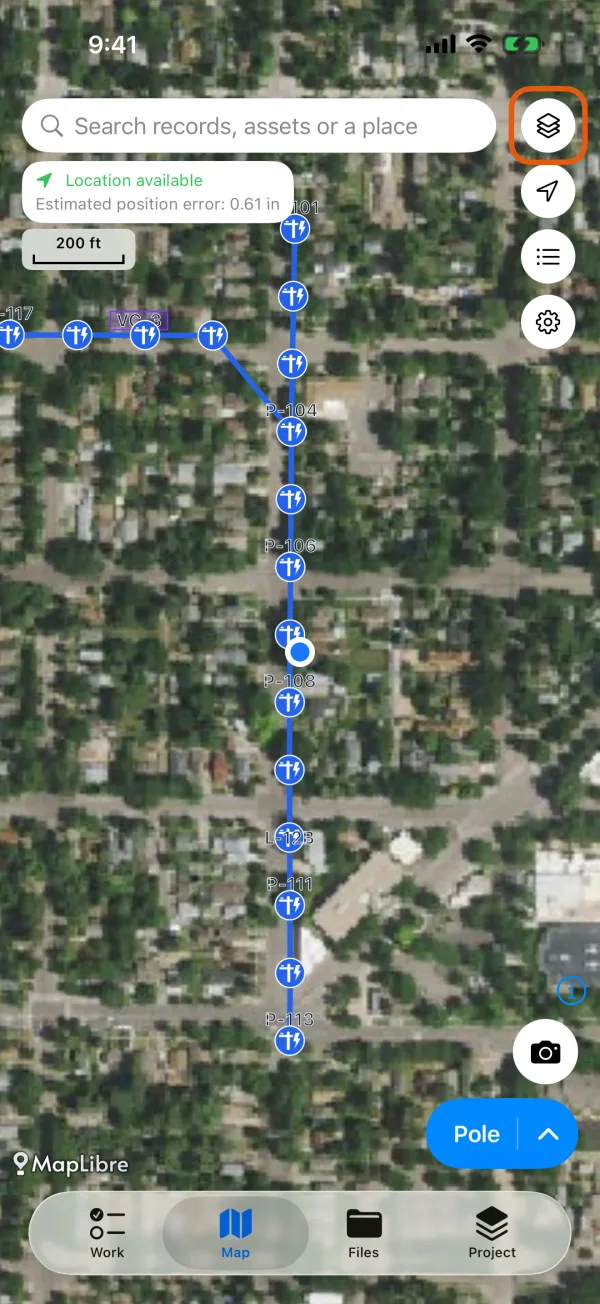
The Map layers button. 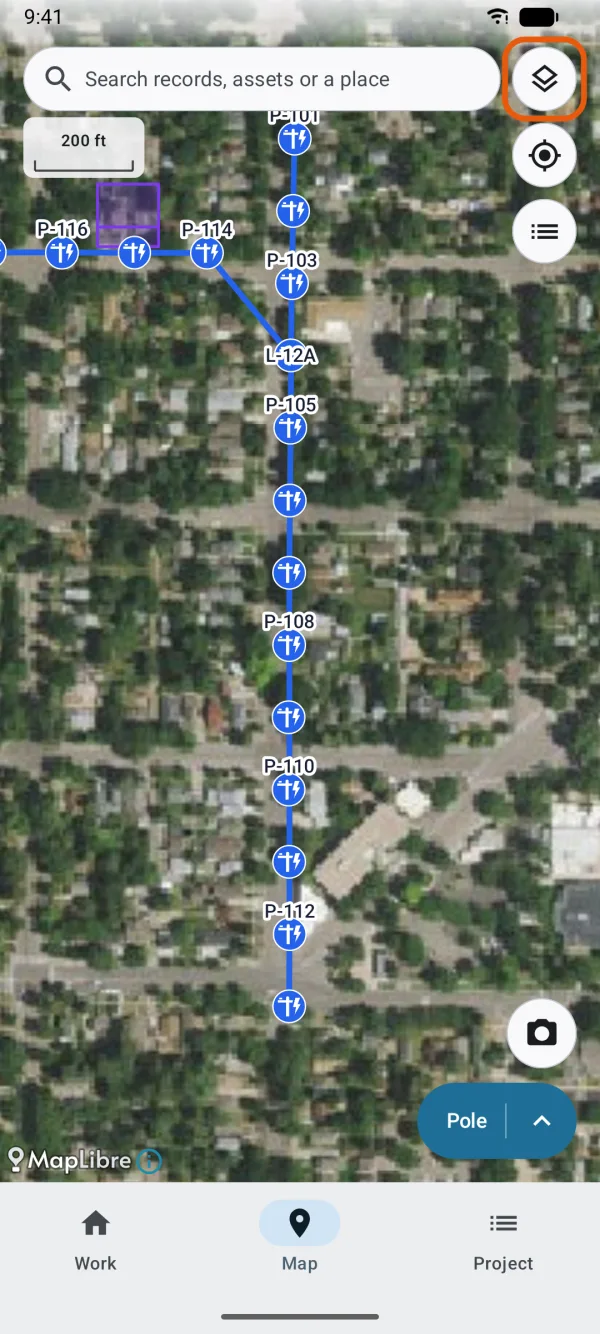
The Map layers button. Choose a map that draws offline.
Maps under Available offline here are map files you imported. A map under My maps that says Saved for offline use here has an area saved where the middle of the screen is.
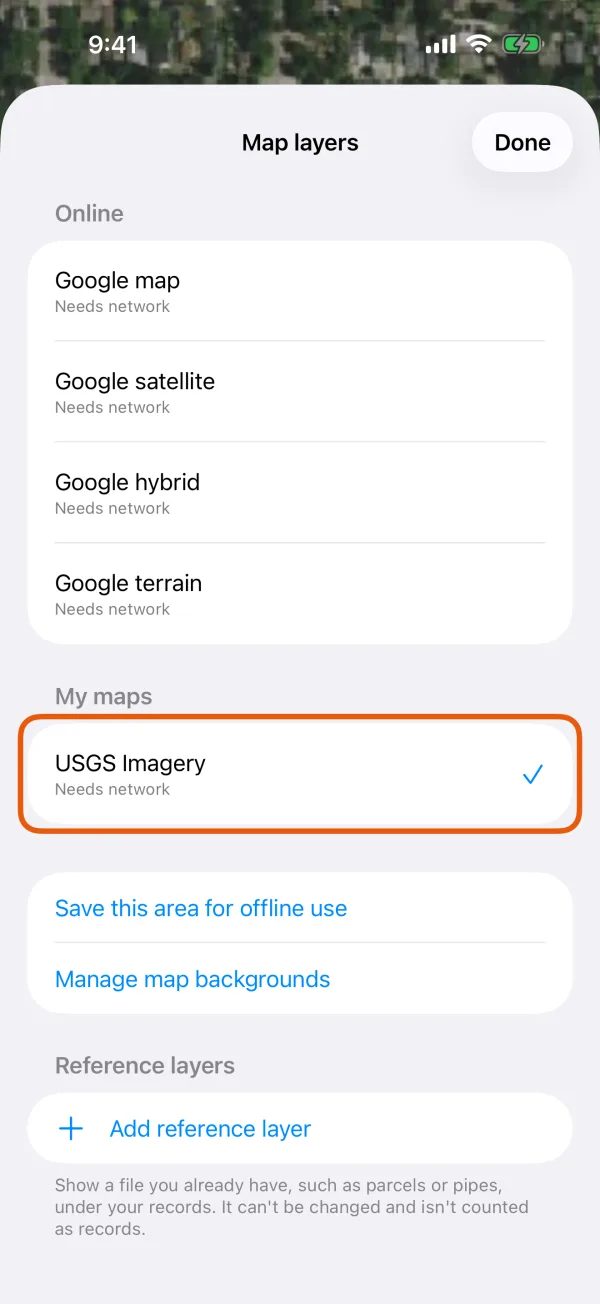
The background maps, grouped, with the current one checked. 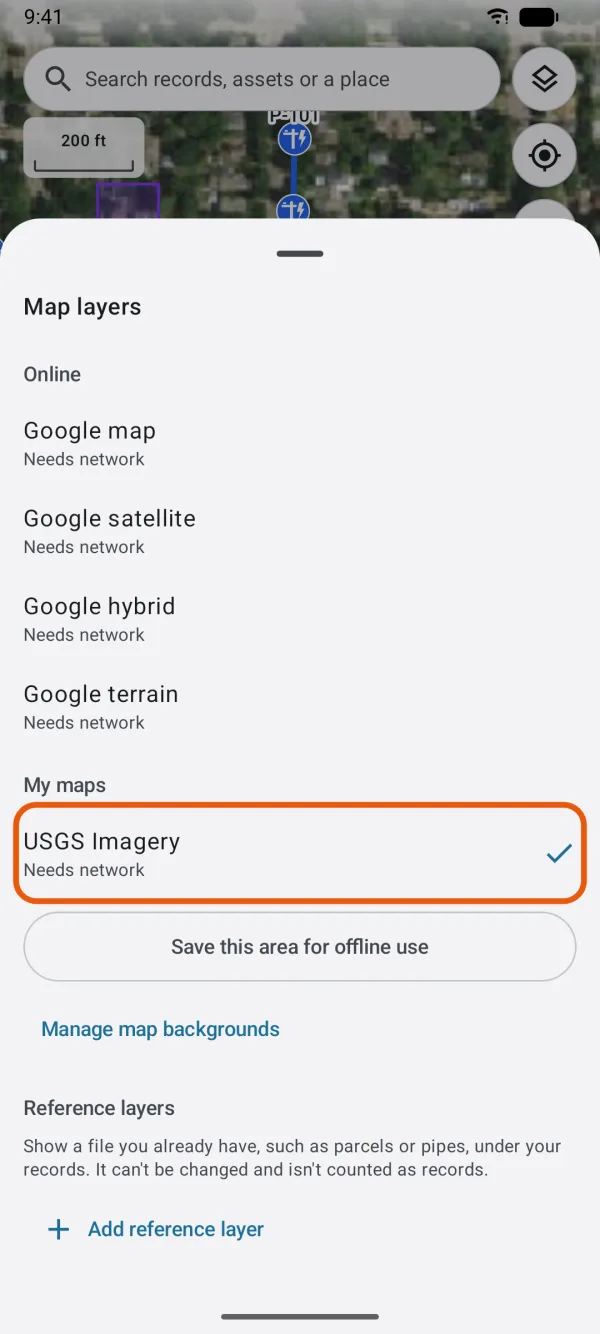
The background maps, grouped, with the current one checked.
On a Google background, when an area you saved or a map file you imported covers where you are, the message offers Use [name], saved here. Tap it to switch.
A saved area draws only inside the area you saved. Outside it, a map you added is gray again until there's a connection.
If nothing on the device covers this place, nothing can draw the background until you're back online. Before the next trip, save an area for offline use or import a map file, such as USGS US Topo and FSTopo sheets.
A map you added is blank
When a map under My maps stays gray with a good connection, ask the service what's wrong.
Tap Map layers, then Manage map backgrounds.
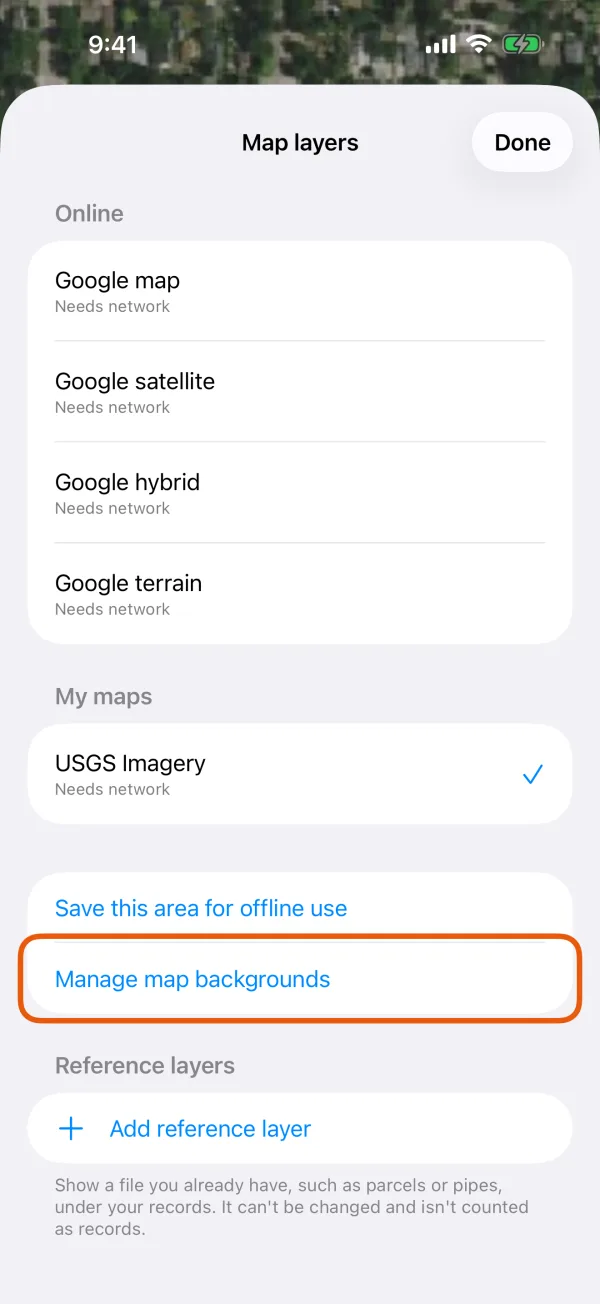
Map layers, with Manage map backgrounds marked. 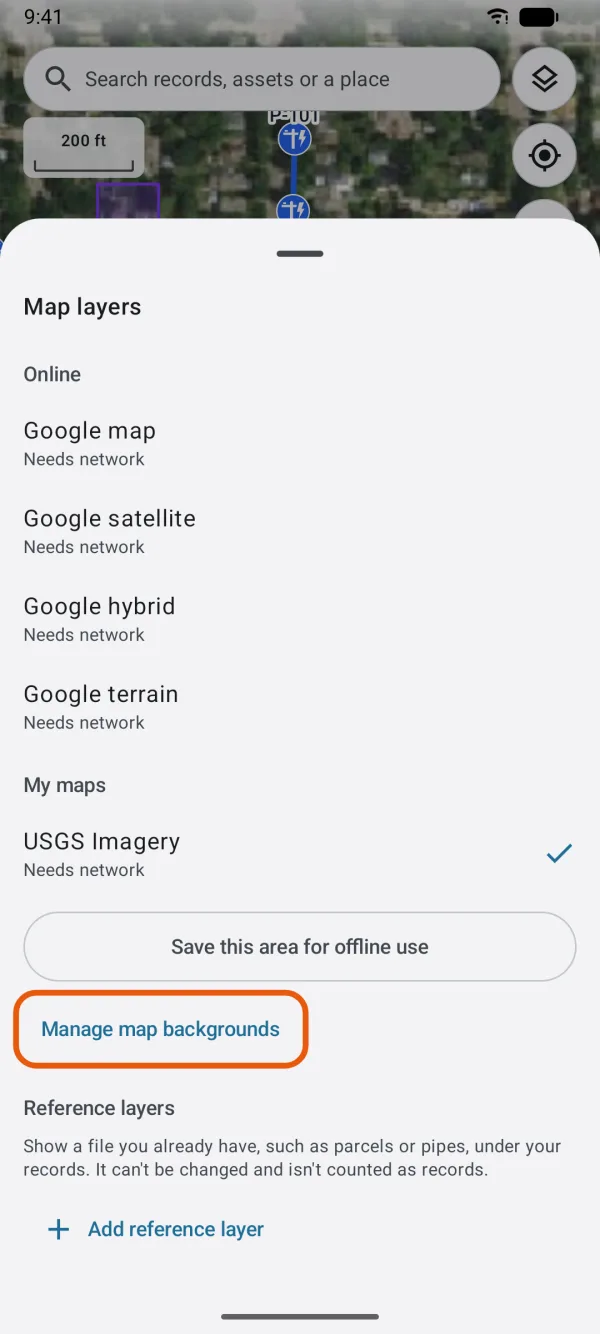
Map layers, with Manage map backgrounds marked. Under My maps, tap the map.
Under Availability, tap Check this map now.
Dipper Field asks the service for a tile and shows what it answered.
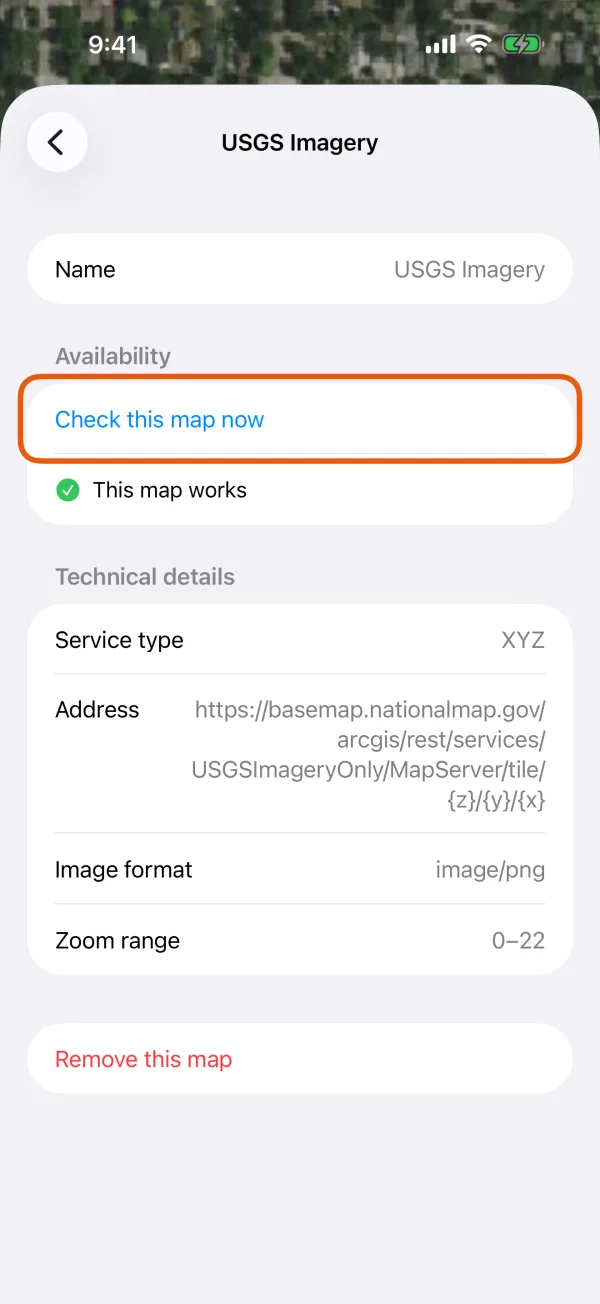
The map's page, with its answer under Availability. 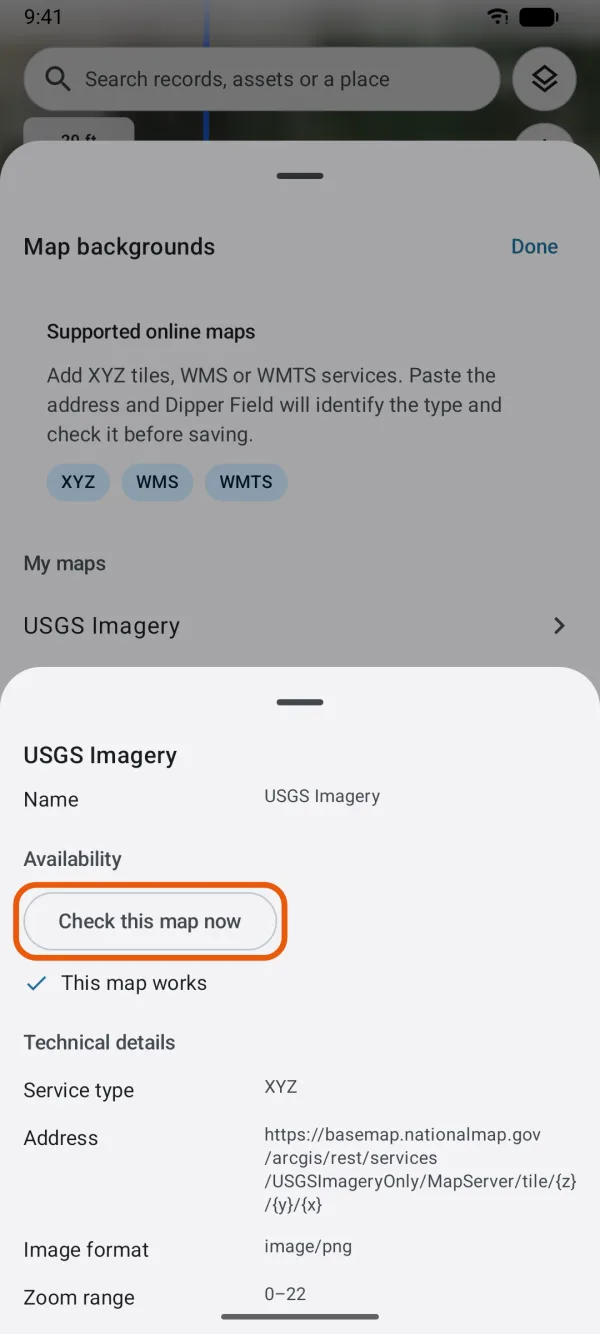
The map's page, with its answer under Availability.
| Answer | What to do |
|---|---|
| The service did not answer | Check the connection. If it's fine, the service may be down; try again later. |
| The service wants a sign-in | The map needs a key. Remove the map and add it again with the key. |
| The service refused this key | The key has expired or doesn't cover this map. Get a new key from the provider, then remove the map and add it again with it. |
| Nothing is served at this address | The service has nothing at the tile it was asked for. If the map draws where you work, carry on. If it doesn't, the address may have changed: ask the provider for the new one and add the map again. |
| The service reported a problem of its own | The service has a fault. Try again later, or ask the provider. |
| The service answered with something that is not a map image | The service sent an error instead of a map. Check the address with the provider. |
| This service is slow to answer | It works, but slowly. In the field it may take a while to fill in. |
| This map works | The service answers. If the map is still gray, see below. |
The check asks for one tile that covers a large part of the world, so This map works means the service answers, not that it has a picture of where you're looking. If it works but your area is still gray:
- You're outside the area the service covers. A county's imagery ends at the county line, for example. Move the map to where the service has data.
- You're zoomed out too far. Under Technical details, Zoom range shows the zoom levels the service offers. Further out than its lowest, the map draws nothing; zoom in. Closer in than its highest, the last tiles are enlarged.
Google backgrounds
The Google backgrounds need a connection and can't be saved for offline use. Where you work without a signal, use one of your own maps there instead; see why some maps can't be saved offline.
A map on the device is gray
An imported map file or a saved area draws only over the ground it covers. To see where that is, open Map backgrounds, tap it under Saved for offline use, then Show on map. The map moves there and outlines it.