 Dipper Field
Besides photos, a record can hold videos and voice notes. A video taken while you collect a record also keeps where you went while filming, and shows that path on the map.
Before you start
- Camera allowed for Dipper Field, and the microphone for sound and voice notes. See allow location, camera and Bluetooth.
- For the video's path: location allowed.
Record a video
In the record's form, under Media, tap Video.
While you walk a line or an area, the video button on the walk's card does the same without stopping the walk. See walk a line or area with GPS.
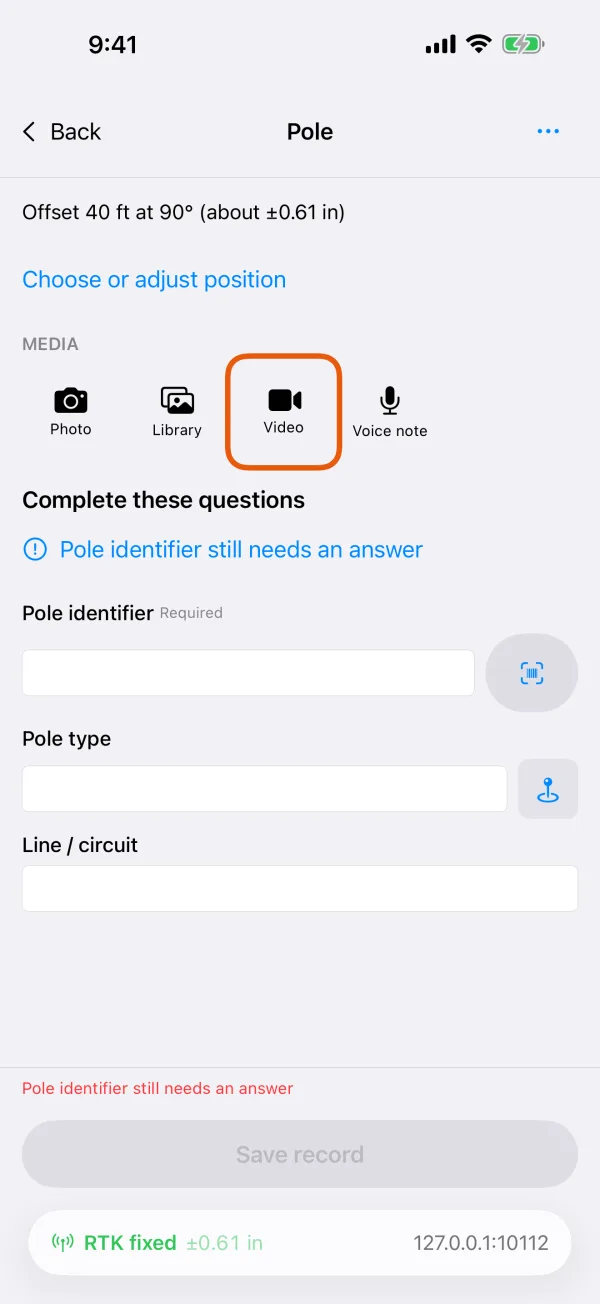
The Media row, with Video and Voice note. 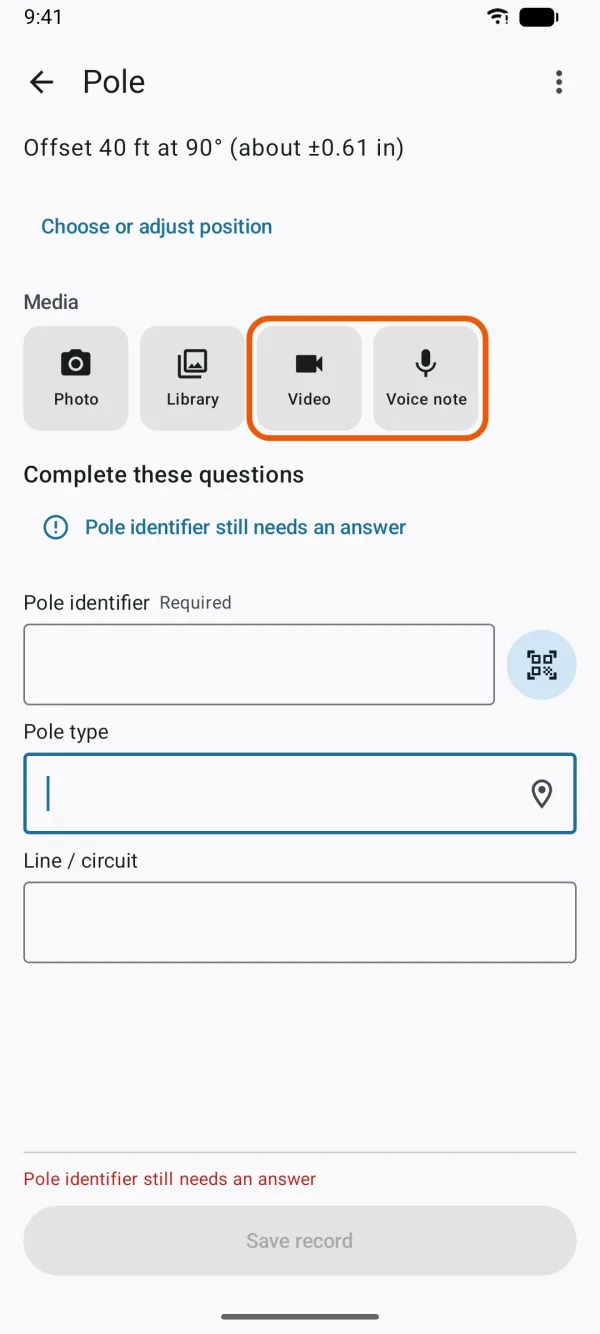
The Media row, with Video and Voice note. Check the quality and On-site info.
The button at the top cycles through Smaller files, Balanced and Higher detail. On-site info shows the date, time, place and weather in the viewfinder, as for photos.
Tap the record button to start, and again to stop.
While it records, the button is red, and the quality button, On-site info and the close button are unavailable.
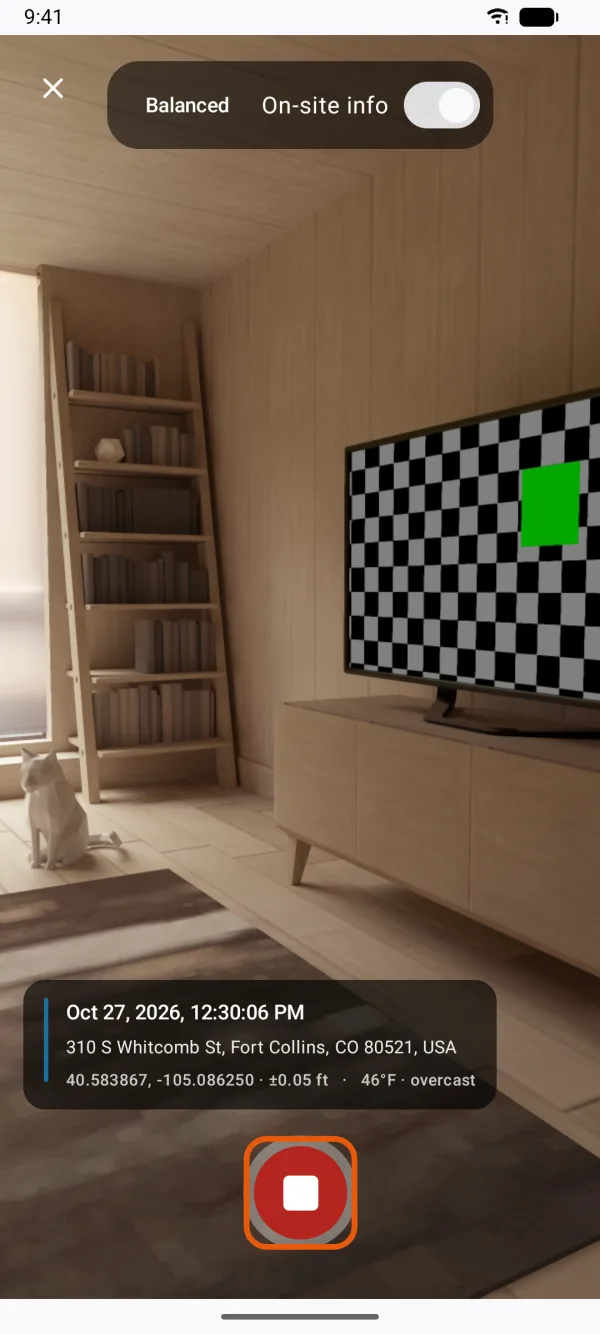
A video being recorded. Check the video under Media.
It's added as soon as you stop; there's no review step. Tap the ✕ on its thumbnail and confirm Remove to take it off again.
- Sound is recorded when the microphone is allowed. Without it, the video is recorded silently.
- On-site info isn't printed into a video the way it is on a photo; the video is kept as filmed.
- If the phone is short of space, the app says There is not enough free storage for this capture. Free up space or choose a lower quality.
The video's path on the map
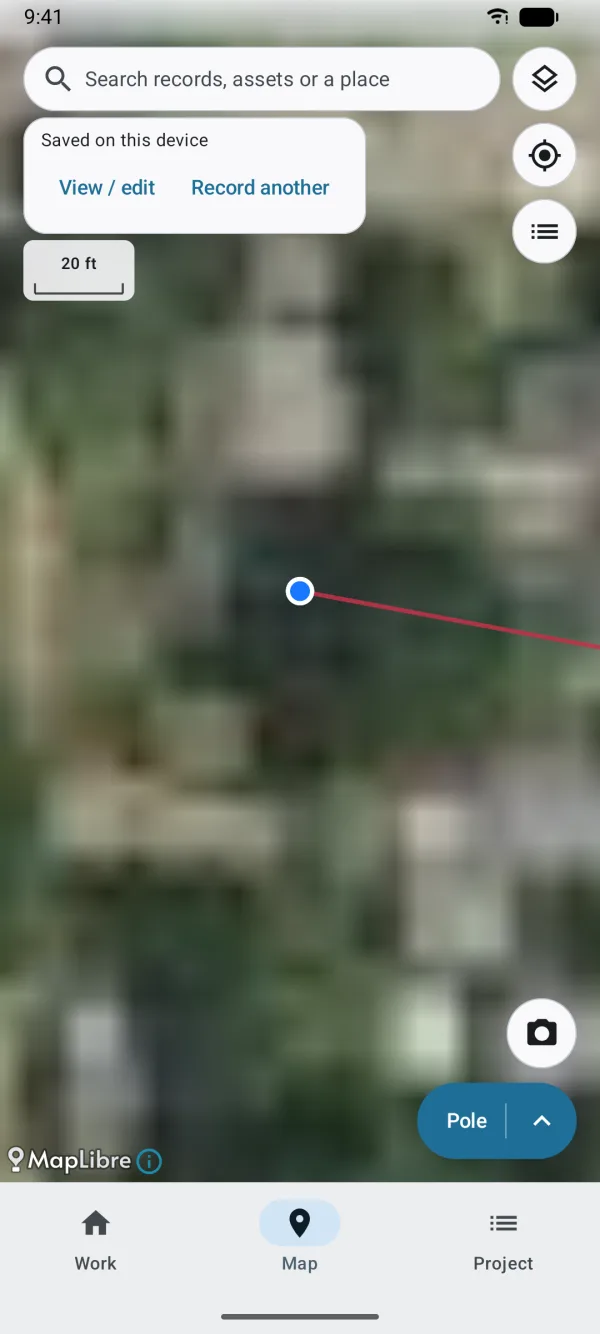
While you film for a new record, Dipper Field notes your position as you move. When you zoom in on the Map tab, the video shows as a marker, with the path you moved along drawn as a line. If you stood still, there's only the marker.
Tap the marker for a card that says Located video and Attached to this record, with the time it was taken.
Record a voice note
A voice note is quicker than typing when your hands are busy or gloved.
In the record's form, under Media, tap Voice note.
The first time, allow the microphone.
Speak.
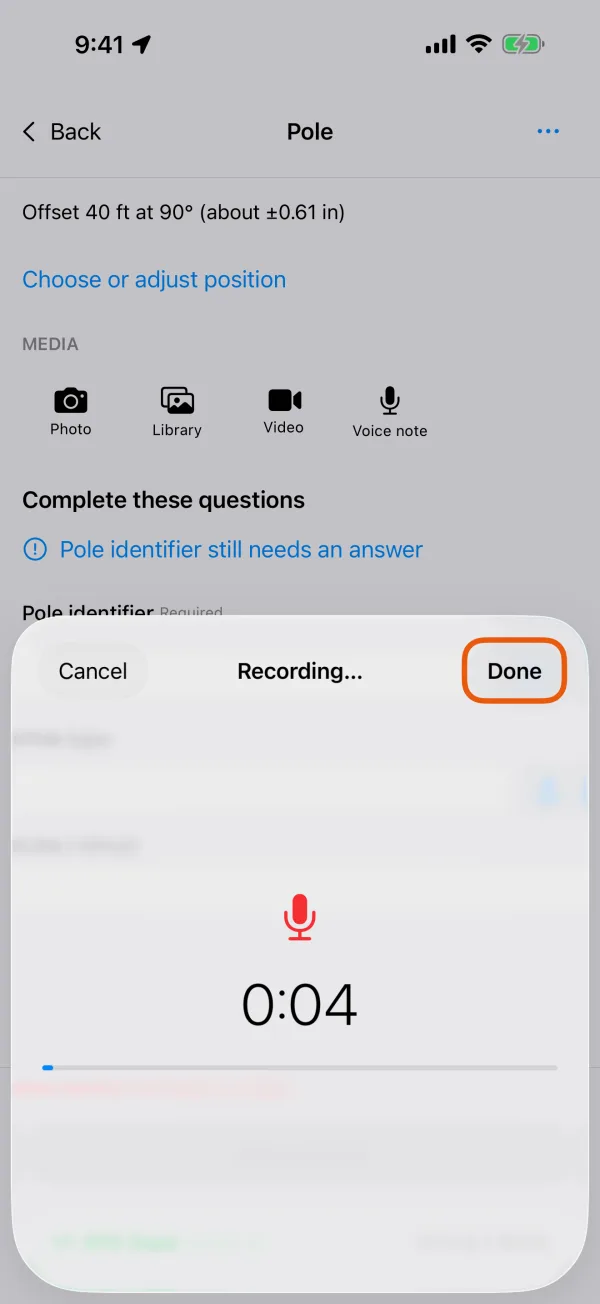
Recording starts at once. The sheet, Recording…, shows how long it has run and a bar that moves with the sound.
A voice note being recorded. 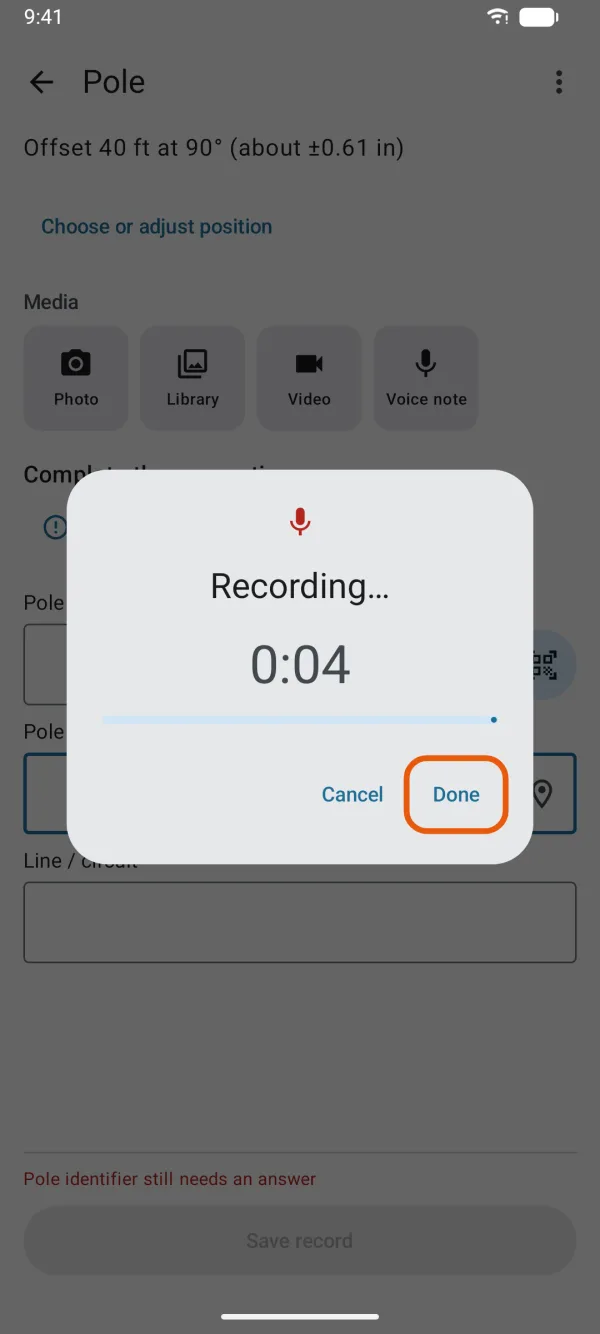
A voice note being recorded. Tap Done to keep it.
Cancel throws it away. So does closing the sheet any other way: swiping it down on iPhone, or tapping outside it or Back on Android.
A voice note can run for up to 10 minutes. At 10 minutes the recording stops and is kept.
The note joins the photos and videos under Media with its length, such as 0:42. Tap it to listen: it plays at once, with play and pause. Tap Done (on Android, Close) to stop.
If the microphone isn't allowed, the sheet says Allow microphone access in Settings to record voice notes.
Add to a saved record
Open the record.
Tap it on the map and tap Record details, or find it on the Work tab.
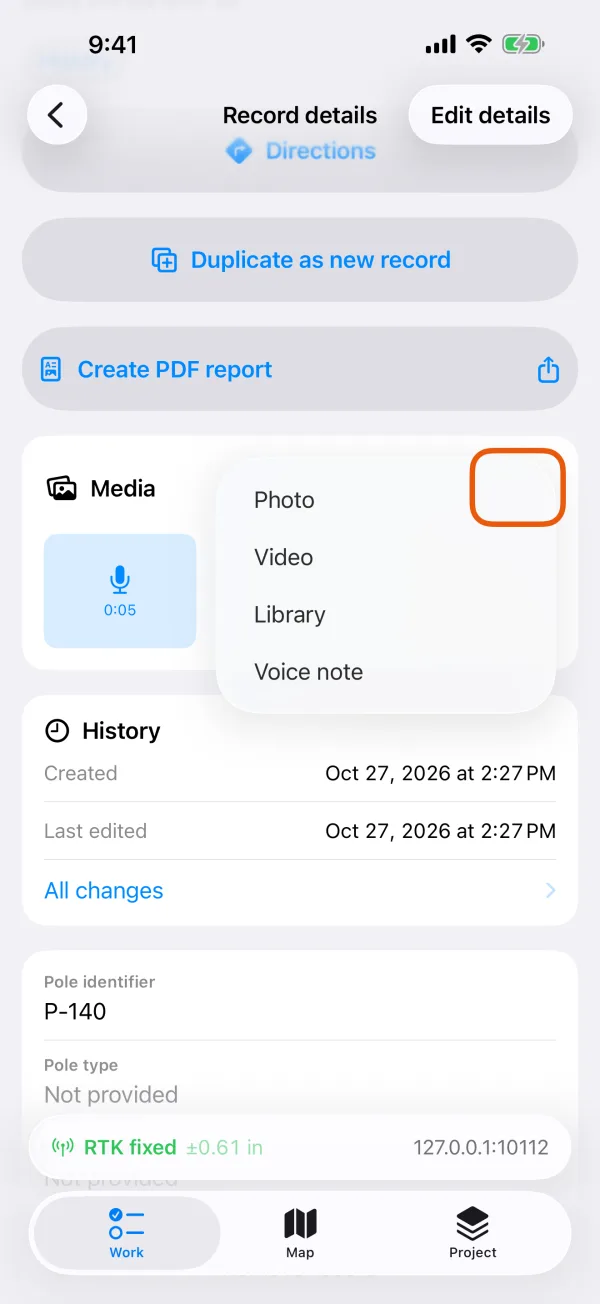
Under Media, tap Add and choose Video or Voice note.
Photo and Library are in the same menu. What you add is kept on the record straight away.
The Add menu under Media. 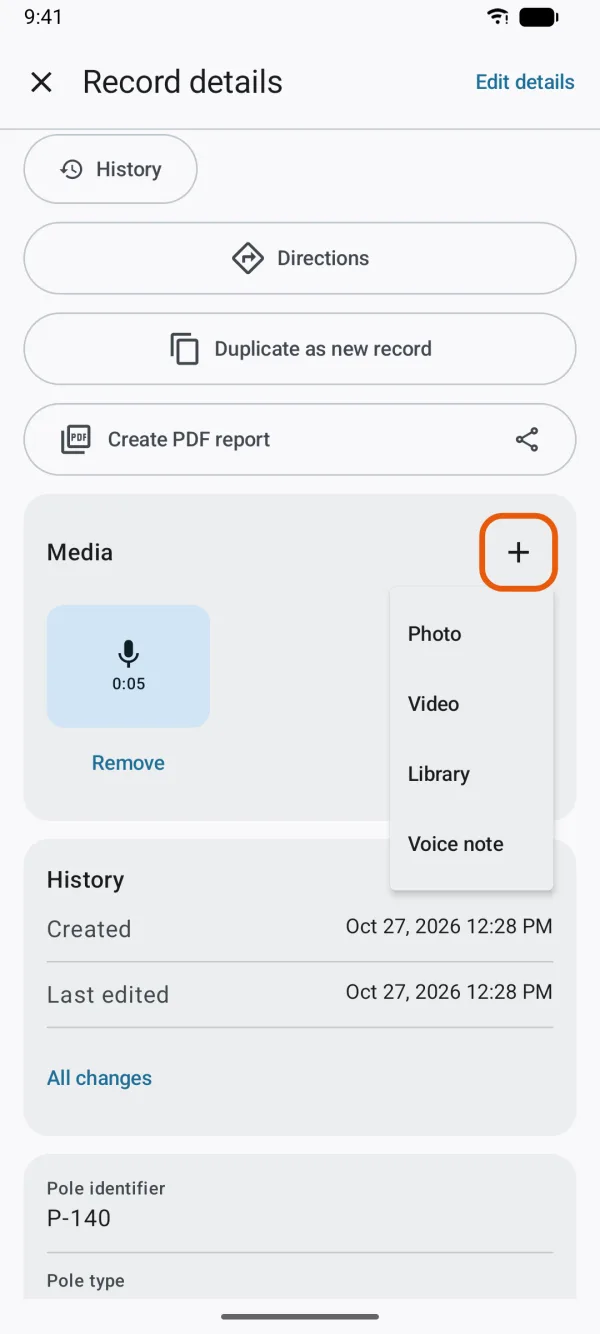
The Add menu under Media.
On a saved record, tap a video to play it or a voice note to listen. To remove one on iPhone, touch and hold it and choose Remove; on Android, tap Remove under it.
Good to know
- Video and Voice note stay available until a record has 32 attachments. They don't count toward the photos a record type asks for. See photos with on-site info and markup.
- Voice notes belong to the record itself. An inspection and its problems take photos and videos only.
- In a PDF report with media included, a voice note is listed with its length and date, since nobody can listen on paper. See make a PDF report.