 Dipper Field
This is a plain-language summary of the Dipper Field privacy policy, version 1.4, effective October 26, 2026. The policy itself is what applies.
In short
- No account. You don't sign up with us to use Dipper Field.
- No ads or tracking. The app has no advertising SDK, no cross-app tracker and no analytics run by us.
- Your projects stay on your device. Data leaves it only for a feature or destination you choose, or for the map requests needed to show a map.
- We don't receive your work. The app doesn't send Insight Spatial your project content, precise location, media, scanned codes, contacts, advertising identifiers or app-usage analytics. We don't sell information.
Where your data is kept
Your projects, with their records, shapes, answers, photos, videos, drafts and reports, are kept in Dipper Field's protected storage on the device. Nothing is uploaded to us. Your settings, such as language, units and the receivers you've connected, are kept on the device too.
- Passwords and sign-ins. The password of an NTRIP correction service, and the access tokens of cloud drives you connect, are kept in the iOS Keychain or Android's protected credential storage.
- Your name. If you enter Your name in Settings, it's saved with the records you collect or change, so a project shows who did the work. It stays in the project files and reports that include those records, and anyone you share them with can see it. It's optional; without it, records aren't attributed to anyone.
- Identifiers in project files. Project files also hold random identifiers that Dipper Field creates for each copy of a project and each name used. They don't come from your device, an account or advertising identifiers.
- Device backups. Android cloud backup is turned off for Dipper Field. On iPhone and iPad, device or iCloud backups may include the app's data, depending on your Apple backup settings.
Keeping your data lawful is up to you: decide whether it holds personal, confidential or employer-controlled information, and collect it accordingly.
What leaves the device, and when
| When you | What is sent | Who receives it |
|---|---|---|
| Show a Google map | Your device's IP address, app and SDK information, Dipper Field's API credential and the map requests | Google, under Google's privacy policy and the Google Maps Platform terms |
| Have the Google Maps SDK in the app, whichever map you show | Crash and performance reports, map use such as panning and zooming, and a pseudonymous SDK identifier | Google, to run and improve its services |
| Scan a code on Android | Device and app details, performance figures and a per-installation identifier; the images stay on the device | Google, through the code scanner in Google Play services |
| Show a map service you added | The tiles or area, zoom and layer requested, and any credential you set up | The service's operator |
| Search for a place, or look up an address | The search, coordinates or address | Apple's maps and geocoding on iPhone and iPad; Android's system geocoder, supplied by Google or your device's maker |
| Add weather to a photo or video | Coordinates and the forecast details requested. A result is reused for about 15 minutes. | Open-Meteo |
| Need a country's coordinate and height data | Which files are requested | The PROJ project's server, cdn.proj.org, hosted by Amazon Web Services |
| Connect Google Drive, OneDrive or Dropbox | Your account's name, email address and identifier, an access token, folder listings, file details, and the files you upload or download | The provider, directly from your device |
| Connect S3-compatible storage | The access keys you enter, folder listings, file details, and the files you upload or download | The storage service at the address you enter, directly from your device |
| Use NTRIP corrections | The user name and password you entered, and the receiver's position about every five seconds while corrections stream | The correction service's operator |
| Export, share, email or AirDrop a file | The items you select. Dipper Field can't control copies after you send them. | The app, person or place you choose |
| Send a crash report or email support | The report, and what you write and attach | Insight Spatial support |
The online services above also receive normal network information, such as your IP address, and apply their own terms and privacy rules.
Good to know:
- Google maps. Using Google map content in Dipper Field means you also agree to the Google Maps/Google Earth Additional Terms.
- Coordinate and height data. Dipper Field downloads a country's public files when a coordinate or height system you choose needs them, and for the country your device is in. The app tells which country that is on the device, from country outlines built into it; your position isn't sent anywhere for this. To stop automatic downloads, open Settings, tap Coordinate and height data and turn off Download automatically. See coordinate and height data downloads.
- Google Drive. Dipper Field can reach only the folders and files it creates there, or that you open with it, not the rest of your Drive.
- NTRIP. With Connect automatically on, as it is at first, corrections start whenever the receiver connects. Unless you turn on Use encrypted connection and the service supports it, the connection, including the user name, password and position, isn't encrypted. A receiver that fetches corrections over its own internet connection contacts the service itself, without Dipper Field.
- Receivers. Positions and satellite information from a receiver, and the corrections sent back to it, stay between your device and the receiver.
- Turning things off. Turning off a map layer, or an optional weather or address feature such as On-site info on photos, stops new requests for it. A background map still needs requests to its provider while it's shown.
Permissions
Dipper Field asks for a permission only when a feature needs it, and you can take it back in iOS or Android Settings. Features that need it then stop working, and your projects stay available. See allow location, camera and Bluetooth.
- Location while using the app: the map, shapes, video tracks, photo positions, and nearby addresses or weather. While you walk a line or an area, recording carries on with the screen locked: iOS shows its location indicator, and Android shows a notification. Dipper Field never asks for Always or background location.
- Camera: photos, videos, and scanning codes or text.
- Microphone: voice notes and sound with video.
- Photos and files: only the items you choose in the system pickers.
- Bluetooth (on Android, Nearby devices): finding and connecting your receiver.
- Local network (iPhone and iPad): reaching a receiver or correction service on your Wi-Fi.
- Notifications (Android): progress of a map download or a walk being recorded.
Crash reports
If Dipper Field closes unexpectedly, it writes a report on the device: the time, the app and system versions, the device model, the error message and where in the app's code it failed. It keeps the five most recent.
The app asks once whether to send it. Send report opens an email to support with the report attached, and you can read it before you send. Until you send or delete them, reports stay in Settings, under About: Send crash reports or Delete crash reports. A report describes where the app failed, not your project, though an error message can occasionally include a file name or value the app was handling. Before writing a report, the app removes user names, passwords, tokens and the parameters of web addresses from it, and shortens any coordinates to about a kilometre. See before you contact support.
Separately, Apple and Google may give developers crash and performance data from devices whose owners chose to share it in the device's settings. That comes through the platform, not from Dipper Field.
Delete your data
Because there's no account and we don't receive your project database, we can't retrieve, correct or delete what's on your device for you. You can:
- Delete a project. It removes the project from the device. See the steps below.
- Delete records. A deleted record stays in its project under Deleted records on the Project tab, where Restore brings it back. It's removed from the device with the project.
- Delete drafts. Deleted drafts and their photos stay in the project under Deleted drafts until you tap Delete permanently.
- Delete replaced copies. On the Projects screen, open Replaced copies and tap Delete on a copy.
- Delete files. In Data Files, tap a file and tap Delete.
- Disconnect a cloud drive. In Data Files, touch and hold the location and tap Disconnect. With Google Drive and Dropbox, this also withdraws Dipper Field's access to the account, unless another location uses it. For OneDrive, remove Dipper Field in your Microsoft account settings. Neither deletes files already copied to either place. See connect cloud storage.
- Remove an NTRIP service. Removing it in NTRIP Settings also deletes its saved password from the device.
- Delete crash reports. In Settings, under About, tap Delete crash reports.
- Remove everything. Uninstalling the app, or clearing its data on Android, removes all its data from the device, including the only copy of any project you haven't backed up.
Files you've exported to another app, a computer, removable storage or a cloud drive must be deleted there.
Delete a project
iPhone and iPad
On the Projects screen, swipe left on the project and tap Delete Project.
You can also touch and hold the project.
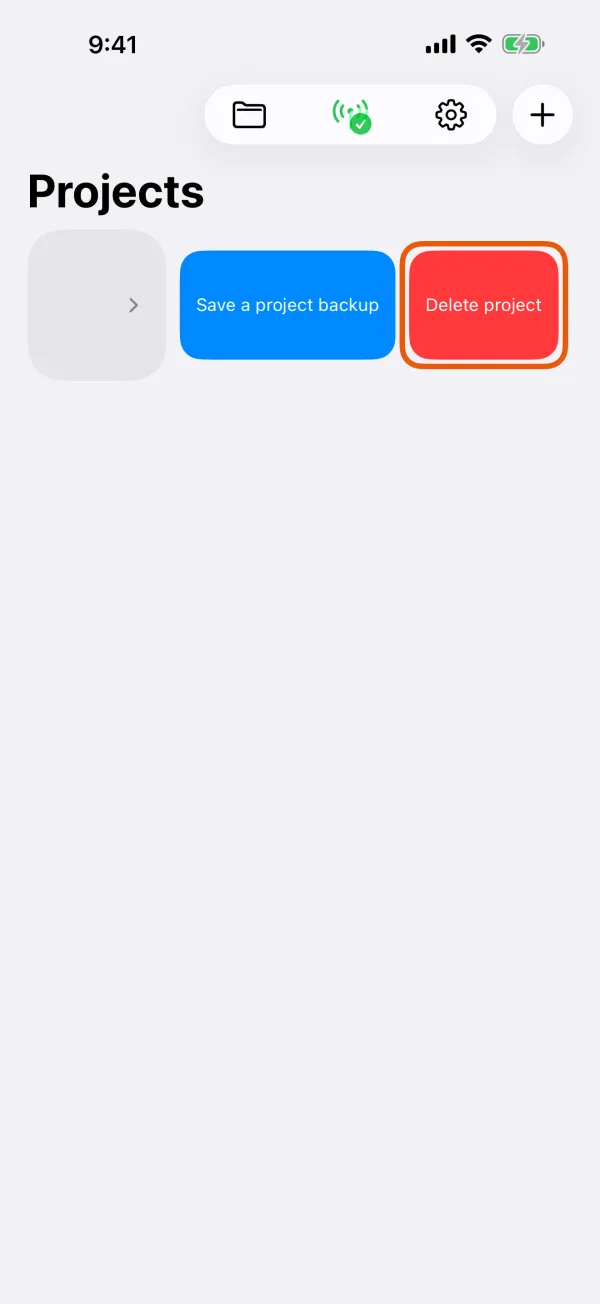
The Projects screen, with a project's Delete Project action. Choose whether to keep a backup.
With Export a backup first on, the project is deleted only after the backup has been saved or shared.
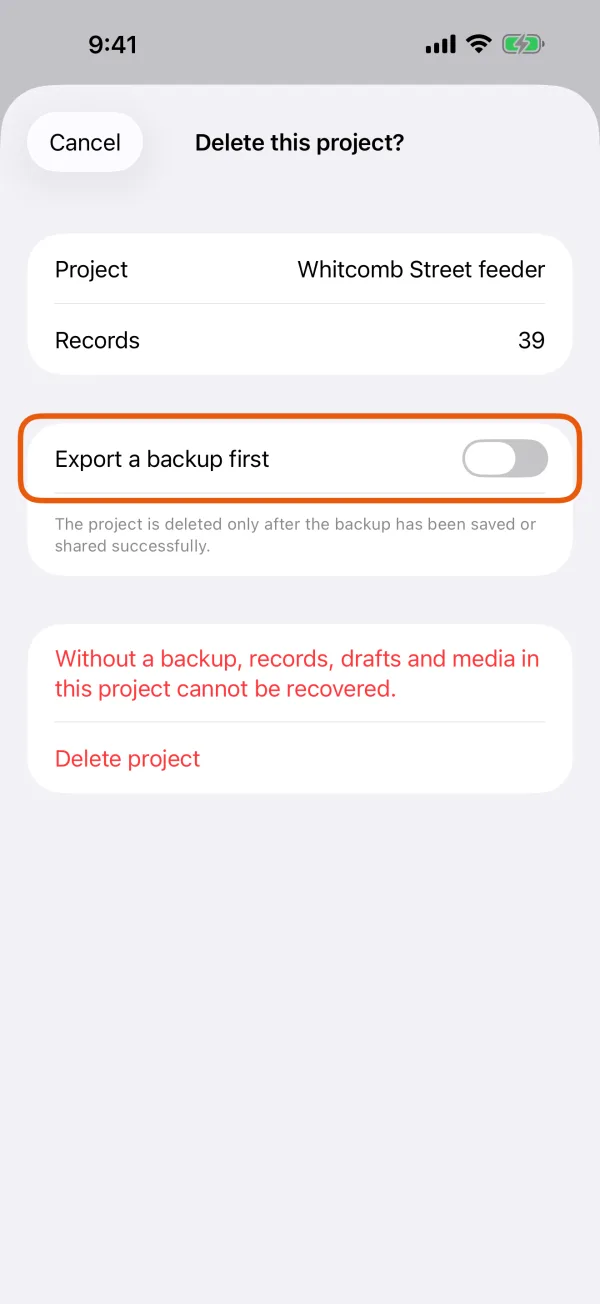
The confirmation, with Export a backup first above Delete Project. Tap Delete Project.
Without a backup, the project's records, drafts and media can't be recovered.
Android
On the Projects screen, tap ⋮ beside the project and tap Delete project.
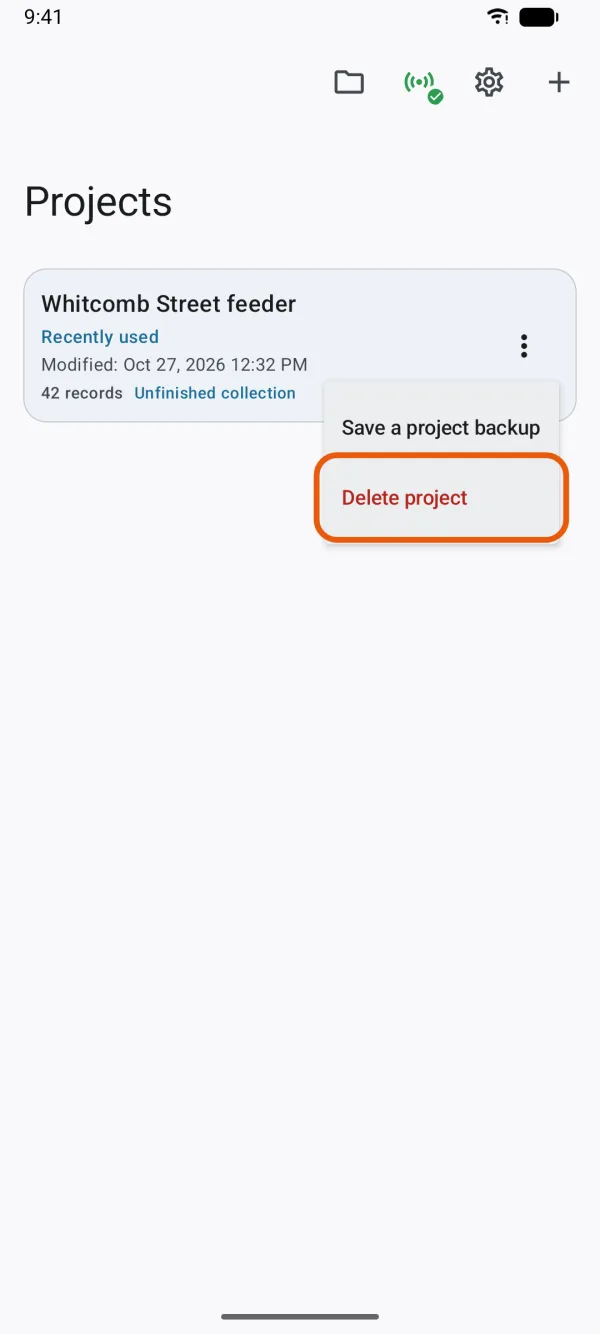
The Projects screen, with a project's menu open on Delete project. Choose whether to keep a backup.
With Export a backup first on, the project is deleted only after the backup has been saved or shared.
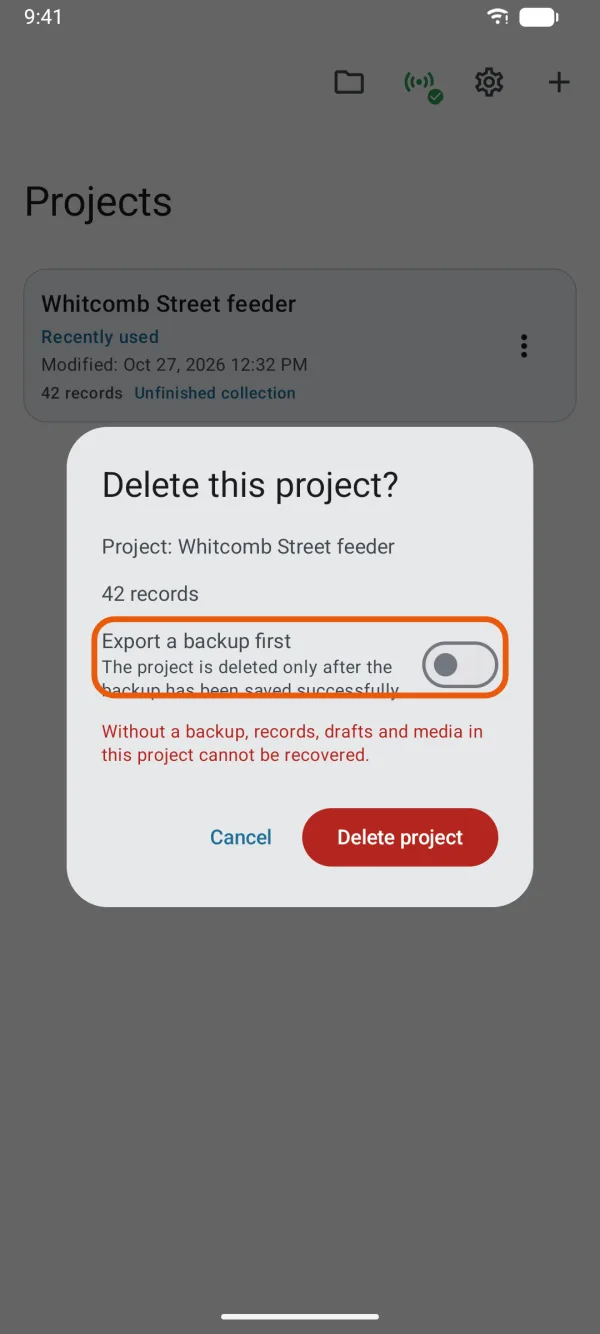
The confirmation, with Export a backup first above Delete project. Tap Delete project.
Without a backup, the project's records, drafts and media can't be recovered.
Your privacy rights
For personal information Insight Spatial holds, mainly support emails, you can ask for a copy, a correction or deletion, or object to how it's used. We keep support emails and crash reports you send for up to three years after our last exchange. To make a request, email [email protected] with the subject Dipper Field Privacy Request, and say which country or region you're in. We reply within a month. If you're not satisfied, you can also complain to your data protection authority; the policy lists them. Please don't send sensitive project files unless support asks for a specific item.
Read the full privacy policy.