 Dipper Field
A connected location appears in Data Files as a tab beside On Device. You can send exports and backups straight to it, and bring files from it into the app. Dipper Field talks to the service directly from your device.
Before you start
- An account with the service, and an internet connection.
- For S3-compatible storage: the service address, region, bucket, and an access key ID and secret access key.
- Up to 3 locations can be connected at a time. Disconnect one to add another.
Open Data Files.
Tap the folder button, labeled Data Files, on the Projects screen, or Data Files at the bottom of the Project tab.
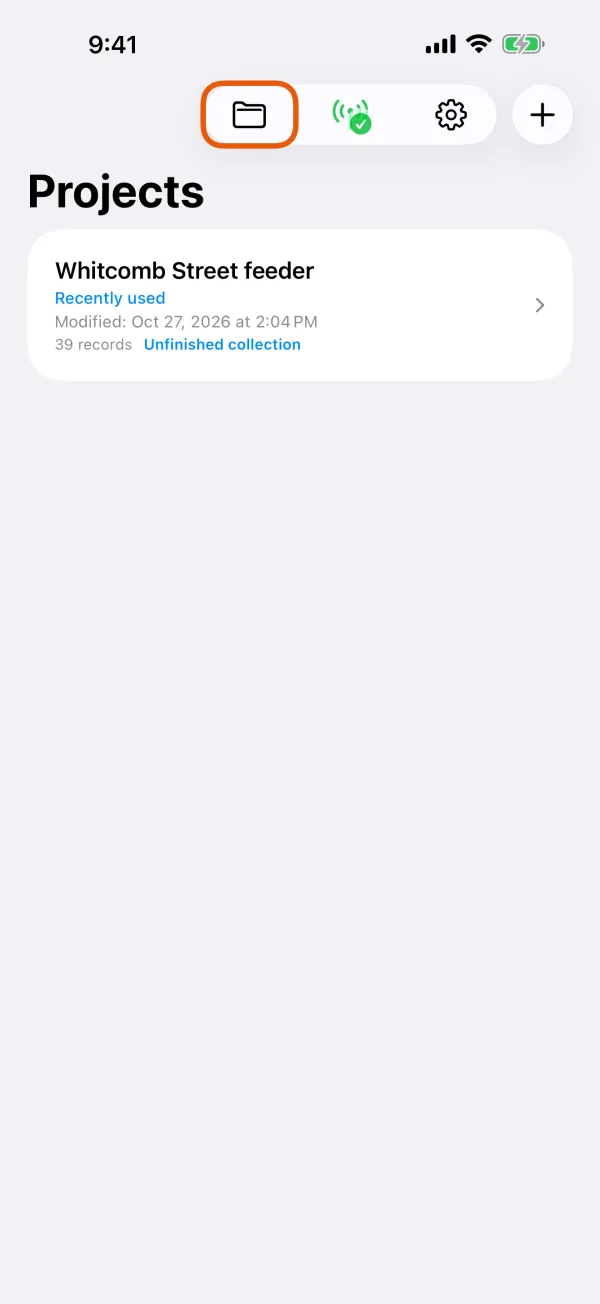
The Projects screen, with the Data Files button marked. 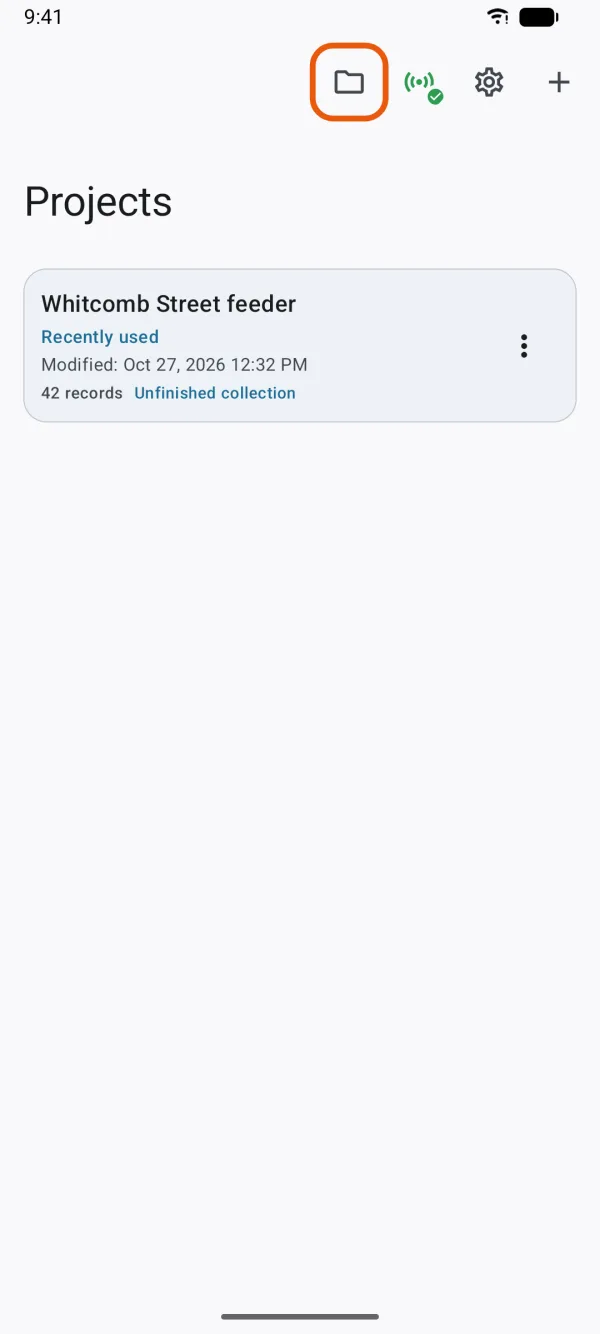
The Projects screen, with the Data Files button marked. Tap + beside the tabs and choose the kind of location.
Google Drive, OneDrive, Dropbox, Network folder or S3-compatible storage.
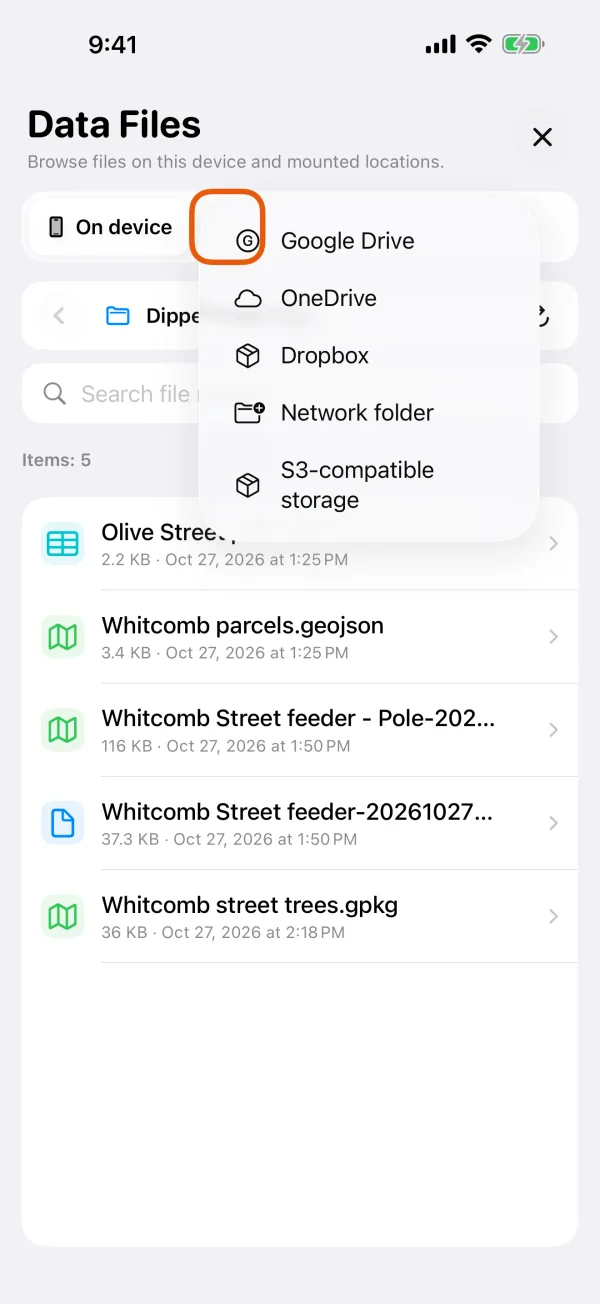
The + menu with the kinds of location. 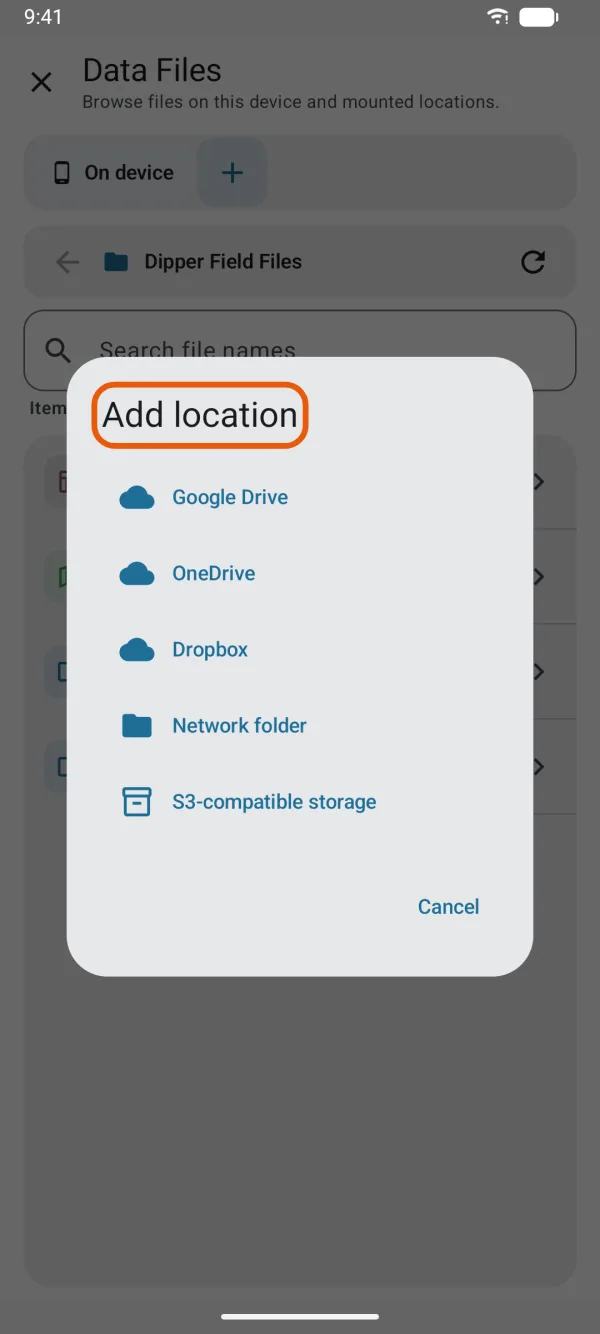
The + menu with the kinds of location. Sign in and allow access.
For Google Drive on Android, choose your Google account. Otherwise the service's own sign-in page opens. Dipper Field never sees your password.
Choose a working folder.
For OneDrive and Dropbox, Choose working folder opens. Open a folder and tap Use this folder, or make one with the new folder button. Google Drive needs no choice: it starts in a Dipper Field folder at the top of My Drive. See Google Drive.
Browse the new tab.
The location's tab opens, with its Working folder shown above the files.
The working folder is where Dipper Field saves exports and uploads, and where browsing starts. Change folder… above the files picks another. Uploads waiting to start go to the new folder, uploads already started keep theirs, and existing files aren't moved. Browse from root in the folder picker starts at the top of the service, and choosing the top asks Use the root as your working folder? first.
If you cancel the folder choice for a new location, the location isn't added.
Google Drive
Dipper Field asks Google only for the folders and files it creates, or that you choose to open with it, not the rest of your Drive. So a new connection starts in a Dipper Field folder at the top of My Drive, which the app finds or makes. Files from elsewhere in your Drive don't show in Data Files. To use one, choose it from the Google Drive app when you import.
Network folder
Network folder opens the system's folder picker: the Files picker on iPhone, or Android's folder picker. Choose any folder it can reach. That folder becomes the location. Change folder… opens the picker again.
S3-compatible storage
Add S3 Location asks for:
| Field | What to enter |
|---|---|
| Location name | The tab's name. S3 at first. |
| Service address | The storage service's address. https://s3.amazonaws.com at first. It must start with https. |
| Region | Such as us-east-1, the starting value. |
| Bucket | The bucket's name. |
| Starting folder (optional) | A folder inside the bucket. |
| Access key ID, Secret access key | The key for this bucket. |
| Session token (optional) | Only for temporary credentials. |
| Use path-style address | Turn on if your service needs it. |
| Read only | Turn on to only browse and download. |
Tap Done. The app checks the details with the service before it saves the location, and keeps the credentials encrypted on this device. Then choose a working folder in the bucket.
If the check fails, the app says what's wrong, such as Could not access this location. Check its credentials and permissions. or The service address and region do not match this bucket.
Save exports and backups there
On the Project tab, tap Save exports to and choose the location under Connected locations. From then on, Export standard data, Save a project backup and CAD deliveries go to its working folder.
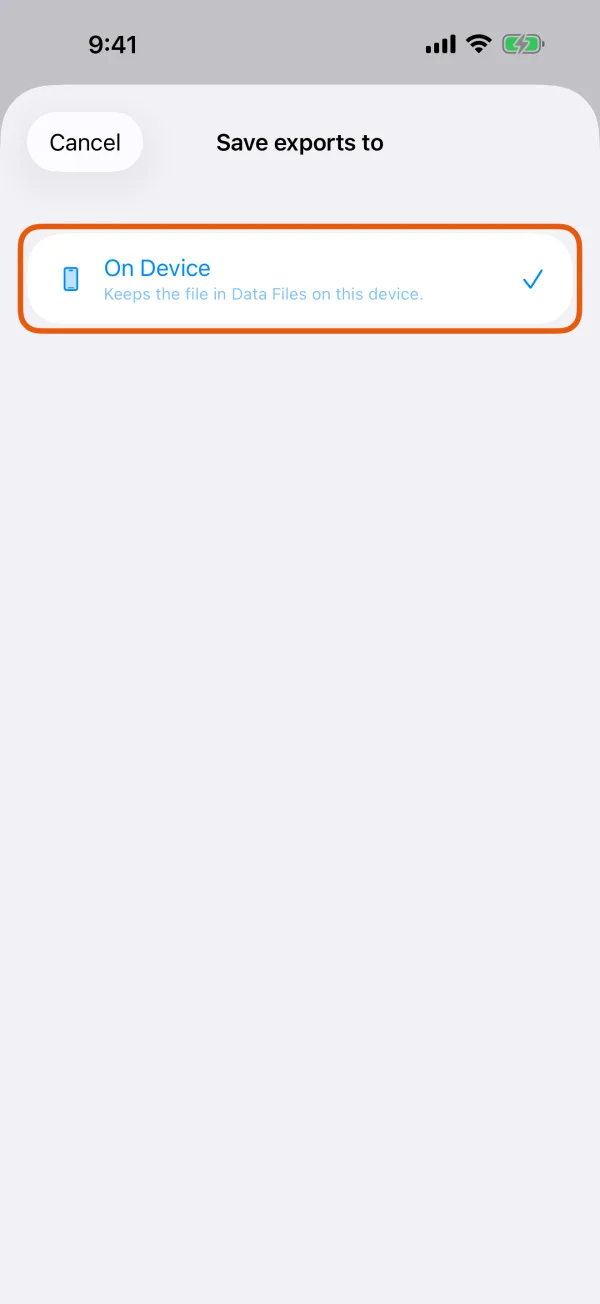
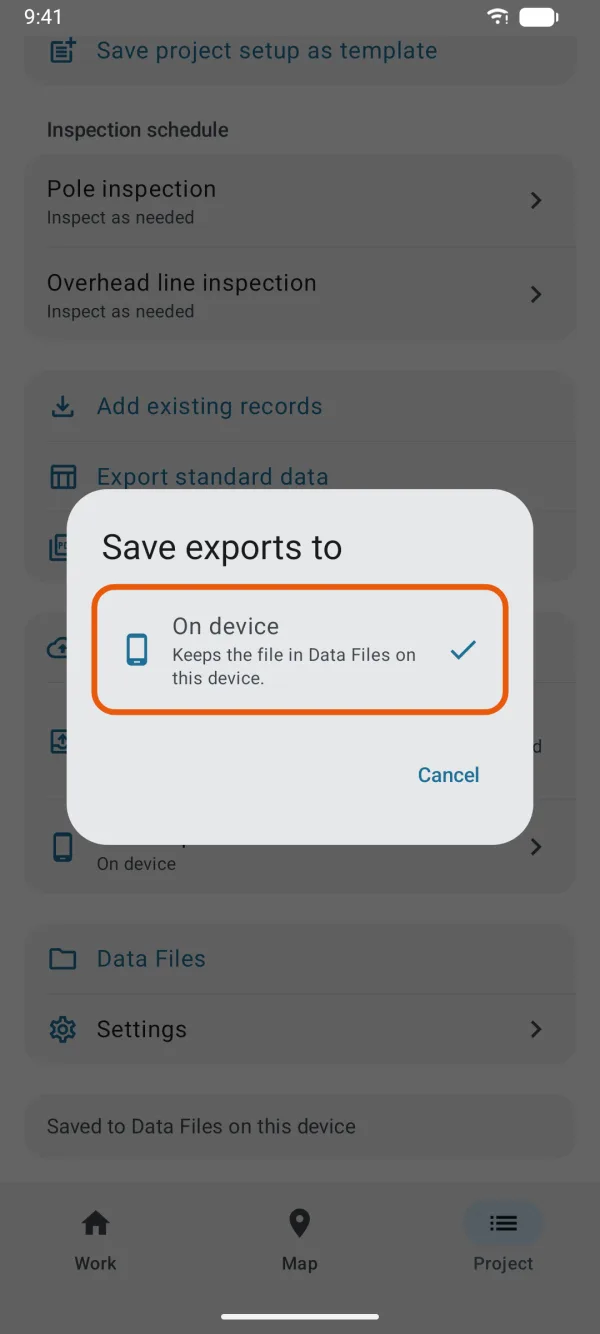
After an export the app says Export created. Upload added to Transfers. A safety copy stays on this device until the location confirms the file, then it's removed from On Device. To follow the upload, see the Data Files screen.
Read-only locations aren't offered here. If the chosen location is later disconnected, the Project tab says The saved destination is unavailable. Choose a destination again or save a copy on this device., with Choose destination again and Save on this device.
Bring files in, or send them up
- Download: in a location's tab, tap a file and tap Download. It arrives in On Device.
- Upload: in On Device, tap a file, tap Upload and choose the location. It goes to the working folder. A file with the same name there isn't overwritten.
- Import: when you add existing records or import a project, Data Files opens to choose the file, and a file in a connected location is downloaded as you pick it.
Rename or disconnect a location
Touch and hold the location's tab, then tap Rename or Disconnect. Disconnecting asks you to confirm with Remove.
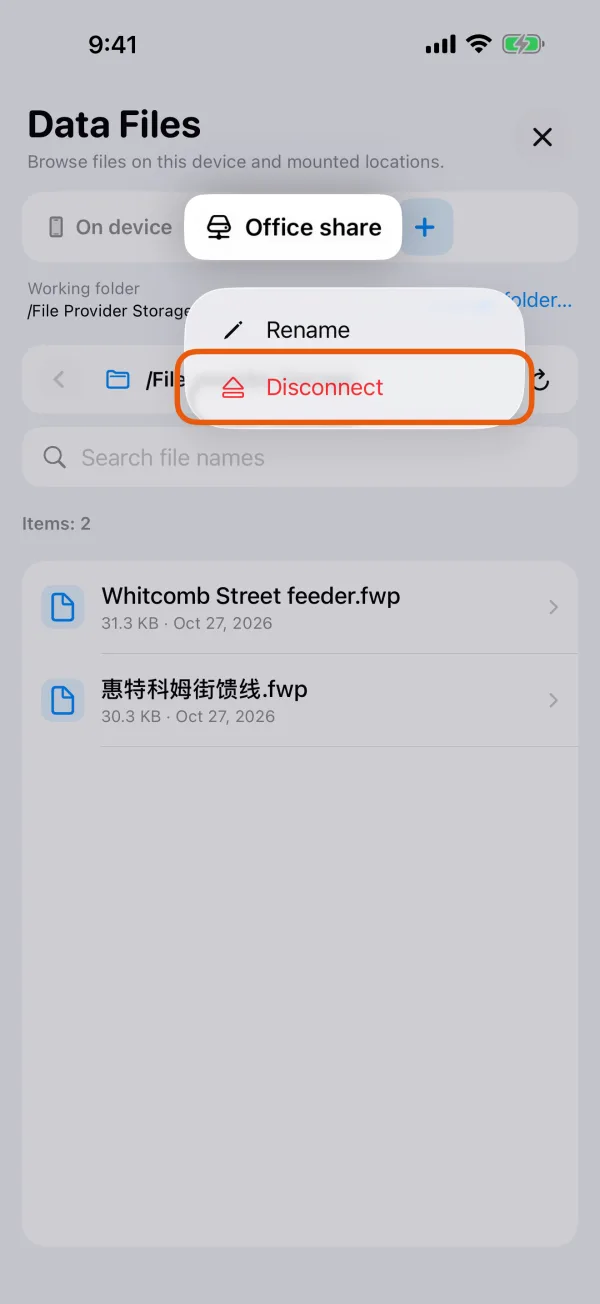
Disconnecting removes the location and its sign-in from this device. With Google Drive and Dropbox, it also withdraws Dipper Field's access to your account, unless another location uses the same account. Files already in the service stay there, and files you downloaded stay in On Device. Microsoft doesn't let an app withdraw its own access, so for OneDrive, or if you disconnected while offline, remove Dipper Field in your account's security or app settings. See privacy and your data.
If a service asks you to sign in again, the app says Sign in again. Tap it and sign in with the same account.