 Dipper Field
Data Files holds the files Dipper Field makes or brings in. Your projects aren't here: they're on the Projects screen. A file here is a copy you can share, upload, open or delete.
Open Data Files
- On the Projects screen, tap the folder button, labeled Data Files.
- In a project, open the Project tab and tap Data Files near the bottom.
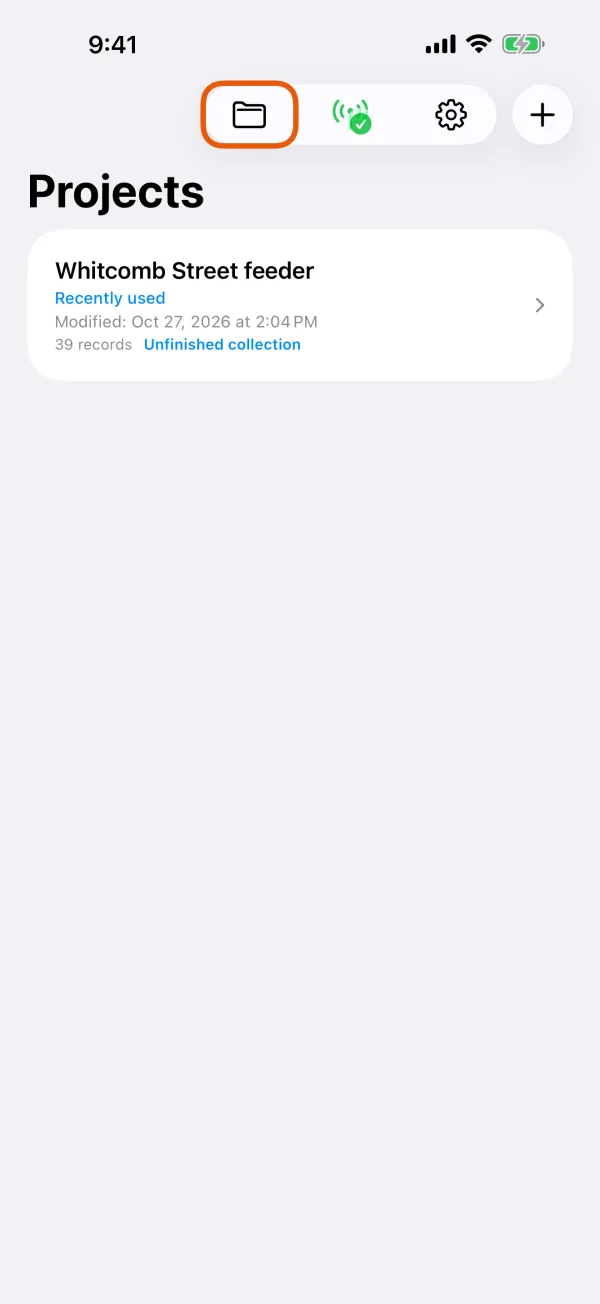
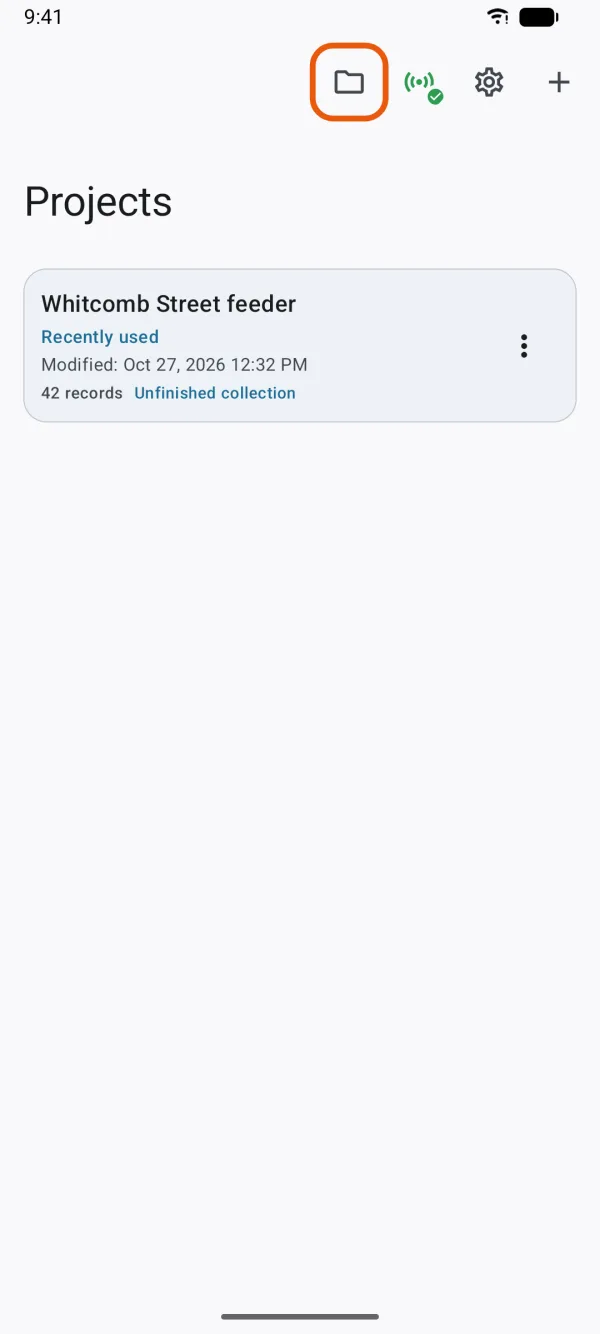
It also opens by itself when you choose a file: for Add existing records, to start a project from a data file, or to import a Dipper Field project. Then it shows only the files that fit, and Add File (Add file on Android) picks one from elsewhere on the device.
What's on the screen
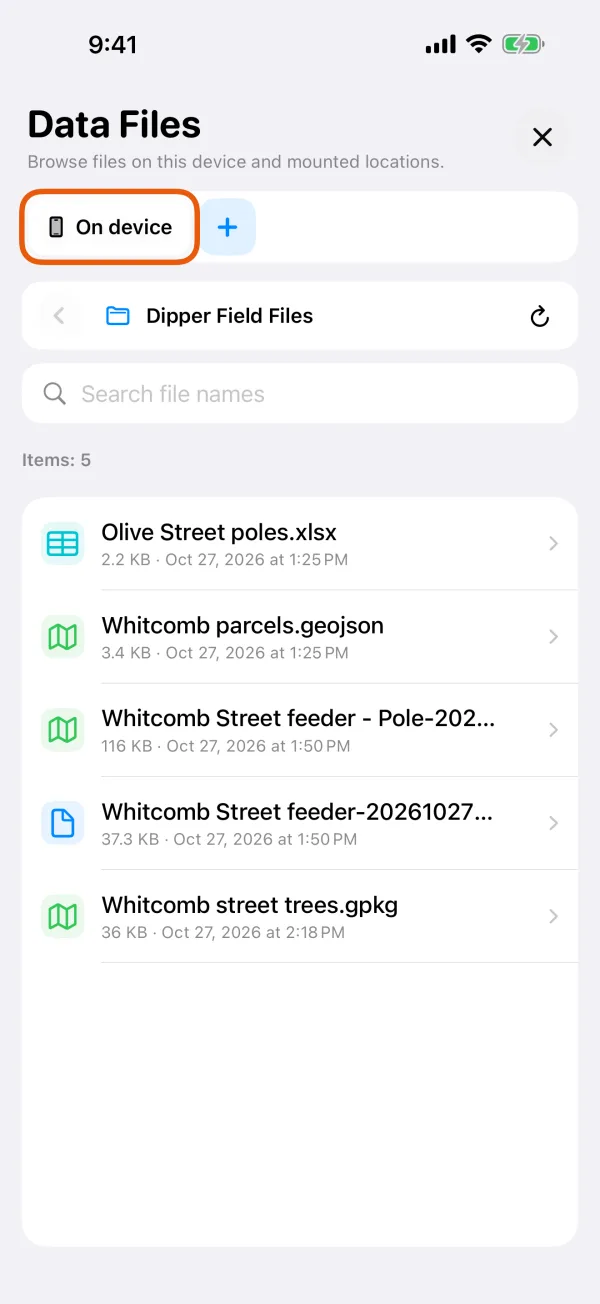
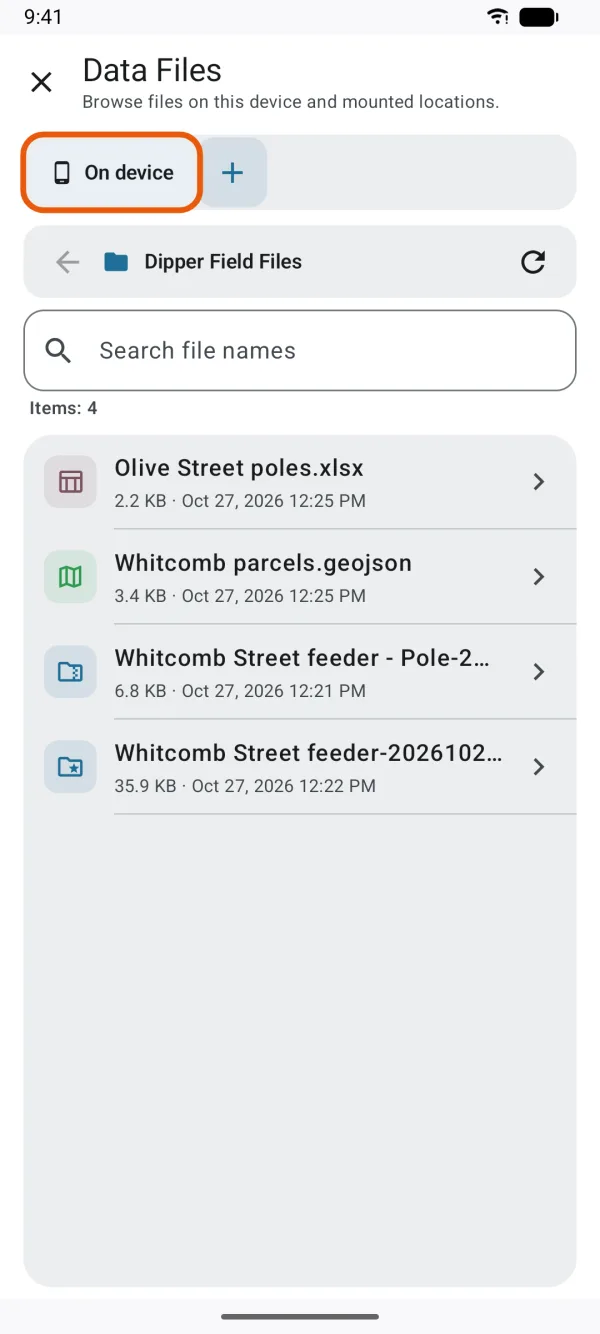
- Tabs: On Device, then each location you connected, then + to connect another. See connect cloud storage.
- Path bar: where you are, starting at Dipper Field Files on On Device, with a back button and a refresh button.
- Search file names: filters the folder you're in.
- Items: how many files and folders are shown.
- The list: folders first, then files with their size and date. Load more shows the rest of a long folder.
- Transfers: a button at the top, there once something has been uploaded or downloaded. A number on it counts transfers still running.
What lands in On Device
- Exports from Export standard data, including CAD deliveries and PNEZD files
- Project backups from Save a project backup
- Reports you keep with Save a copy in Data Files in the report preview
- Hand-overs you've sent, kept to send again
- Files you download from a connected location
- While an export uploads to a connected location, a safety copy, removed once the location confirms the file
Work with a file
Tap a file in On Device to open its page:
| Button | What it does |
|---|---|
| Add existing records | Shown when you're choosing a file to import: adds its records to the project. |
| Preview on map | Draws the file's shapes on a map, for GeoJSON, GeoPackage, shapefile ZIP, KML, KMZ and CSV files. Large files show up to 200 records, spread across the data. |
| Share | Sends the file with Mail, Messages, AirDrop or another app on iPhone, or the share sheet on Android. |
| Rename | Changes the name shown here. |
| Upload | Copies it to a connected location's working folder. With none connected, it offers to connect one. |
| Import a Dipper Field project | For a .fwp file: opens it as a project. See back up and restore a project. |
| Delete | Removes it from this device, after you confirm. |
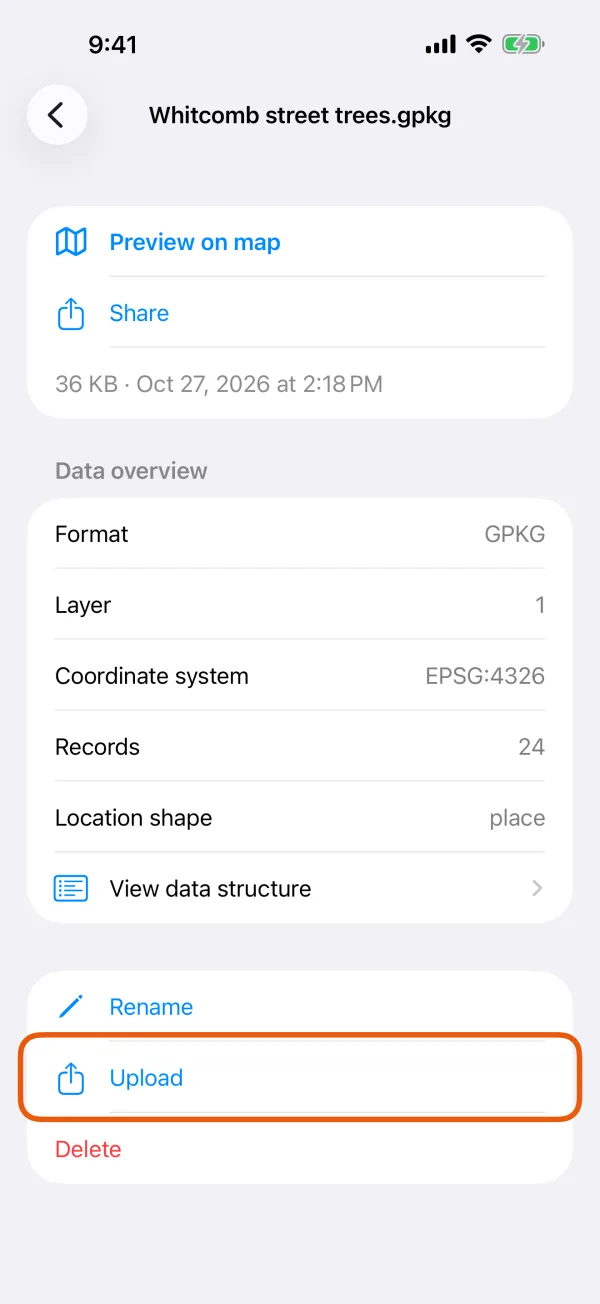
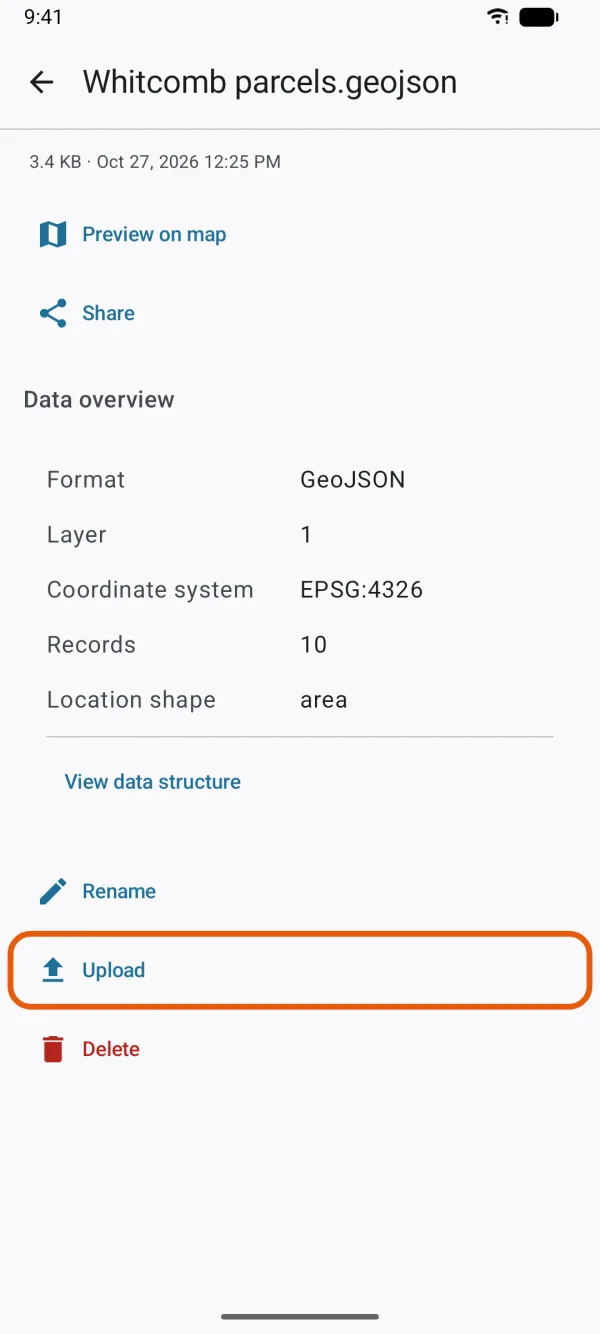
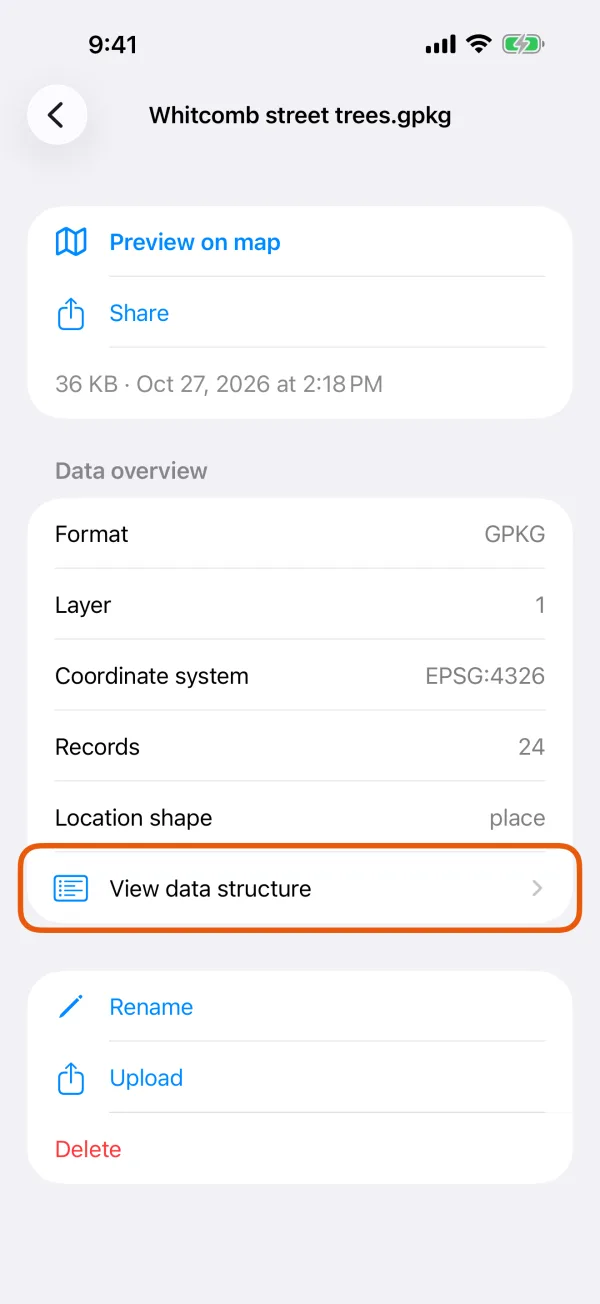
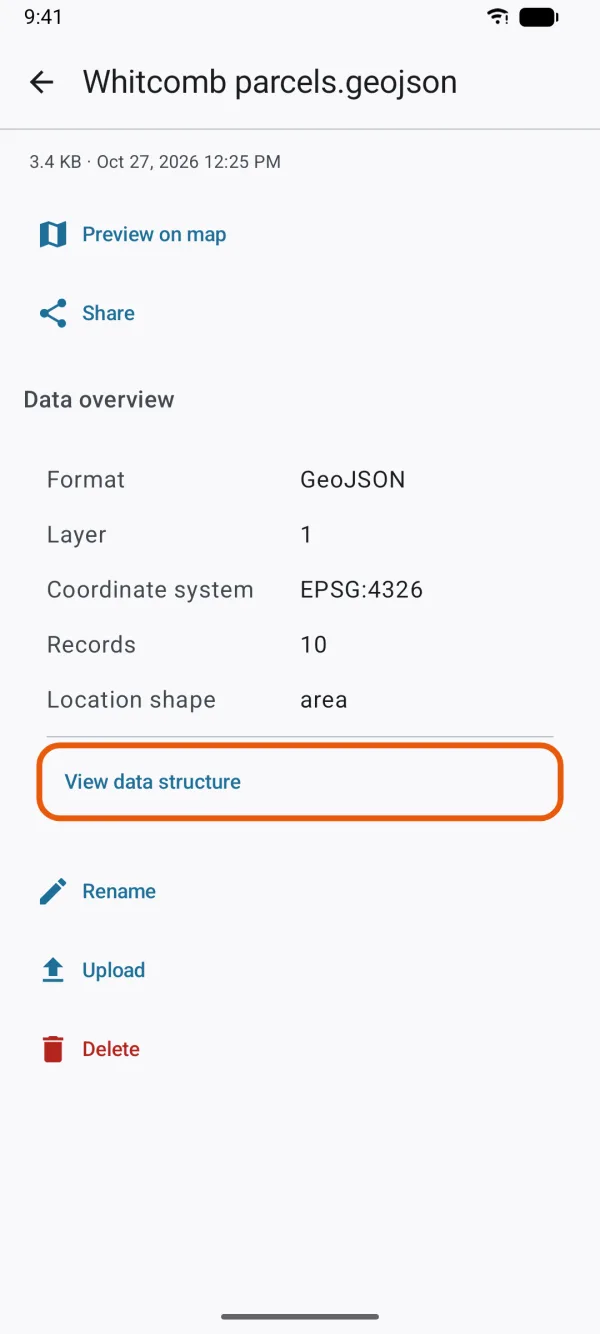
For a map file, Data overview shows its Format, Layer count, Coordinate system, Records and Location shape. If the records haven't been counted yet, Count all records counts them. View data structure lists each layer's fields and their types.
Files in a connected location
Tap a folder to open it, and a file to see its name and where it is. Download copies it to On Device. Delete removes it from the location, after you confirm, where the service allows it. For a map file, the format shows, with Download this file to view its layers and fields.
Transfers
Uploads and downloads to Google Drive, OneDrive and Dropbox, and exports to any connected location, run in Transfers. They wait for a connection, and keep going when you leave Data Files or switch apps.
Each transfer shows its state, progress, speed and time left:
| State | Means |
|---|---|
| Waiting | Queued, or waiting for a connection |
| Transferring | Running |
| Paused | You paused it. Continue goes on. |
| Done | Finished |
| Canceled | You canceled it |
| Needs attention | It failed. Try it again. |
| Sign in again | The service needs you to sign in again |
Pause or cancel a running transfer with its buttons, and remove finished ones from the list.