 Dipper Field
Dipper Field has no account or server of its own. A project moves between phones and tablets as a file, sent any way you like: email, a message, AirDrop, a shared drive.
| You send | When | What it holds |
|---|---|---|
| A project backup | To give someone the whole project, or to start a crew on the same project | Everything: set-up, records, photos and reference layers |
| A hand-over | For a crew member to send their work back to the lead | All the project's data, with only the photos taken since the last hand-over |
Copies of one project can be merged later, as long as they all started from the same project. A project someone made separately is a different project, even with the same name.
Give a colleague the whole project
Open the Project tab and tap Save a project backup.
The .fwp file goes to Data Files, or to the location under Save exports to.
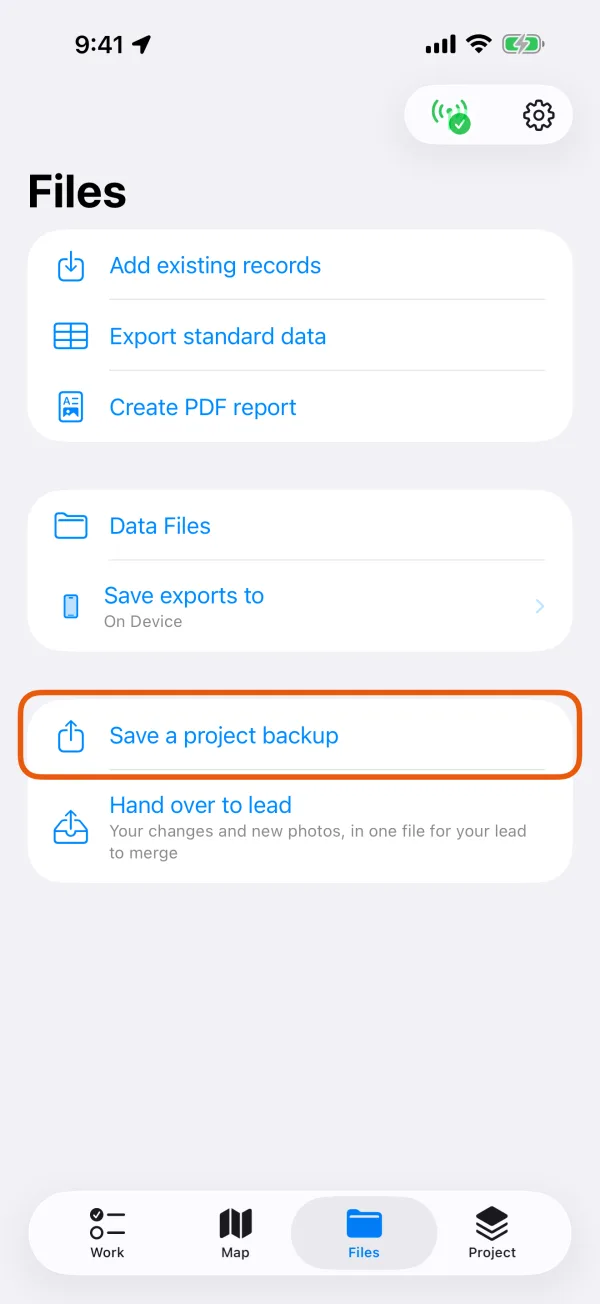
The Project tab, with Save a project backup marked. 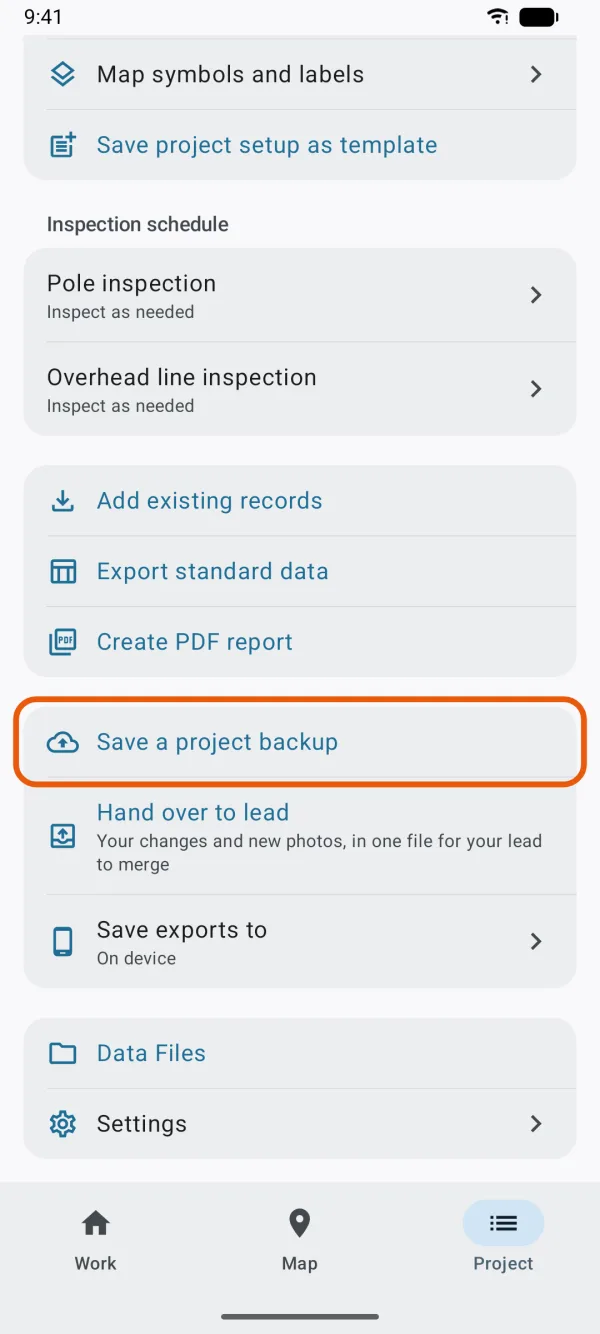
The Project tab, with Save a project backup marked. Send it.
In Data Files, tap the backup and tap Share, or Upload it to a shared location your colleague can reach.
Your colleague opens it in Dipper Field.
They share the file to Dipper Field, or tap + on the Projects screen, then Import a Dipper Field project. The project opens on their device.
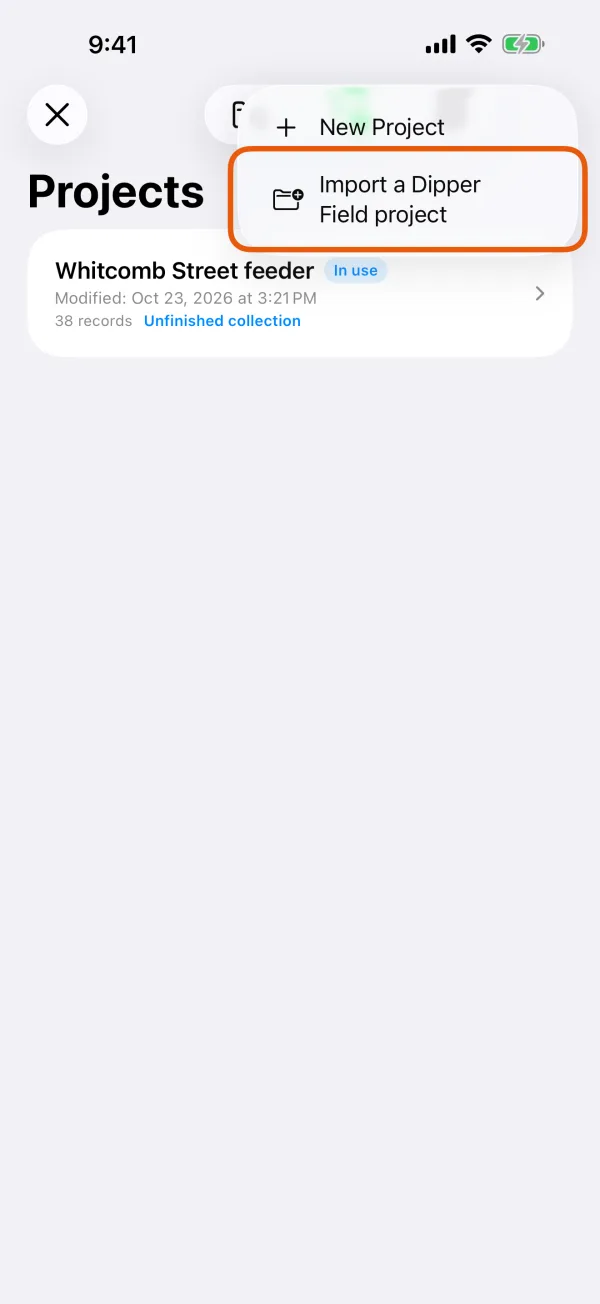
The + menu on the Projects screen. 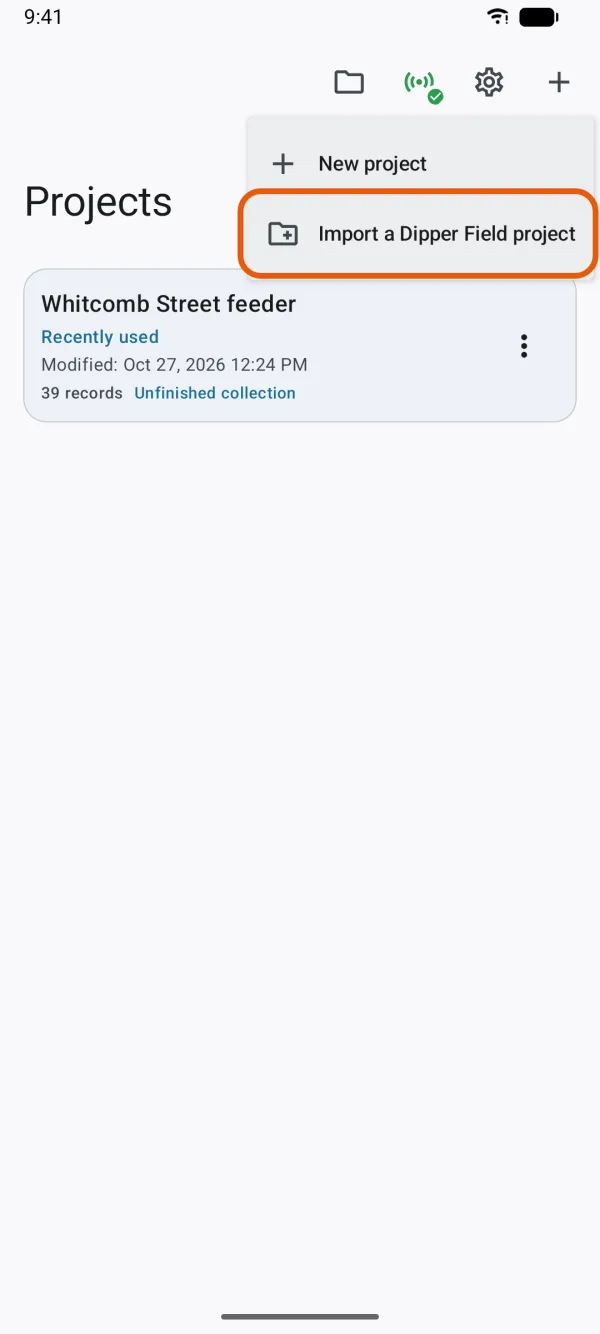
The + menu on the Projects screen.
Maps you added and areas saved offline aren't in the file; each device adds its own. More in back up and restore a project.
Set up a crew
- The lead sets up the project, saves a backup and sends it to each crew member.
- Each crew member imports it and enters Your name in Settings. Records and hand-overs then say who did the work.
- Crew members collect as usual and hand their work over, daily or as often as the lead wants.
- The lead merges each hand-over into the lead's copy.
Hand over your work
Open the Project tab and tap Hand over to lead.
It's below Save a project backup. Before your first hand-over the line under it says Your changes and new photos, in one file for your lead to merge. After that it says how many records changed since your last one, or when that was.
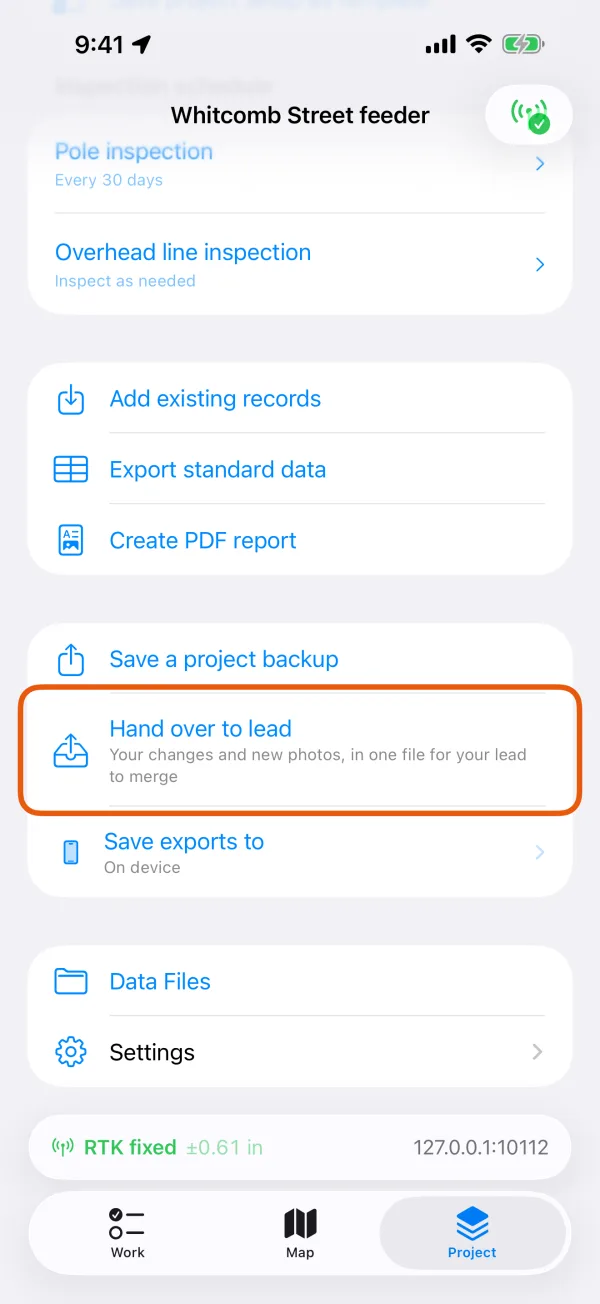
The Project tab, with Hand over to lead marked. 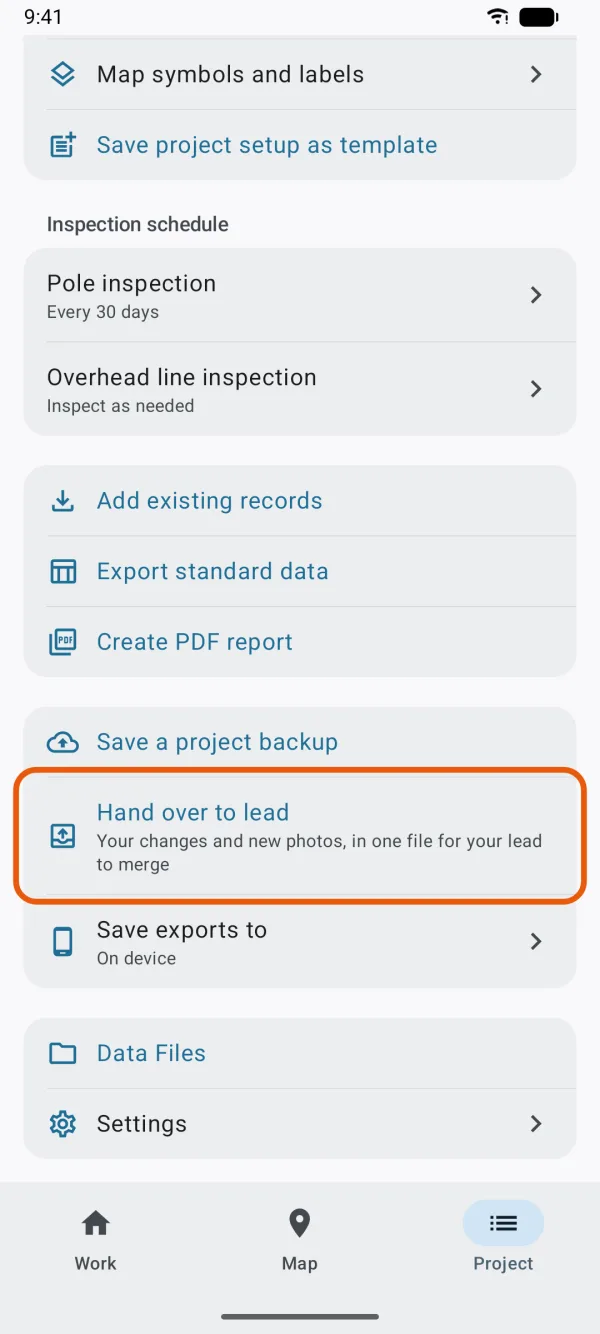
The Project tab, with Hand over to lead marked. Choose how to send it.
The share sheet opens with a .fwp file named after the project, your name and the date.
Send it.
The next hand-over starts from this one. If you close the share sheet without sending, nothing is counted and the next hand-over includes this work too. A copy stays in Data Files in case you need to send it again.
Once you've handed over once, Hand over to lead also appears in the Finish-work summary.
Merge a hand-over
Open the hand-over file in Dipper Field.
Share it to Dipper Field, or tap + on the Projects screen, then Import a Dipper Field project, and choose it in Data Files.
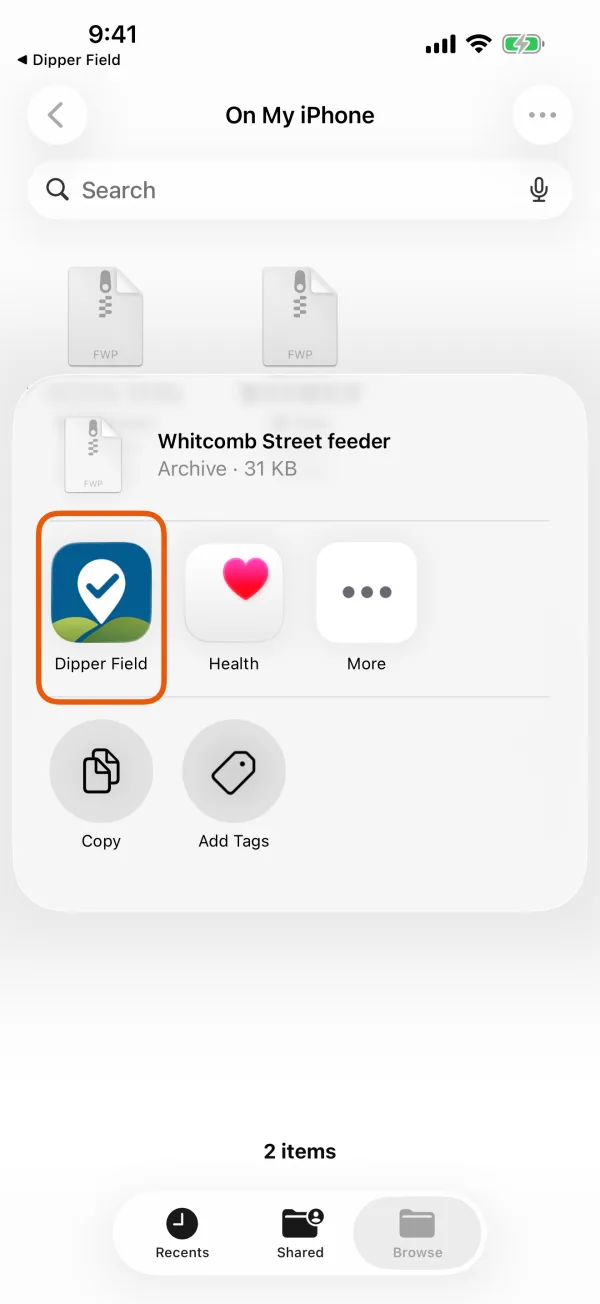
Sharing a .fwp file to Dipper Field. 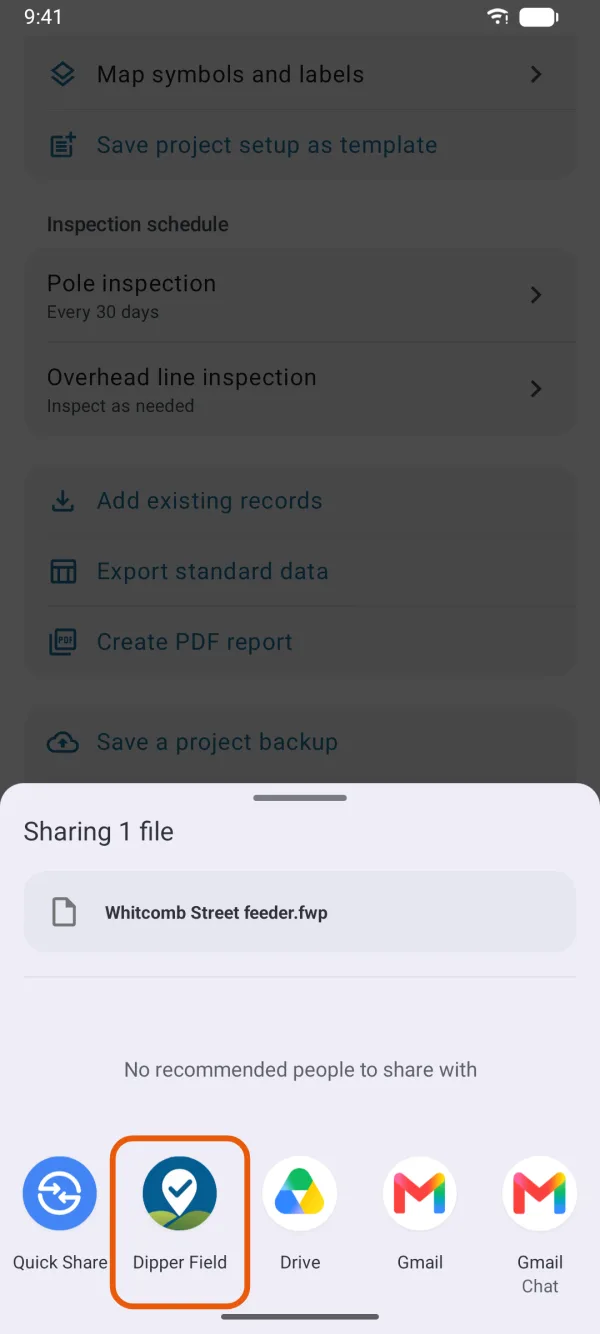
Sharing a .fwp file to Dipper Field. Tap Merge.
Merge this hand-over? says who it's from. This device's copy is first kept as it was, under Replaced copies on the Projects screen.
The question, with who the hand-over is from. 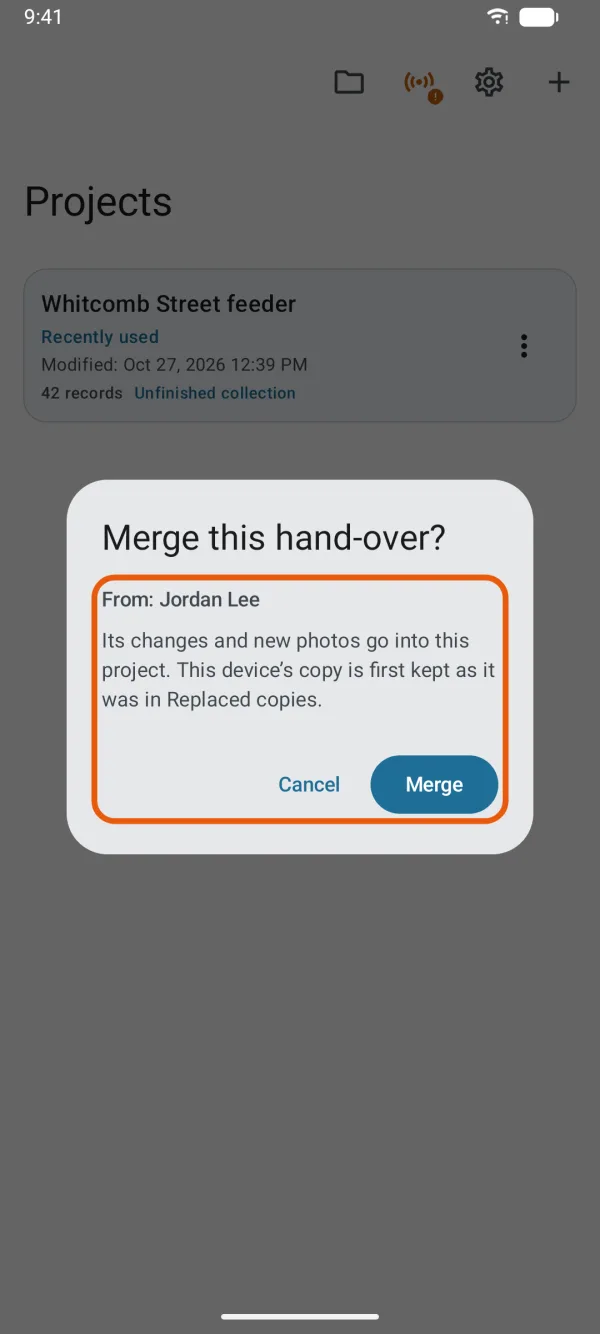
The question, with who the hand-over is from. Read what changed, then tap Open project.
Copies merged counts what's new, changed, deleted and the photos. If something needs your choice, it says To check: with a number, and Check now opens it.
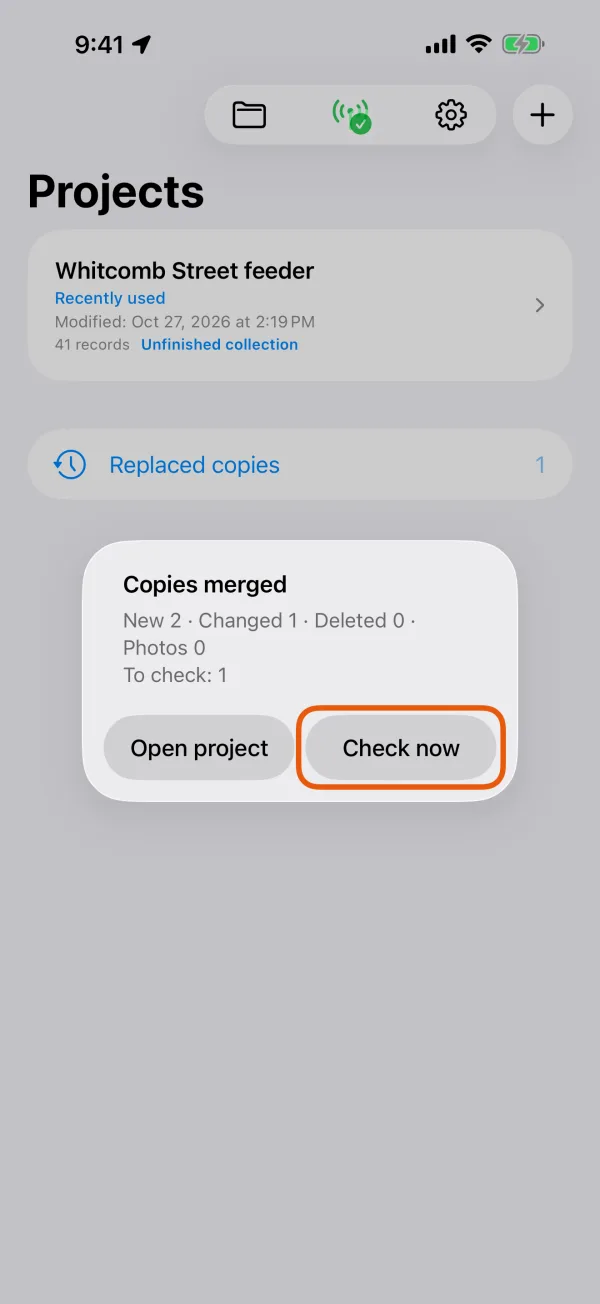
The counts after a merge. 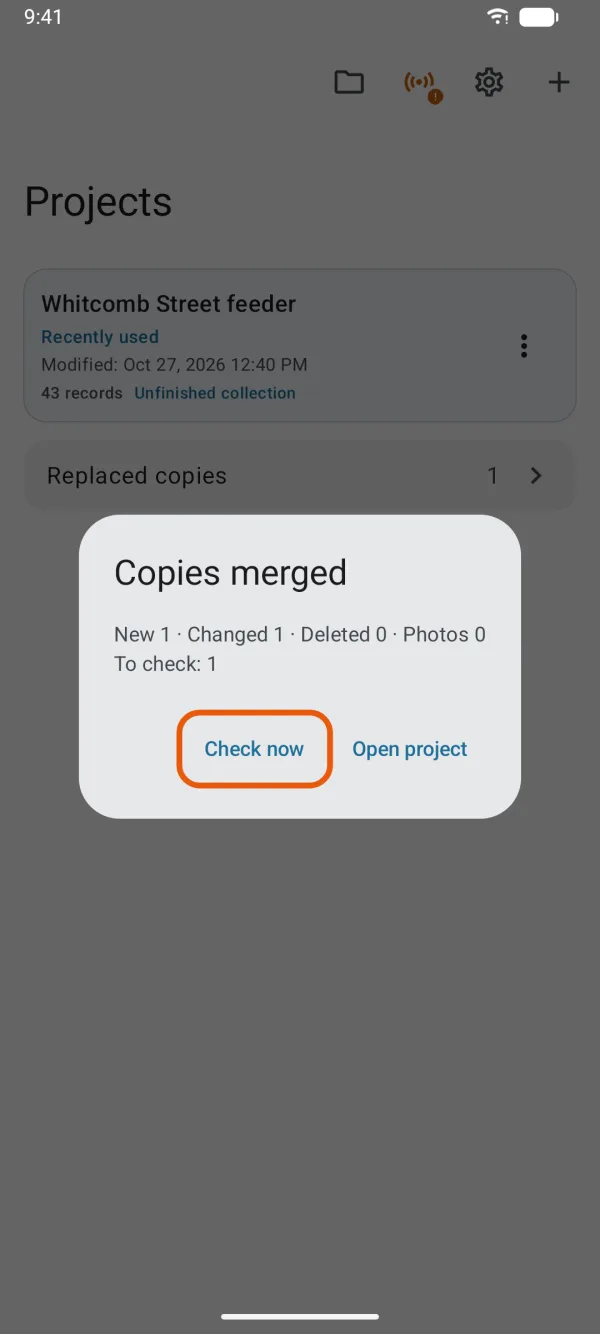
The counts after a merge.
| It says | What it means |
|---|---|
| Already merged | This project already has everything in the hand-over. |
| This hand-over can only be merged into its project, which isn't on this device. | Ask for the whole project file instead. |
| This hand-over leaves out photos that aren't on this device | Merge that person's earlier hand-overs first, or ask for the whole project file. |
What a merge keeps
New records come across, records deleted in the file are deleted here, and records changed in both copies are put together answer by answer. Where both copies changed the same thing, the merge decides, and Check the merge on the Project tab lets you change it:
| Both copies changed | The merge keeps | You can choose |
|---|---|---|
| The same answer | The file's answer | Use this device's answer or Keep as it is |
| The shape | This device's shape | Use the file's shape or Keep as it is |
| A record deleted on this device, changed in the file | Deleted | Bring it back or Keep as it is |
| A record deleted in the file, changed on this device | The record | Delete it or Keep as it is |
Two more cases are kept to be seen: a number in a numbered question that both copies used goes to the next free number for the record from the file, and an answer that must be unique but is already used is left empty.
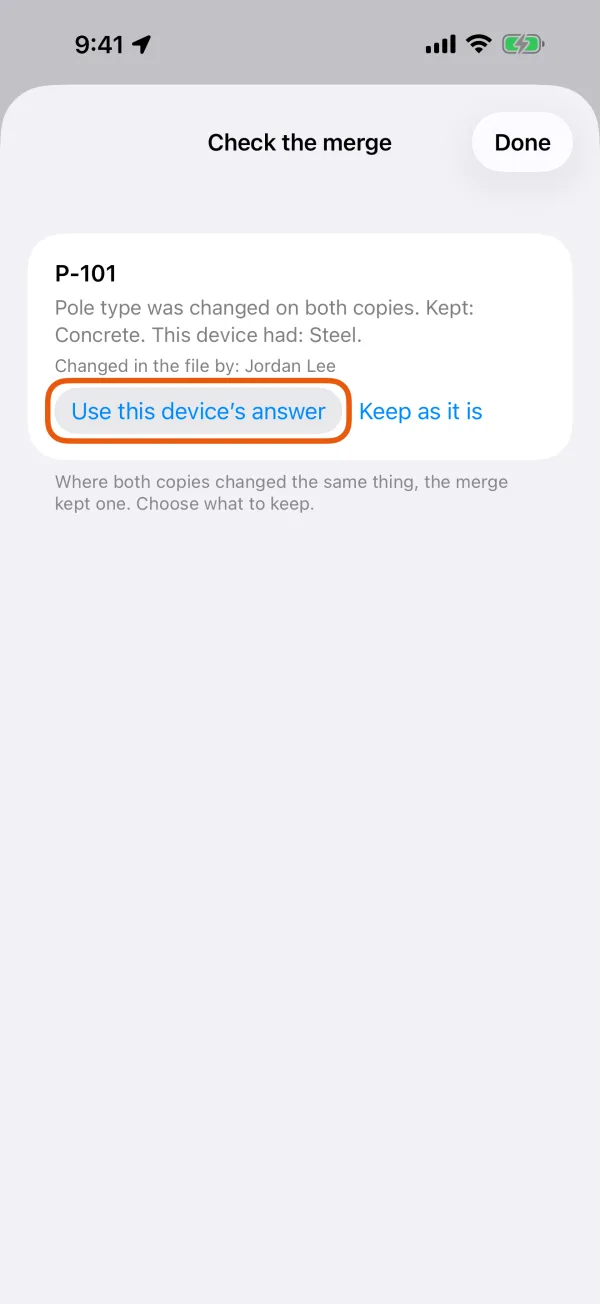
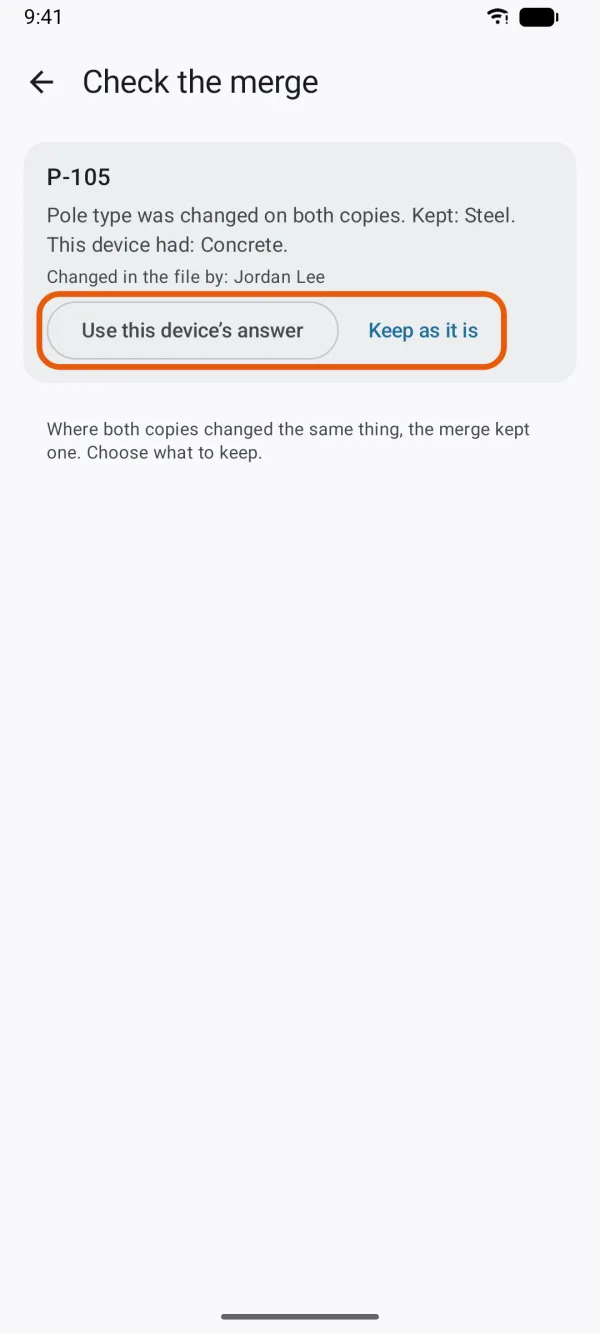
Check the merge stays on the Project tab, with a count, until everything is settled.
Send the merged project back
After merging, the lead can save a new backup and send it to the crew. On a crew member's device:
- If their copy has nothing the backup lacks, it asks Replace this project? Tap Replace from backup.
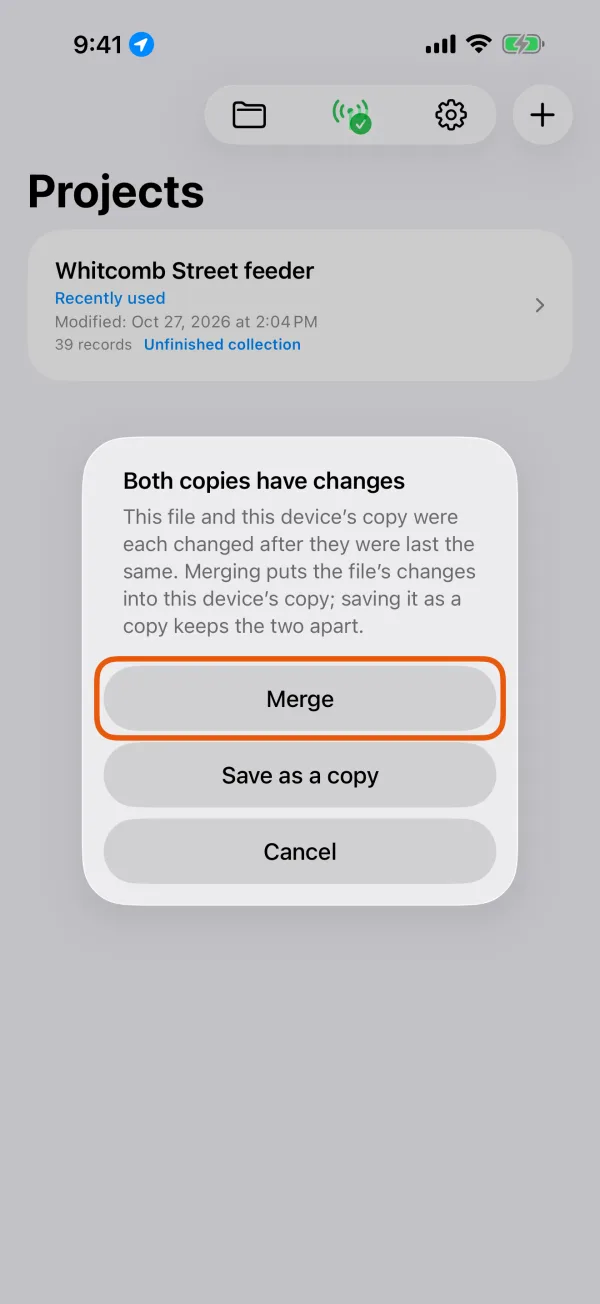
- If they've worked since their last hand-over, it says Both copies have changes. Tap Merge.
Either way, their earlier copy is kept under Replaced copies first.