 Dipper Field
The Finish-work summary is a checklist for the end of a day or a round: what was recorded, what's left unfinished, a report of just that work, and a fresh backup. The short version is in record problems and rechecks; this article covers each part in detail.
Open the summary
Open the Work tab and tap Finish-work summary.
It's at the bottom of the Work tab.
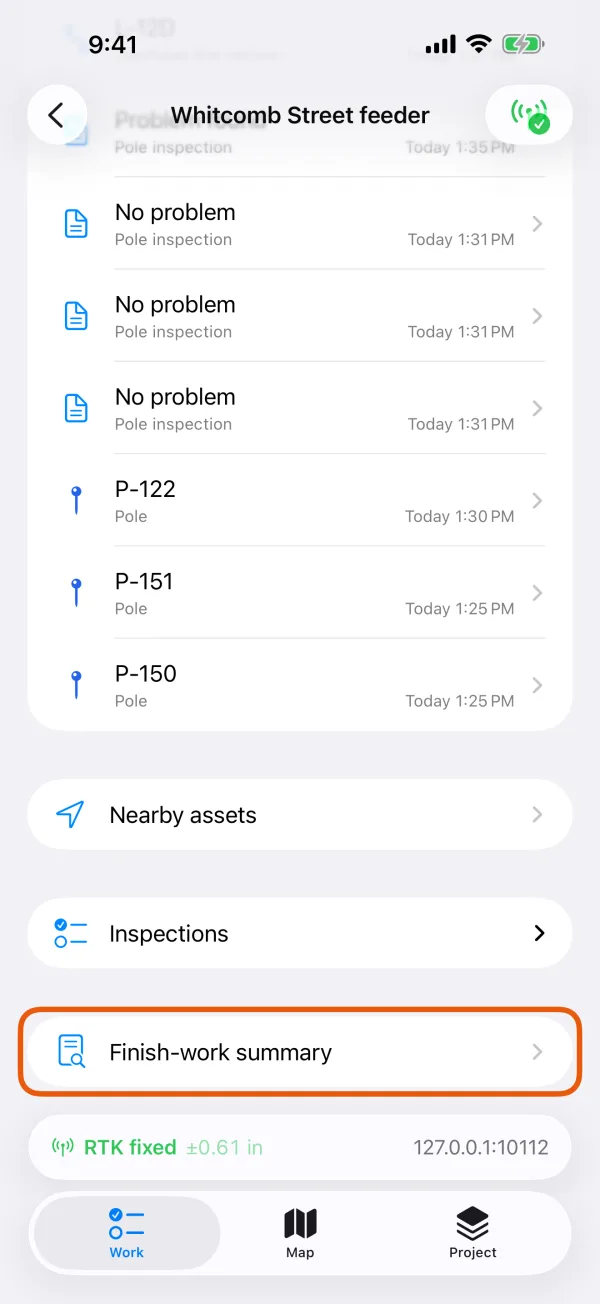
The Work tab, with Finish-work summary marked. 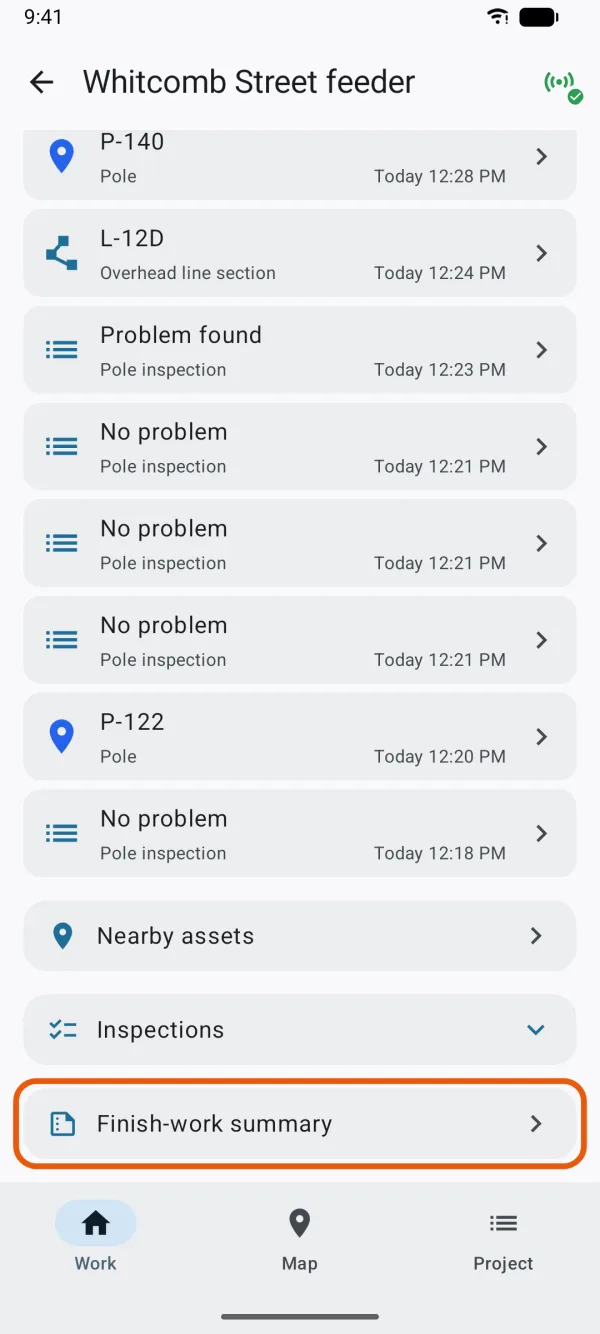
The Work tab, with Finish-work summary marked. Choose Today or Latest round.
The switch appears once you've started an inspection round. Until then, the page just counts Today.
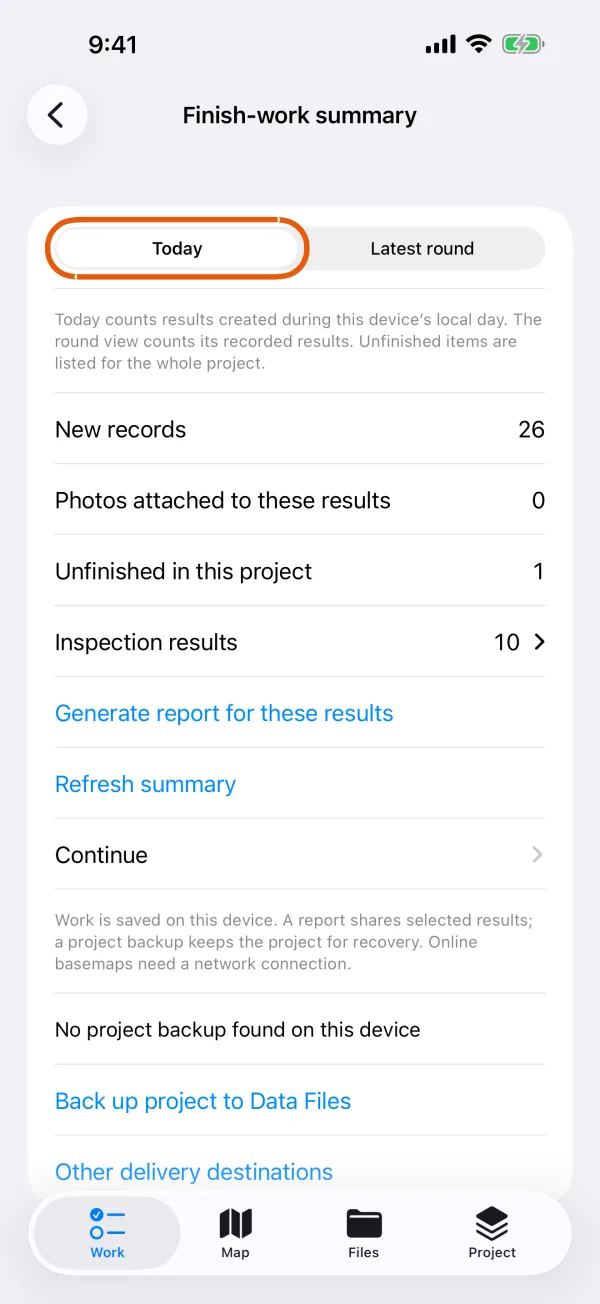
Counts for today's results. 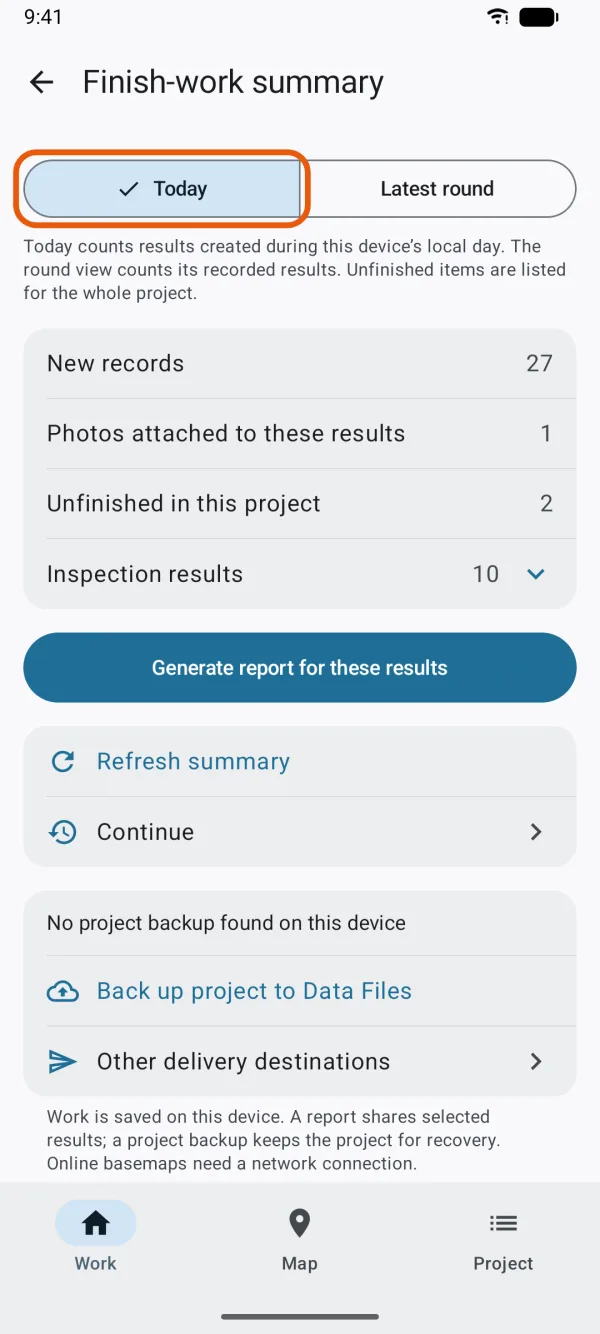
Counts for today's results.
What each scope counts, as the page says: Today counts results created during this device’s local day. The round view counts its recorded results. Unfinished items are listed for the whole project.
- Today runs from midnight to midnight on the phone's own clock and time zone. It counts records created today, of every record type. A record created earlier and only edited today isn't counted.
- Latest round counts the results recorded in the current or last round, whatever day they were made. It also shows the round's progress, such as 12 of 40 results recorded, and Inspection round to open it.
What the counts mean
| Count | What it counts |
|---|---|
| New records | Records that aren't inspection results. |
| Photos attached to these results | Photos on the records counted here. |
| Unfinished in this project | Records and inspections started and not saved, in the whole project, not just today. |
| Inspection results | Inspections saved, rechecks included. Tap it to see how many were Normal, Problem found, Skipped and Unable to inspect. |
| New problems recorded | Problems added in inspections, not counting rechecks. |
| Rechecks recorded | Rechecks of earlier problems, whatever their result. |
| Closing rechecks | Rechecks with the result Normal, which closed their problem. |
The last four only appear when there's something to count. Tap Refresh summary to count again, for example after saving one more record.
Team, Mine and By person
When the counted work comes from more than one person, the page adds By person: each name with how much they recorded, the most first. Work collected with no name is listed as No name given.
If you've entered Your name in Settings, and someone else's work is in the count, a switch offers Team and Mine. Mine counts only work collected under the name you go by now; work saved under an earlier name isn't included.
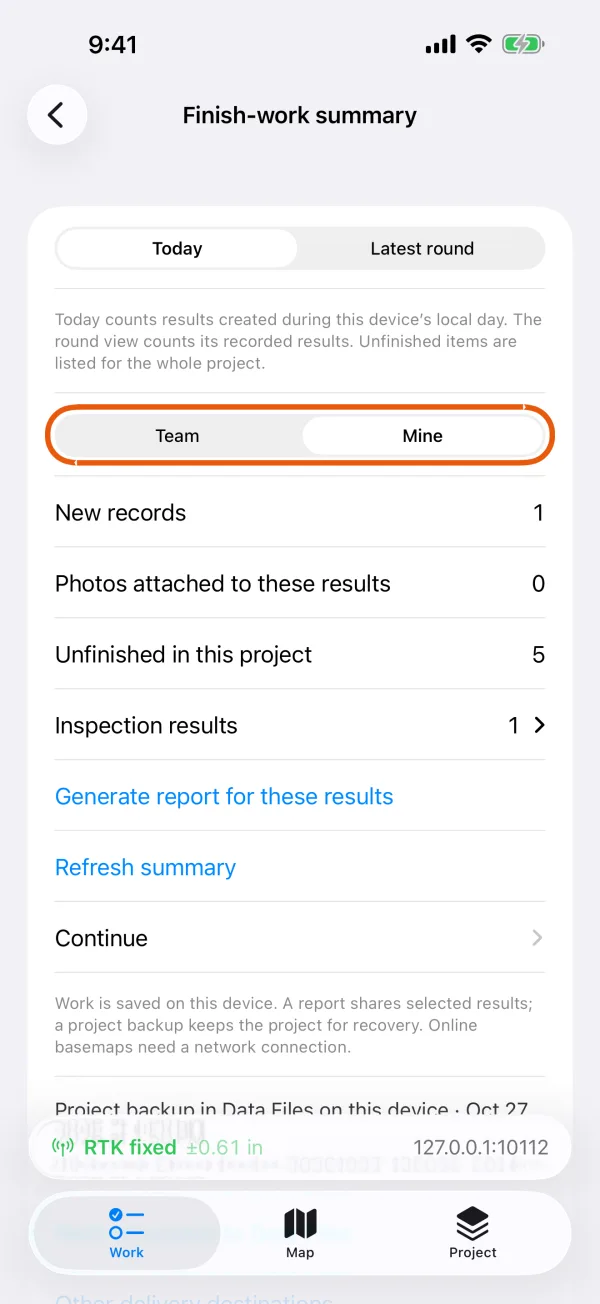
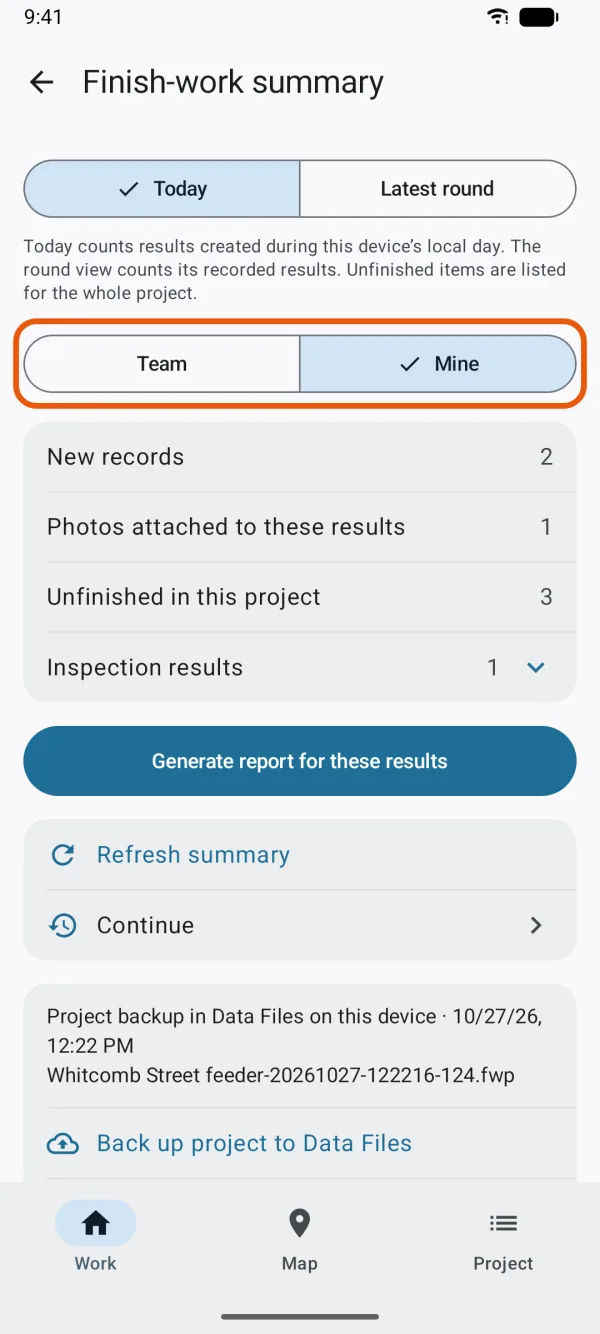
The names come from each record's collector. Other people's work is in your project once you've merged their hand-over. See share a project with a colleague.
Make a report of this work
Tap Generate report for these results.
The report holds exactly the records counted: today's or the round's, and only yours with Mine on. Its scope line says so, such as Today · Oct 23, 2026.
Check the pages in Report preview.
Review the report pages and coverage before saving or sharing.
Save or share it.
Save report… saves the PDF where you choose. Save a copy in Data Files keeps it on this device. Share sends it, and Excel and PDF + CSV + ZIP send the extra files. See make a PDF report.
The button is unavailable when nothing was counted.
Back up before you leave
Check the backup line.
It names the last backup of this project in Data Files on this device, with its date and file name, or says No project backup found on this device.
Tap Back up project to Data Files.
A new
.fwpbackup of the whole project is saved, and the line shows it.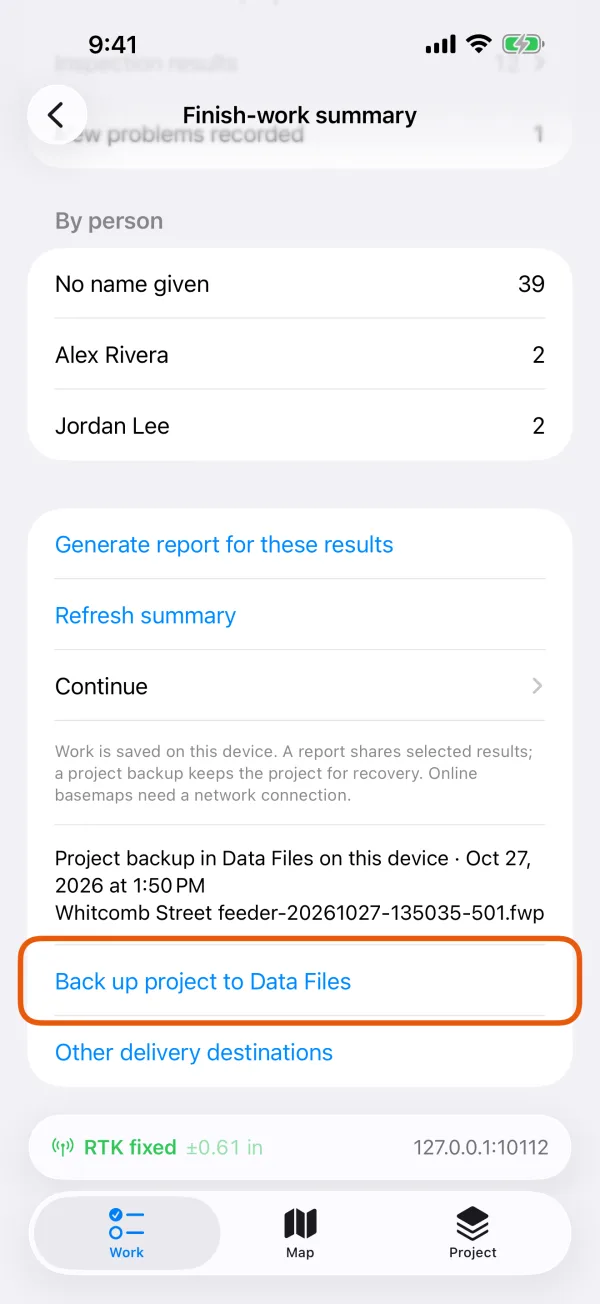
The backup line and Back up project to Data Files. 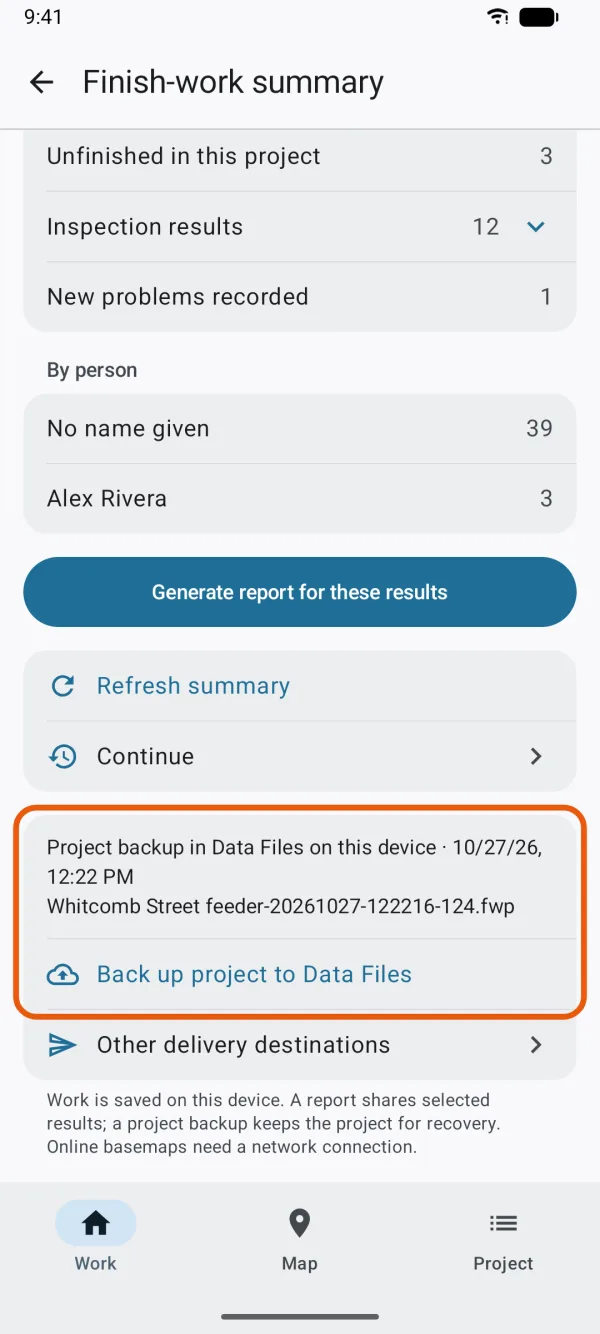
The backup line and Back up project to Data Files. To keep a copy elsewhere, tap Other delivery destinations.
It opens the Project tab. See back up and restore a project.
As the page reminds you: Work is saved on this device. A report shares selected results; a project backup keeps the project for recovery.
Also on this page
- Continue lists the records and inspections you left unfinished, so you can complete them before you go.
- Hand over to lead appears once you've handed over from this project before. It sends your changes and new photos for your lead to merge. See share a project with a colleague.