 Dipper Field
Once an inspection has an interval, Dipper Field works out for every asset when its next visit is due. One list on the Work tab gathers the assets that need a visit now.
Before you start
- An inspection with an interval other than Inspect as needed. See set up inspections and intervals.
Open the list of what's due
Open the Work tab and tap Inspections.
The group opens to show Inspection round, Due for inspection and Find an asset.
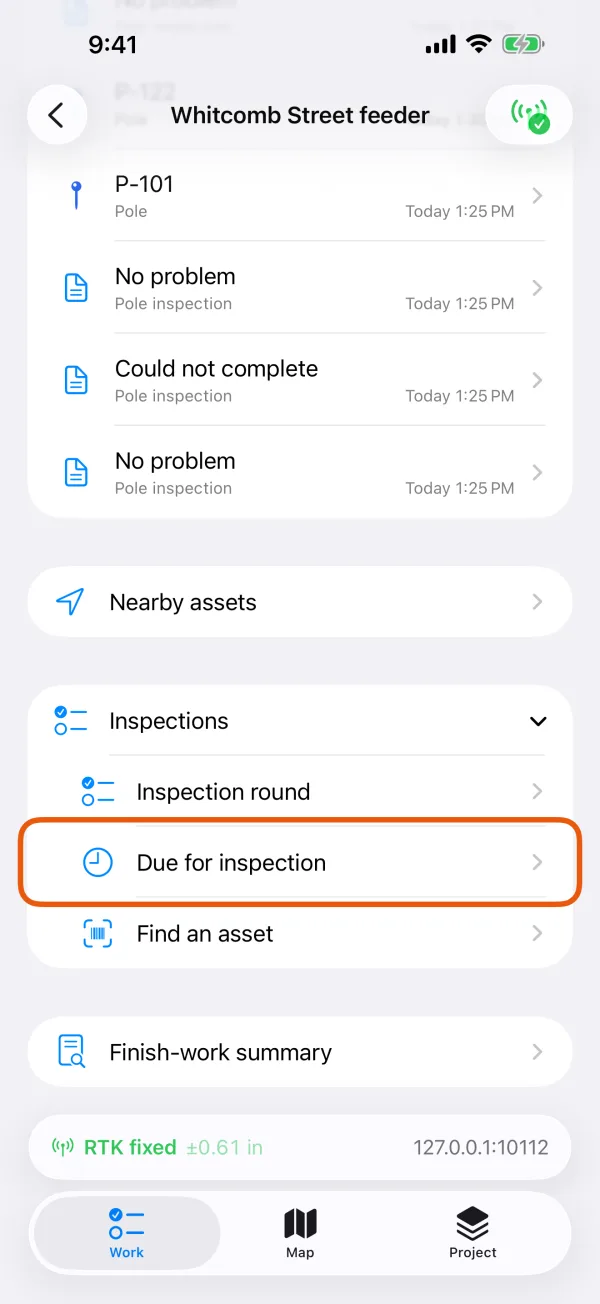
The Inspections group, with Due for inspection marked. 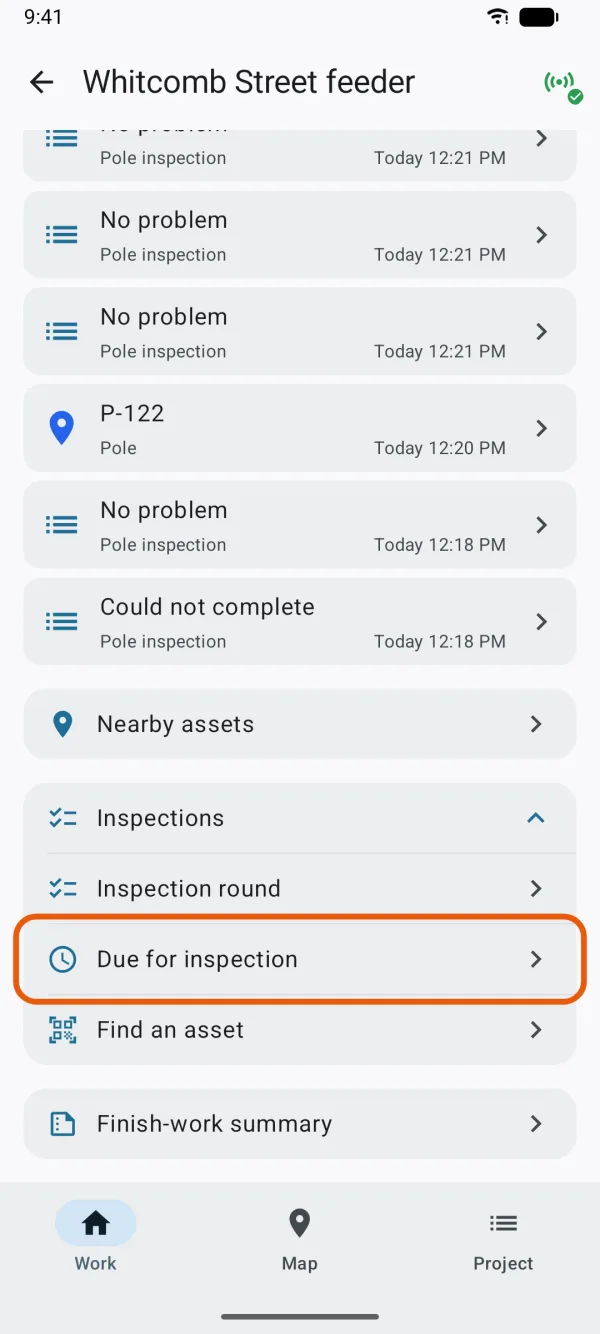
The Inspections group, with Due for inspection marked. Tap Due for inspection.
Each row names the inspection, then the asset, then why it's listed: Due for inspection when its date has passed, or Awaiting first inspection when it has never had one.
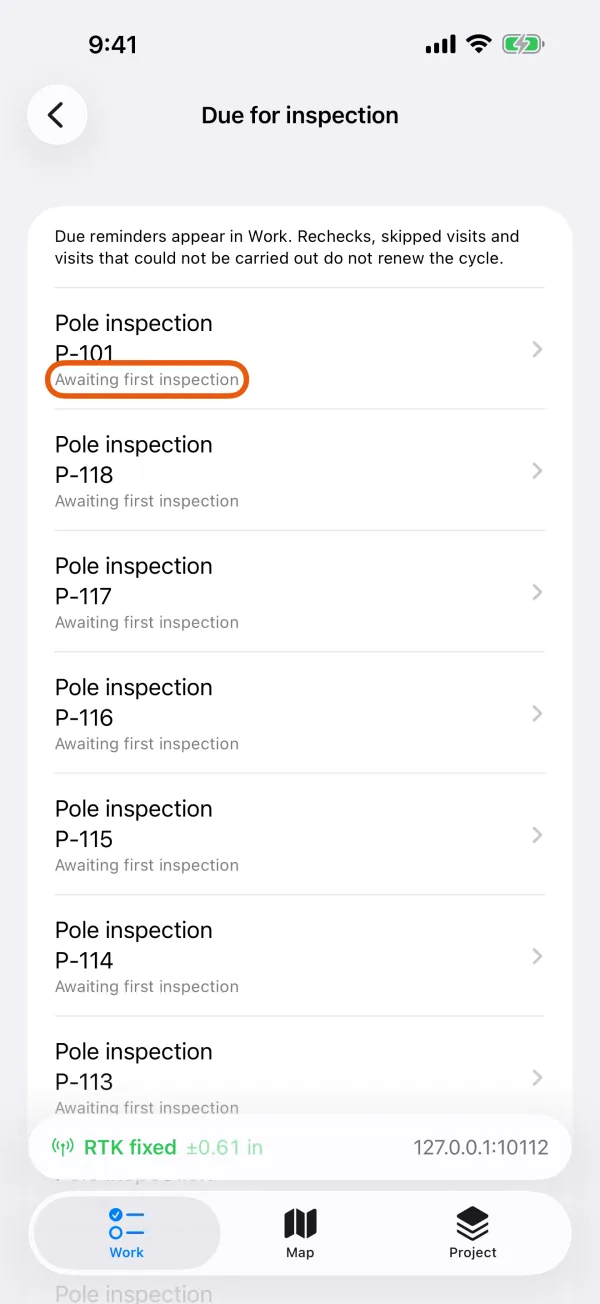
Assets that are due, and assets never inspected. 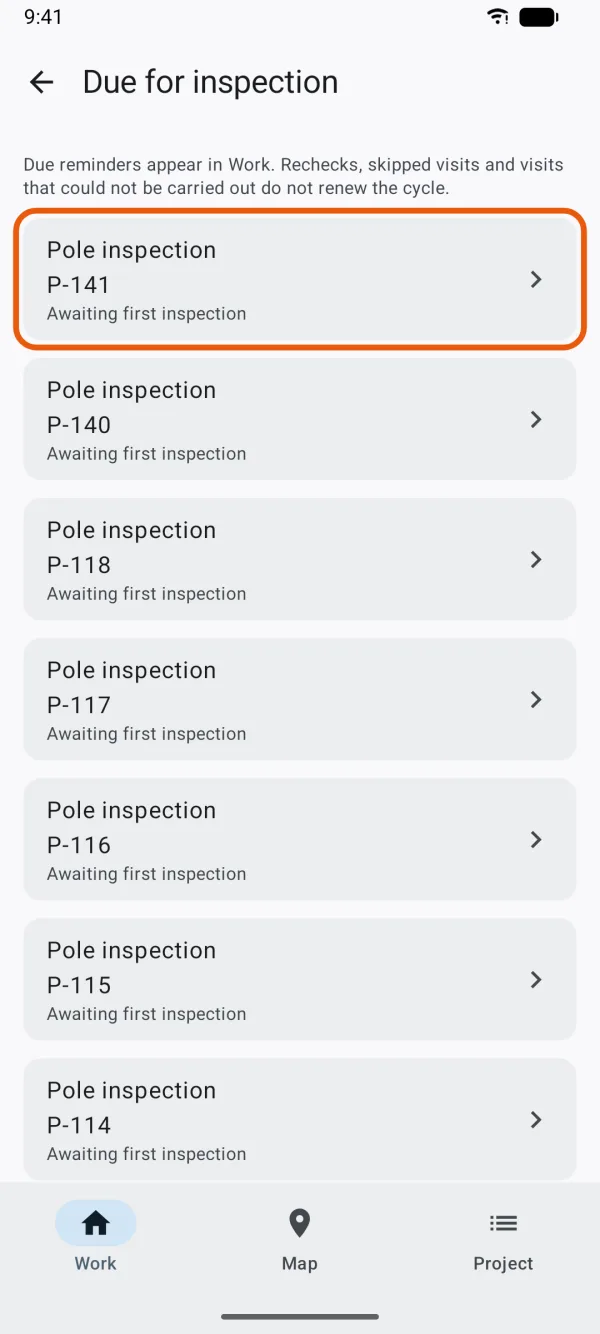
Assets that are due, and assets never inspected. Tap an asset to open it.
On its page, tap the button with the inspection's name, such as Hydrant inspection, to inspect it now.
When nothing is due, the list says No inspections are due. Set an inspection period to see reminders here.
The list covers the whole project and every inspection with an interval. To visit many of the assets in one go, start an inspection round and tick them there.
When an asset becomes due
- The interval counts from the date and time of the asset's latest inspection with the result Normal or Problem found. Inspected at 10 AM on June 1 with a 30-day interval, the asset is due from 10 AM on July 1.
- Rechecks, skipped visits and visits that could not be carried out do not renew the cycle, as the top of the list says.
- An asset with its own interval follows that one. An asset set to Inspect as needed never appears.
- Once an asset gets a Normal or Problem found result, it drops off the list until its next date.
Check one asset
Open the asset: tap it on the map and tap Record details, or find it on the Work tab.
- Last inspection gives the date and result of its latest visit.
- Unresolved issues counts its problems still waiting for a recheck. See record problems and rechecks.
- Inspection schedule opens to show, for each inspection, the interval it follows, such as Follow shared interval · Every 30 days. Below it you'll see Next inspection with its date, or Awaiting first inspection, or Due for inspection.
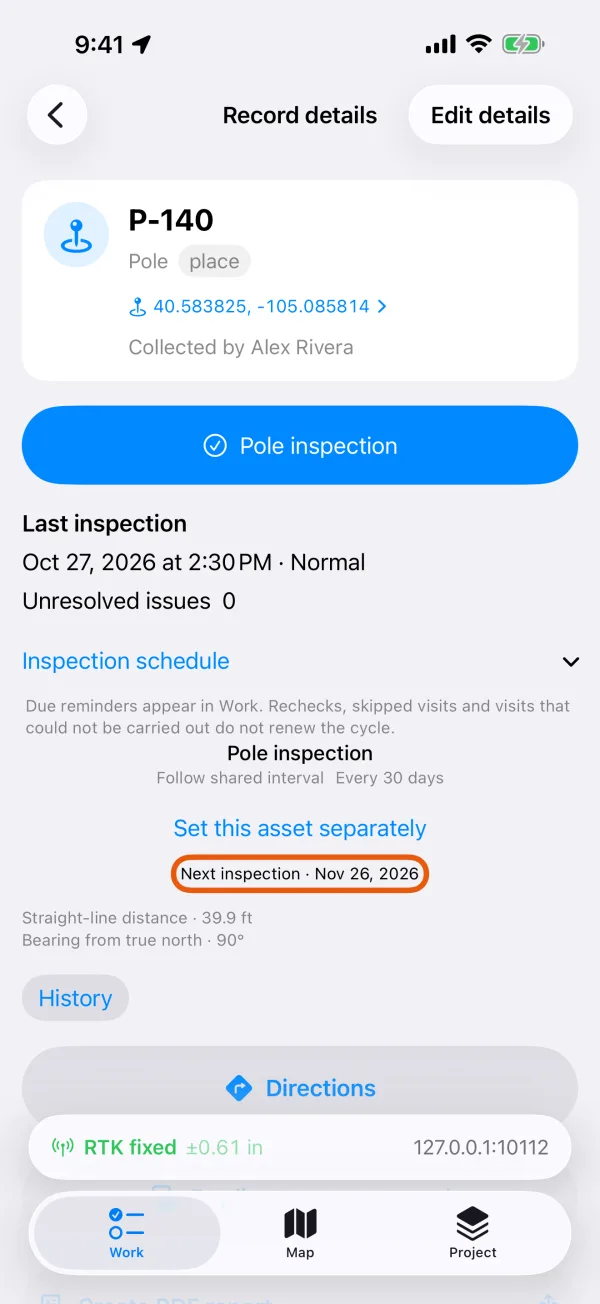
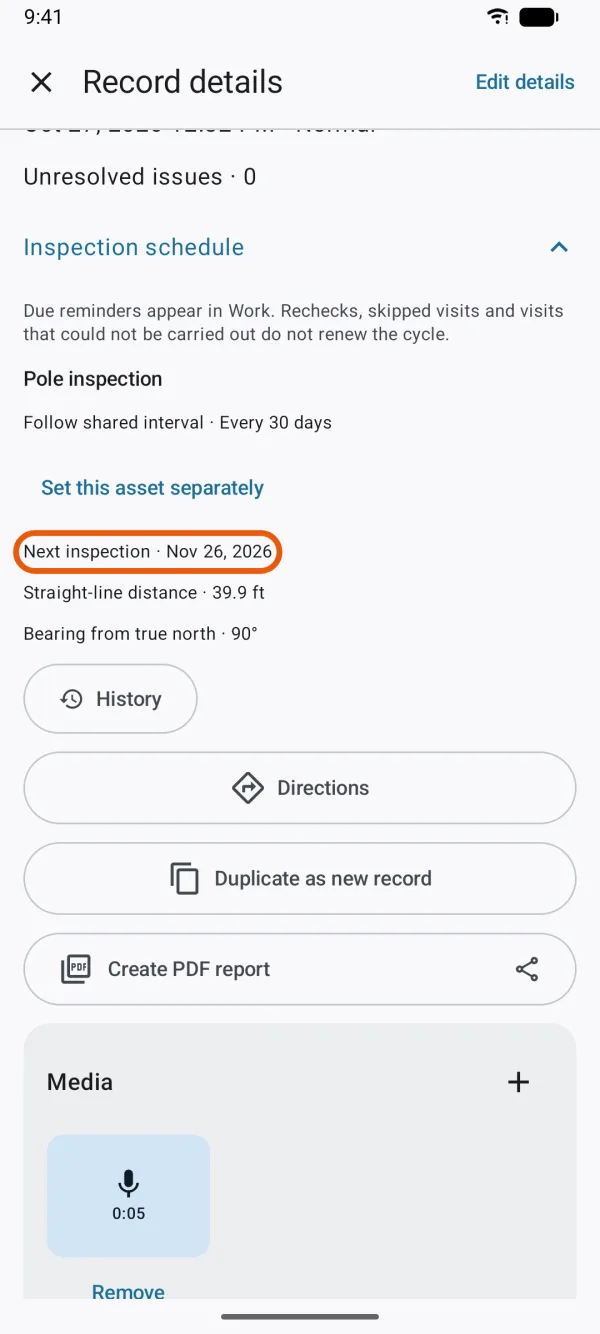
Set this asset separately in the same place gives the asset its own interval. See set up inspections and intervals.