 Dipper Field
Before you start
- For a logo: a PNG or JPEG image on the device, or in a place the system's file picker can reach.
Open the Project tab and tap Create PDF report.
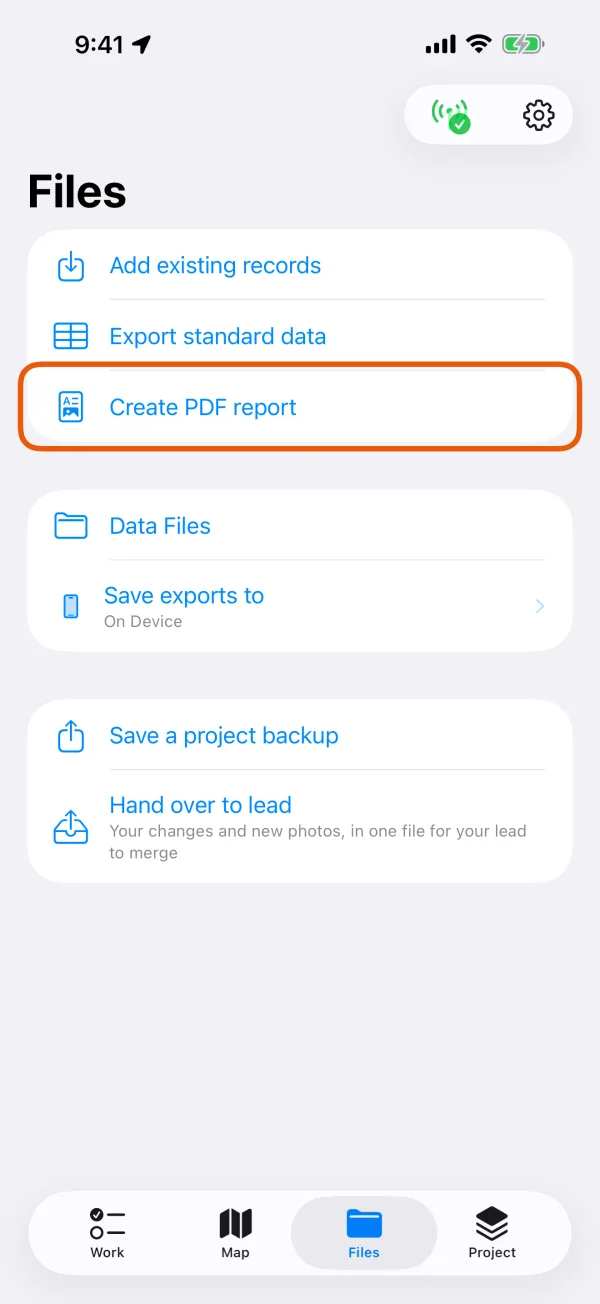
The Project tab, with Create PDF report marked. 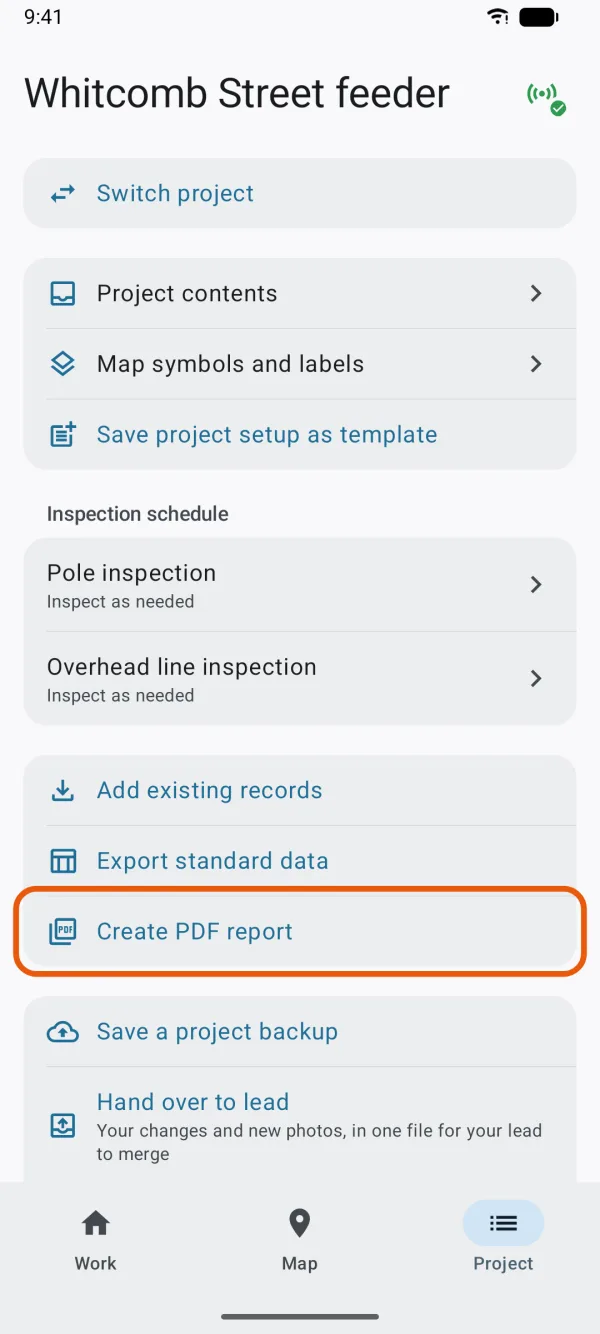
The Project tab, with Create PDF report marked. Scroll down and tap More settings.
The settings open below it.
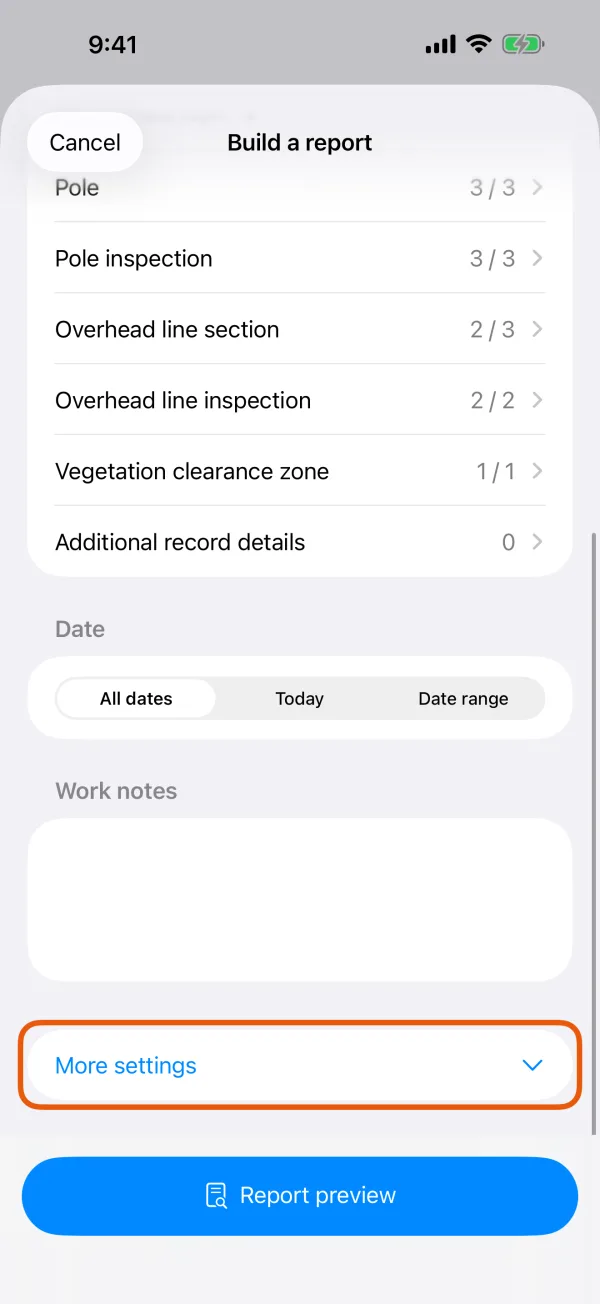
Paper size, limits, Include and Report appearance. 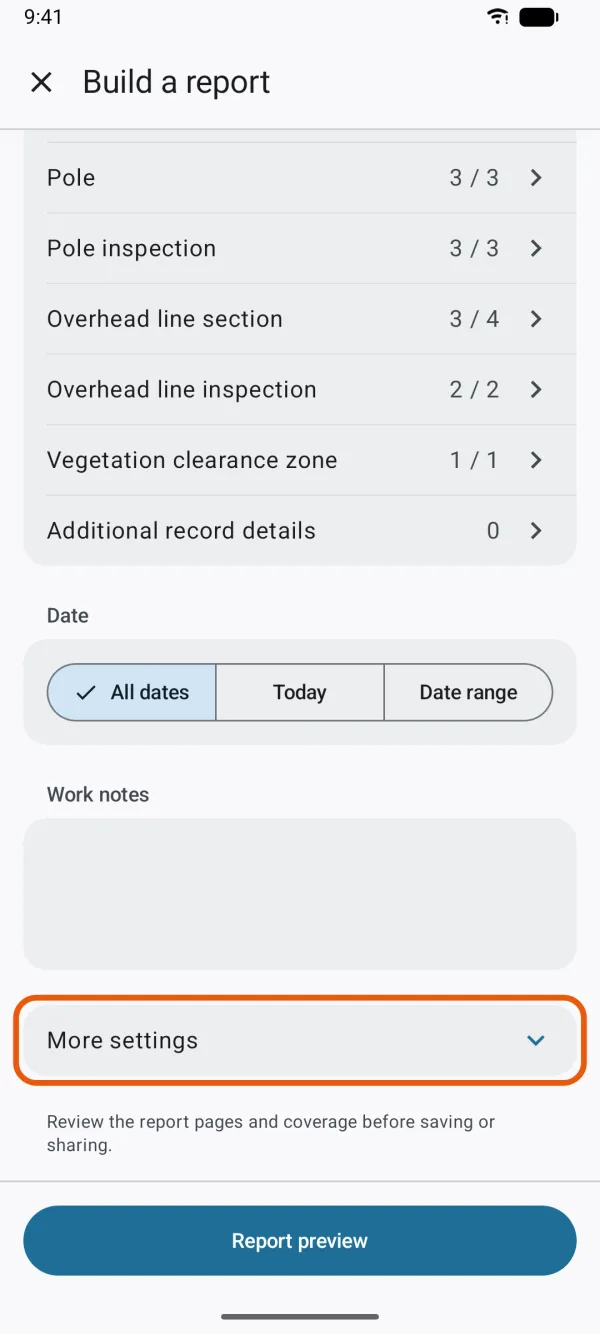
Paper size, limits, Include and Report appearance. Choose the Paper size and the limits.
Paper size is A4 or Letter. Record limit and Media limit cap how much one report holds.
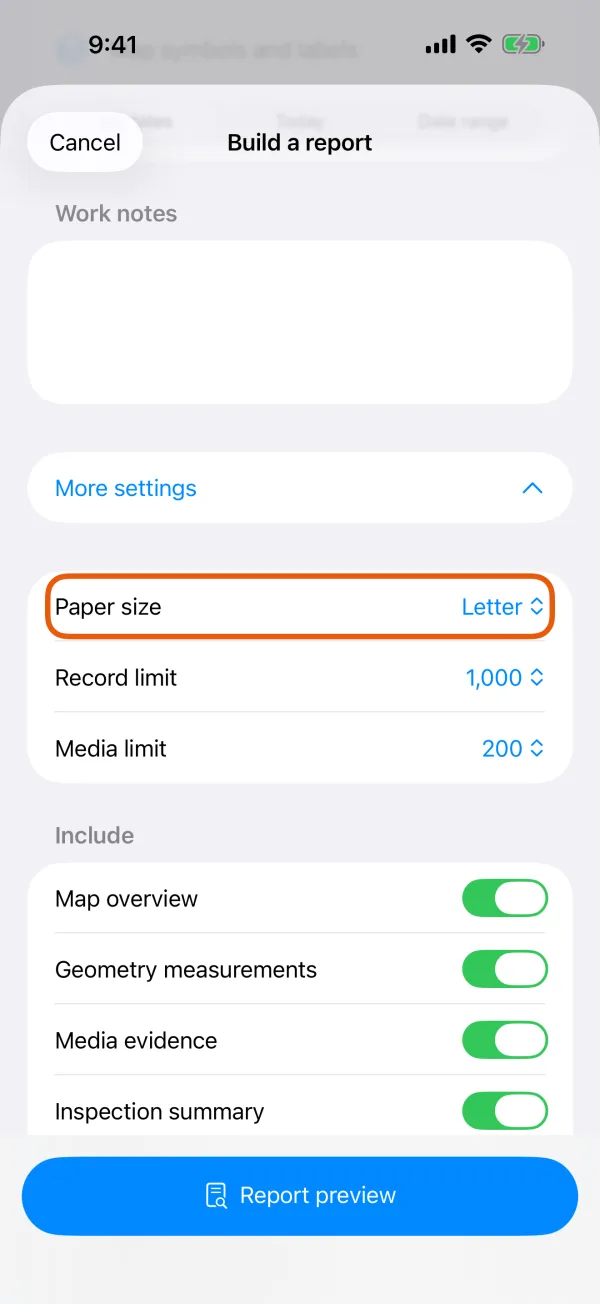
Paper size, Record limit and Media limit. 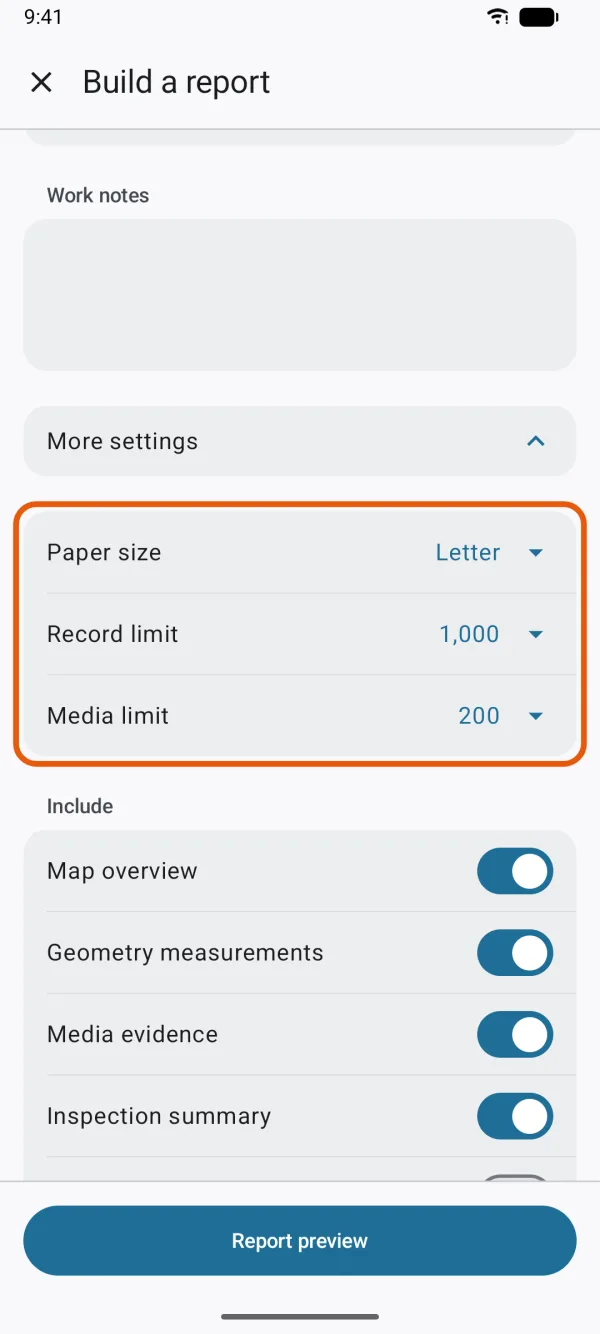
Paper size, Record limit and Media limit. Turn sections on or off under Include.
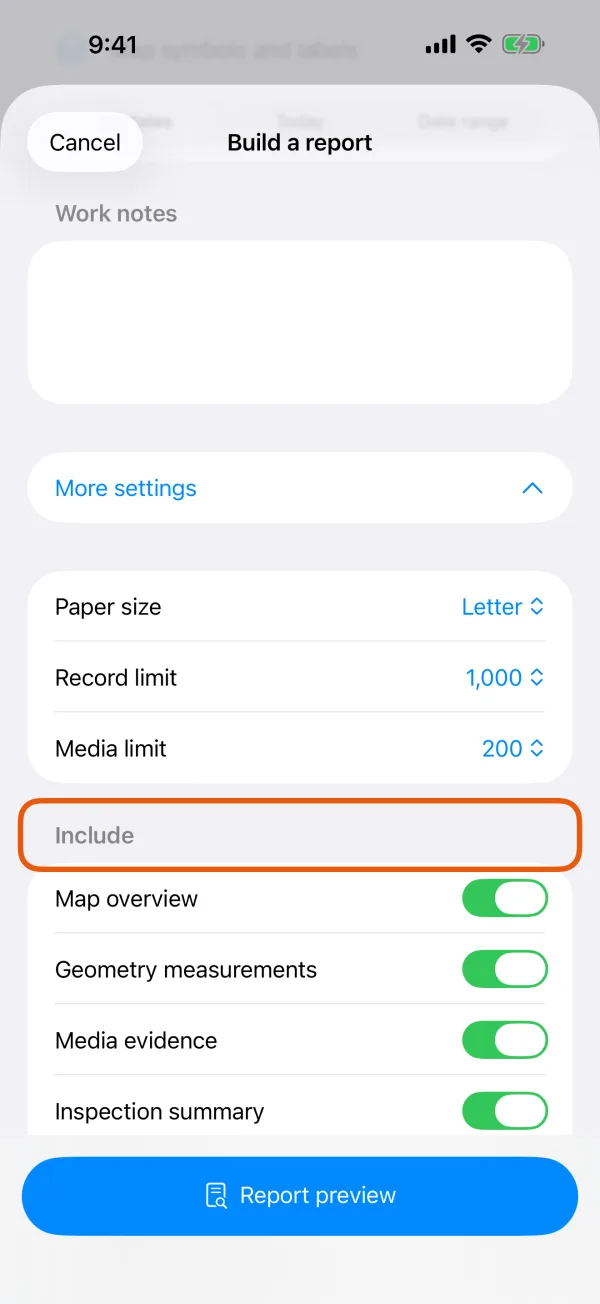
The Include switches. 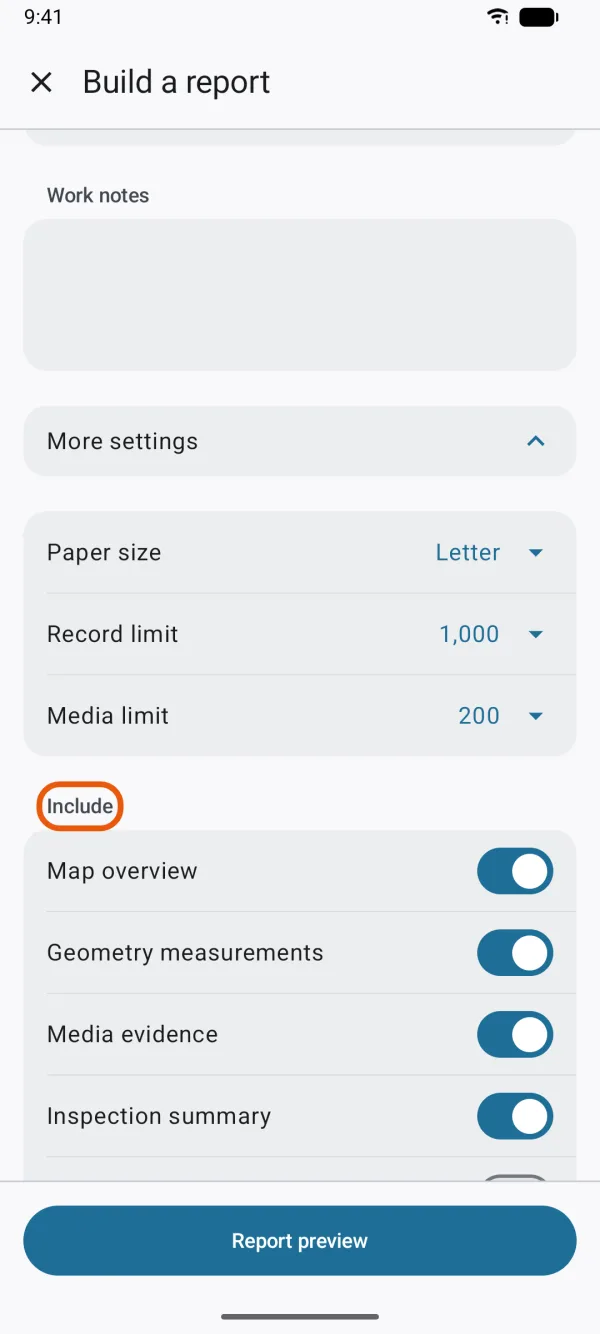
The Include switches. Set the Report appearance.
Tap Choose logo to pick your logo, and fill in Organization name and Report subtitle. See logo, name and subtitle.
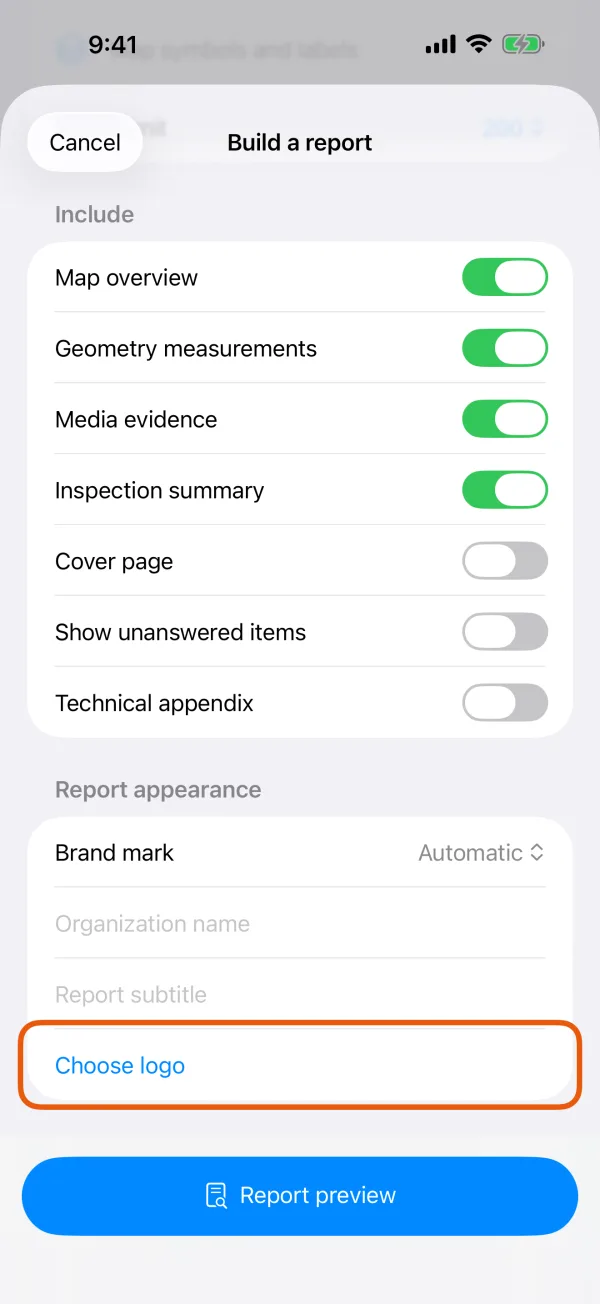
Brand mark, Organization name, Report subtitle and Choose logo. 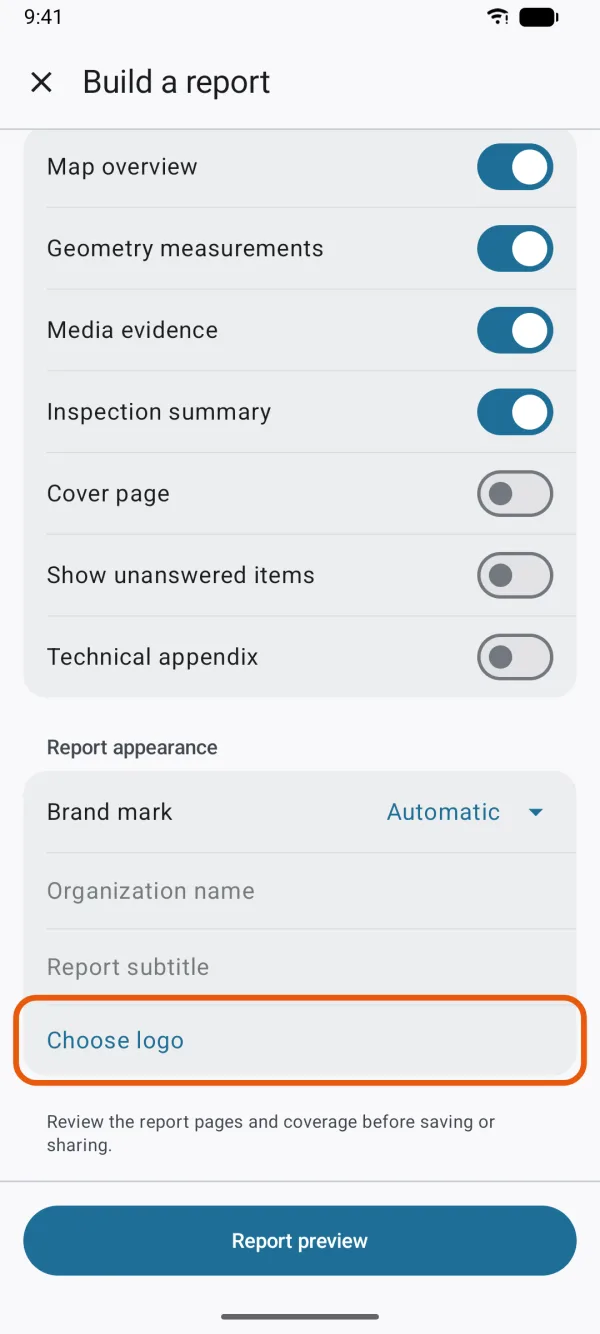
Brand mark, Organization name, Report subtitle and Choose logo. Tap Report preview.
Check the pages before you save or share them. See make a PDF report.
Paper size and limits
- Paper size: Letter at first on a device set to the United States, Canada, Mexico, Puerto Rico, the Philippines and a few other countries in the Americas, and A4 elsewhere. Wide tables continue on more pages.
- Record limit: 10, 25, 50, 100, 200, 500 or 1,000 records. It starts at 1,000, the most one report can hold.
- Media limit: 5, 10, 20, 50, 100, 150 or 200 photos and other attachments. It starts at 200.
When more records or attachments match than the limits allow, the report includes part of them and says so. Estimated table pages, under Record tables, gives a rough idea of the report's length.
What each Include switch adds
| Switch | What it adds |
|---|---|
| Map overview | A page with the records drawn on the project's map. On at first. |
| Geometry measurements | Lengths, areas and heights of records, and the total length and area on the summary page. On at first. |
| Media evidence | Pages of photos and other attachments. On at first. |
| Inspection summary | Counts of inspections by result on the summary page, when the report has inspections. On at first. |
| Cover page | A first page with your logo, organization name, the project's name, your subtitle, the purpose, the date and the counts. |
| Show unanswered items | Questions with no answer on record pages too. Off at first, so empty answers are left out. |
| Technical appendix | Pages listing each record's ID, record type, latitude and longitude, created and edited times, shape measurements and attachment files, with the project ID and revision. |
The purpose you choose sets two of them: Field brief turns Cover page and Technical appendix off, Formal report and Compliance summary turn on Cover page, and Audit archive turns on both. You can still change them afterward.
Logo, name and subtitle
Organization name and Report subtitle are printed on the cover page, so they appear only with Cover page on. Without an organization name, the cover says Dipper Field.
Choose logo opens the Files picker on iPhone, or the system file picker on Android. Choosing a logo replaces the one before and sets Brand mark to Organization logo. If the image can't be used, the app says This image could not be used as the report logo. Remove logo deletes it and sets Brand mark back to Automatic.
Brand mark is the small mark on the cover page and at the top of every other page, beside the project's name:
| Brand mark | What's shown |
|---|---|
| Automatic | Your logo, or the Dipper Field icon until you choose one |
| Organization logo | The same: your logo, or the Dipper Field icon |
| Project icon | The first letter of the project's name |
| Work symbol | A symbol for the shape of the report's record type: point, line or area. A general symbol when the report covers all record types. |
| None | No mark |
Every page's footer says Dipper Field with the project's revision, and the page number. It can't be changed.
What's remembered
For each project, on this device, the next report starts with the same purpose, Paper size, Brand mark, logo, Organization name, Report subtitle, table columns, and the Map overview, Media evidence and Geometry measurements switches.
The rest start over each time: Record limit at 1,000, Media limit at 200, Inspection summary on and Show unanswered items off. Cover page and Technical appendix follow the purpose.